Gearjury may earn a commission from qualifying retailer links. This does not affect our editorial guidance.
Guide
How to Connect a TP Link WiFi Extender to Your Router
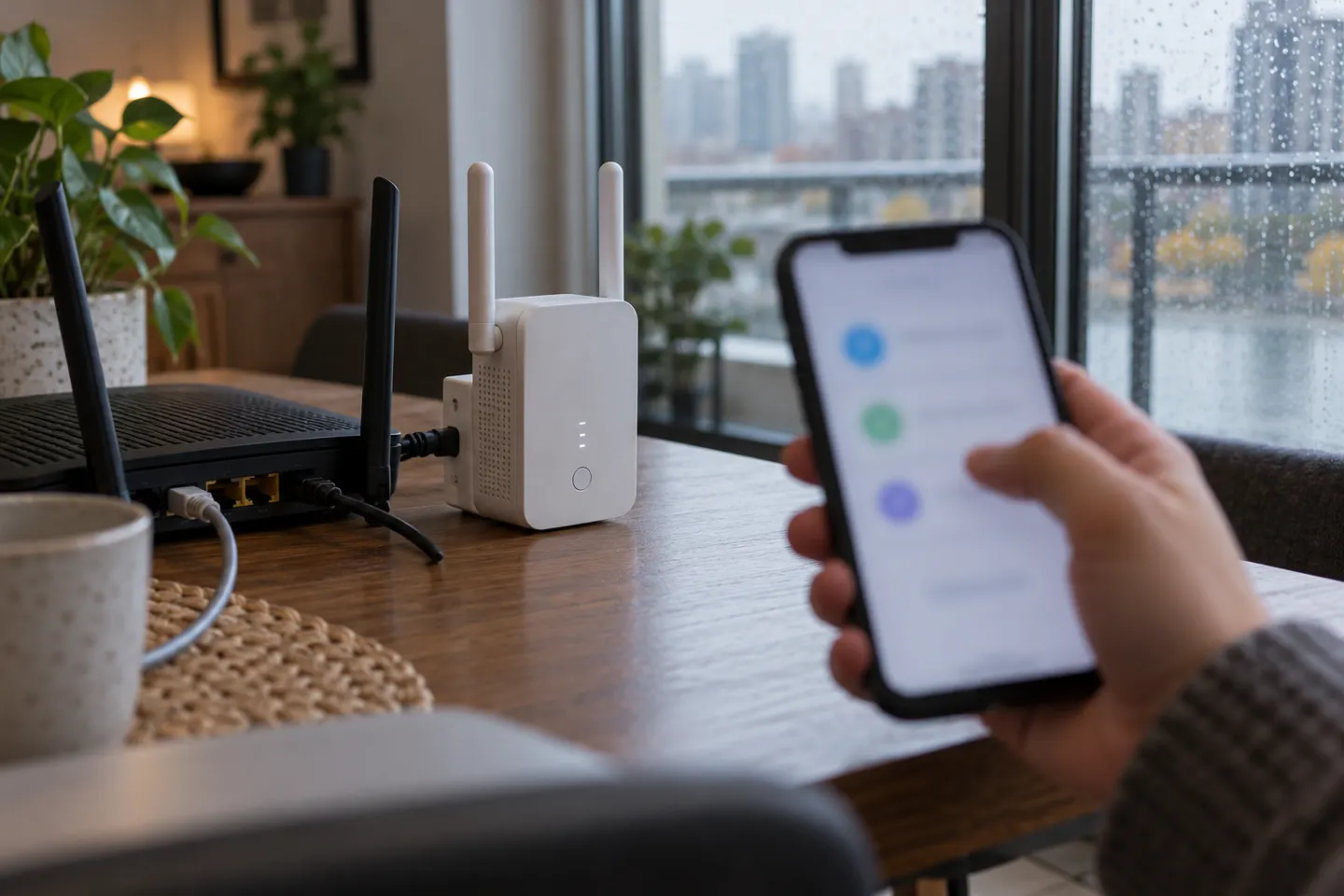
Use WPS for a quick pairing or the TP-Link Tether app when your router has no WPS button. Configure the extender near the router first, then move it to a midway socket.
GGearjury editorial team · Updated 18 October 2026· 5 min
01
How to connect a TP-Link extender with WPS
Plug the extender in beside the router and wait for it to start. Press the router's WPS button, then press the extender's WPS or RE button within the period stated in its manual. A stable signal indicator usually confirms pairing; names and timings vary by model.
02
Set it up without WPS using the Tether app
Connect your phone to the extender's temporary WiFi network, open TP-Link Tether, and follow the prompts to select your home network and enter its password. If the app cannot find the extender, check that mobile data or a VPN is not interrupting local setup and consult the model-specific guide.
03
Connect an extender to a new WiFi network
If you changed router or WiFi credentials, reset the extender only if needed, then run setup again and choose the new network. Reconnect phones, TVs and consoles to the extender's current network name; saved credentials for the old network may no longer work.
04
Choose the right socket
After setup, move the unit to a socket between the router and the weak-coverage area. It still needs a usable signal from the router. Avoid hiding it behind furniture or beside large appliances, and use its signal indicator or app to check the connection.
05
Connect a phone, PS4 or smart TV
Select the extender's WiFi name in the device's network settings and enter the WiFi password. Some extenders use the router name with an added suffix; others can share the same name. For a wired device, connect an Ethernet cable from its network port to the extender's Ethernet port, if that model supports one.
06
Will an extender work with 5 GHz, Starlink or another router?
Many dual-band extenders can repeat a 5 GHz WiFi network, but compatibility depends on the extender and router settings. A TP-Link extender can generally join a third-party router, including a Starlink router, when supported bands and security settings match; follow both products' current setup instructions.
07
If the TP-Link extender will not connect
Check the router password, distance, firmware guidance and whether access controls or a hidden network are blocking setup. Restart both devices and retry beside the router. If pairing still fails, use the exact extender model's reset and setup instructions rather than relying on a generic button sequence.
Common questions
Questions before you buy
How do I connect a TP-Link extender to new WiFi?
Open Tether or the extender's web setup, select the new router network and enter its password. If it retains the old configuration, reset it according to its model manual and set it up again.
How do I connect a TP-Link extender to WiFi without WPS?
Use TP-Link Tether or the web setup page: join the extender's temporary network, then select your router WiFi and enter its password. The exact interface depends on the model.
Can I connect a PS4 or smart TV to a WiFi extender?
Yes. Choose the extender network in the device's WiFi settings and enter the network password. An Ethernet connection is another option if both the device and extender have the required ports.
Can a WiFi extender connect to 5G?
A dual-band extender may connect to 5 GHz WiFi. This is different from 5G mobile broadband; check the extender's supported bands and your router settings.
Can I connect a WiFi extender to Ethernet?
Some extenders have an Ethernet port for a wired client or access-point mode. Check the model documentation, as the port's supported functions differ.
Can I connect a phone to a WiFi extender?
Yes. Select the extender's network name in your phone's WiFi menu and enter the password used during setup.
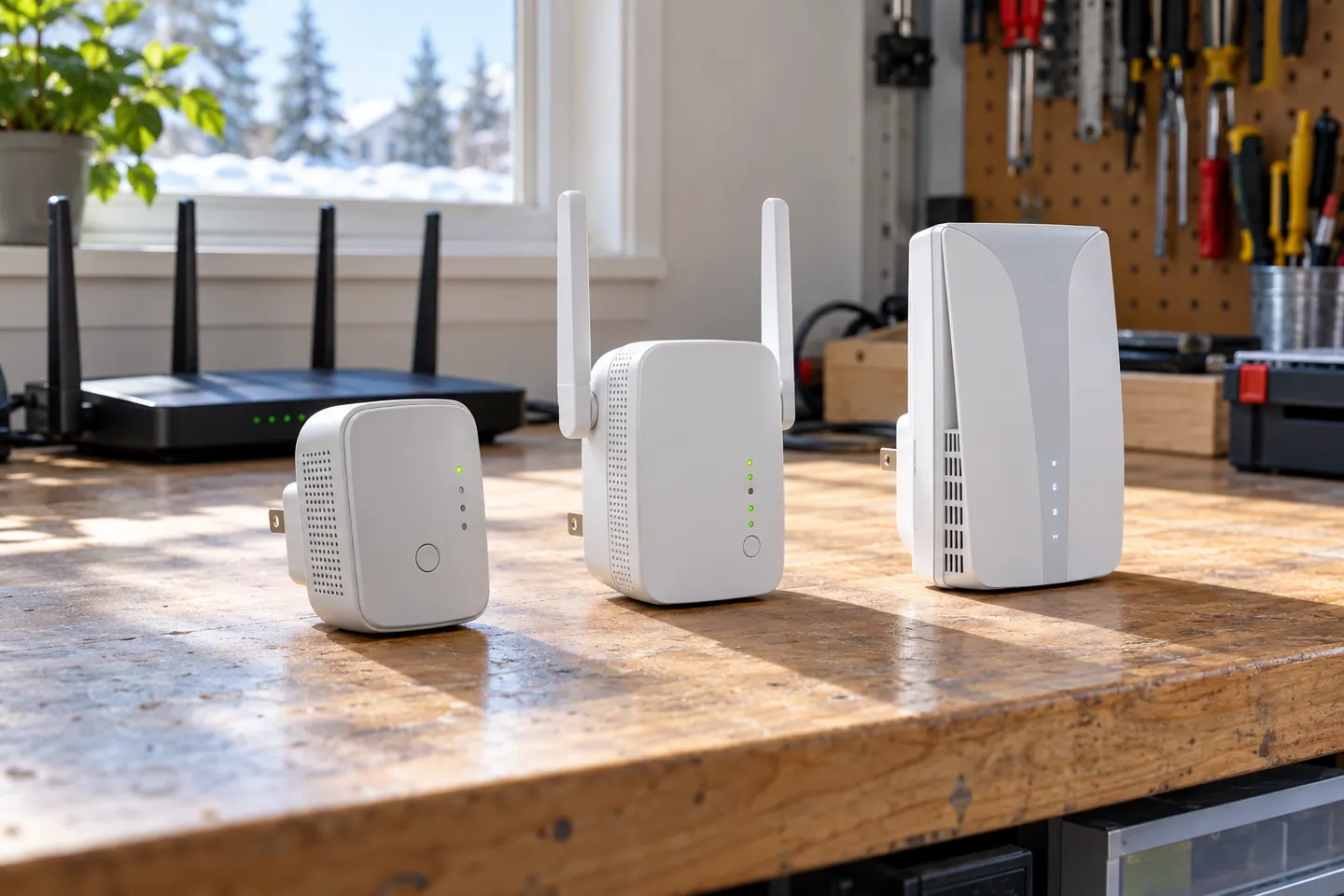
For a general indoor pick, start with TP-Link RE705X: it has WiFi 6, a Gigabit Ethernet port and access point mode. RE550, RE315 and a powerline kit suit different budgets and layouts; outdoor use needs purpose-built hardware.
Choose a wireless range extender when it can receive a healthy signal; consider powerline when the route through the home is the main obstacle. TP-Link’s model range includes both approaches.
A WiFi extender can carry an existing router signal into a weak-coverage area. Choose a plug-in repeater for a simple dead zone, or consider powerline when walls make a wireless link unreliable.
Your privacy
We use cookies and similar technologies. Necessary ones keep the site working. With your permission we also use statistics cookies (Google Analytics and Microsoft Clarity) to understand which guides help readers. You can accept all, reject all or choose. You can change your choice at any time from "Cookie settings" at the bottom of every page. Cookie policy