




 Official manufacturer image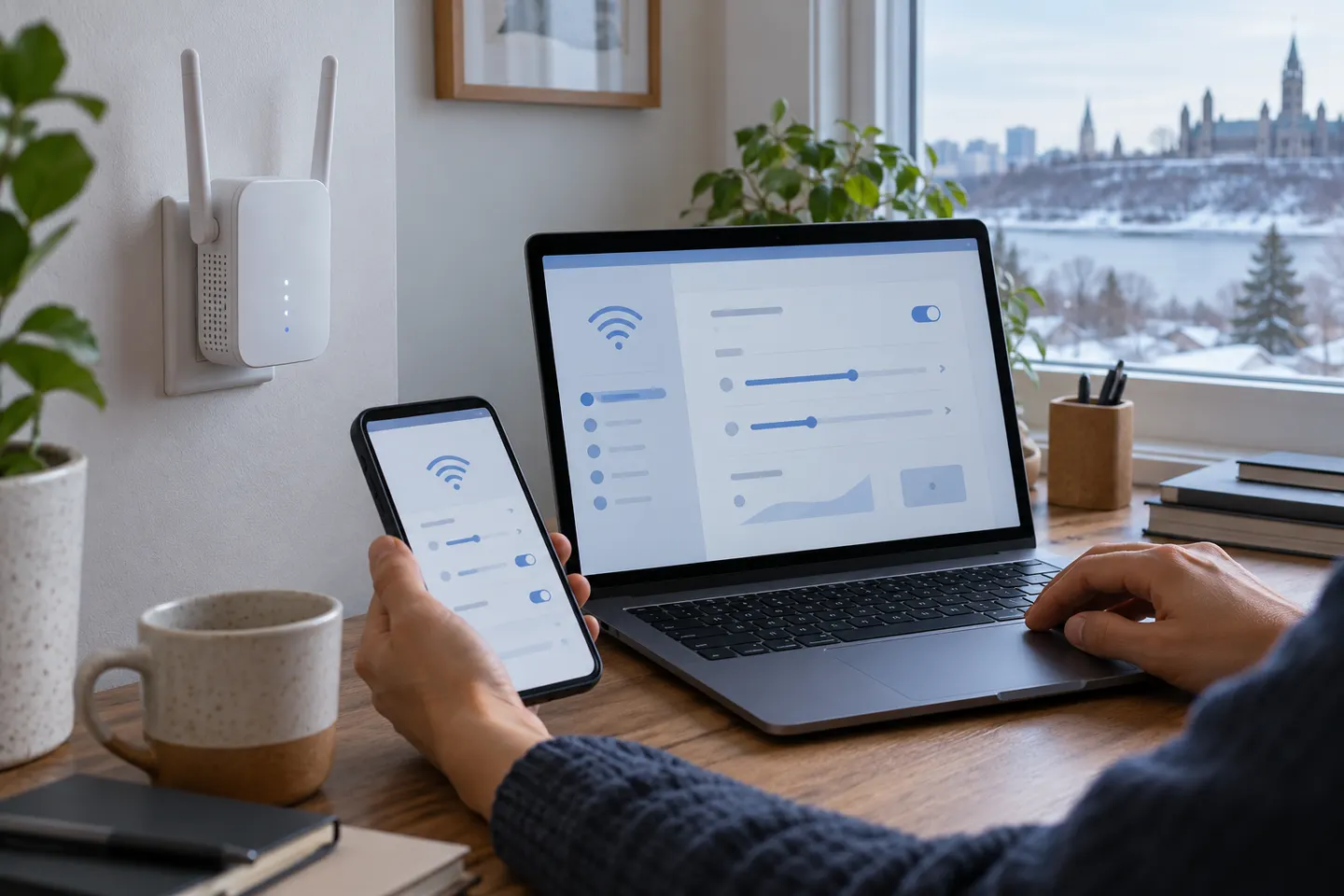
Our picks
Top picks
Official manufacturer image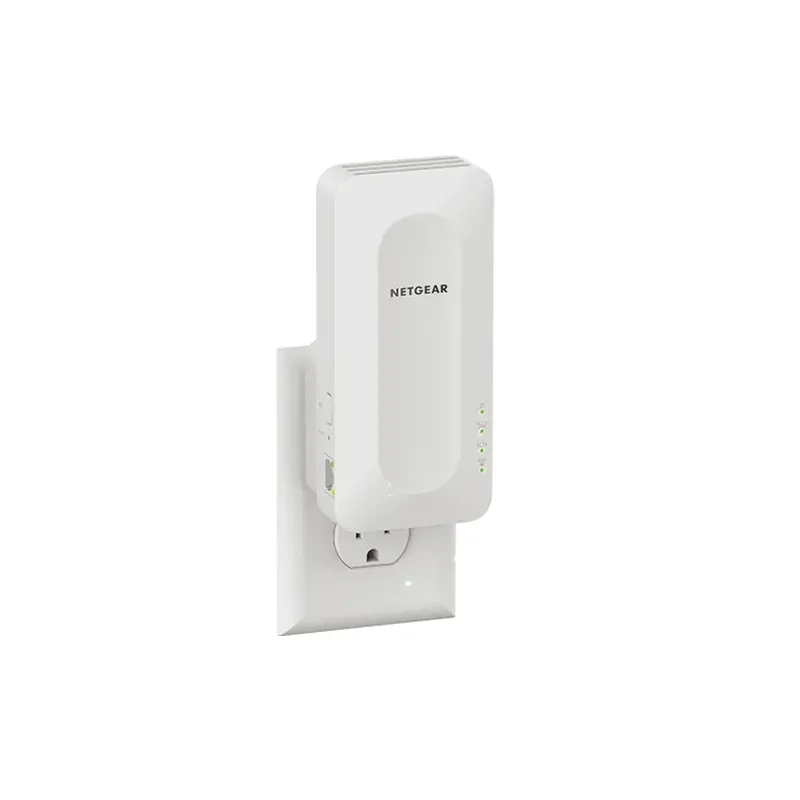 Official manufacturer image
NETGEAR EAX15
Check price on Amazon.ca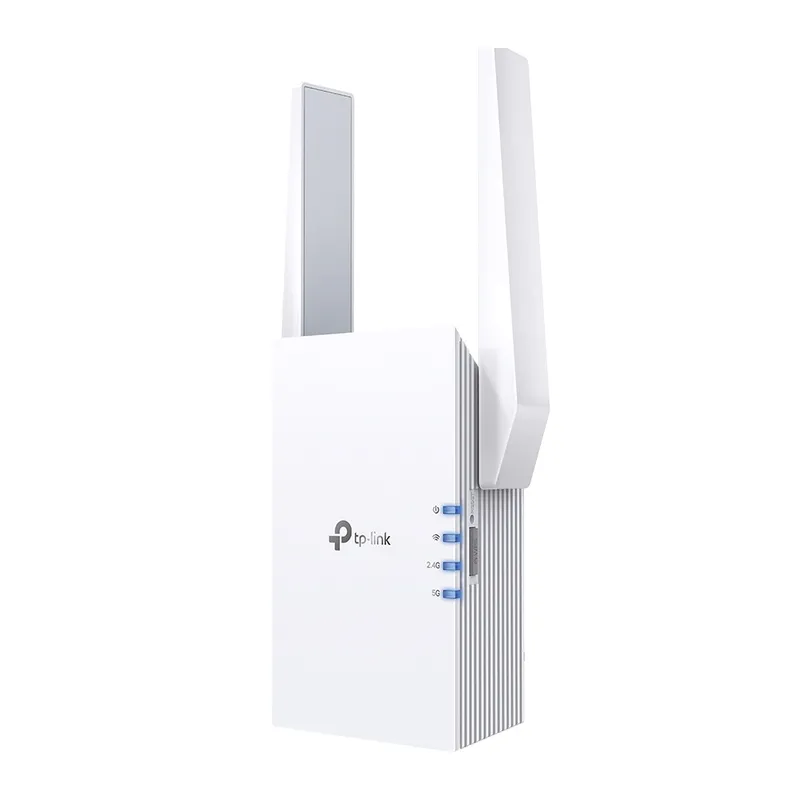 Official manufacturer image
TP-Link RE605X
Check price on Amazon.caCommon questions
Questions before you buy
How do I log in to my Wi-Fi extender settings?
Connect to the extender’s network and open its management app or the local address listed in its manual. The login method varies by manufacturer and model.
Can I change the Wi-Fi name on an extender?
Many extenders let you choose how the extended network is named, but options vary. A name change can require reconnecting phones, laptops and smart devices.
Should the extender use the same password as my router?
During setup, the extender often uses the router credentials to join the home network. Some products allow separate extended-network details; follow the exact security guidance in the manual.
How do I update extender settings after changing my router?
Reconnect or reset the extender according to its manual, then run setup with the new router network details. Confirm the model’s process before performing a factory reset.