Gearjury may earn a commission from qualifying retailer links. This does not affect our editorial assessments.
Guide
How to Connect a Verizon WiFi Extender to Your Router
The current Verizon Fios Extender pairs with supported Verizon or Fios routers. Start beside the router, complete the guided or button-based pairing, then move it toward the weak-coverage area and confirm the status light.
GGearjury editorial team · Updated October 18, 2026· 4 min
01
Check that the Verizon extender matches your router
Verizon says the current Fios Extender is designed for its supported Verizon Router and Fios Router models; older network extenders have different compatibility. Read the label on both devices and use the quick-start guide for that exact pairing before starting.
02
Choose wireless or wired backhaul
A wireless setup avoids running a cable, while Verizon also supports a wired connection over Ethernet or coax for the Fios Extender. If you have a convenient Ethernet or coax outlet near the weak-signal area, follow Verizon's wired instructions; otherwise begin with its wireless pairing method.
03
Power the extender beside the router
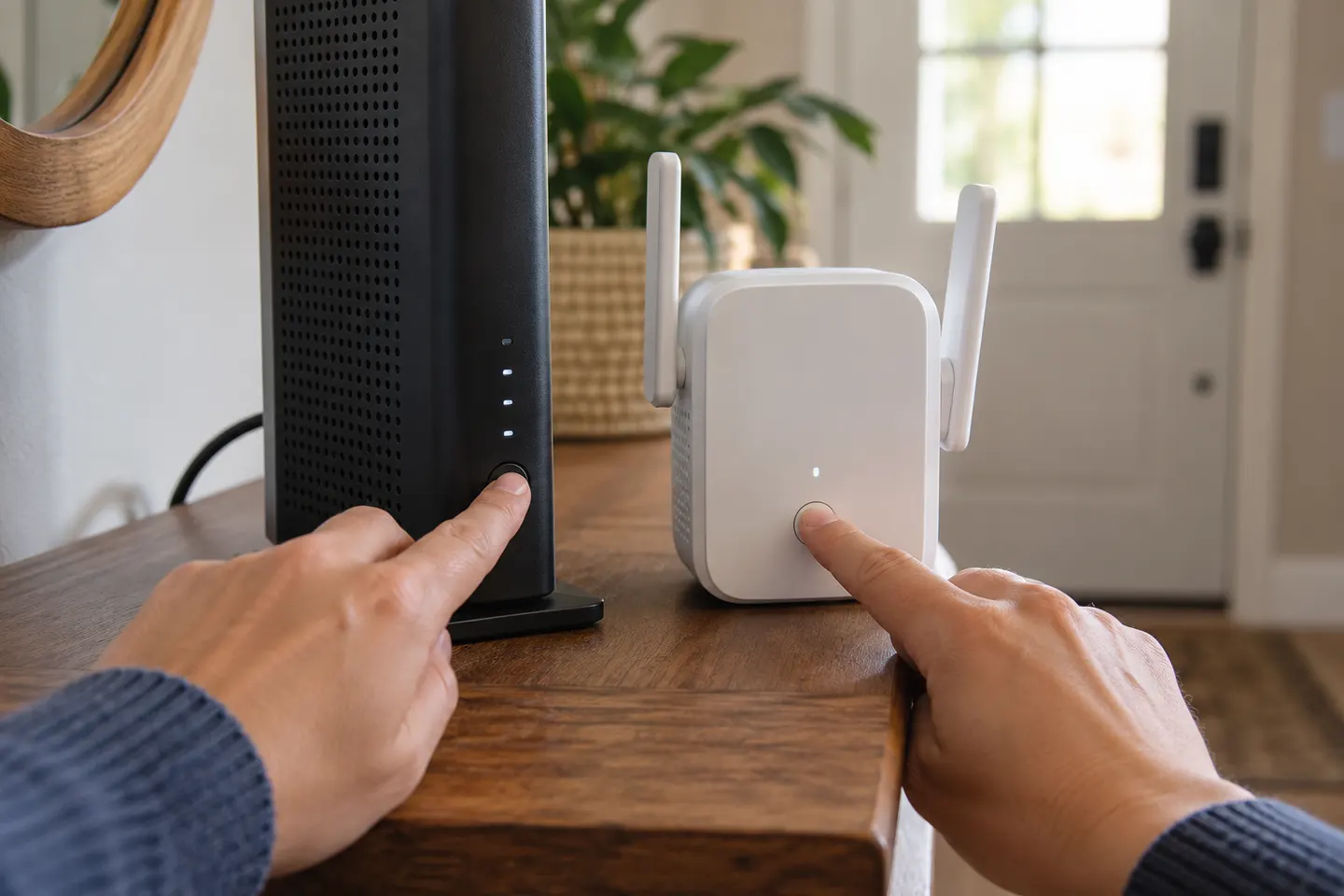
For wireless pairing, place the extender near the compatible router and connect its power. Use the Fios Extender quick-start guide's sequence for your router; the model's unified button can be used for manual pairing if automatic pairing does not complete.
04
Pair the devices and watch the status light
Follow the button or on-screen steps for the specific router and extender. Verizon's support guidance uses the extender light to indicate link quality: a steady white light indicates an optimal placement, while yellow blinking patterns mean adjust the distance and check the device guide.
05
Move the extender toward the weak WiFi area
Once paired, position the unit between the router and the area with poor reception. Keep it away from moisture, heat, large metal objects and sources of interference. If the link indicator shows an unsuitable position, move the extender and check again.
06
Verify the network name and test a device
The current Fios Extender is intended to share a single WiFi network name with compatible routers. If the name does not appear, Verizon advises rebooting and, if needed, manually pairing with the unified buttons. Confirm a phone or laptop connects before settling on the final location.
Common questions
Questions before you buy
Does a Verizon WiFi extender work with any router?
No. Verizon says the current Fios Extender works with supported current Verizon or Fios router models. Check the model compatibility information before pairing; earlier extenders have separate compatibility rules.
Can I connect a Fios Extender with Ethernet or coax?
Yes. Verizon lists Ethernet and coax as wired backhaul options for the Fios Extender. Follow the instructions for your router and extender model, especially if the coax outlet is already in use.
What does a yellow light on the Verizon extender mean?
Verizon's placement guidance distinguishes slow and fast yellow blinking for distance adjustments. Check the LED chart for your exact model and move the unit as directed; light meanings can differ across generations.
Where should I place a Verizon WiFi extender?
For a wireless connection, put it between the router and the weak-coverage area, where it can still receive a solid router signal. Verizon suggests keeping it away from interference sources, moisture, heat and large metal objects.
Why is my extender not showing the router's WiFi name?
Verizon recommends rebooting the Fios Extender first. If the network name still does not copy over, manually pair it with the router using the unified buttons and follow the model's LED sequence.
A WiFi extender can carry a router's signal into a nearby weak-signal area. Start by checking compatibility, placement and whether a wireless repeater or wired access point fits your home.
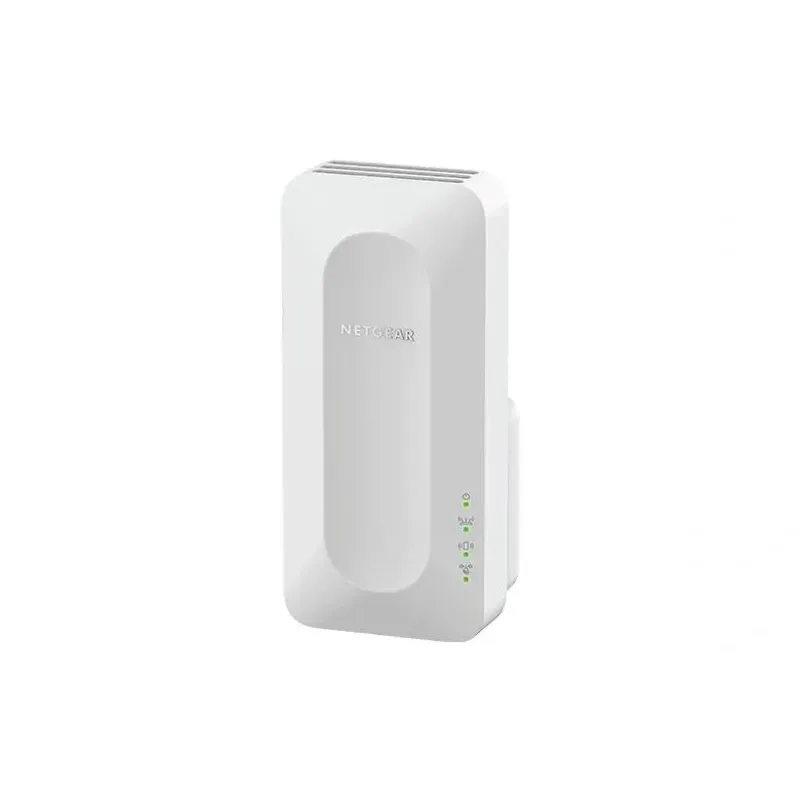
For a versatile WiFi 6 choice, consider TP-Link RE705X, which pairs dual-band WiFi 6 with a Gigabit Ethernet port. NETGEAR EAX15 suits an existing NETGEAR mesh setup, while TP-Link RE550 and NETGEAR EX6120 offer different WiFi 5 feature sets.
TP-Link offers WiFi 6 and WiFi 5 extenders with different port and mesh features. Check hardware version and router compatibility before choosing.
Your privacy
We use cookies and similar technologies. Necessary ones keep the site working. With your permission we also use statistics cookies (Google Analytics and Microsoft Clarity) to understand which guides help readers. You can accept all, reject all or choose. You can change your choice at any time from "Cookie settings" at the bottom of every page. Cookie policy