Identify your extender and hardware version
Read the model code and hardware revision on the label. Open the matching TP-Link support page because menus and firmware can differ between revisions.

 Best picksBest WiFi Extenders: Which Range Extender Should You Buy?
 Best picksGood Meat Thermometers for Every Kind of Cook
 Best picksBest Dash Cams for Cars in 2026
 Best picksBest Air Purifier for Bedroom in the US: Quiet Models Compared
Gearjury may earn a commission from qualifying retailer links. Recommendations draw on cited product information.
Guide
TP-Link extenders can be configured through WPS, Tether or a web interface, depending on model. Pair it near the router, then relocate and check the signal.
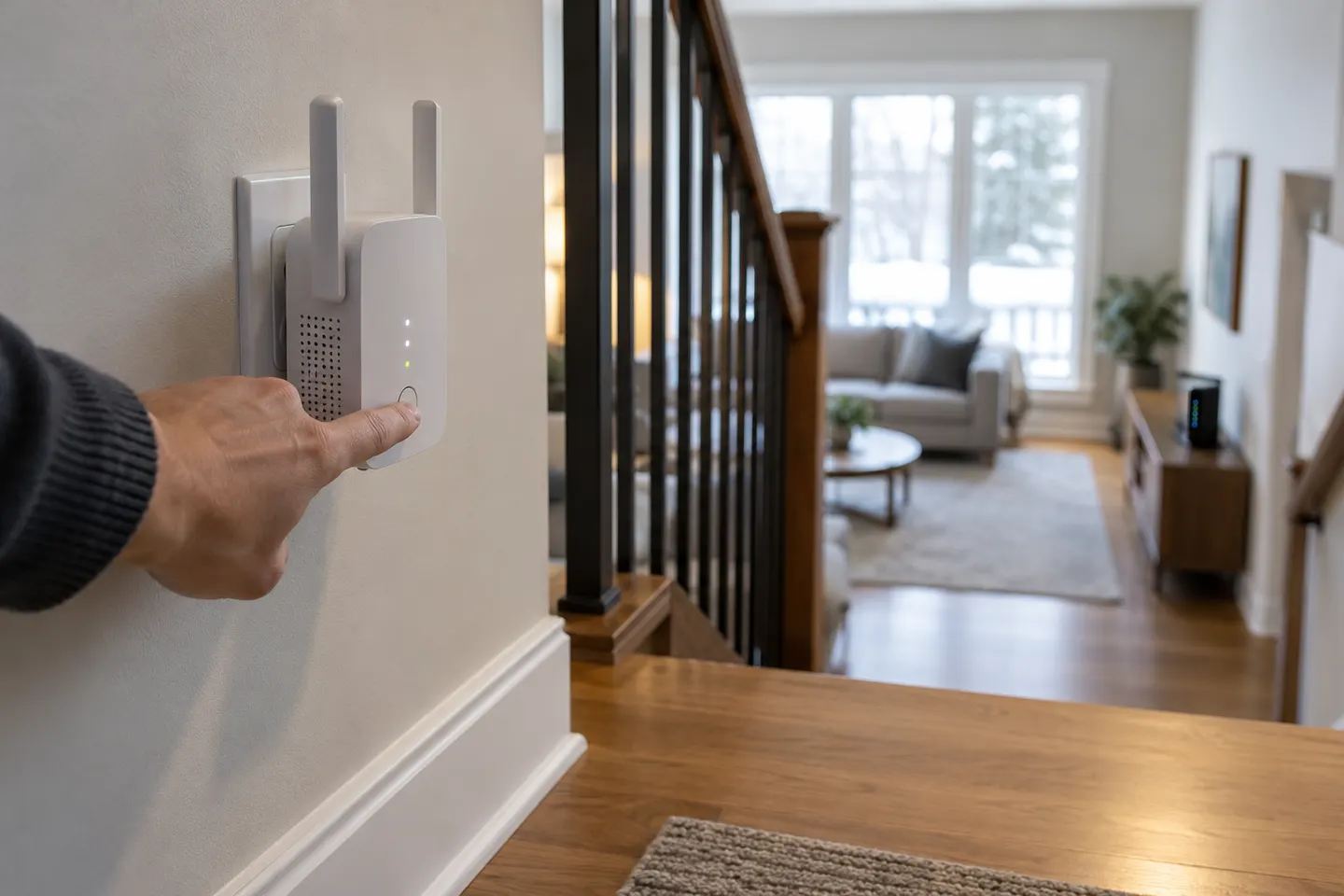
Read the model code and hardware revision on the label. Open the matching TP-Link support page because menus and firmware can differ between revisions.
For WPS, press the router button and then the extender button as directed by the manual. Alternatively use TP-Link Tether or the official web setup flow to select the home network.
Choose the correct band or network name shown in setup and enter the router password carefully. Keep the extender near the router during initial pairing.
Depending on the model, you may keep the same name or add an identifying suffix. Save the configuration and wait for the status light to confirm the link.
Unplug it and choose a midway outlet where the router signal remains usable. Use its signal indicator, then test the area that previously had poor coverage.
If your model supports AP mode, connect an Ethernet cable from the router or network to the extender and select that mode in its interface. Verify the manual for the correct port and steps.
Common questions
Press WPS on the router and then the extender as specified in the model guide. Wait for its connection indicator, then place it where it receives a good router signal.
Yes. Supported models can use the Tether app or a web browser setup page. Follow instructions for the exact model and hardware version.
Use the reset control according to the model manual, holding it for the stated interval. Resetting clears settings, so configure the connection again afterward.
TP-Link lists AP mode for RE315. In that mode, connect it to the wired network as directed in the user guide.
Keep exploring
For a versatile WiFi 6 choice, consider TP-Link RE705X, which pairs dual-band WiFi 6 with a Gigabit Ethernet port. NETGEAR EAX15 suits an existing NETGEAR mesh setup, while TP-Link RE550 and NETGEAR EX6120 offer different WiFi 5 feature sets.
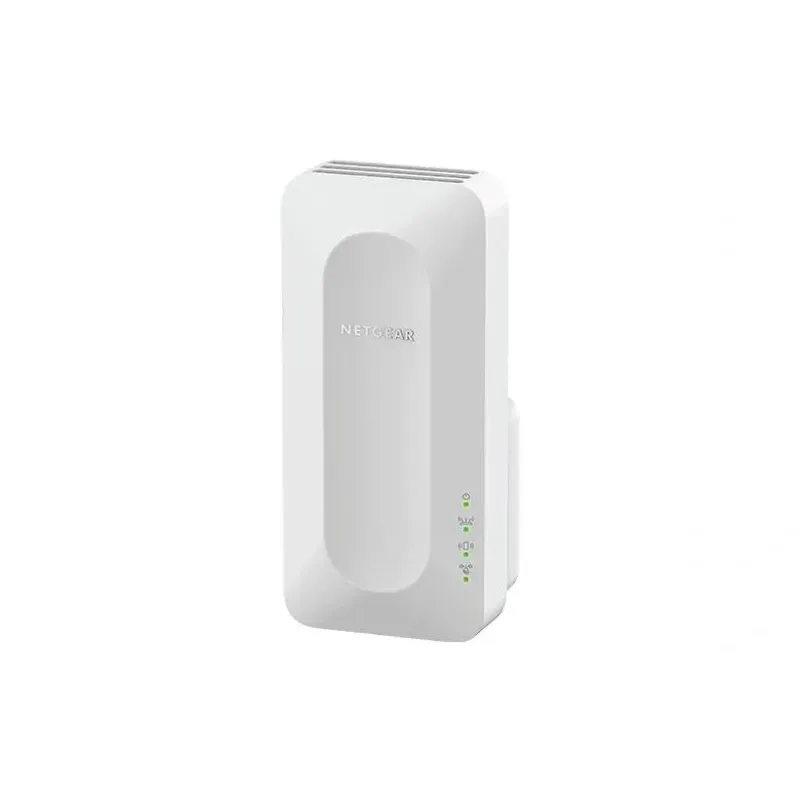
NETGEAR sells plug-in extenders across WiFi generations. Compare exact model features and check whether mesh behavior suits your router.

TP-Link offers WiFi 6 and WiFi 5 extenders with different port and mesh features. Check hardware version and router compatibility before choosing.

A WiFi extender can carry a router's signal into a nearby weak-signal area. Start by checking compatibility, placement and whether a wireless repeater or wired access point fits your home.