Gearjury may earn a commission from qualifying purchases made through retailer links.
Guide
How to Pair a WiFi Extender With Your Router
Pair the extender while it is near the router, using WPS or the manufacturer’s app or web setup. Once it connects, move it to a spot that still receives a solid router signal.
GGearjury editorial team · Updated October 15, 2026· 5 min
01
Check the router and extender first
Confirm the router has internet access and note its network name and password. Read the extender’s quick-start guide to see which bands it supports and whether the setup method requires WPS. During initial pairing, plug the extender into an outlet near the router.
02
Pair with WPS
If both devices support WPS, press the router’s WPS button and then the extender’s WPS button within the time window specified in their manuals. Wait for the connection indicator to settle. The button sequence and LED meaning vary by model, so follow that device’s guide.
03
Use the app or web setup if WPS is unavailable
Install the manufacturer’s official setup app or connect a phone or computer to the extender’s temporary WiFi network. Open the setup address or app named in the manual, select your home network and enter its password. Complete each band’s setup if the wizard presents separate networks.
04
Confirm the extended network
Reconnect a phone to the configured network and check that it can reach the internet. Some extenders reuse the router’s name; others add an extension such as EXT, or let you choose a separate name. The extender’s WiFi password is often configured to match the router, but check the setup screen.
05
Move the extender to a useful location
Unplug it and move it partway between the router and the weak room, staying within the router’s signal. Check the signal indicator or app after each move. Avoid cabinets, large appliances and locations where the router link has already dropped.
06
Troubleshoot a failed pairing
Recheck the WiFi password and network name, make sure the extender is close to the router, and confirm you selected a supported band. If the router’s WPS is disabled or pairing continues to fail, use the app or web setup instead; reset only when you are ready to configure the extender again.
Common questions
Questions before you buy
Do I press WPS on the router or extender first?
The typical process starts with WPS on the router, followed by WPS on the extender within the router’s pairing window. Verify the order and timing in the manuals for both devices.
How do I know my WiFi extender is paired?
Look for the connected or signal LED described in its guide, then connect a device to the extended network and check internet access. LED colors differ by manufacturer and model.
Can I pair an extender without WPS?
Yes. Most models provide an app-based or browser-based setup flow. Join the extender’s temporary network and follow the manufacturer’s instructions to select your router network.
Should the extender use the same WiFi name as the router?
Either arrangement can work. Reusing the name may simplify movement between coverage areas on compatible equipment, while a separate name makes it easier to tell which access point a device uses.
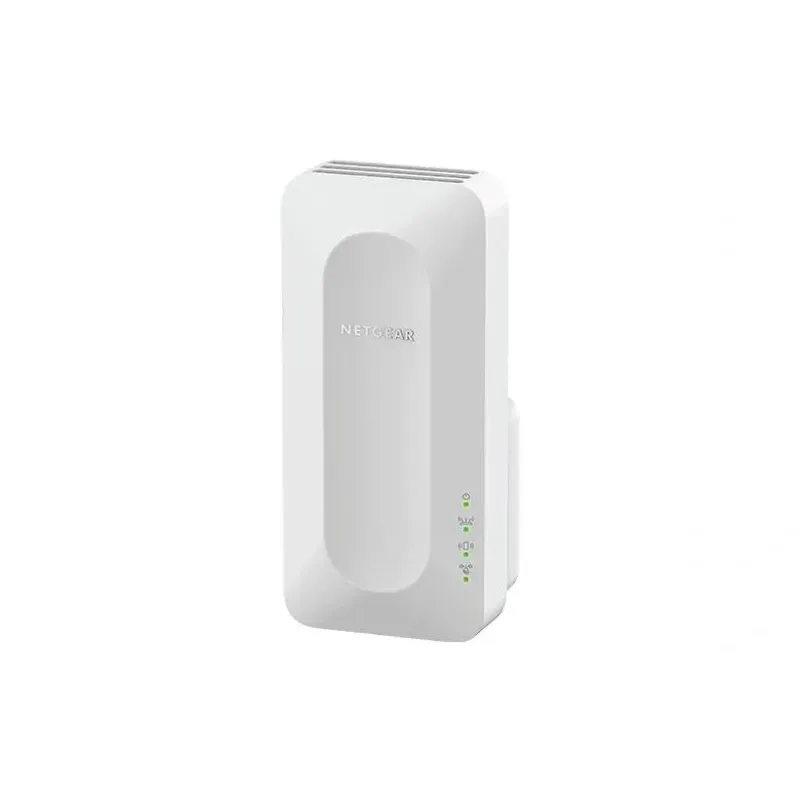
For a versatile WiFi 6 choice, consider TP-Link RE705X, which pairs dual-band WiFi 6 with a Gigabit Ethernet port. NETGEAR EAX15 suits an existing NETGEAR mesh setup, while TP-Link RE550 and NETGEAR EX6120 offer different WiFi 5 feature sets.
A WiFi extender can carry a router's signal into a nearby weak-signal area. Start by checking compatibility, placement and whether a wireless repeater or wired access point fits your home.
Your privacy
We use cookies and similar technologies. Necessary ones keep the site working. With your permission we also use statistics cookies (Google Analytics and Microsoft Clarity) to understand which guides help readers. You can accept all, reject all or choose. You can change your choice at any time from "Cookie settings" at the bottom of every page. Cookie policy