Find the extender model and reset instructions
Read the label on the unit and open the matching manufacturer support page. Button names, reset timing, login methods, and setup steps vary by model and hardware revision.

 Best picksBest WiFi Extenders: Which Range Extender Should You Buy?
 Best picksGood Meat Thermometers for Every Kind of Cook
 Best picksBest Dash Cams for Cars in 2026
 Best picksBest Air Purifier for Bedroom in the US: Quiet Models Compared
Gearjury may earn a commission when you buy through retailer links. Our guidance is based on cited sources.
Guide
To reprogram an extender, reconnect it to the router through its setup app, web interface, or WPS procedure. If the saved settings cannot be changed, reset the unit and configure it again using its exact model guide.
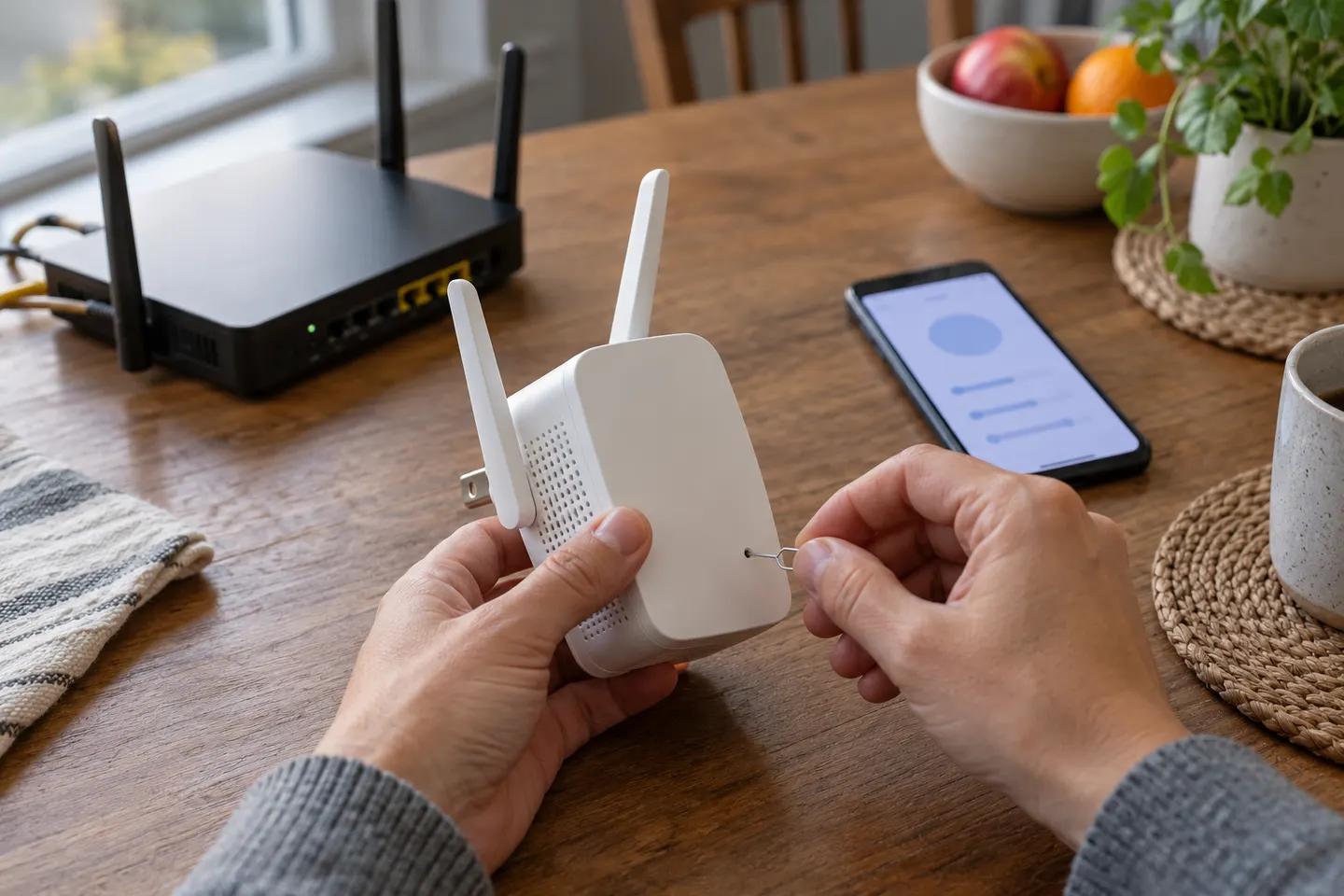
Read the label on the unit and open the matching manufacturer support page. Button names, reset timing, login methods, and setup steps vary by model and hardware revision.
If the extender still responds, use its app or web management page to select the router network again and enter the current password. TP-Link documents this option for supported models through Tether or its management interface.
A factory reset clears the extender configuration and usually returns it to initial setup. Follow the manual reset-button procedure; do not guess the press duration, because it differs by device.
Put the extender near the router for initial pairing. Use the supported WPS sequence or the maker app/web wizard, select the right network band where prompted, and enter the current WiFi password.
Once it has joined the router, relocate it toward the weak-coverage area while keeping a good link back to the router. A signal LED or location assistant can help identify a poor backhaul.
Devices may need to join the configured extender network again, especially if its name changed. Verify connectivity, then check the manufacturer app or support page for firmware updates.
Common questions
Open the extender app or web page, choose the host network, and enter its new password. If you cannot access settings, reset the unit and run its setup again using model instructions.
Not always. Some extenders let you select a new host network in their app or web interface; a reset is useful when those settings are inaccessible or setup fails.
Many models support WPS, but the button sequence and timing are model-specific. Use the manufacturer setup guide and confirm the router also has WPS enabled.
Check that you selected the correct router network and password, that setup is being done near the router, and that the device supports the router configuration. The manufacturer troubleshooting page can identify model-specific causes.
Keep exploring
For a versatile WiFi 6 choice, consider TP-Link RE705X, which pairs dual-band WiFi 6 with a Gigabit Ethernet port. NETGEAR EAX15 suits an existing NETGEAR mesh setup, while TP-Link RE550 and NETGEAR EX6120 offer different WiFi 5 feature sets.
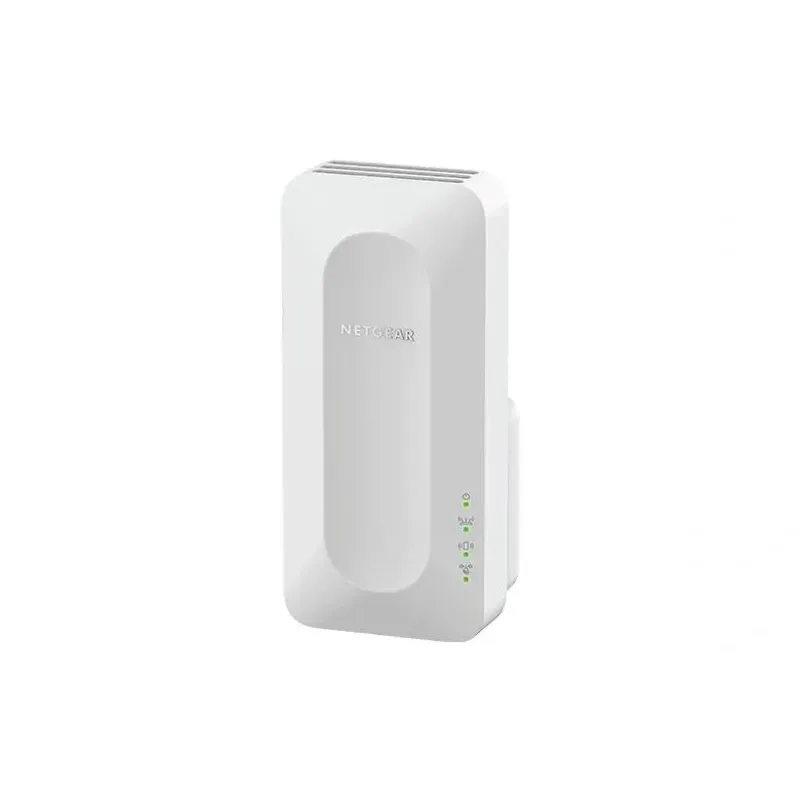
NETGEAR sells plug-in extenders across WiFi generations. Compare exact model features and check whether mesh behavior suits your router.

TP-Link offers WiFi 6 and WiFi 5 extenders with different port and mesh features. Check hardware version and router compatibility before choosing.

A WiFi extender can carry a router's signal into a nearby weak-signal area. Start by checking compatibility, placement and whether a wireless repeater or wired access point fits your home.