Gearjury may earn a commission from qualifying purchases made through retailer links.
Guide
How to Reset a NETGEAR WiFi Range Extender
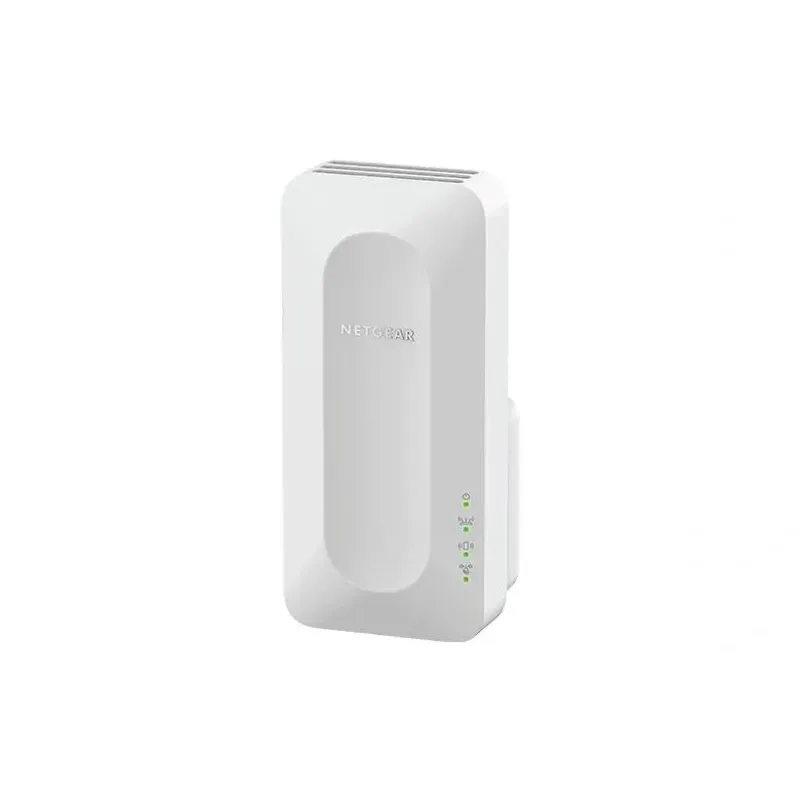
With the extender powered on, press and hold its Reset or Factory Reset control until the Power LED blinks, then let it restart. The exact button location and hold time depend on the model.
GGearjury editorial team · Updated October 15, 2026· 5 min
01
Know what a factory reset changes
A factory reset erases the extender’s saved network and configuration settings. You will need to set it up again afterward. If you only have a brief connection issue, try restarting the extender before restoring defaults.
02
Find the reset control for your model
Check the side, bottom or rear panel for a recessed Reset or Factory Reset button. The label and location vary between NETGEAR models, including AC750 and AC1200 units. Have the exact model number ready so you can open its NETGEAR manual if needed.
03
Reset the extender while it is powered on
Keep the extender plugged in. Use a straightened paper clip to press and hold the reset control until the Power LED blinks, then release it and allow the device to restart. NETGEAR’s support instructions describe this indicator-based method; use the model’s manual if its button behavior differs.
04
Wait for the restart to finish
Do not unplug the device while it is restarting. Once its lights show that it is ready, connect a phone or computer to the default extender network or continue through the setup method specified for your model.
05
Set up the extender again
Use the NETGEAR installation assistant, web interface or supported app to select your home router’s WiFi and enter its current password. If you prefer WPS, follow the exact router and extender sequence in their manuals. Move the extender to a suitable location after setup completes.
06
If an AC750 or AC1200 reset does not work
Confirm the model and hardware version from its label, then consult its specific manual for the reset-button position and LED pattern. Keep the unit powered during the reset and avoid assuming that every AC750 or AC1200 product uses the same timing.
Common questions
Questions before you buy
How do I reset a NETGEAR AC750 WiFi range extender?
With the extender powered on, locate its Reset or Factory Reset button and hold it until the Power LED blinks, following the manual for the exact AC750 model. It will return to factory defaults and require setup again.
How do I reset a NETGEAR AC1200 WiFi range extender?
The reset process depends on the specific AC1200 model. NETGEAR’s general guidance is to hold the Reset or Factory Reset button while powered until the Power LED blinks, then let the extender restart.
How do I reset an AC1200 WiFi range extender?
Check the manufacturer and model number first, because AC1200 describes a WiFi class rather than one device. Follow that model’s manual; NETGEAR units use a powered-on reset control and LED confirmation.
How do I reset an AC750 WiFi range extender?
Identify the brand and exact model, then use its manual’s reset instructions. For NETGEAR, hold the reset control while the extender is powered until the Power LED blinks, then reconfigure the device.
For a versatile WiFi 6 choice, consider TP-Link RE705X, which pairs dual-band WiFi 6 with a Gigabit Ethernet port. NETGEAR EAX15 suits an existing NETGEAR mesh setup, while TP-Link RE550 and NETGEAR EX6120 offer different WiFi 5 feature sets.
A WiFi extender can carry a router's signal into a nearby weak-signal area. Start by checking compatibility, placement and whether a wireless repeater or wired access point fits your home.
Your privacy
We use cookies and similar technologies. Necessary ones keep the site working. With your permission we also use statistics cookies (Google Analytics and Microsoft Clarity) to understand which guides help readers. You can accept all, reject all or choose. You can change your choice at any time from "Cookie settings" at the bottom of every page. Cookie policy