Gearjury may earn a commission from qualifying retailer links. This does not affect our editorial assessments.
Guide
How to Set Up an eero WiFi Extender on Your Network
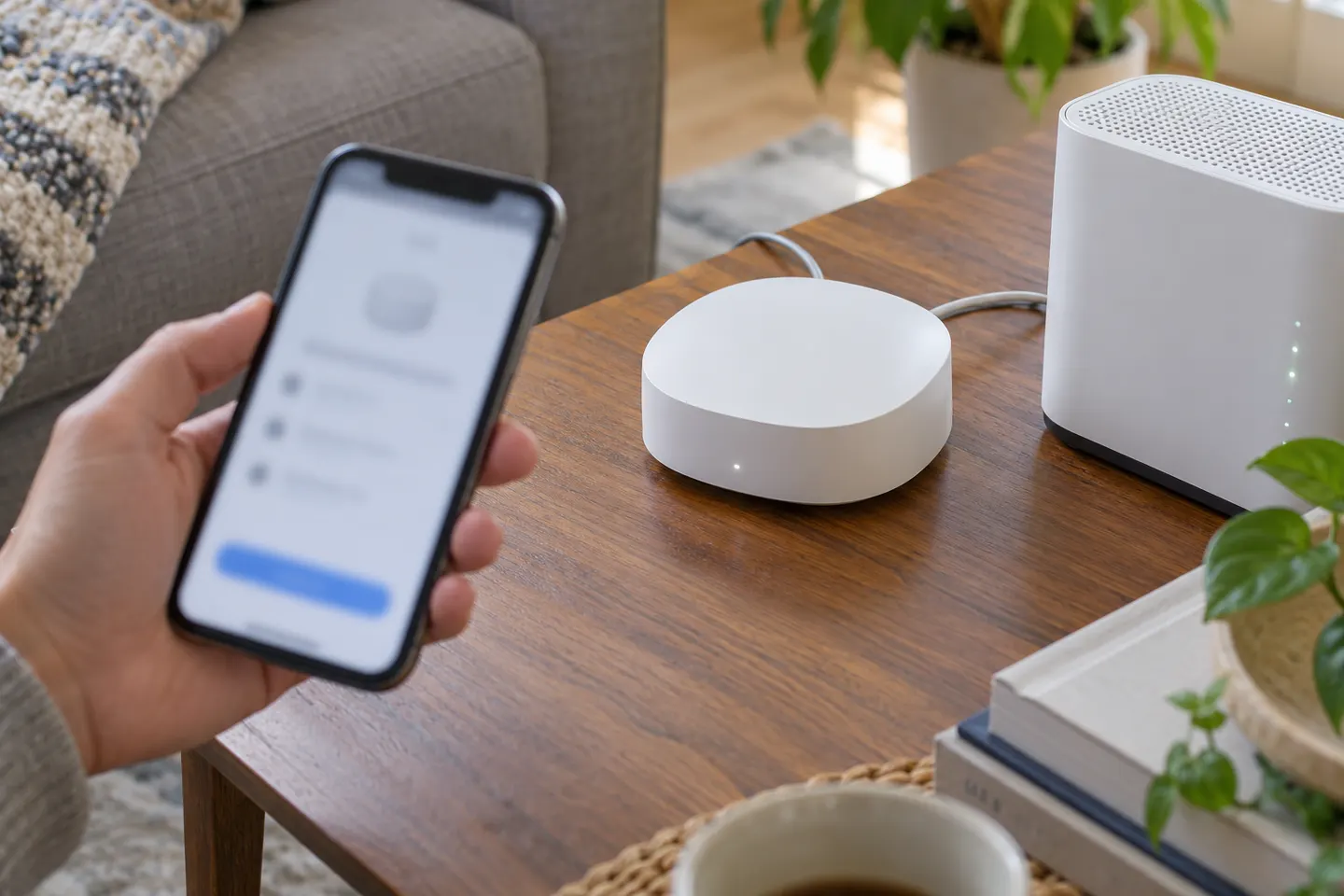
Set up the first Ethernet-capable eero as the gateway through the eero app. Once the network is online, add extra eeros from the app and place each between the gateway and the weak-signal area.
GGearjury editorial team · Updated October 18, 2026· 4 min
01
What you need before setting up eero
Have an Ethernet-capable eero for the gateway, its power cord, an Ethernet cable, an active modem or fiber ONT, and the eero app on a mobile device. Keep your current WiFi name and password nearby if you want existing devices to reconnect using the same credentials.
02
Connect the gateway eero to your modem
Unplug your modem and existing router if they use standard power, then connect the Ethernet cable from the modem or ONT to an Ethernet port on the gateway eero. Restore power to the modem and eero; wait for the app to find the unit and guide you through its connection.
03
Create the eero WiFi network in the app
Follow the app prompts to identify the gateway location and set a network name and password. Reusing the old WiFi credentials can help devices rejoin automatically, though a device may need its WiFi toggled or restarted if it does not reconnect.
04
Add another eero to extend coverage
After the gateway is online, choose the app option to add another eero and follow its pairing prompts. eero says any eero can be added once the gateway is set, including models without Ethernet; those models connect wirelessly.
05
Place the extra eero between the router and dead spot
Put the new unit between the dead zone and an existing eero so it receives a strong signal, with open space around it. Avoid cabinets, large furniture and nearby metal-heavy electronics; a unit placed inside the dead spot may not have a reliable link back.
06
Confirm the mesh link and connect your devices
Let the app finish adding the unit and check that it appears on the network. If using the same network name and password, many devices may reconnect on their own; otherwise select the new network on each device. For an Ethernet-capable unit, eero also supports Ethernet backhaul.
Common questions
Questions before you buy
Can I add an eero without an Ethernet port as an extender?
Yes. eero says an Ethernet-capable unit is needed for gateway setup, but any eero can join an existing network; a unit without Ethernet connects wirelessly.
Where should I put an extra eero?
Place it between the weak-signal area and another eero, in an open spot. Do not hide it in a cabinet or behind large furniture, which can interfere with the wireless link.
Can I use my old WiFi name and password with eero?
Yes. During setup, you can reuse the existing name and password so compatible devices may reconnect automatically. A device that does not rejoin can be toggled off and on or restarted.
Does eero need a modem?
The gateway eero connects to an internet source such as a modem, fiber ONT or compatible cellular connection. Check eero and your provider's setup instructions for your specific service equipment.
Can an eero connect to another eero over Ethernet?
Yes. eero supports wireless connections and Ethernet backhaul on units with Ethernet ports. A wired link can provide a more reliable connection where cable routing is practical.
A WiFi extender can carry a router's signal into a nearby weak-signal area. Start by checking compatibility, placement and whether a wireless repeater or wired access point fits your home.
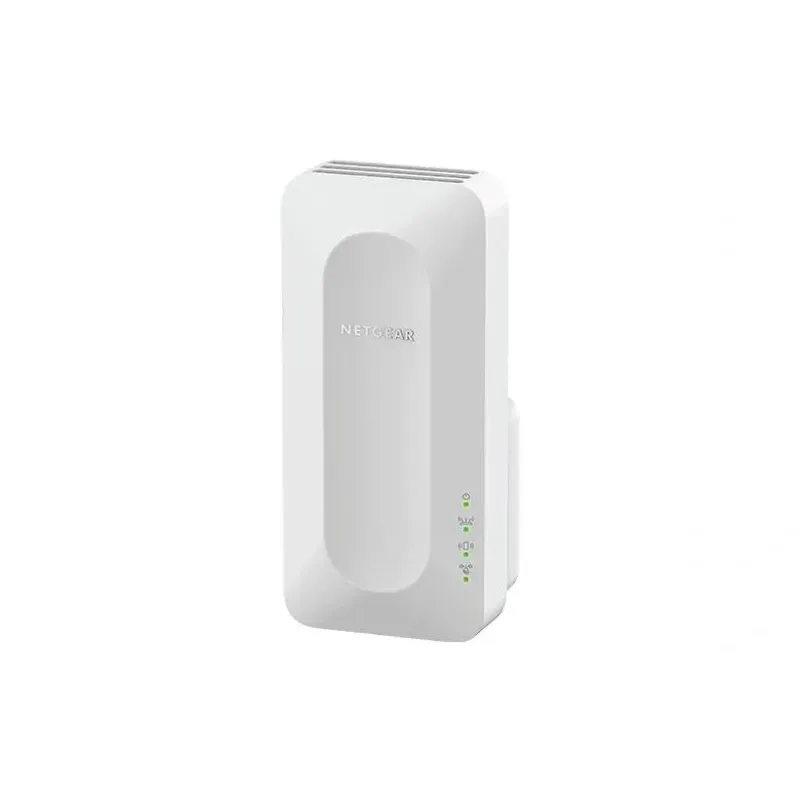
For a versatile WiFi 6 choice, consider TP-Link RE705X, which pairs dual-band WiFi 6 with a Gigabit Ethernet port. NETGEAR EAX15 suits an existing NETGEAR mesh setup, while TP-Link RE550 and NETGEAR EX6120 offer different WiFi 5 feature sets.
TP-Link offers WiFi 6 and WiFi 5 extenders with different port and mesh features. Check hardware version and router compatibility before choosing.
Your privacy
We use cookies and similar technologies. Necessary ones keep the site working. With your permission we also use statistics cookies (Google Analytics and Microsoft Clarity) to understand which guides help readers. You can accept all, reject all or choose. You can change your choice at any time from "Cookie settings" at the bottom of every page. Cookie policy