Gearjury may earn a commission from qualifying purchases made through retailer links.
Guide
How to Set Up a WiFi Extender in Your Home
Connect the extender close to your router first, then move it toward the weak-signal area while keeping a usable link to the router. The exact buttons and setup page depend on the model.
GGearjury editorial team · Updated October 18, 2026· 5 min
01
Before you set up a WiFi range extender
Check that your router is online and note its WiFi name and password. Read the extender's quick-start instructions for its supported setup options; WPS, a companion app and a browser wizard are common, but availability varies by model. Start near the router so setup is not interrupted by a weak signal.
02
Use WPS when both devices support it
Plug in the extender near the router and wait for its power light to settle. Press WPS on the extender and then on the router, following the timing in the manuals. Wait for the connection indicators to confirm pairing. If the router has no WPS button, or pairing fails, use the model's app or browser setup instead.
03
Set up through an app or browser
Connect your phone or computer to the extender's temporary WiFi network, open the manufacturer's app or local setup address, and follow its prompts. Select your home network and enter that network's password. Keep the administrator password you create for the extender separate from the router's WiFi password.
04
Choose the extended network settings
Some extenders copy your router's WiFi name; others add a suffix or let you choose a separate name. Follow the setup screen for your model and record the resulting network details. A matching name can make roaming simpler on some systems, while a distinct name can help you identify which access point a device is using.
05
Move the extender to a useful position
After setup succeeds, unplug it and place it between the router and the area with poor reception, where it can still receive a stable signal. Avoid hiding it behind furniture or placing it beside large obstacles. Check the signal indicator or the maker's location tool; move it closer to the router if the link is weak.
06
Connect devices and check coverage
Join a phone or laptop to the extended WiFi network and test the rooms where you need coverage. If the connection drops or remains slow, try a position with a clearer path to the router, confirm the correct network password, and consult the model's troubleshooting guide. An extender can improve reach but does not increase the internet speed supplied by your service.
Common questions
Questions before you buy
How do I set up a WiFi booster without a WPS button?
Connect to the extender's temporary WiFi network and use the manufacturer's app or browser setup page. Select your router's network and enter its WiFi password; menu names and addresses vary by model.
Should I set up a WiFi range extender beside the router first?
Yes. A nearby setup keeps the initial connection reliable. Once configuration is complete, relocate it toward the coverage gap while keeping a strong link back to the router.
Does a WiFi extender use the same network name as my router?
It depends on the extender and setup choices. Some reuse the router's name, while others append a suffix or allow a separate name; check the on-screen settings and device guide.
Why is my extender connected but the WiFi still weak?
It may be too far from the router, obstructed, or placed outside the area where it can receive a useful signal. Move it nearer the router and check its connection indicator before testing again.
Can I use an extender with any WiFi router?
Compatibility depends on the device's supported WiFi standards, security settings and features. Check the extender's manufacturer documentation for your router setup and band support.
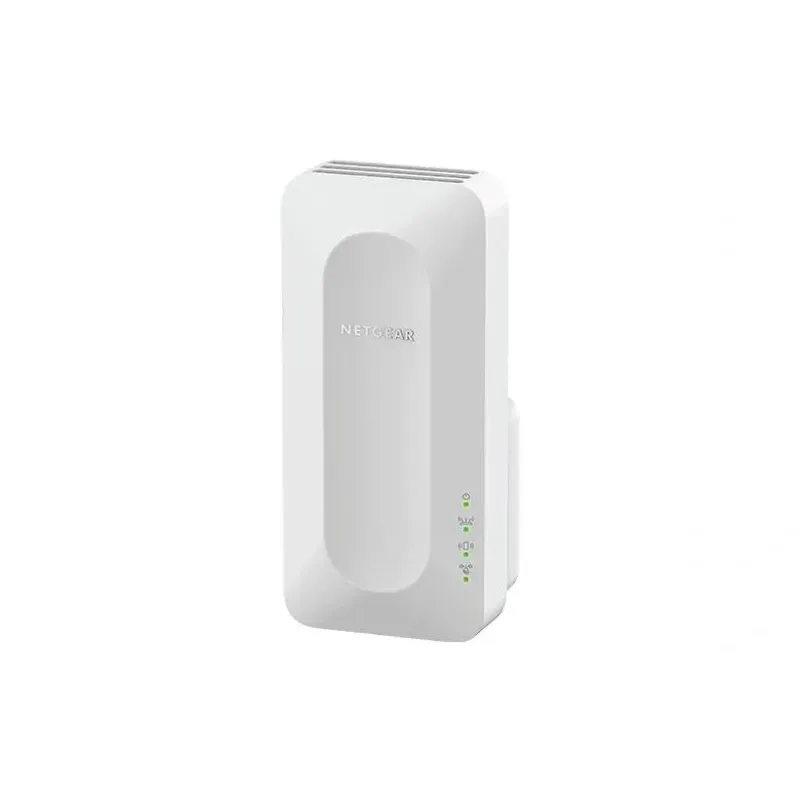
For a versatile WiFi 6 choice, consider TP-Link RE705X, which pairs dual-band WiFi 6 with a Gigabit Ethernet port. NETGEAR EAX15 suits an existing NETGEAR mesh setup, while TP-Link RE550 and NETGEAR EX6120 offer different WiFi 5 feature sets.
A WiFi extender can carry a router's signal into a nearby weak-signal area. Start by checking compatibility, placement and whether a wireless repeater or wired access point fits your home.
Your privacy
We use cookies and similar technologies. Necessary ones keep the site working. With your permission we also use statistics cookies (Google Analytics and Microsoft Clarity) to understand which guides help readers. You can accept all, reject all or choose. You can change your choice at any time from "Cookie settings" at the bottom of every page. Cookie policy