Gearjury may earn a commission from qualifying purchases made through links on this site.
Guide
How to Set Up an Eero WiFi Extender with the Eero App
Add a compatible eero to your existing eero network from the mobile app, then position it where it can still reach the gateway. An eero 6 Extender or Beacon cannot extend a non-eero router.
GGearjury editorial team · Updated October 18, 2026· 4 min
01
Check that your eero can join the network
An eero extender needs an existing eero network with a gateway eero connected to your modem or internet equipment. Models without Ethernet ports, including eero 6 Extender and eero Beacon, are designed to join another eero wirelessly; they cannot serve as the gateway and cannot extend a non-eero router.
02
Prepare the eero app and your network
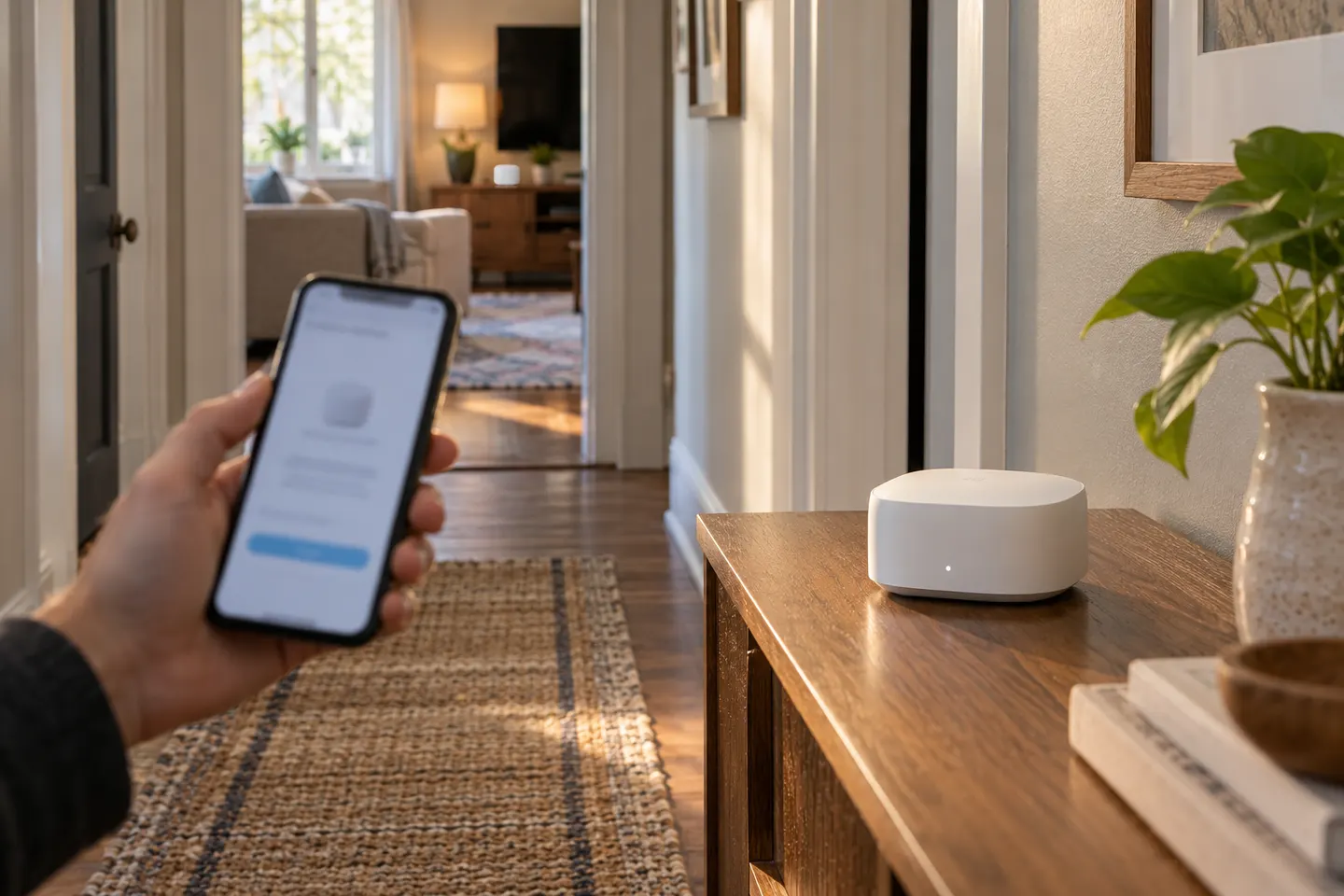
Install or open the eero app on a supported phone, sign in to the account that manages the network, and make sure the gateway network is online. Keep the extender nearby for initial pairing and connect it to power when prompted. The app provides the setup flow for adding an eero.
03
Add the extender in the eero app
In the app, choose the option to add or replace an eero device and follow the on-screen prompts. Allow Bluetooth and location permissions if requested, then wait while the app discovers and adds the device. Menu wording can vary with app versions, so follow the current in-app instructions if labels differ.
04
Choose a useful location
After pairing, move the extender toward the weak-coverage area while keeping it within reliable wireless reach of the gateway or another eero. Avoid hiding it behind large objects or placing it beside sources of interference. If the connection is unstable, move it closer and check the app again.
05
Confirm devices connect through the expanded network
Give the network time to settle, then check the eero app for the added device and its connection status. Walk through the area where coverage was weak and reconnect a phone or laptop if needed. A mesh system uses the network name configured for the eero system; placement and building materials affect the result.
06
Fix common setup problems
If the app cannot find the extender, confirm the gateway eero is online, keep the phone close to the device, and restart the add-device flow. If the eero reports that it is already registered, its previous owner may need to remove it from their account or network before you can add it. For a modem-router combination, consult eero and your internet provider about the appropriate bridge-mode arrangement.
Common questions
Questions before you buy
Can an eero 6 Extender work with a non-eero router?
No. eero says the eero 6 Extender has no Ethernet port and can only join an existing eero network wirelessly. It cannot extend a standalone third-party router.
How do I add an eero extender to an existing network?
Open the eero app for the network, choose its add-device flow, and follow the prompts with the extender powered on nearby. The app guides discovery and setup.
Where should I place an eero extender?
Place it between the gateway and the area with weak coverage, where it can still maintain a dependable connection to the mesh. If the app shows a weak connection, try a position closer to the gateway.
Can I set up eero from a computer?
Eero says network setup and management use its mobile app rather than a desktop browser. Use a supported phone or tablet with an internet connection during setup.
Why does the eero app say my device is already registered?
The eero may still be associated with another network. Ask the previous owner to remove it from their account, or follow eero's reset instructions for the device before trying setup again.
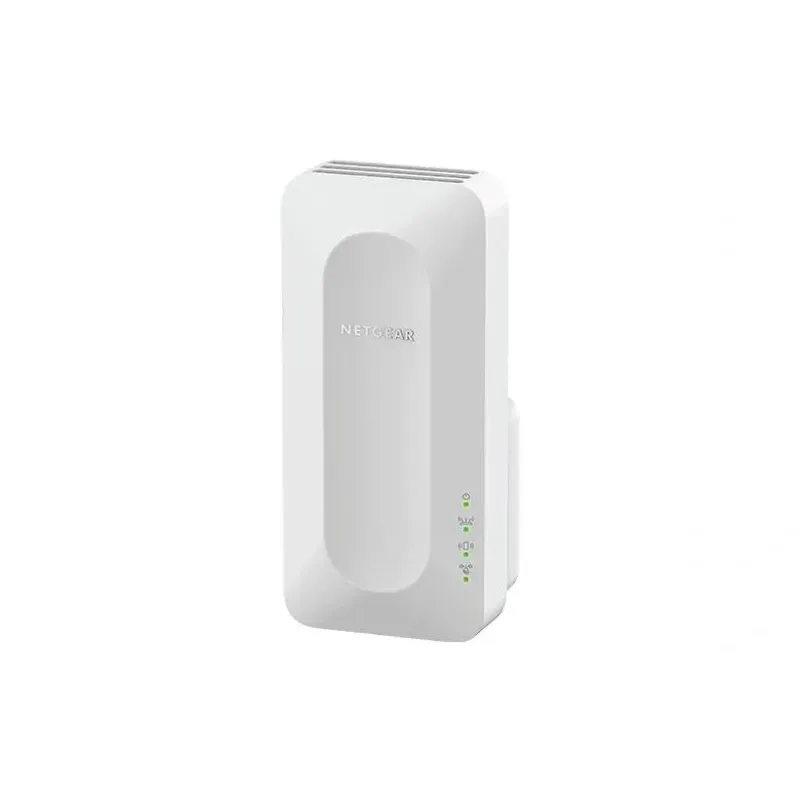
For a versatile WiFi 6 choice, consider TP-Link RE705X, which pairs dual-band WiFi 6 with a Gigabit Ethernet port. NETGEAR EAX15 suits an existing NETGEAR mesh setup, while TP-Link RE550 and NETGEAR EX6120 offer different WiFi 5 feature sets.
A WiFi extender can carry a router's signal into a nearby weak-signal area. Start by checking compatibility, placement and whether a wireless repeater or wired access point fits your home.
Your privacy
We use cookies and similar technologies. Necessary ones keep the site working. With your permission we also use statistics cookies (Google Analytics and Microsoft Clarity) to understand which guides help readers. You can accept all, reject all or choose. You can change your choice at any time from "Cookie settings" at the bottom of every page. Cookie policy