Gearjury may earn a commission from qualifying retailer links. This does not affect our editorial guidance.
Guide
How to Use a Netgear WiFi Extender at Home
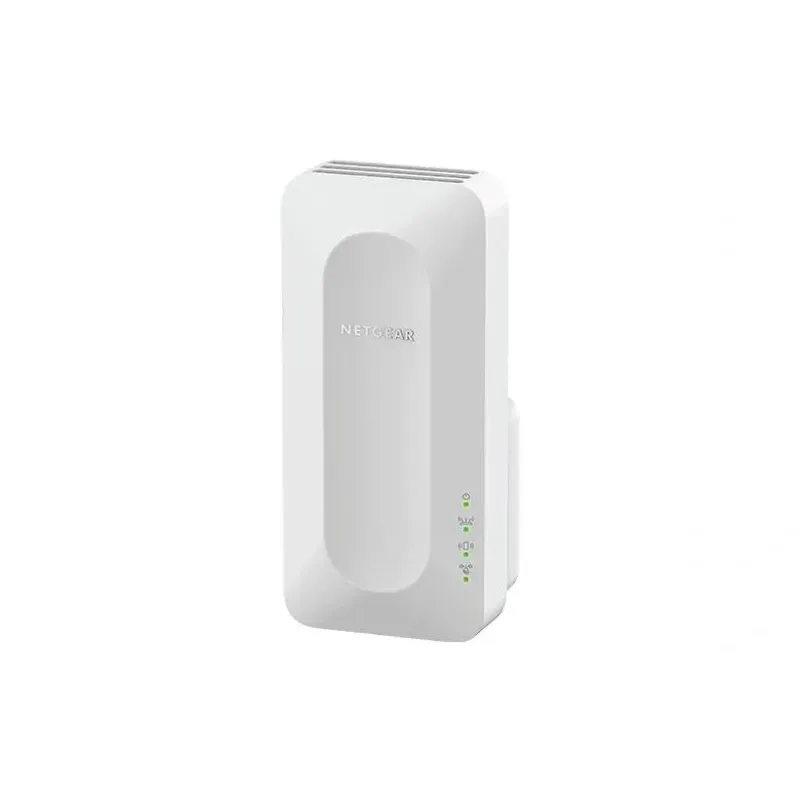
Use the extender’s setup method to join it to your existing router, then move it to a position where it receives a good signal and still reaches the target room. Exact controls vary by model.
GGearjury editorial team · Updated October 18, 2026· 5 min
01
Check the extender’s exact setup instructions
Find the model number on the device or packaging and open its Netgear support page or manual. Netgear models may offer app, browser or WPS setup, and the available options are not identical across the range.
02
Choose a setup method
For app or browser setup, connect a phone or computer to the extender’s setup network and follow the prompts to select your home router and enter its WiFi password. If the model supports WPS, use the manual’s button sequence and wait for its status indicator to confirm the connection.
03
Use the router’s WiFi credentials
Select the correct home network, especially if your router broadcasts separate names for different bands. Enter the password exactly as configured; a successful setup joins the extender to the existing network rather than adding internet service.
04
Move it between the router and weak-signal area
After setup, unplug the extender and place it partway toward the room that needs coverage, where it can still receive a stable router signal. Avoid cabinets, large obstructions and locations beside sources of interference; consult the model’s signal indicator if provided.
05
Connect devices and check the result
Reconnect your phone, computer or console to the extended network if needed. Test the connection in the target room and compare it with the direct router connection; if performance is poor, move the extender closer to the router and repeat.
06
Update settings or reset only when needed
Use the model’s management page or app to review firmware and network settings. If you need to start over, follow the manual’s reset procedure for that exact extender, then run setup again.
Common questions
Questions before you buy
How do I connect a Netgear WiFi extender to my router?
Use the model’s app or browser setup to select the router’s WiFi network and enter its password, or use WPS if that model supports it. Follow the exact Netgear manual because button sequences and indicators differ.
How do I know if my Netgear extender is connected?
Check the status indicators or the setup app/page for a successful router link, then connect a device and test in the intended room. Indicator meanings are model-specific, so use the manual’s legend.
Can I use a Netgear extender without WPS?
Many models provide an app or web-browser setup route, but available methods vary. Check the support page for your model number to confirm the supported setup options.
Why is my Netgear extender connected but not giving internet?
Confirm that the extender is linked to the correct router network and that the router itself has internet access. Recheck the password, move the extender closer to the router, and consult the model’s troubleshooting guide if the link remains unavailable.
A WiFi extender can carry a router's signal into a nearby weak-signal area. Start by checking compatibility, placement and whether a wireless repeater or wired access point fits your home.
For a versatile WiFi 6 choice, consider TP-Link RE705X, which pairs dual-band WiFi 6 with a Gigabit Ethernet port. NETGEAR EAX15 suits an existing NETGEAR mesh setup, while TP-Link RE550 and NETGEAR EX6120 offer different WiFi 5 feature sets.
TP-Link offers WiFi 6 and WiFi 5 extenders with different port and mesh features. Check hardware version and router compatibility before choosing.
Your privacy
We use cookies and similar technologies. Necessary ones keep the site working. With your permission we also use statistics cookies (Google Analytics and Microsoft Clarity) to understand which guides help readers. You can accept all, reject all or choose. You can change your choice at any time from "Cookie settings" at the bottom of every page. Cookie policy