Gearjury may earn a commission from qualifying retailer links. This does not change our editorial conclusions.
Guide
How to Set Up a TP-Link WiFi Extender Step by Step
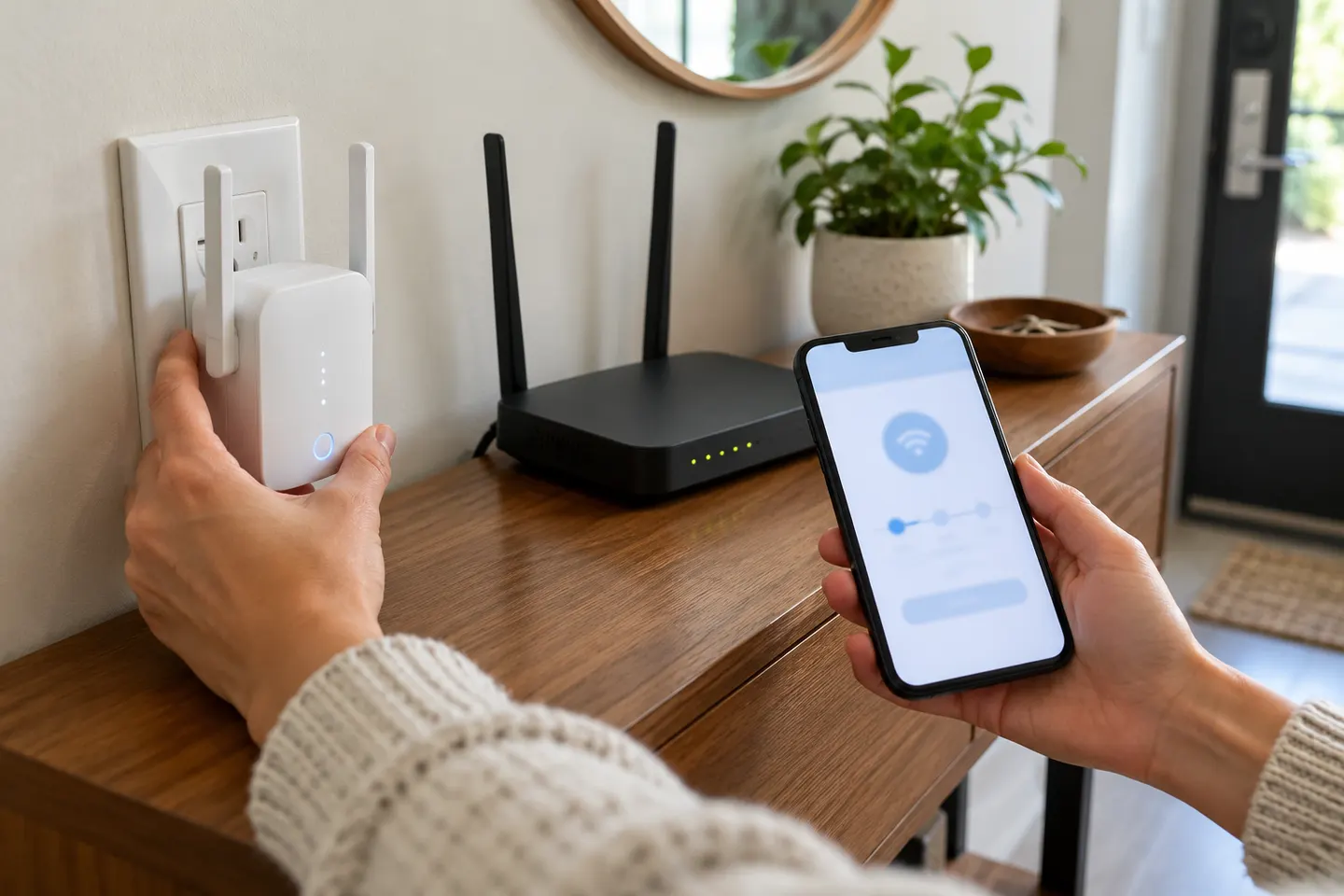
Pair the extender near your router using WPS, the Tether app or its web setup, then move it to a position with a stable router signal. The exact controls vary by model.
GGearjury editorial team · Updated October 15, 2026· 6 min
01
Before you install a TP-Link WiFi extender
Check the model and hardware revision on its label, then open the matching TP-Link support page. Have the router’s WiFi name and password ready. Plug the extender into an outlet near the router for initial pairing.
02
How to set it up with WPS
If both devices support WPS, press the router’s WPS button and then the extender’s WPS or RE button as directed by its manual. Wait for the signal indicator to confirm connection. Button names and timing vary by model, so use the model-specific instructions.
03
How to install it with the TP-Link Tether app
Install TP-Link Tether on a supported phone, connect to the extender’s temporary WiFi if prompted, and follow the app’s device discovery and network selection steps. Choose the router network and enter its password. TP-Link’s support library provides app setup videos for models including RE450 and RE605X.
04
How browser setup works
Some TP-Link extenders provide a web interface. Connect a phone or computer to the extender’s setup network, open the address specified in its quick installation guide, and follow the wizard. Use only the address printed in your model documentation.
05
Where to place the extender after pairing
Move it toward the weak-coverage area while keeping a stable link to the router. Use the signal indicator or Tether app if available. An extender placed inside a dead zone cannot reliably relay the router’s signal.
06
How to set up a wired WiFi extender
If the TP-Link model offers access-point mode, connect its Ethernet port to the router or wired network and select Access Point mode in the setup flow. For example, TP-Link lists AP mode on RE450, RE550, RE605X and RE705X. Confirm that the port and mode are available on your unit.
07
Troubleshooting other extender models
D-Link, NETGEAR, Brostrend and provider-supplied extenders use different apps, buttons and indicator meanings; do not apply TP-Link button steps to them. For an AC1200 D-Link or TP-Link RE305, find the exact model’s quick guide. For a TP-Link AC1750 model such as RE450, use its revision-specific support page. If a setup fails, recheck the WiFi password, router band, security mode and firmware.
Common questions
Questions before you buy
How do I install a TP-Link WiFi extender?
Pair it near the router using the supported WPS button, Tether app or browser wizard. After it connects, move it to a spot between the router and the weak-signal area.
How do I set up a TP-Link RE305 AC1200 extender?
Use the RE305 hardware revision’s quick guide and select WPS, Tether or web setup as supported by that revision. Confirm the router credentials before moving the extender to its final location.
How do I install the TP-Link AX3000 WiFi 6 RE705X?
TP-Link’s RE705X guide supports setup through the documented app, WPS or web methods. Follow the Canadian support guide for your hardware version and check that its firmware is current.
Can I set up a TP-Link extender without WPS?
Yes, supported models can be configured through the Tether app or web interface. Check the quick installation guide because the available methods vary by model.
How do I set up an extender using Ethernet?
Use access-point mode if the extender supports it: connect Ethernet to the router or wired network, then choose AP mode in setup. A device with only repeater mode may not support this configuration.
TP-Link’s Canadian range includes WiFi 7, WiFi 6 and older dual-band extenders. Match the model to your router, desired features and available placement.
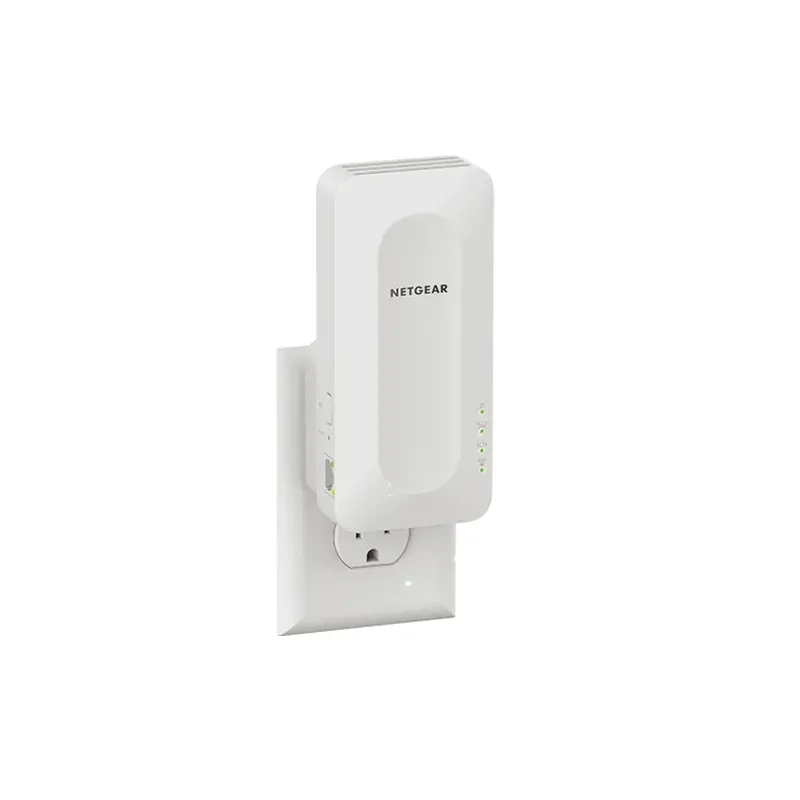
The TP-Link RE705X is a strong feature-led starting point, with WiFi 6, AX3000 class and a Gigabit port. Consider NETGEAR EAX15 for mesh-style WiFi 6 or simpler plug-in models for a basic dead zone.
A WiFi extender can carry an existing router’s signal into a weak-coverage area. Start with compatibility and placement, then compare a standalone repeater with a provider mesh system.
NETGEAR’s Canadian range includes WiFi 6 mesh extenders and older AC models. Check each model’s port, generation and setup method before choosing.
Your privacy
We use cookies and similar technologies. Necessary ones keep the site working. With your permission we also use statistics cookies (Google Analytics and Microsoft Clarity) to understand which guides help readers. You can accept all, reject all or choose. You can change your choice at any time from "Cookie settings" at the bottom of every page. Cookie policy