Gearjury may earn a commission from qualifying retailer links. This does not affect our editorial guidance.
Guide
How to Configure a TP-Link WiFi Extender: Complete Setup
Most TP-Link range extenders can be configured through WPS, the Tether app or a browser. The exact screens vary by model, so keep its quick installation guide nearby.
GGearjury editorial team · Updated 18 October 2026· 5 min
01
Before configuring your TP-Link extender
Check the model label and its regional quick installation guide. Place the unit in the same room as the router during initial pairing, and make sure you know the router's Wi-Fi name and password. If the extender was previously configured, a reset may be needed; use the model instructions.
02
How to configure a TP-Link WiFi extender with WPS
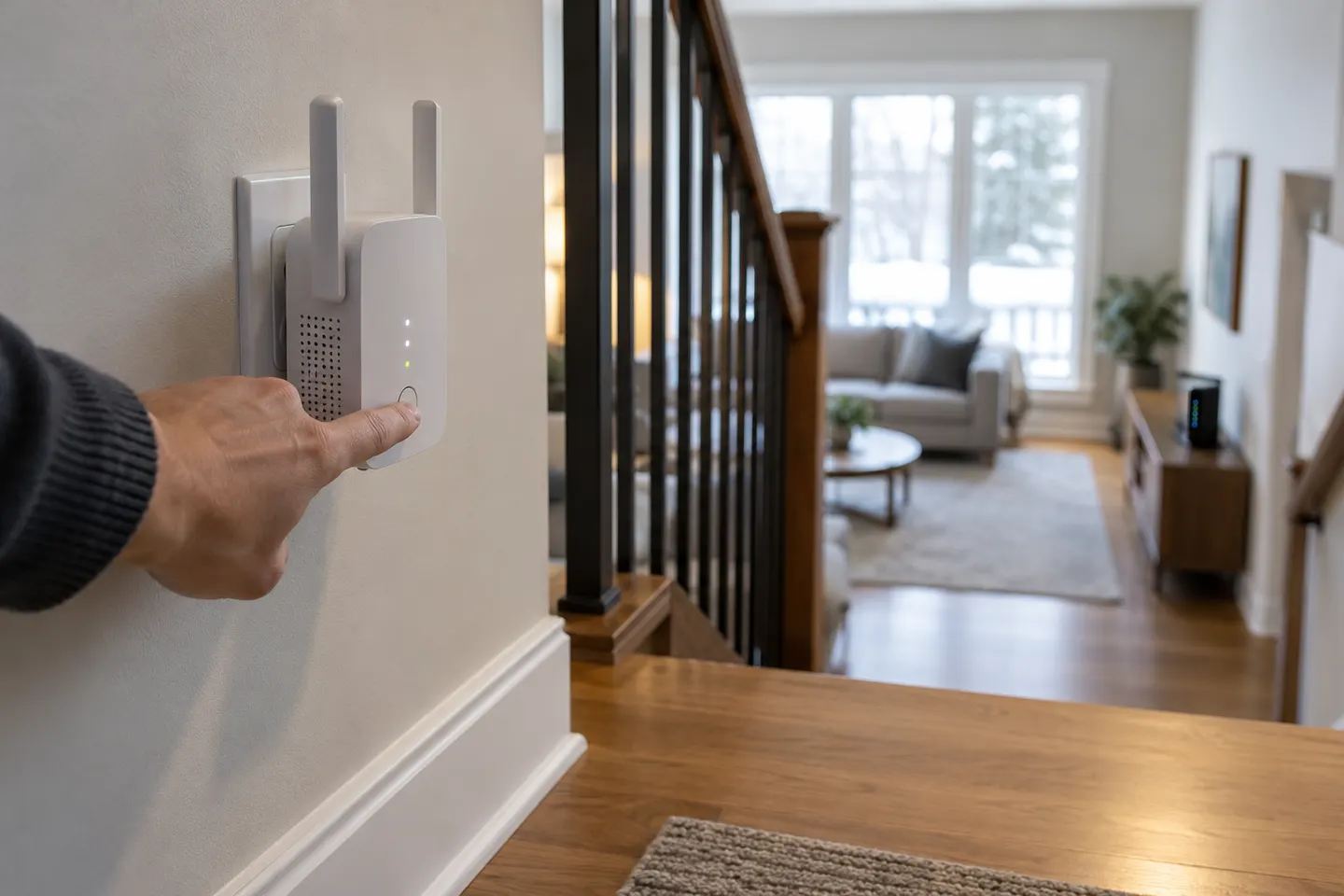
Use WPS only if the router supports it. Press the router's WPS button, then press the extender's WPS button within the window specified in its manual. Wait for the signal or connection indicator to confirm pairing; if it fails, repeat or use the app or browser method.
03
Set it up with the TP-Link Tether app
Install the official Tether app, connect your phone to the extender's setup network and follow the prompts to select your home Wi-Fi network. Enter its password carefully and allow the extender to finish applying the settings before moving it.
04
Configure the extender through a web browser
Connect a phone or computer to the extender's setup Wi-Fi, then open the management address printed in the model guide. Follow Quick Setup to select the host network and save the password. Some models use tplinkrepeater.net or a local address; follow the instructions for your hardware.
05
Choose the right place after setup
Move the extender to a socket between the router and the weak-signal area, where it can still receive a usable signal. Avoid hiding it behind furniture or placing it beside sources of interference. Use the signal indicator or app as a placement check, then test from the room you want to cover.
06
If the extender will not connect
Confirm the router password, enable the relevant Wi-Fi band and check that the extender is within range during pairing. Restart both devices and retry setup. A changed router name or password usually requires reconfiguration; consult TP-Link support for model-specific LED meanings and reset steps.
Common questions
Questions before you buy
Can I configure a TP-Link extender without WPS?
Yes. TP-Link describes setup through the Tether app or web management page as alternatives to WPS. Follow the steps for your extender's hardware version.
Why can’t I see my TP-Link extender after setup?
The setup network may disappear or change name after configuration. TP-Link notes that some models reuse the router's name while others add an extender suffix; check the app or connected-device list.
Do I need to configure the extender again after moving it?
Ordinary relocation should not erase saved settings. If you change the router's Wi-Fi details or reset the extender, configure it again.
Can a TP-Link extender work with a Plusnet router?
TP-Link says its range extenders can work with non-TP-Link routers. Select the Plusnet Wi-Fi network during setup; mesh features may require compatible equipment from the same system.
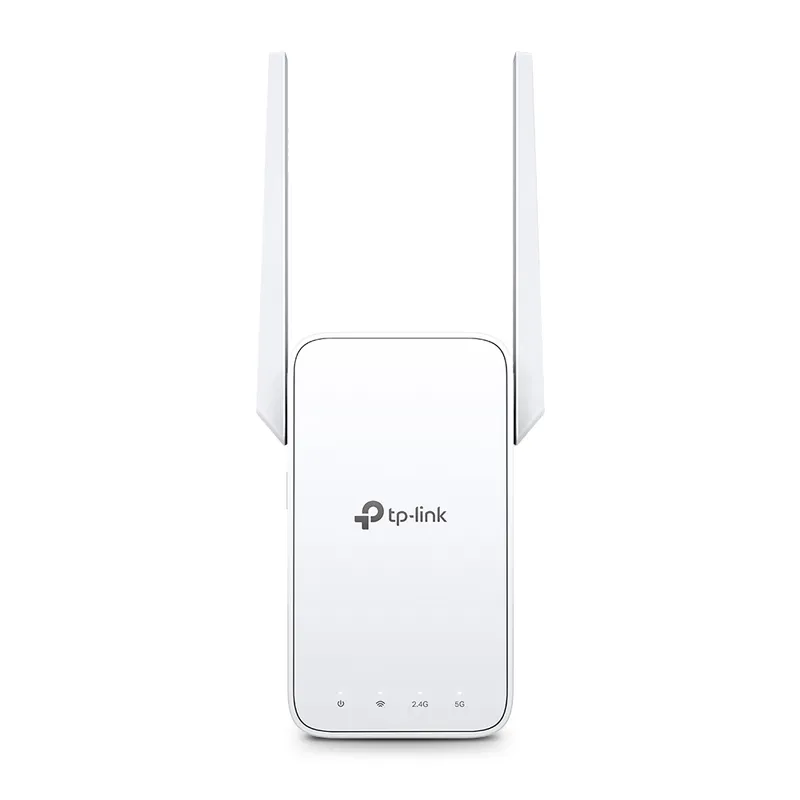
TP-Link RE315 is a practical starting point for a standard indoor dead zone. Consider a Wi-Fi 6 device for newer kit, outdoor-rated hardware for a garden, or powerline where a wireless hop struggles.
A WiFi extender can carry your router signal further, but placement and backhaul matter. Choose a plug-in repeater for a nearby dead zone, powerline WiFi for difficult layouts, or an outdoor-rated unit for a garden.
Sky has different booster products for different broadband generations. Sky Max customers may use a Max Pod; check your account and hub-specific help before seeking a third-party extender.
Your privacy
We use cookies and similar technologies. Necessary ones keep the site working. With your permission we also use statistics cookies (Google Analytics and Microsoft Clarity) to understand which guides help readers. You can accept all, reject all or choose. You can change your choice at any time from "Cookie settings" at the bottom of every page. Cookie policy