Check the model and router requirements
Find the label on the extender and open the matching TP-Link support page. Hardware versions can differ, so use the guide for your exact model and region. Put the extender near the router for initial pairing.

 Best picksBest WiFi Extenders: Which Range Extender Should You Buy?
 Best picksGood Meat Thermometers for Every Kind of Cook
 Best picksBest Dash Cams for Cars in 2026
 Best picksBest Air Purifier for Bedroom in the US: Quiet Models Compared
Gearjury may earn a commission from qualifying Amazon purchases through links on this page.
Guide
Use WPS for a quick pairing or the TP-Link Tether app for guided setup. Finish by moving the extender to a midpoint where it still receives a stable router signal.
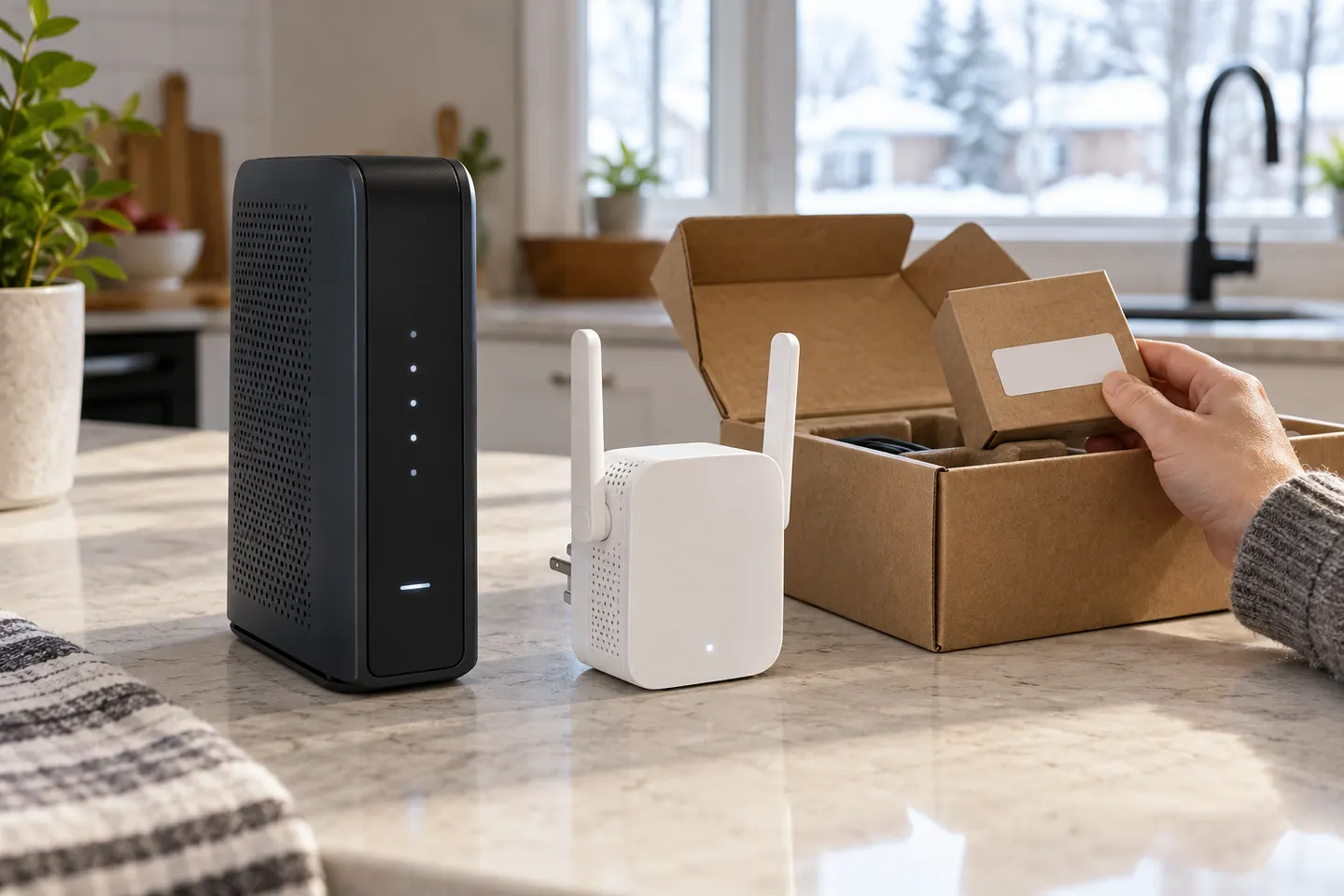
Find the label on the extender and open the matching TP-Link support page. Hardware versions can differ, so use the guide for your exact model and region. Put the extender near the router for initial pairing.
For supported models, press WPS on the router and then the extender within the timing window in the product guide. If WPS is unavailable or pairing fails, connect through the TP-Link Tether app or web interface and follow the prompts for your router network.
Install the official TP-Link Tether app, connect your phone to the extender's setup network if prompted, and select the home WiFi network to extend. Enter its password carefully, then allow the device to restart and apply settings.
After pairing, unplug it and place it between the router and the weak room, where the router signal remains adequate. Use the status light or app guidance if the model provides it; avoid placing it inside the dead zone.
Reconnect a phone or laptop near the target area and check that it can reach the router and internet. If the connection is unstable, move the extender closer to the router or reduce obstructions.
Common questions
Use the Tether app or the model's web setup page. Follow the instructions for the exact hardware version and connect it to the router's WiFi network.
Many TP-Link extenders support standard WiFi routers, but feature support may vary. Check the product manual for compatibility and security requirements.
The router link may be weak, the password may have changed, or the device may need a restart or firmware-specific setup. Re-run the setup near the router and check the app's connection status.
Place it between the router and the room needing coverage, at a location where the extender still receives a reliable source signal. Keep it clear of large obstructions.
Keep exploring

A WiFi extender can carry a router's signal into a nearby weak-signal area. Start by checking compatibility, placement and whether a wireless repeater or wired access point fits your home.
For a versatile WiFi 6 choice, consider TP-Link RE705X, which pairs dual-band WiFi 6 with a Gigabit Ethernet port. NETGEAR EAX15 suits an existing NETGEAR mesh setup, while TP-Link RE550 and NETGEAR EX6120 offer different WiFi 5 feature sets.

TP-Link offers WiFi 6 and WiFi 5 extenders with different port and mesh features. Check hardware version and router compatibility before choosing.