Gearjury may earn a commission from qualifying retailer links.
Guide
How to Set Up a TP-Link WiFi Extender Step by Step
Pair your extender near the router before moving it. The Tether app or WPS can handle setup on supported models, and the signal indicator helps with placement.
GGearjury editorial team · Updated 18 October 2026· 5 min
01
Prepare the extender and router
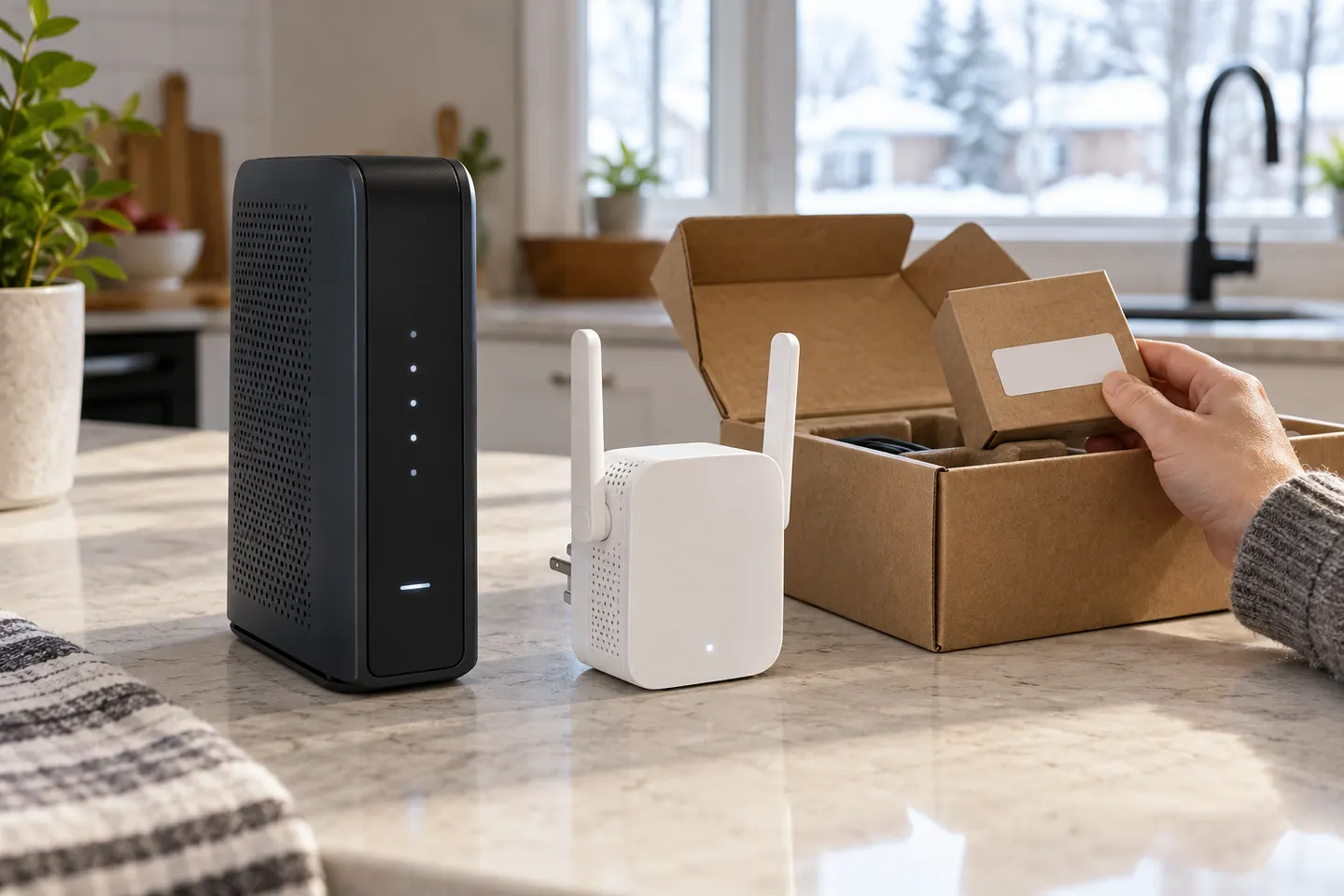
How to set up wifi extender tp-link varies with the model and hardware revision, so have the quick installation guide to hand. Check that the router has internet access, keep its WiFi password available, and plug the extender into a nearby wall socket for the initial connection.
02
Choose WPS or the Tether app
WPS is a quick option when both the router and extender support it and the router has WPS enabled. Otherwise, install TP-Link Tether on a supported phone and follow the add-device prompts. Some models also provide a browser-based setup route described in their manual.
03
Complete WPS pairing
Press WPS on the router and then the extender in the sequence and time window given by their manuals. Wait for the relevant wireless indicator to show a connection. The exact LED pattern is model-specific, so do not rely on a colour description from another extender.
04
Finish setup in Tether
In Tether, select the extender, choose the home network or bands it should extend, enter the correct WiFi password and save. Keep the phone connected to the setup network until the app confirms completion. If the app cannot discover the unit, reset it as its manual instructs and try again close to the router.
05
Set up the TP-Link RE305 or RE200
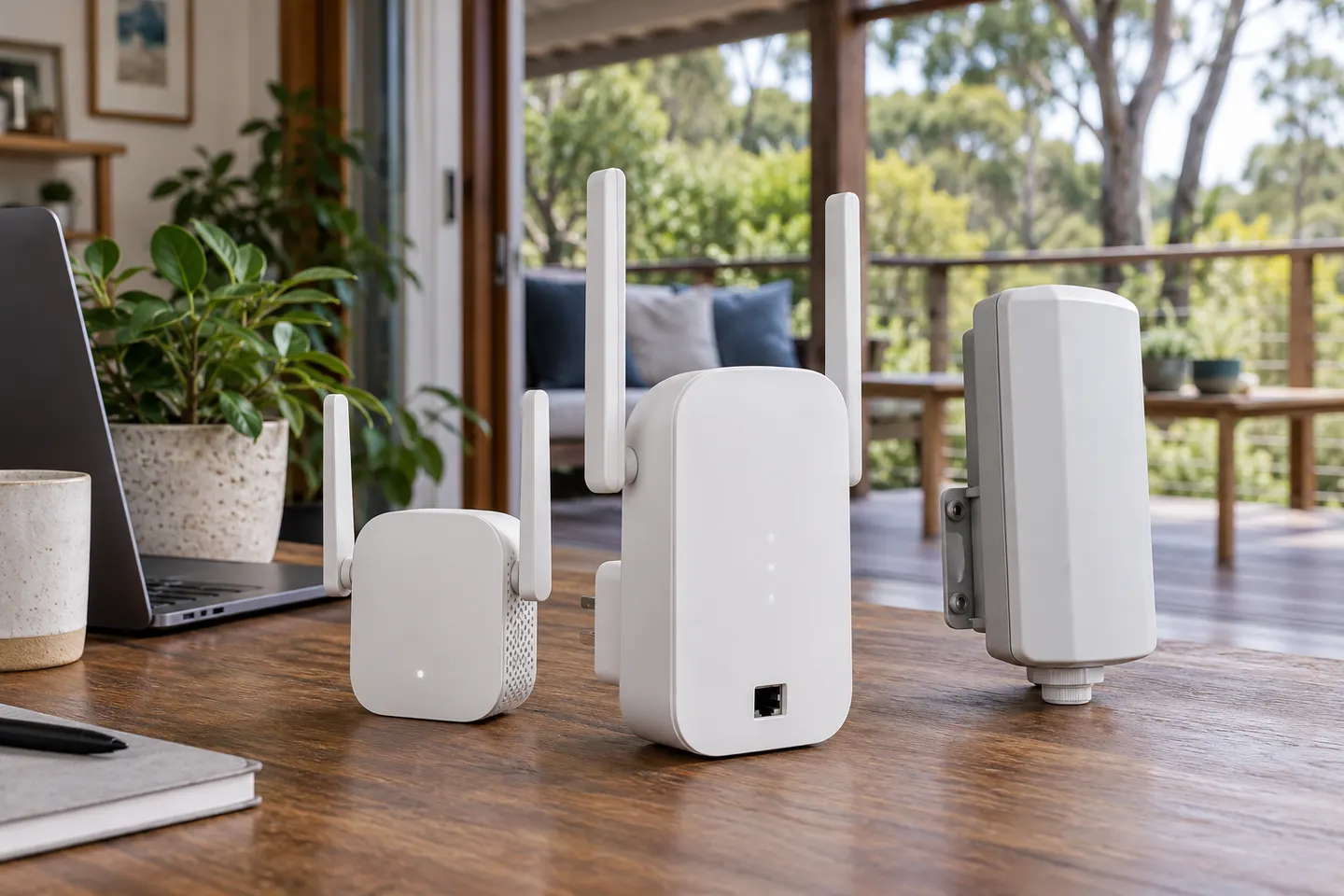
TP-Link's Australian support pages provide model-specific videos and guides for RE305 and RE200. The RE305 is an AC1200 dual-band model; RE200 is an AC750 dual-band model. Those class labels are theoretical link-rate categories, not a promise of the broadband speed a device will receive.
06
Move it to a useful position
Once connected, place the unit between the router and the area needing coverage. Avoid putting it at the far edge of the dead zone: it needs a healthy connection back to the router. Use the extender's signal indicator or app guidance and retest from the target room.
07
Recover from a failed connection
Check for a mistyped password, a disabled WPS function, an incompatible security setting or a weak router signal. Restart both devices, update firmware using TP-Link's Australian support page, and repeat setup. If your ISP router has separate network names for each band, follow the extender's guide when selecting each one.
Common questions
Questions before you buy
How do I install a TP-Link WiFi extender?
Plug it in near the router, pair it with WPS or the Tether app, and relocate it after setup to a position that still receives a good router signal. Follow the quick guide for the exact model and hardware version.
How do I use a TP-Link AC1200 range extender?
Configure the extender against your router using its supported WPS, app or browser method, then connect devices to the extended network. AC1200 is a combined class label and does not mean each device gets that throughput.
Can I set up an Apple WiFi booster with TP-Link?
Apple does not sell a general-purpose WiFi range extender. You can use an iPhone or iPad to run the Tether app on supported TP-Link extenders, subject to app and device compatibility.
How do I set up an Antsig WiFi range extender?
Use the instructions supplied for the exact Antsig model because button names and setup addresses can differ. Pair it near the router, check the selected network and password, then move it only after its connection is confirmed.
Does a TP-Link extender need to be connected to the router by cable?
In range-extender mode, it normally links to the router over WiFi. Supported models may also offer access-point mode, which uses Ethernet to create WiFi from a wired network connection.
Why does my TP-Link extender show a connection but still have weak WiFi?
The extender may be too far from the router, or walls and interference may weaken the backhaul. Move it closer to the router and test the target room again; an Ethernet-fed access point may suit difficult layouts better.
We use cookies and similar technologies. Necessary ones keep the site working. With your permission we also use statistics cookies (Google Analytics and Microsoft Clarity) to understand which guides help readers. You can accept all, reject all or choose. You can change your choice at any time from "Cookie settings" at the bottom of every page. Cookie policy