




 Official manufacturer image
Our picks
Top picks
Official manufacturer image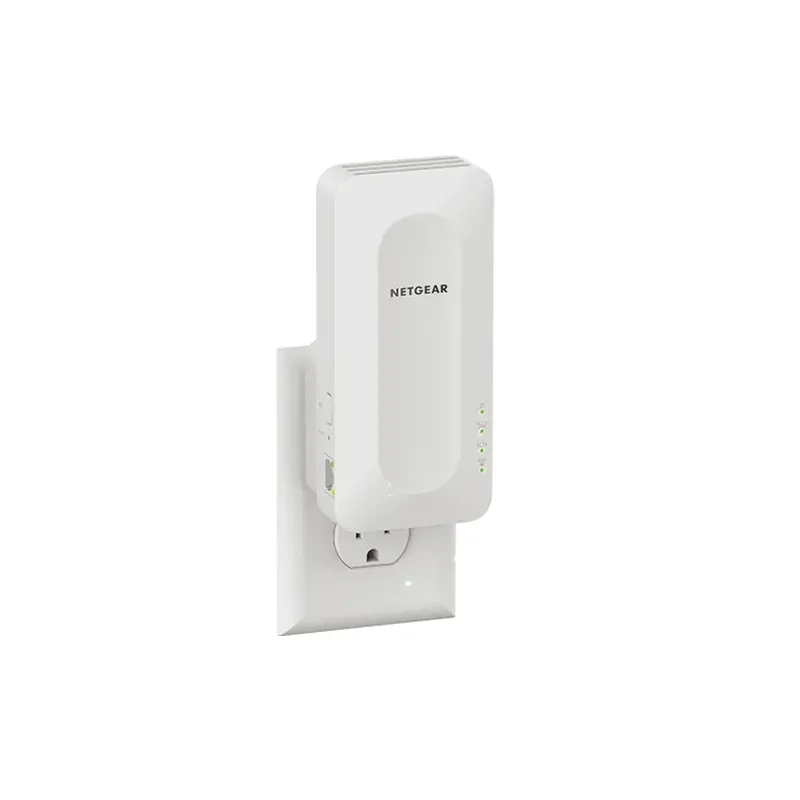 Official manufacturer image
NETGEAR EAX15
Check price on Amazon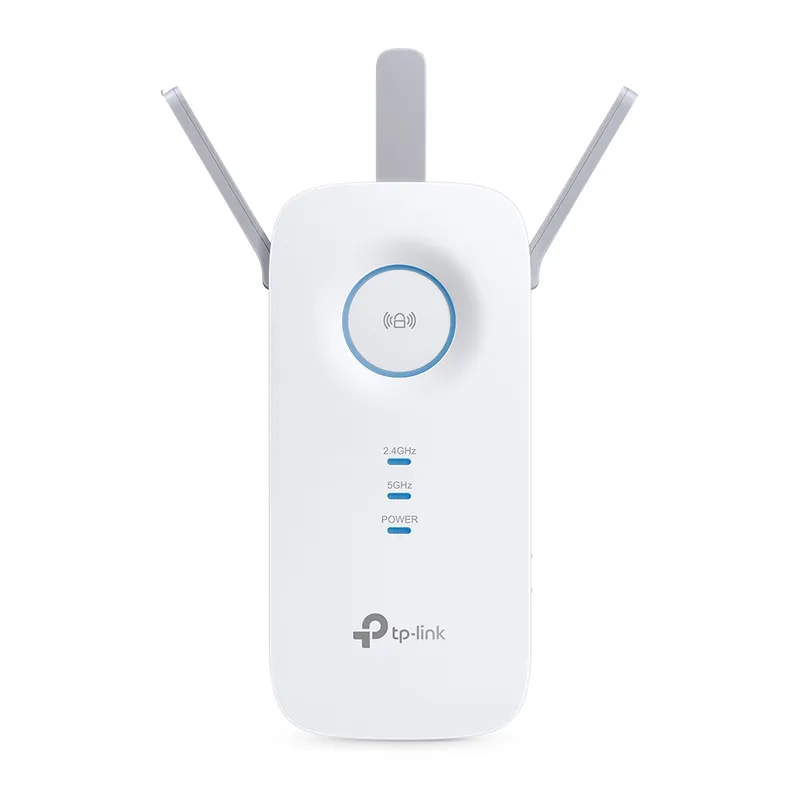 Official manufacturer image
TP-Link RE550
Check price on AmazonCommon questions
Questions before you buy
Why is my Wi-Fi range extender not working?
Common causes include a failed router connection, incorrect Wi-Fi password, weak placement, changed router settings or an internet outage. Check the extender status page and the router connection first.
What should I do if my Wi-Fi booster is not connecting?
Move it near the router during setup, confirm the network name and password, then follow the model app or web instructions. Restart both devices if needed and consult the model guide before factory resetting.
Why does my extender say connected but have no internet?
The extender may have joined the router while the router itself has lost internet access, or the client device may have joined a different network. Test near the router and inspect the extender internet status.
When should I reset a Wi-Fi extender?
Reset only after checking power, connection status, credentials and placement, since a factory reset erases its configuration. Follow the exact model reset procedure and set it up again.