Gearjury may earn a commission from qualifying retailer links.
Guide
How to Setup a NETGEAR WiFi Extender at Home
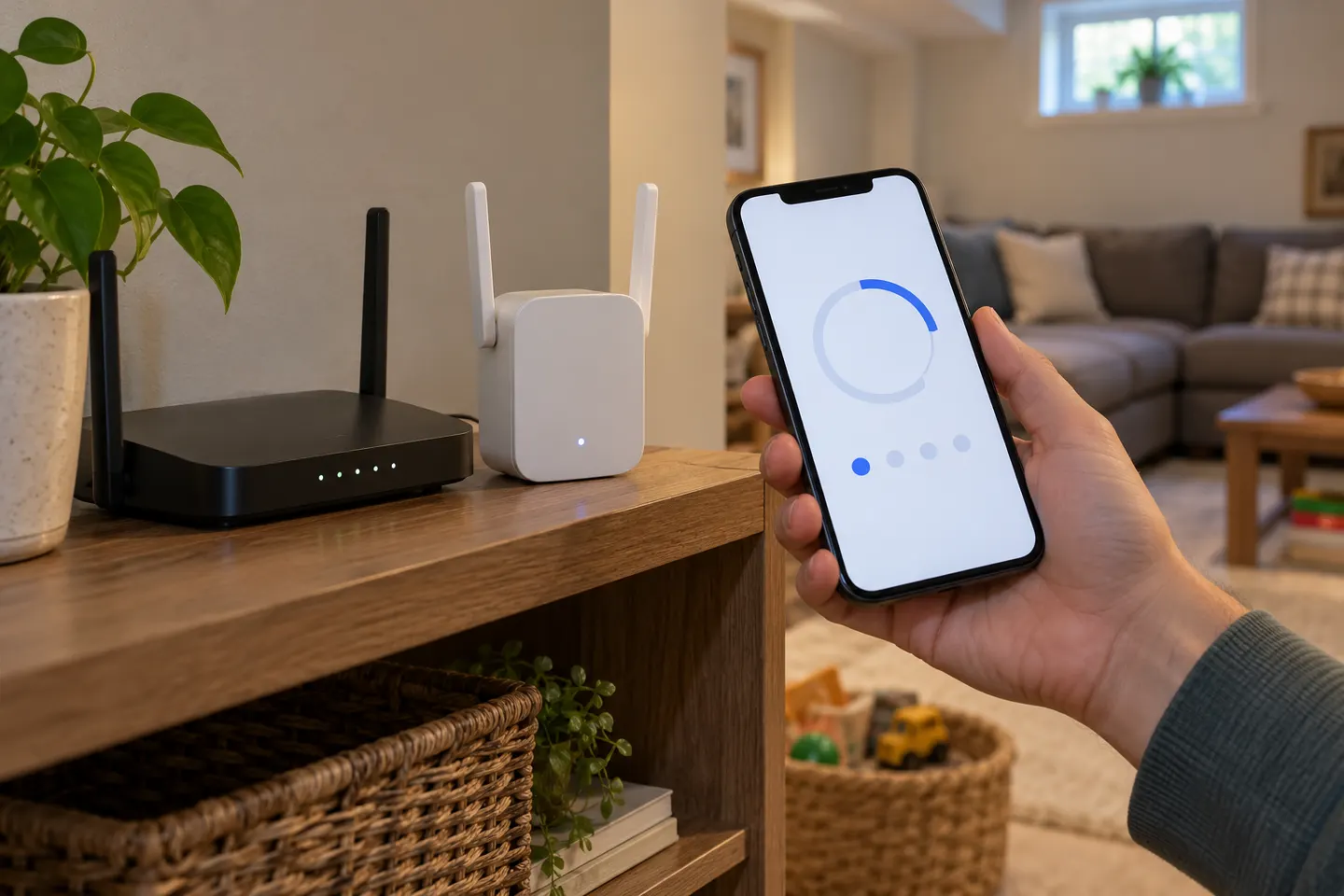
For most compatible NETGEAR extenders, start near the router, connect with WPS or the browser assistant, then move the unit to a spot that still receives a good router signal. Exact buttons and LEDs vary by model.
GGearjury editorial team · Updated October 18, 2026· 6 min
01
Before you begin NETGEAR WiFi extender setup
Confirm your router is online and note its WiFi name and password. Check the extender’s model instructions for a mode switch or reset requirement; NETGEAR notes that a previously configured extender may need a factory reset before setup.
02
Choose WPS or browser setup
WPS is a quick option when both router and extender support it. If the router has no WPS button, or you want to select network settings yourself, use the browser installation assistant instead.
03
Set up near the router first
Plug the extender into an outlet in the same room as the router and wait for its power indicator to settle. Setting it up close by avoids trying to pair through a weak signal; you can relocate it after the connection is configured.
04
Connect with WPS
If the extender has an Extender/Access Point switch, choose Extender. Press the extender’s WPS button, then press the router’s WPS button within the time specified in your model guide. A successful router-link indicator confirms connection; dual-band models may require repeating the pairing for the other band.
05
Use the browser assistant without WPS
Join the extender’s setup WiFi network from a phone or computer, commonly named NETGEAR_EXT, and open a browser. Visit mywifiext.net or the local address stated in the model guide, choose New Extender Setup, then follow the prompts to select your home network and enter its password.
06
How to setup the NETGEAR EX3700
The NETGEAR AC750 WiFi Range Extender EX3700 supports WPS and browser setup. For browser setup, connect to NETGEAR_EXT and use the installation page; the model manual also describes WPS pairing, including repeating the process for 5 GHz when supported by the router. Use the EX3700 manual for its exact LED meanings.
07
How to setup a NETGEAR N600 WiFi Range Extender
For the NETGEAR N600 WiFi Range Extender WN2500RPv2, the manual describes browser setup through NETGEAR_EXT and mywifiext.net, where you choose WiFi Range Extender and select the network to extend. Follow the WN2500RPv2 manual rather than assuming every N600-labelled product uses the same controls.
08
Connect your devices to the extended network
After setup, find the extender’s WiFi name in your device’s network list and connect with the password set during installation. Some models create a name based on your router SSID, while others can be configured with the same name; check the model’s settings before troubleshooting a missing network.
09
Move the extender to a useful position
Unplug it and place it between the router and the area with weak coverage, while keeping it within the router’s usable range. Avoid hiding it behind large objects or placing it beside sources of interference; use the router-link indicator or the model’s app to assess the connection.
10
Check coverage where you need it
Reconnect a phone or laptop to the extended network and test from the room that had poor reception. If the extender’s link indicator shows a weak connection, move it closer to the router and test again. An extender can improve reach, but it does not increase the speed supplied by your internet plan.
11
If NETGEAR setup will not complete
Check that the router password is correct, the router is broadcasting a compatible band and security mode, and the extender is in the intended mode. If the setup page does not load, reconnect to NETGEAR_EXT, turn off mobile data temporarily, or consult the model’s support page for its local setup address.
12
Set up a NETGEAR extender as an access point
If you can run Ethernet from the router to the extender, a supported model may offer Access Point mode. Connect the cable, launch the browser setup assistant and choose Access Point when prompted; this creates WiFi from the wired connection instead of repeating the router’s WiFi wirelessly.
Common questions
Questions before you buy
How do I setup a NETGEAR WiFi range extender without WPS?
Connect your phone or computer to the extender’s setup network, usually NETGEAR_EXT, and open mywifiext.net or the address in your model guide. Select your router’s network in the installation assistant and enter its WiFi password.
How do I setup a NETGEAR WiFi range extender EX3700?
The EX3700 can be configured with WPS or through browser setup. For browser setup, join NETGEAR_EXT and follow the prompts; use the EX3700 manual for band selection and indicator details.
How do I setup my SETEK WiFi range extender?
SETEK is a different manufacturer, so NETGEAR-specific button sequences and setup addresses may not apply. Check the label and manual for the exact SETEK model, then use its app or web address and follow that manufacturer’s instructions.
How do I setup a NETGEAR N600 WiFi range extender?
For WN2500RPv2, connect to NETGEAR_EXT, open mywifiext.net, choose WiFi Range Extender and select your router network. NETGEAR’s manual has the model-specific sequence and LED guidance.
Where should I place a NETGEAR extender after setup?
Place it between the router and the weak-coverage area, but still where the router’s signal is usable. If the router-link indicator is weak, move the extender closer to the router.
A WiFi extender can carry a router's signal into a nearby weak-signal area. Start by checking compatibility, placement and whether a wireless repeater or wired access point fits your home.
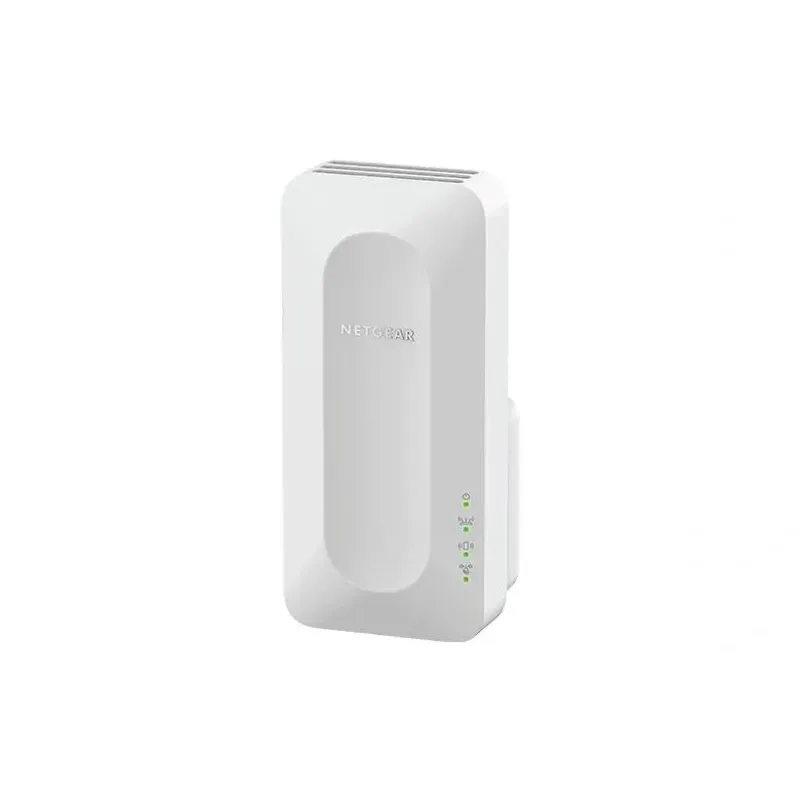
For a versatile WiFi 6 choice, consider TP-Link RE705X, which pairs dual-band WiFi 6 with a Gigabit Ethernet port. NETGEAR EAX15 suits an existing NETGEAR mesh setup, while TP-Link RE550 and NETGEAR EX6120 offer different WiFi 5 feature sets.
TP-Link offers WiFi 6 and WiFi 5 extenders with different port and mesh features. Check hardware version and router compatibility before choosing.
Your privacy
We use cookies and similar technologies. Necessary ones keep the site working. With your permission we also use statistics cookies (Google Analytics and Microsoft Clarity) to understand which guides help readers. You can accept all, reject all or choose. You can change your choice at any time from "Cookie settings" at the bottom of every page. Cookie policy