Gearjury may earn a commission from qualifying retailer links. This does not affect our editorial guidance.
Guide
How to Set Up a NETGEAR WiFi Extender at Home
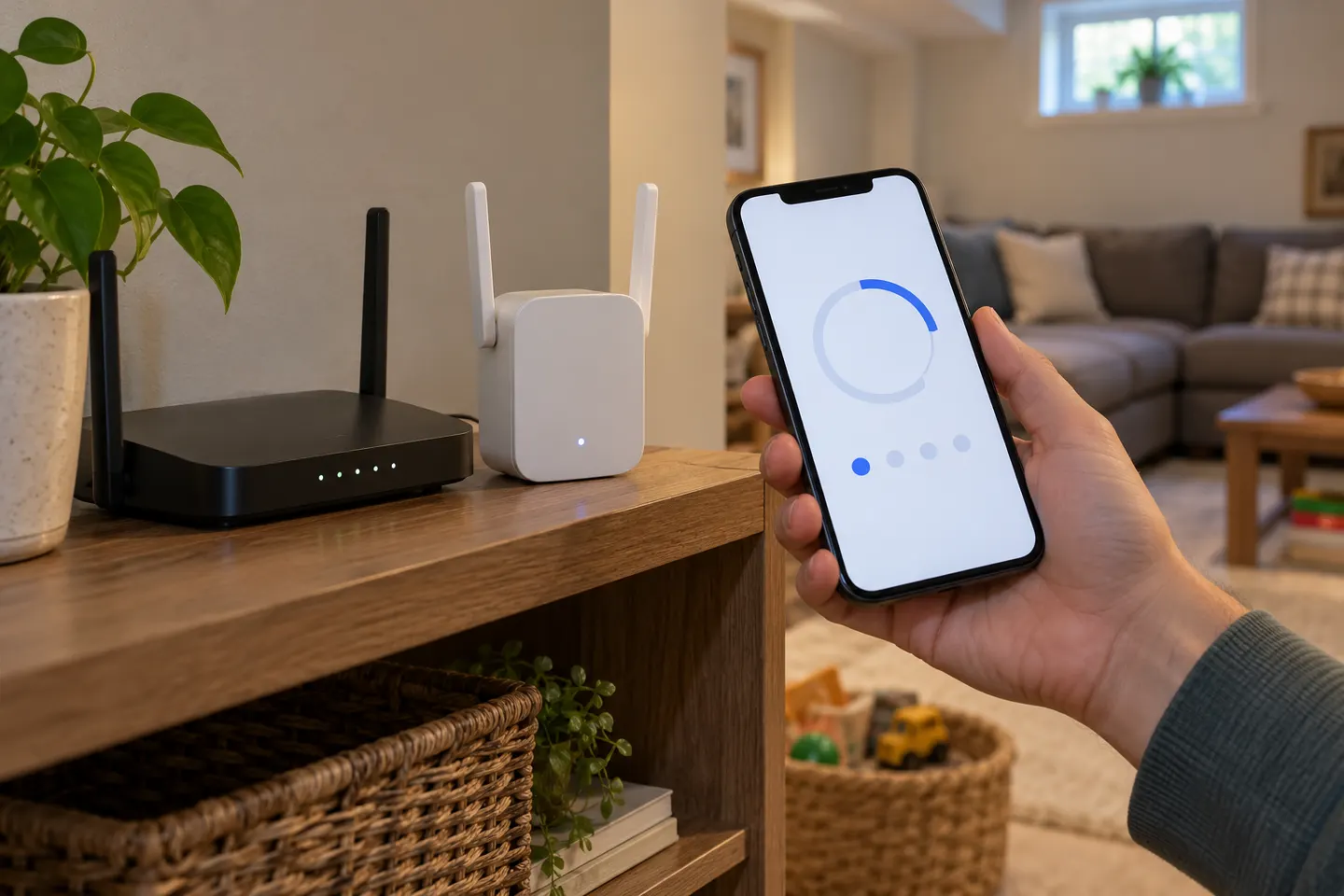
Connect near the router first, using WPS or the browser setup page. Once the extender is online, move it to a spot that still receives a dependable signal from the router.
GGearjury editorial team · Updated 18 October 2026· 5 min
01
Before you start the NETGEAR AC1200 WiFi range extender setup
Plug the extender into a power outlet in the same room as your router and wait for it to start. Keep the router name and WiFi password handy. Setup steps and indicator lights can vary by model, so use the manual for your exact unit if its labels differ.
02
Use WPS for a quick connection
Press the router’s WPS button, then press the WPS button on the extender within the time window described in its manual. Wait for the connection indicator to settle before connecting a phone or computer to the extended network. NETGEAR lists WPS as a setup option, but some router settings or security modes may prevent it.
03
Set up without WPS in a browser
Connect your phone or computer to the extender’s initial WiFi network, then open a browser and visit mywifiext.net. Follow the on-screen setup to choose your home network and enter its password. If the page does not load, check that you are connected to the extender and consult NETGEAR support for your model.
04
NETGEAR EX3700 setup and older model instructions
For a NETGEAR AC750 WiFi range extender EX3700 setup, follow the EX3700 guide and check whether your hardware revision offers WPS and browser setup. The same principle applies to the WN3000RP, EX2700, EX6110 and N600 models, but menus and button sequences are model-specific; do not assume instructions for an AC1900 or Nighthawk extender match an older unit.
05
Choose a position between router and weak coverage
After setup, move the extender partway towards the room with poor reception, while keeping it within a usable signal from the router. Use the model’s signal indicators and test from the problem area. A location too far from the router may simply repeat a weak connection.
06
Check the extended connection
Reconnect a device to the extender network and try the applications or rooms that had trouble. If coverage remains unreliable, move the unit closer to the router, check for a firmware or setup issue, and confirm the router’s own connection is stable.
Common questions
Questions before you buy
How do I setup a NETGEAR AC1200 WiFi range extender?
Start with the extender near the router. Pair with WPS if both devices support it, or connect to the extender and complete setup at mywifiext.net; then relocate it where it still receives a good router signal.
How do I setup a NETGEAR AC750 WiFi range extender EX3700?
Use the EX3700’s WPS button or browser setup as described in its model manual. Complete pairing beside the router before moving the extender to a midway location with a usable signal.
Can I set up a NETGEAR extender without WPS?
Yes. Connect to the extender’s setup WiFi and use mywifiext.net in a browser to select your router network and enter its password.
Where should I place a WiFi extender after setup?
Place it between the router and the area with weak coverage, but close enough to receive a stable signal. Use the extender’s indicators and check reception in the target room.
Why is my NETGEAR extender not connecting to 5 GHz WiFi?
The router’s 5 GHz network may be out of range, hidden, or using settings the extender does not support. Verify the router broadcasts that band and check the model’s supported channels and setup instructions.
We use cookies and similar technologies. Necessary ones keep the site working. With your permission we also use statistics cookies (Google Analytics and Microsoft Clarity) to understand which guides help readers. You can accept all, reject all or choose. You can change your choice at any time from "Cookie settings" at the bottom of every page. Cookie policy