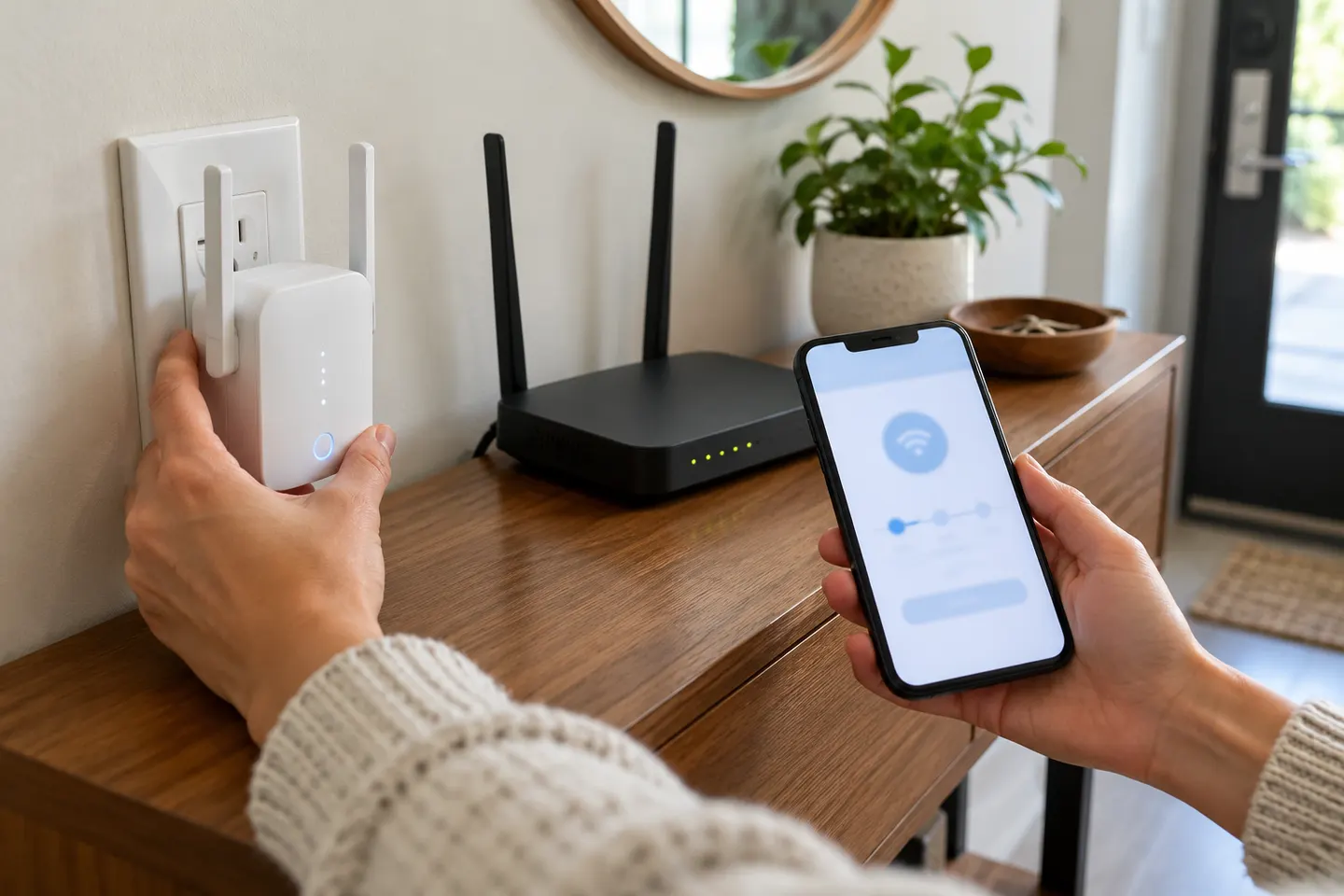
How to Set Up a TP-Link WiFi Extender Step by Step
Pair the extender near your router using WPS, the Tether app or its web setup, then move it to a position with a stable router signal. The exact controls vary by model.

 Best picksBest Meat Thermometers in Canada for 2026
 Best picksThe Best Dash Cam Cameras for Different Drivers
 Best picksBest WiFi Extenders in Canada for Different Home Networks
 Best picksBest Air Purifier for Bedroom in the Canada: Quiet Models Compared
Start here
Pair the extender near your router using WPS, the Tether app or its web setup, then move it to a position with a stable router signal. The exact controls vary by model.

TP-Link’s Canadian range includes WiFi 7, WiFi 6 and older dual-band extenders. Match the model to your router, desired features and available placement.
Our picks
Official manufacturer image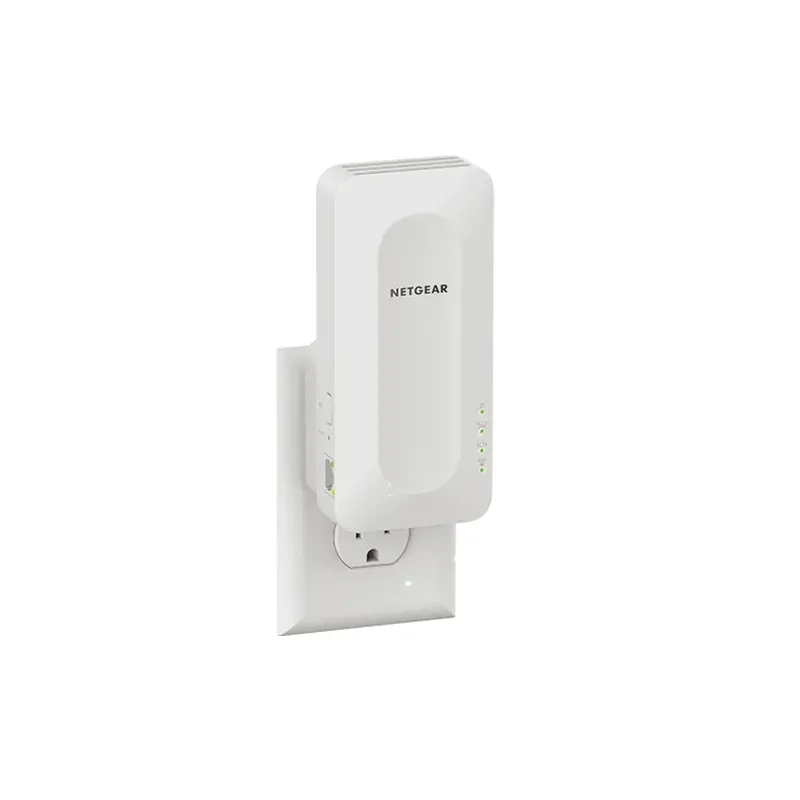 Official manufacturer image
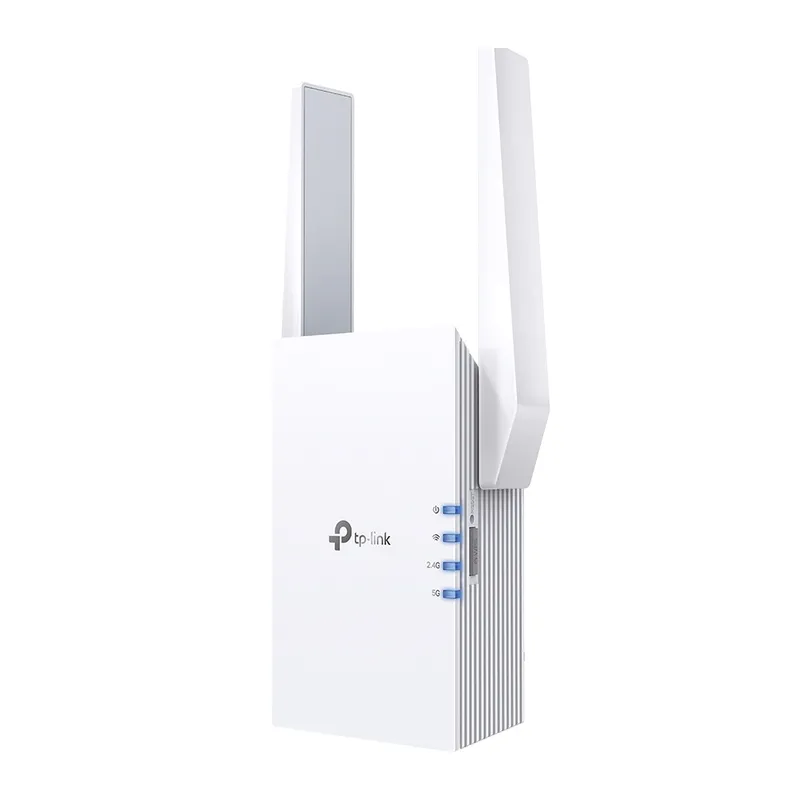 Official manufacturer image
Common questions
Use the setup method for the exact revision. D-Link’s DAP-1610 guide describes app-based setup using the D-Link Wi-Fi app and QR code, while compatible revisions may also offer WPS or a browser wizard.
Confirm the router password, security mode and WiFi band support, then pair the extender near the router and check its signal indicator. Match firmware and instructions to the device’s hardware revision.
D-Link’s support page states technical support for DAP-X1870 ended on July 1, 2025. Check current support and firmware availability before considering this model.
Yes. D-Link lists a Fast Ethernet port on its product information. It can connect a wired device or support a wired backhaul configuration as described in the model documentation.
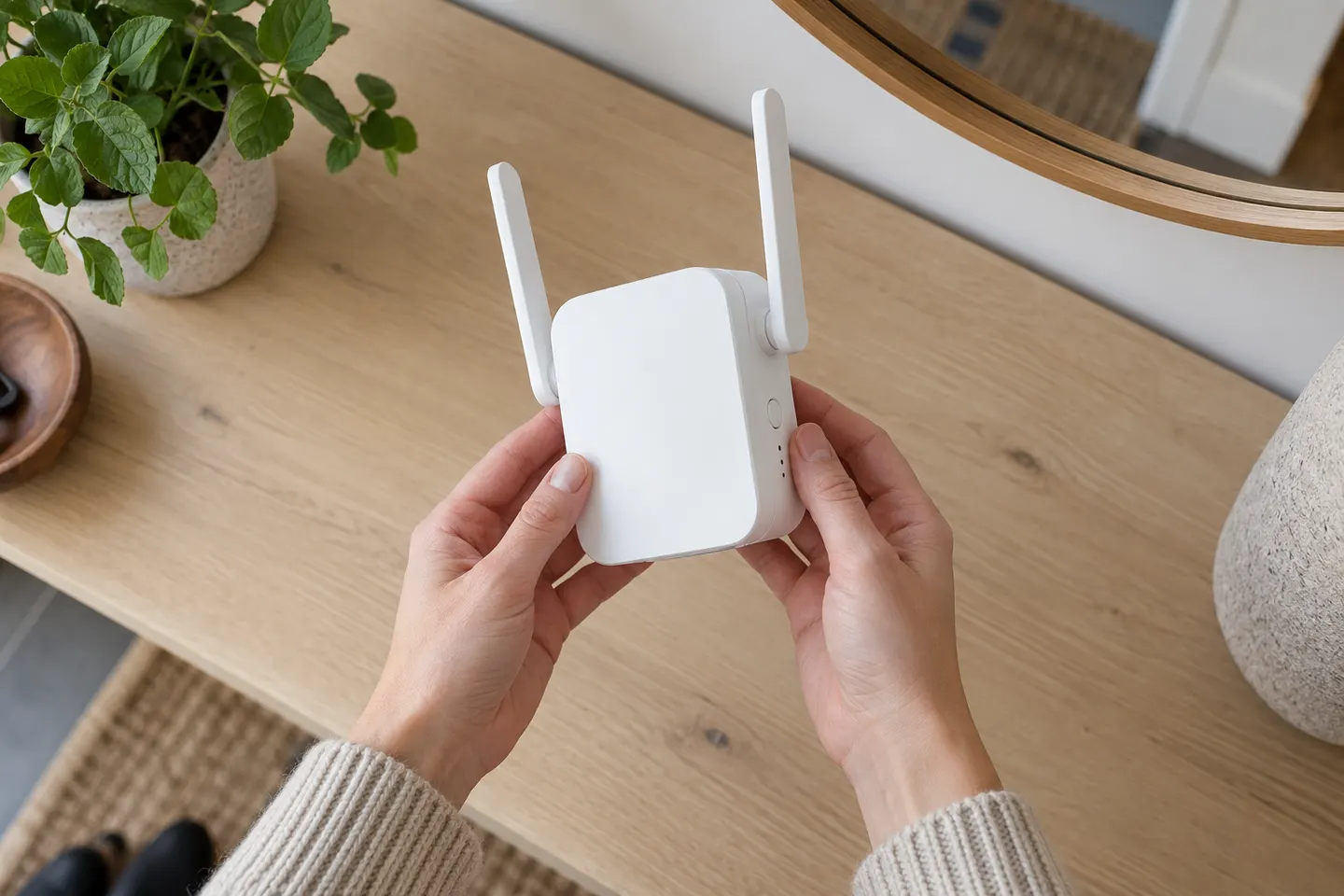 D link setup
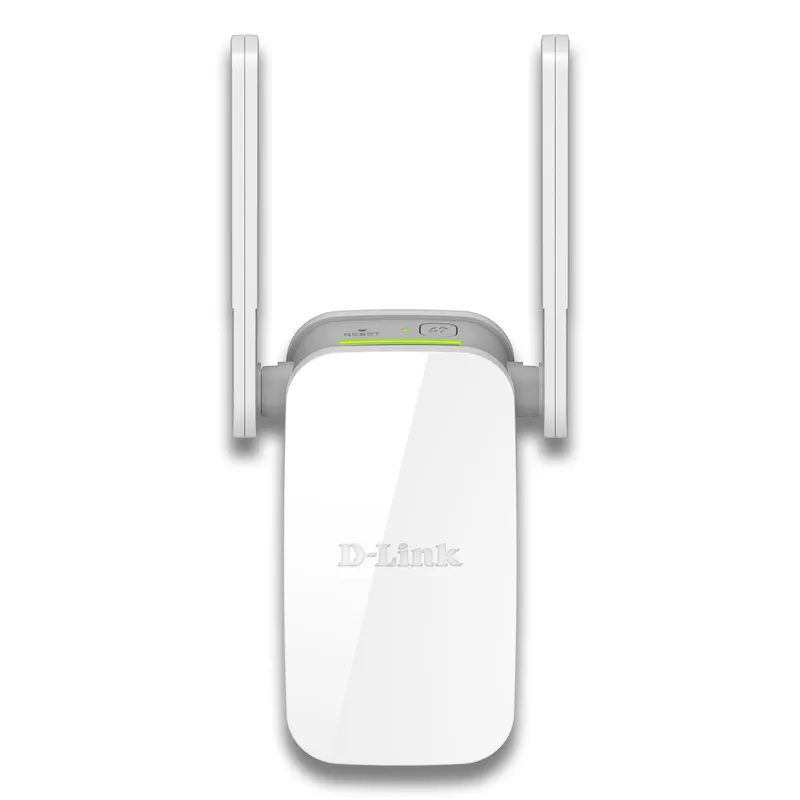 D-Link
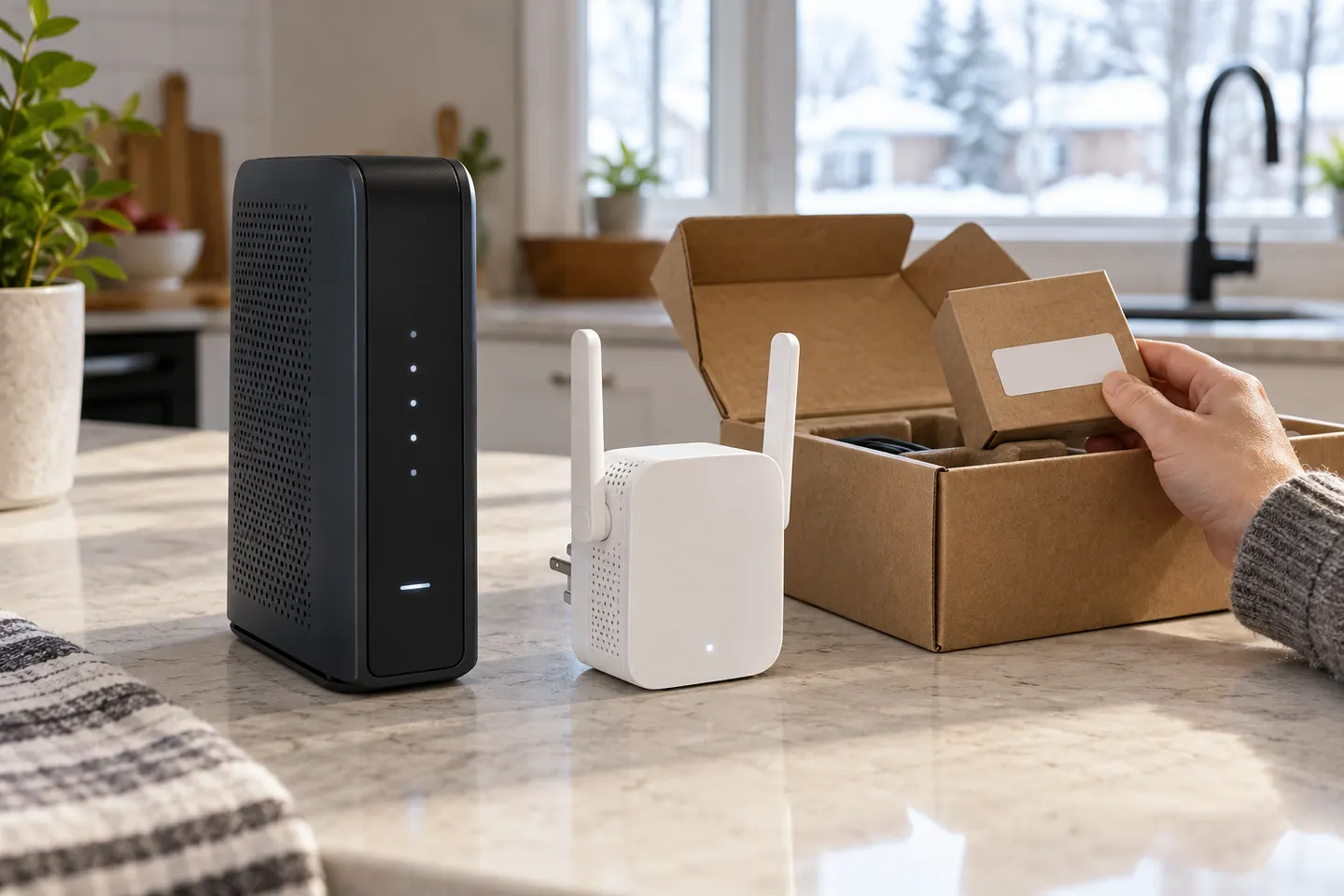 How to Set Up a TP-Link WiFi Extender
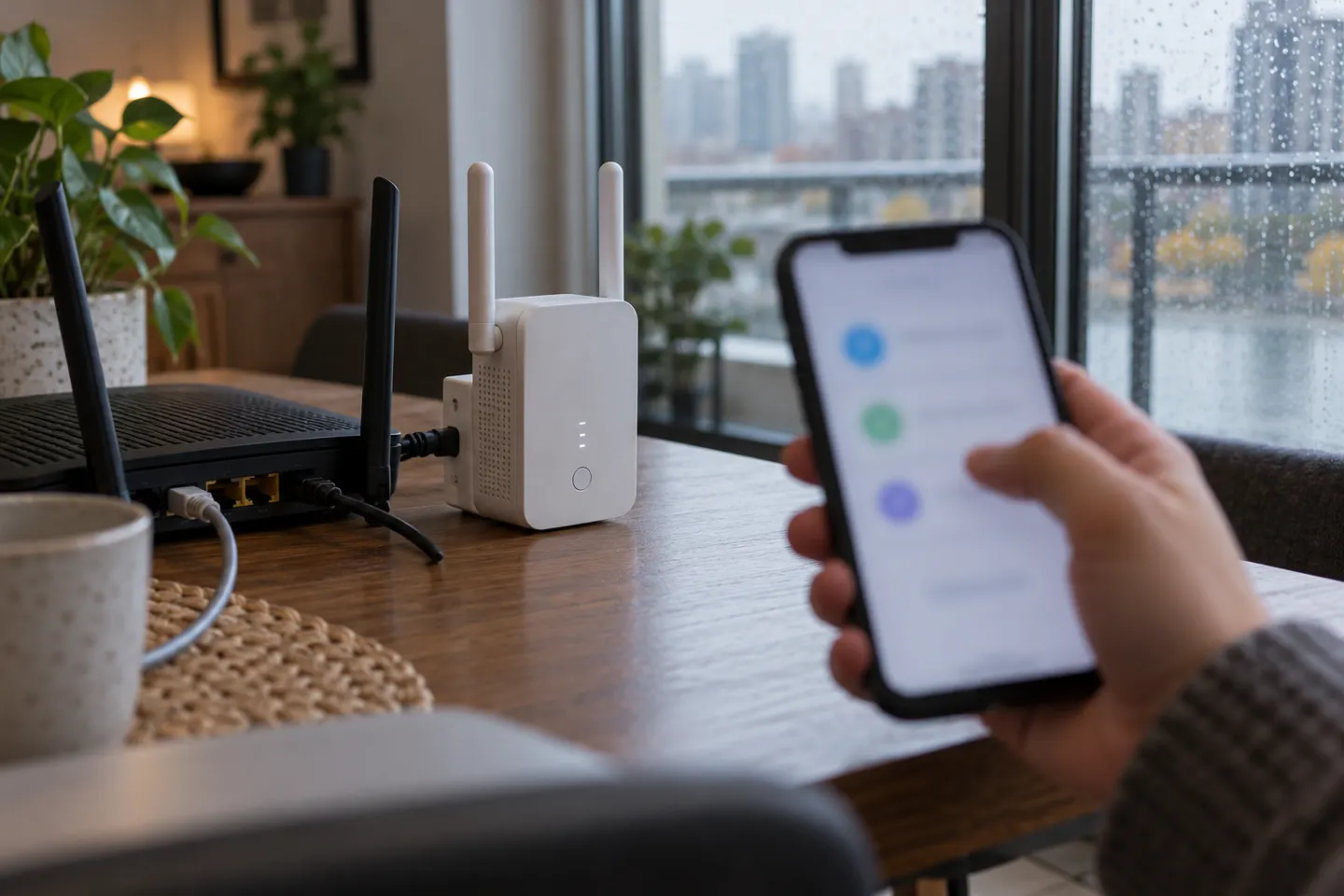 How to Connect a TP-Link WiFi Extender to Your…
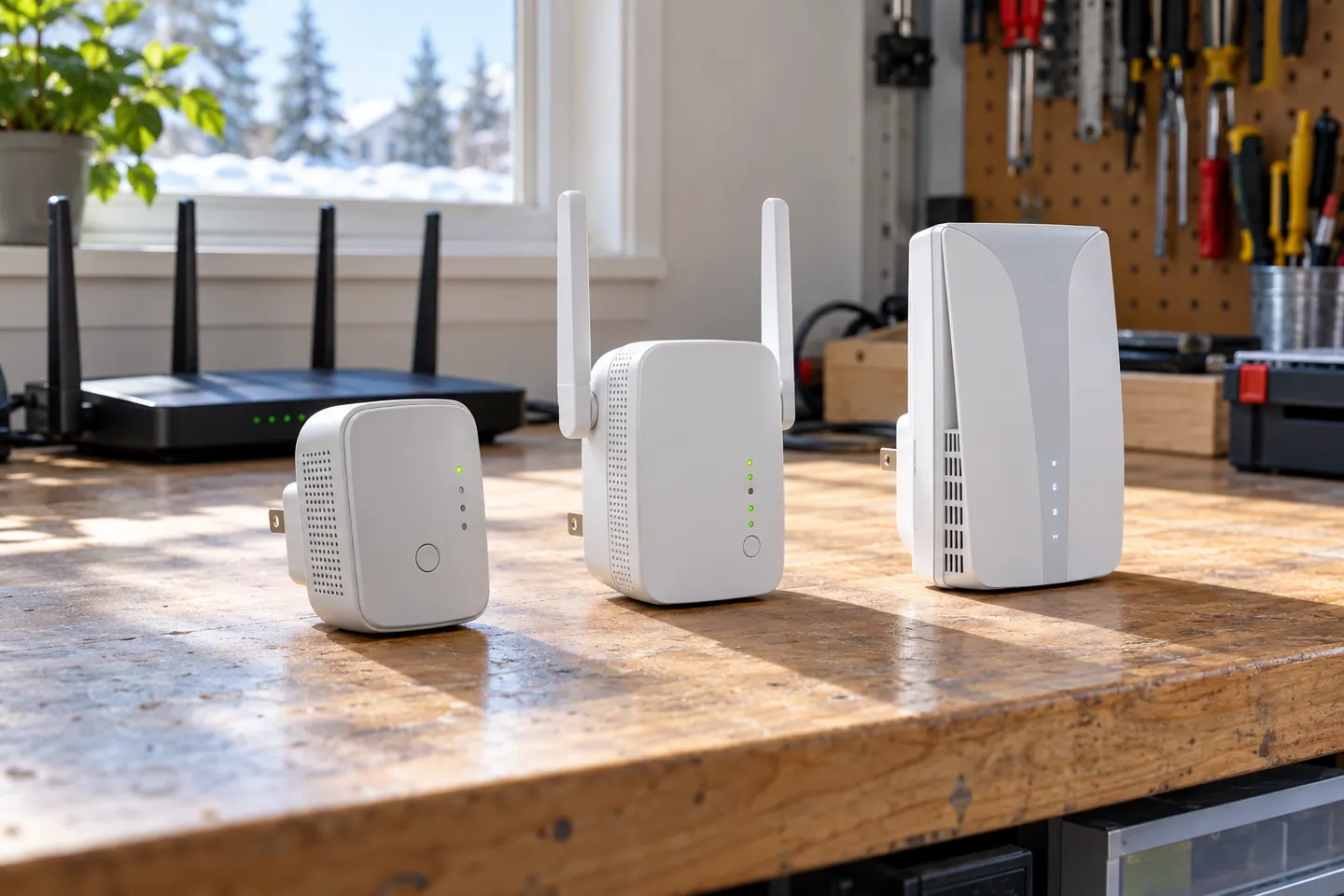 TP-Link WiFi Extenders
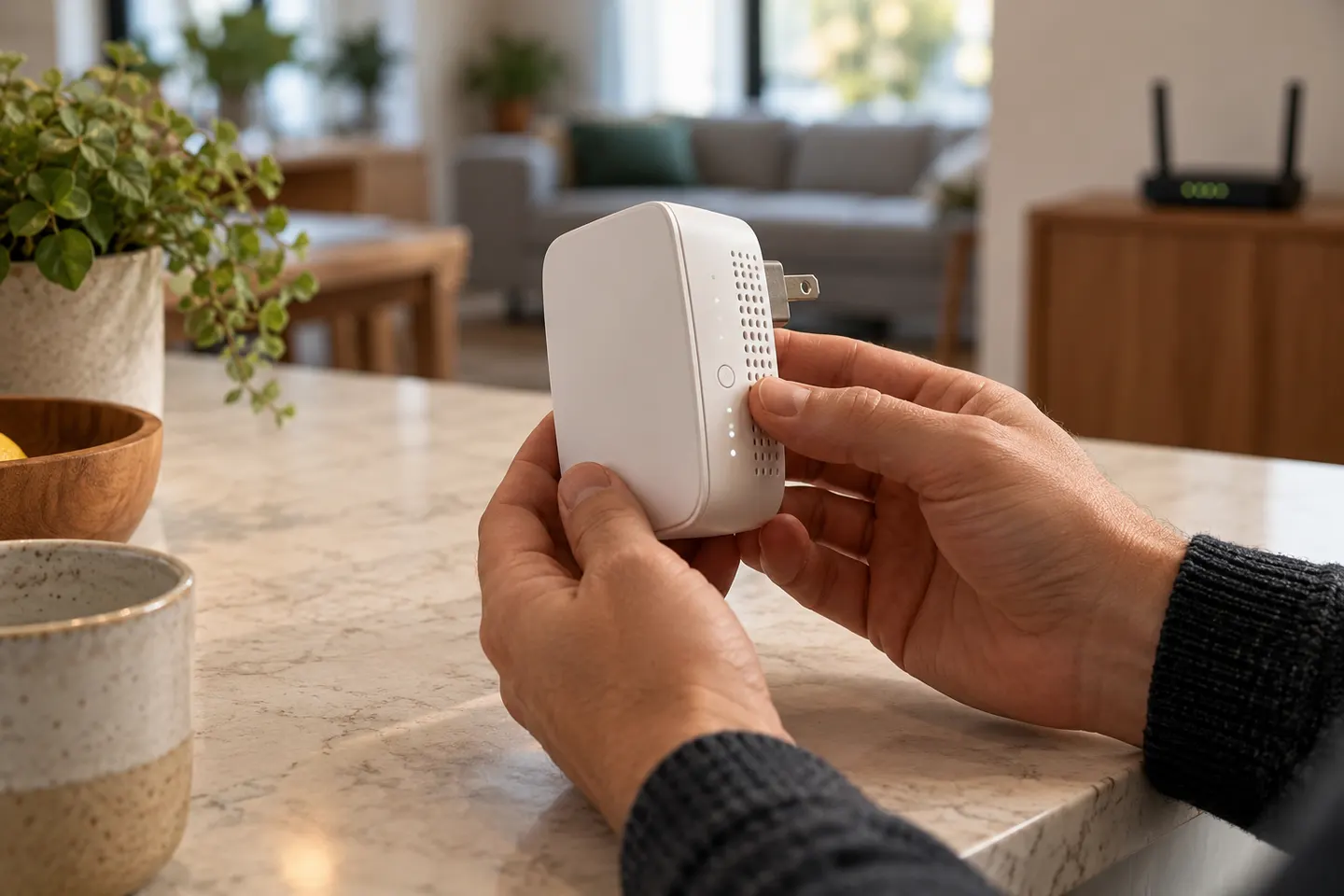 D-Link Wi-Fi Extender Configuration