Gearjury may earn a commission from qualifying retailer links.
Guide
How to Set Up a TELUS WiFi Booster in Your Home
Use the TELUS setup instructions for your booster generation and account. Pair it near the gateway first, confirm it appears in the app, then move it to a location with a reliable signal.
GGearjury editorial team · Updated October 18, 2026· 4 min
01
Identify your TELUS booster model
TELUS has supported several Boost Wi-Fi generations, and the app steps can differ. Read the model name on the unit and open the matching TELUS installation guide before pairing. Keep the booster, gateway and phone nearby during setup.
02
Start setup near the TELUS gateway
Connect the booster to power near the gateway for initial pairing. Open the TELUS Connect or My Wi-Fi app specified for your service and follow its add-device flow. Sign in with the account associated with the home internet service and complete any on-screen pairing prompts.
03
Confirm the booster appears in the app
Wait for the setup process to finish, then check the network screen in the TELUS app for the new Boost Wi-Fi unit. If it does not appear, check the device light and app guidance for your model, and make sure the phone is connected to the home network.
04
Choose a useful location
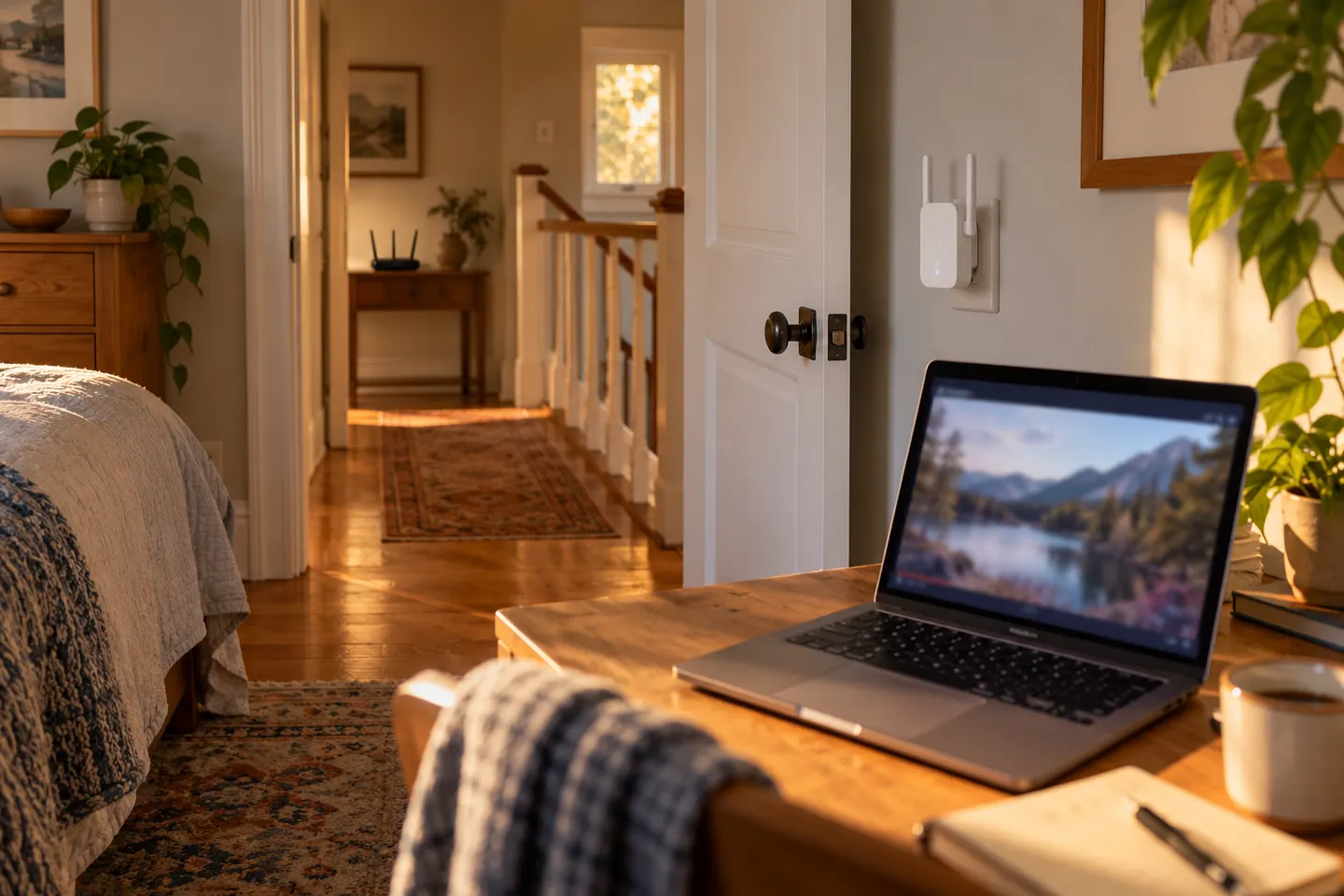
Move the paired booster toward the area with poor reception, but keep it within reliable reach of the gateway or another supported node. Avoid enclosed cabinets, large appliances and locations behind dense barriers. Check the TELUS app or device indicator after moving it.
05
Test the connection in the target room
Reconnect a phone or laptop near the problem spot and test the activities that were unreliable. If the booster has a weak link, move it closer to the gateway; an extender cannot relay a stable connection when its own signal is poor.
06
If pairing fails
Restart the booster and gateway only as directed by TELUS, then retry the model-specific app setup. If the unit was previously registered or the app reports an error, use TELUS troubleshooting or contact support before factory resetting network equipment.
Common questions
Questions before you buy
Which app do I need to set up a TELUS WiFi booster?
TELUS setup guidance directs customers to the applicable TELUS Connect or My Wi-Fi app flow, depending on service and booster generation. Check the instructions for the exact unit rather than assuming every model uses identical steps.
Where should I place my TELUS WiFi booster?
Pair it near the gateway first, then place it between the gateway and the weak-signal area while preserving a reliable link. Check the app or indicator after relocating it.
How can I tell if my TELUS booster is connected?
The booster should complete its model-specific light sequence and appear on the network screen in the TELUS app. Use the device guide to interpret the light colours for that generation.
Can I set up a TELUS booster without the app?
The official setup process may depend on the booster and service generation. Follow the matching TELUS guide or ask TELUS support for an alternative if the app cannot detect the unit.
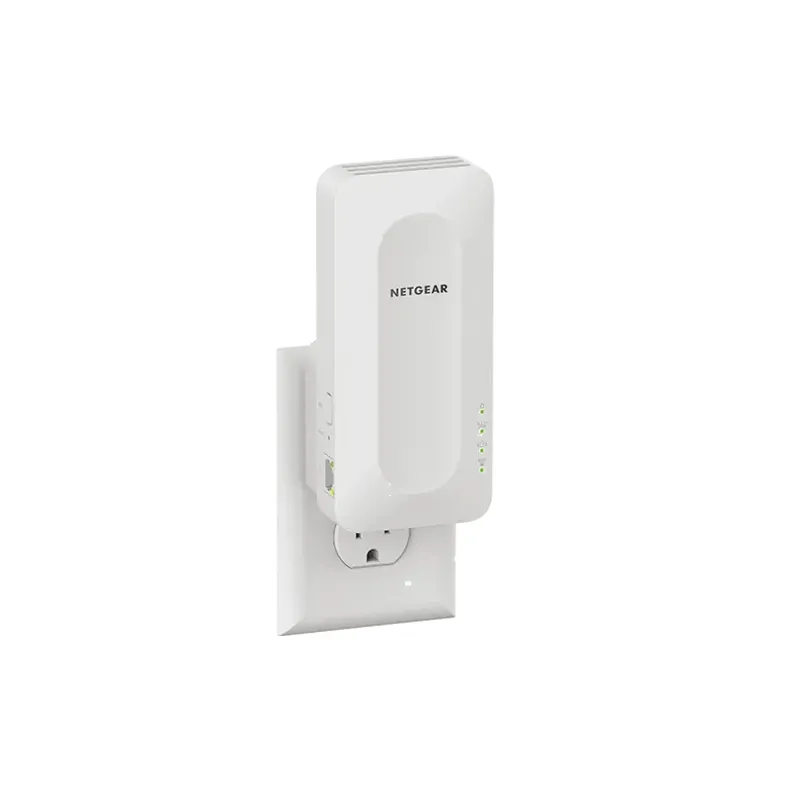
The TP-Link RE705X is a strong feature-led starting point, with WiFi 6, AX3000 class and a Gigabit port. Consider NETGEAR EAX15 for mesh-style WiFi 6 or simpler plug-in models for a basic dead zone.
TP-Link’s Canadian range includes WiFi 7, WiFi 6 and older dual-band extenders. Match the model to your router, desired features and available placement.
A WiFi extender can carry an existing router’s signal into a weak-coverage area. Start with compatibility and placement, then compare a standalone repeater with a provider mesh system.
Your privacy
We use cookies and similar technologies. Necessary ones keep the site working. With your permission we also use statistics cookies (Google Analytics and Microsoft Clarity) to understand which guides help readers. You can accept all, reject all or choose. You can change your choice at any time from "Cookie settings" at the bottom of every page. Cookie policy