Identify your TP-Link model and revision
Read the label for the model and hardware version, then select the matching regional support page. Firmware, app screens and supported features can vary between versions.

 Best picksBest Meat Thermometers in Canada for 2026
 Best picksBest WiFi Extenders in Canada for Different Home Networks
 Best picksThe Best Dash Cam Cameras for Different Drivers
 Best picksRadar Detector Best Picks for Canadian Drivers (2026)
 Best picksBest Air Purifier for Bedroom in the Canada: Quiet Models Compared
Gearjury may earn a commission from qualifying retailer links.
Guide
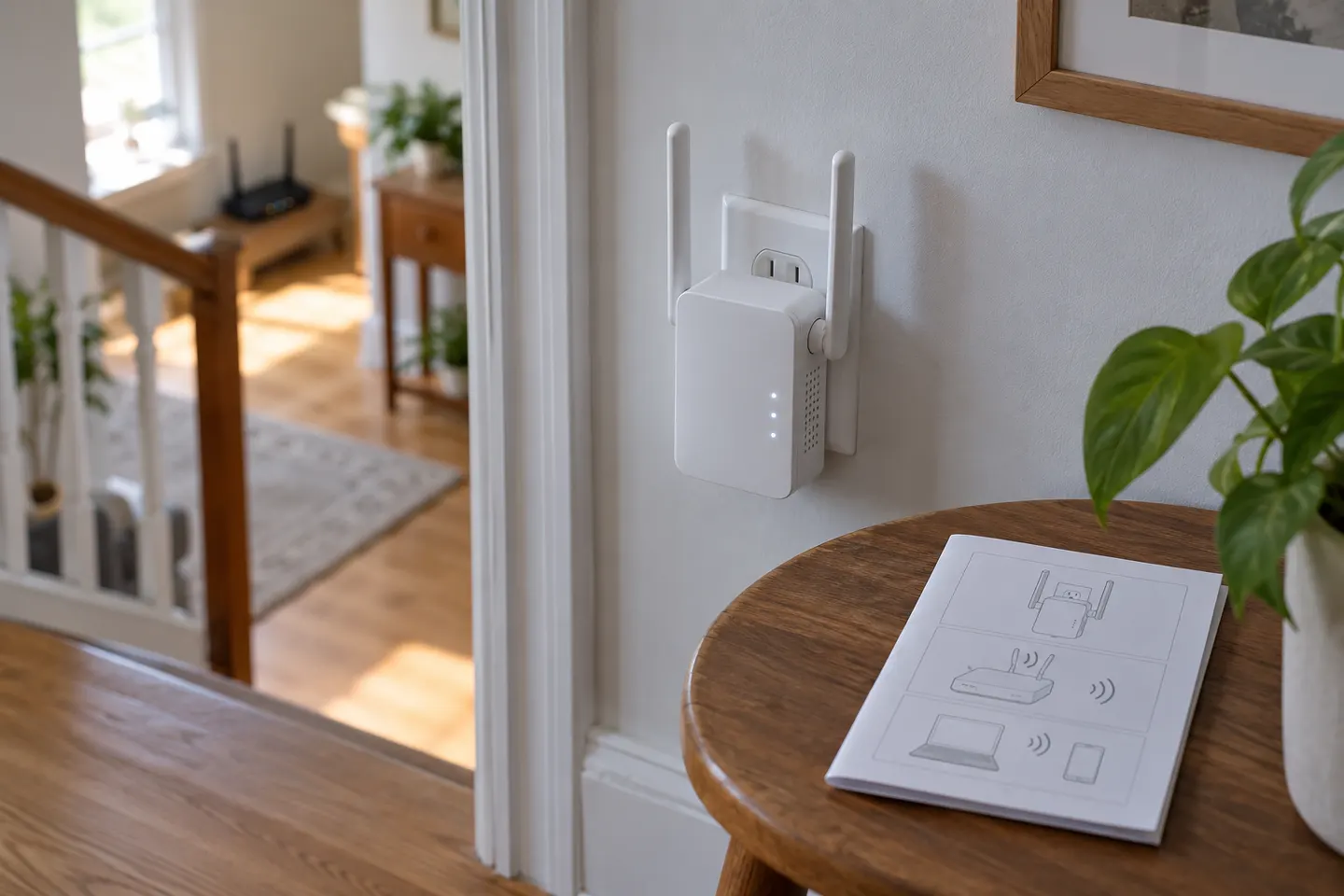
Pair your TP-Link extender with the router using a supported setup method, then move it to a location that still receives a good source signal. Check the guide for your exact hardware version.
Read the label for the model and hardware version, then select the matching regional support page. Firmware, app screens and supported features can vary between versions.
If both router and extender support WPS, plug the extender near the router and press the WPS controls as the model guide directs. Wait for the indicated connection status before moving it.
For supported models, install TP-Link Tether and follow its add-device flow. Connect your phone to the extender's temporary network if prompted, then select the home network and enter its password.
Some models allow setup through a browser. Connect to the extender's setup network and visit the address shown in its quick installation guide; avoid relying on a generic address if your model specifies another.
Move the paired unit toward the weak area while retaining a stable router link. Test a device in the room where you need coverage and adjust placement if the extender reports a weak source connection.
Common questions
Yes, many TP-Link models support the Tether app or browser setup. Confirm which options apply to your model and hardware version in TP-Link's Canada support materials.
Check that the router is broadcasting a supported band and that the extender is close enough during pairing. Restart both devices and verify the network name and password before trying the model guide again.
Put it between the router and the coverage gap, but within reliable router range. Use the device's status indicator or app guidance and test from the intended room.
A range extender can often connect to another brand's compatible WiFi router, subject to supported bands and security settings. Check both manuals for exceptions.
Keep exploring

TP-Link’s Canadian range includes WiFi 7, WiFi 6 and older dual-band extenders. Match the model to your router, desired features and available placement.
The TP-Link RE705X is a strong feature-led starting point, with WiFi 6, AX3000 class and a Gigabit port. Consider NETGEAR EAX15 for mesh-style WiFi 6 or simpler plug-in models for a basic dead zone.
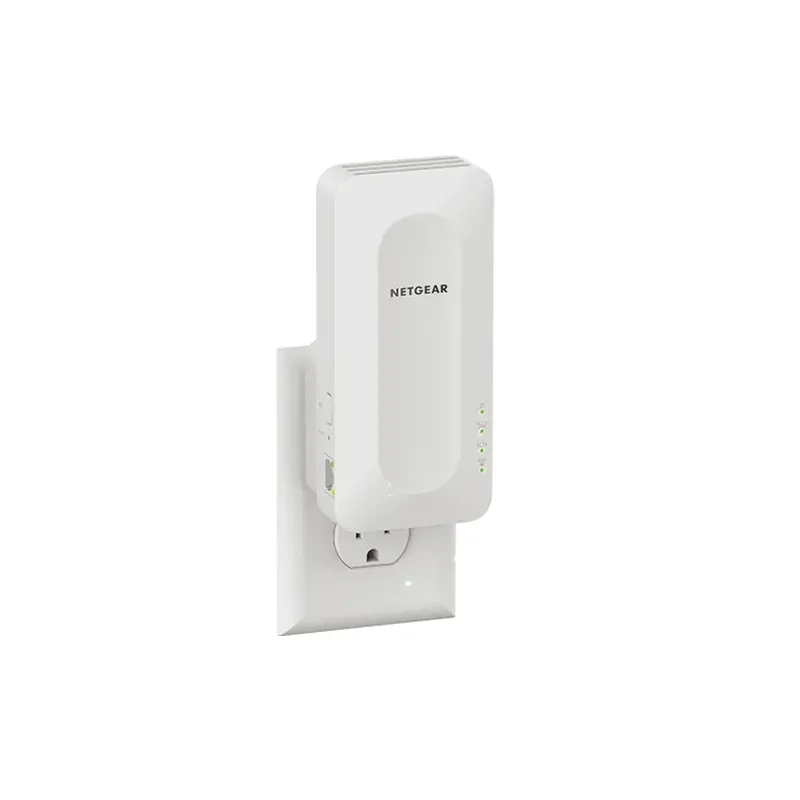
NETGEAR’s Canadian range includes WiFi 6 mesh extenders and older AC models. Check each model’s port, generation and setup method before choosing.

A WiFi extender can carry an existing router’s signal into a weak-coverage area. Start with compatibility and placement, then compare a standalone repeater with a provider mesh system.