Check the exact TP-Link model
Find the model and hardware version on the label. Setup screens and supported options can differ, so use the matching quick installation guide and keep the router password ready.

 Best picksBest Meat Thermometers in the UK for 2026
 Best picksBest WiFi Extenders in the UK: Compare Five Practical Options
 Best picksThe Best Dashcams in the UK for 2026
 Best picksBest Air Purifiers in the UK for Different Rooms and Needs
Gearjury may earn a commission from qualifying retailer links. This does not affect editorial selection.
Guide
Pair the extender near your router first, then move it to a spot that still receives a stable signal. TP-Link offers app, browser and WPS methods on supported models.
Find the model and hardware version on the label. Setup screens and supported options can differ, so use the matching quick installation guide and keep the router password ready.
TP-Link documents setup through the Tether app, a web browser and WPS for supported models. Follow the method offered in the model instructions; WPS is not available on every router.
For initial pairing, plug the extender close to the router and follow the app or browser prompts to select your home network and enter its password. Wait for the connection indicator described in the manual.
After pairing, relocate the extender to a position that still receives a good router signal. Use its signal indicator if provided. A socket in the dead zone is usually too far from the source.
Reconnect devices using the network details shown during setup. Check whether the connection is stable in the area that needed coverage.
Confirm the router password, bring the extender closer, retry setup and check the model support page. Reset only as directed by the product guide.
Common questions
Leave it powered at the chosen position and connect devices using the extended network details shown in setup. Follow the instructions for mesh roaming if your router and model support it.
Many models also offer browser or WPS setup, but available methods vary. Check the matching TP-Link guide.
Place it where the router signal remains stable, usually between the router and the area needing coverage. Use the model indicator and test the connection.
Virgin Media equipment has its own pairing instructions. Use the guide for the exact Virgin booster and Hub model; TP-Link steps may not apply.
Keep exploring
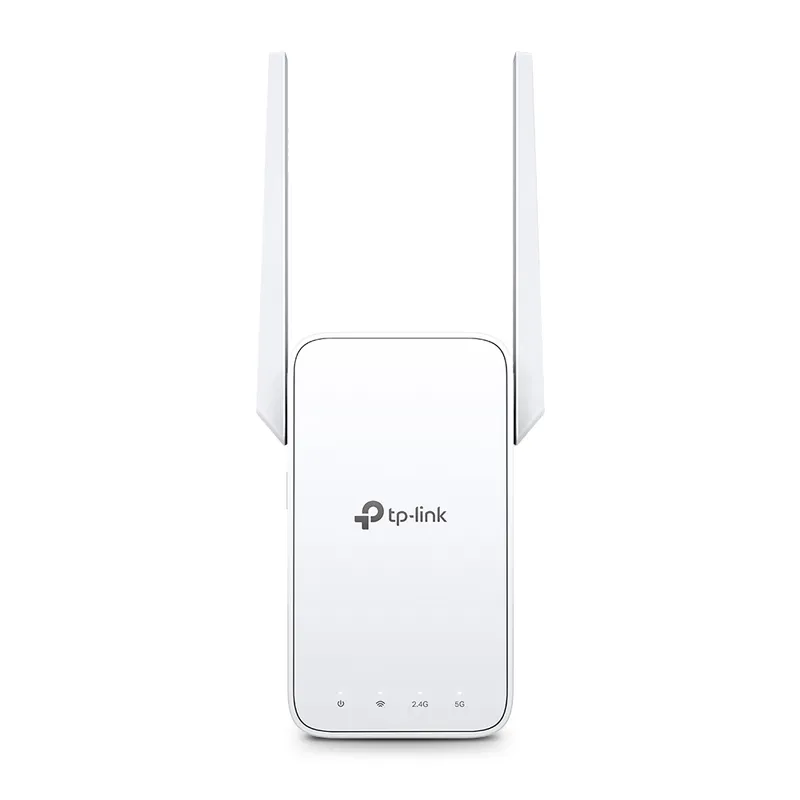
TP-Link sells plug-in repeaters and powerline kits. Check EasyMesh support, Ethernet needs and the exact UK hardware revision before buying.
TP-Link RE315 is a practical starting point for a standard indoor dead zone. Consider a Wi-Fi 6 device for newer kit, outdoor-rated hardware for a garden, or powerline where a wireless hop struggles.

Sky has different booster products for different broadband generations. Sky Max customers may use a Max Pod; check your account and hub-specific help before seeking a third-party extender.

A WiFi extender can carry your router signal further, but placement and backhaul matter. Choose a plug-in repeater for a nearby dead zone, powerline WiFi for difficult layouts, or an outdoor-rated unit for a garden.