Check what your extender supports
Find the model number and consult its quick-start guide. Extenders may pair through WPS, a browser setup page or a manufacturer app; use only a method listed for your device.

 Best picksBest Meat Thermometers in Canada for 2026
 Best picksBest WiFi Extenders in Canada for Different Home Networks
 Best picksThe Best Dash Cam Cameras for Different Drivers
 Best picksRadar Detector Best Picks for Canadian Drivers (2026)
 Best picksBest Air Purifier for Bedroom in the Canada: Quiet Models Compared
Gearjury may earn a commission from qualifying retailer links.
Guide
Connect the extender to your router, then place it where it still receives a reliable signal. Setup methods vary by model, so use its manual for the exact buttons and lights.
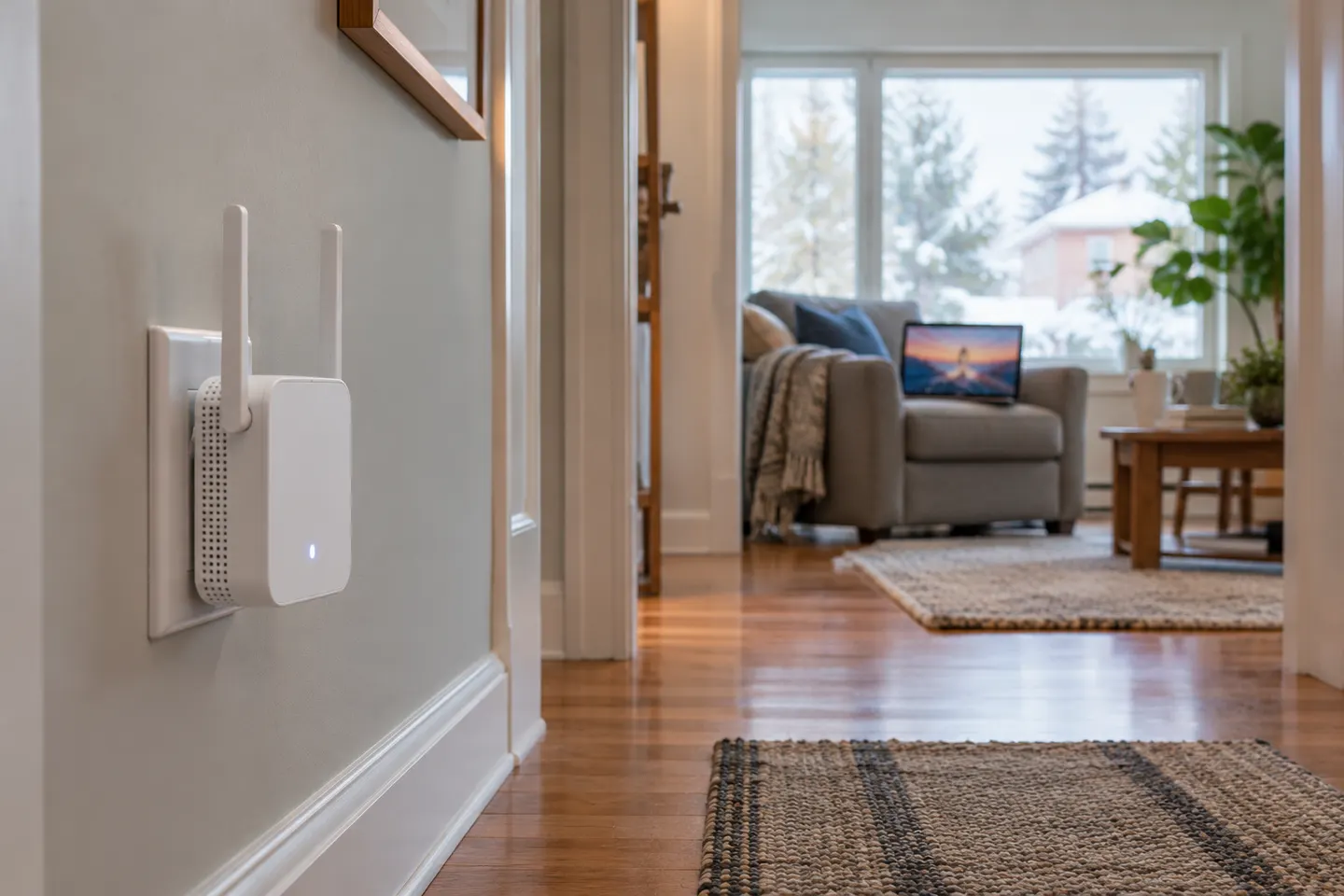
Find the model number and consult its quick-start guide. Extenders may pair through WPS, a browser setup page or a manufacturer app; use only a method listed for your device.
For a D-Link unit, follow the model-specific setup guide and choose your existing router network when prompted. The exact interface and indicator meanings differ across D-Link models.
Use the JOOWIN model's supplied instructions to connect to the extender's temporary setup network or use WPS if supported. Set the same security details as directed and change any default admin credentials.
TELUS boosters are designed for the TELUS service and equipment specified in their instructions. Pair through the TELUS app or guided process for your model, and check the connection indicator before moving it.
Start near the router for pairing. Once connected, move the extender toward the weak-signal area while keeping it within dependable router coverage; a halfway point is only a starting estimate.
Reconnect a phone or laptop near the target room and compare whether the connection is stable for the task you care about. An extender cannot increase the speed supplied by the internet plan, and walls or interference can limit results.
Common questions
Pair it with your router using the method in the guide for its exact model, then position it where the router signal remains usable. Check D-Link's indicator explanation for placement.
Follow the included model-specific setup steps, using WPS or the web setup only if that model supports it. Confirm the extended network works before relocating the unit.
Follow TELUS's pairing flow for your booster and gateway, then use its connection indicator to choose a location. TELUS equipment instructions take precedence over generic extender steps.
A standard extender may work with a compatible WiFi router, but confirm the extender's supported bands and security settings and check Xfinity gateway guidance. Compatibility does not guarantee a particular coverage result.
Keep exploring

TP-Link’s Canadian range includes WiFi 7, WiFi 6 and older dual-band extenders. Match the model to your router, desired features and available placement.
The TP-Link RE705X is a strong feature-led starting point, with WiFi 6, AX3000 class and a Gigabit port. Consider NETGEAR EAX15 for mesh-style WiFi 6 or simpler plug-in models for a basic dead zone.
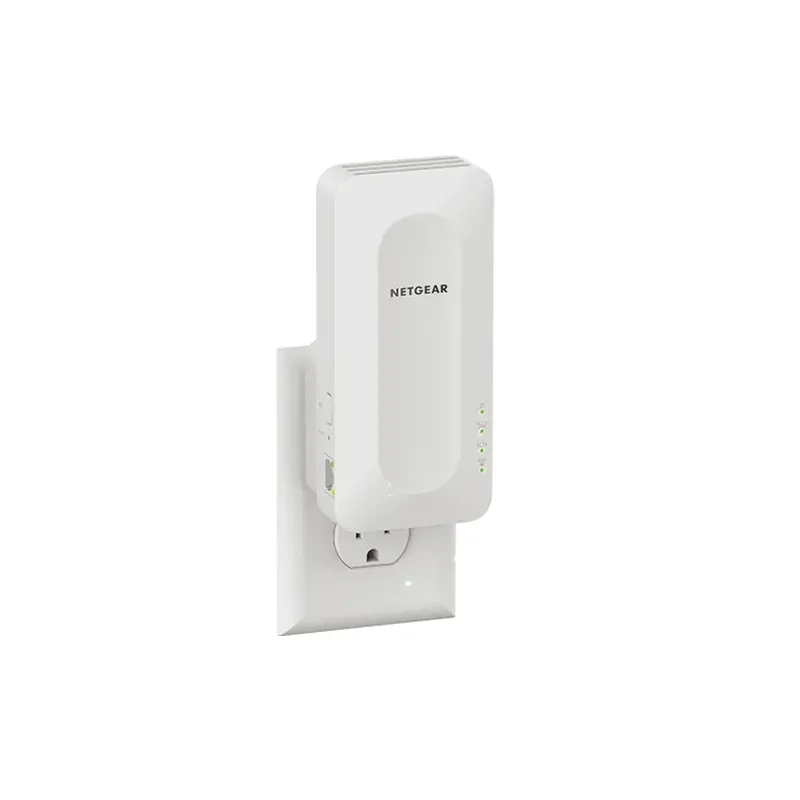
NETGEAR’s Canadian range includes WiFi 6 mesh extenders and older AC models. Check each model’s port, generation and setup method before choosing.

A WiFi extender can carry an existing router’s signal into a weak-coverage area. Start with compatibility and placement, then compare a standalone repeater with a provider mesh system.