

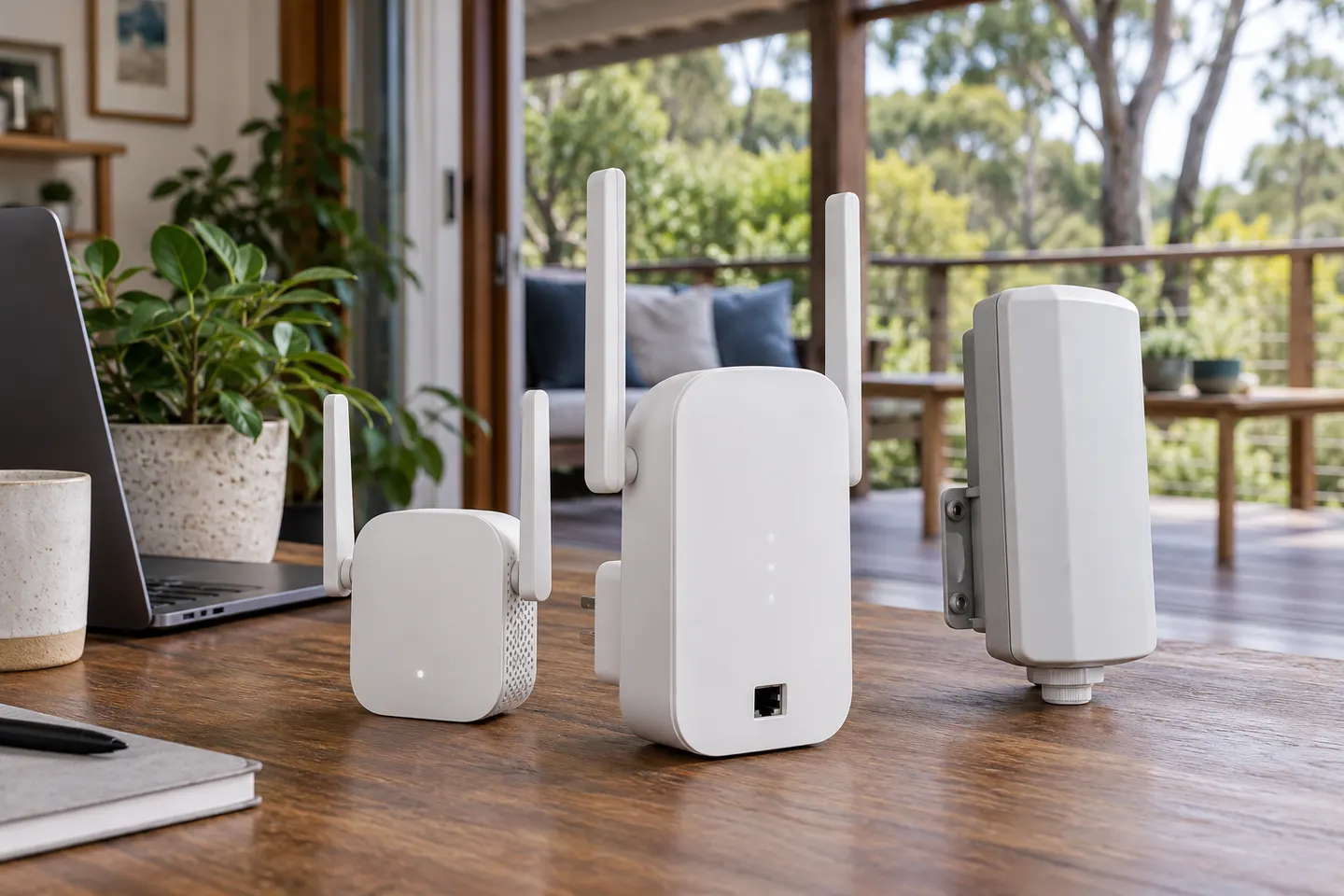

Check the router and extender first
Keep the router online and note its WiFi name and password. Read the extender quick-start guide for its setup method, supported bands and reset procedure; labels and button sequences differ by model.

Gearjury may earn a commission when you buy through a retailer link. Editorial conclusions are based on cited evidence.
Guide
Connect the extender to the router using its setup app, web interface or WPS method, then move it to a midway spot where it still receives a reliable signal. Confirm the extended network works before settling on its location.
Keep the router online and note its WiFi name and password. Read the extender quick-start guide for its setup method, supported bands and reset procedure; labels and button sequences differ by model.
Plug the extender near the router, wait for it to start, then open the manufacturer app or setup address printed in its guide. Choose your home network and enter its password carefully. Use the bands supported by both devices.
Press WPS on the router and follow the extender manual’s timing for its WPS button. Indicator lights vary, so use the model guide to tell whether pairing succeeded. If the router has WPS disabled, use app or browser setup instead.
Move the paired unit partway towards the weak-signal area, while keeping it within dependable reach of the router. A signal indicator can help, but confirm with a device in the room you want to cover. Avoid cabinets and large obstructions.
Some extenders broadcast a new network name; others can share the router’s name when supported. Reconnect a phone or laptop if needed, then check browsing and calls in the target area. An extender cannot improve the internet plan itself.
Recheck the router password, band selection and distance. Restart both devices and try the manufacturer’s app or browser process. A factory reset clears saved settings, so use it only as described in the manual and repeat setup afterwards.
Common questions
Many extenders are designed to work with standard WiFi routers, but supported bands, security settings and mesh features vary. Check the compatibility notes for both exact models.
Choose a band supported by both devices and suitable for the route through your home. The lower band often reaches farther through obstacles, while 5GHz can offer more capacity at shorter distances; conditions vary.
Place it between the router and the weak area, where it still receives a reliable router signal. Verify the final position with a device in the target room.
Usually you enter the existing router password during setup. Follow the extender instructions if it creates a separate network name or asks you to set an administrator password.