Save footage before you format
Formatting removes the files on the card. Copy any incident or personal footage to separate storage first, open the copied files and confirm they play before continuing.

 Best picksThe Best Dash Cam Cameras for Different Drivers
 Best picksBest WiFi Extenders in Canada for Different Home Networks
 Best picksBest Meat Thermometers in Canada for 2026
 Best picksBest Winter Gloves for Canadian Conditions (2026)
 Best picksBest Headlamps: Compare Reliable Options for Canada
 Best picksRadar Detector Best Picks for Canadian Drivers (2026)
 Best picksBest Portable Air Coolers to Consider in 2026
 Best picksBest cordless grass trimmers with a battery and charger
 Best picksBest Air Purifier for Bedroom in the Canada: Quiet Models Compared
Gearjury may earn from qualifying retailer links; formatting steps should always be checked against your device manual.
Guide
Back up anything important, confirm the supported card and use the dash cam's own format command when the manual recommends it. Formatting erases stored footage.
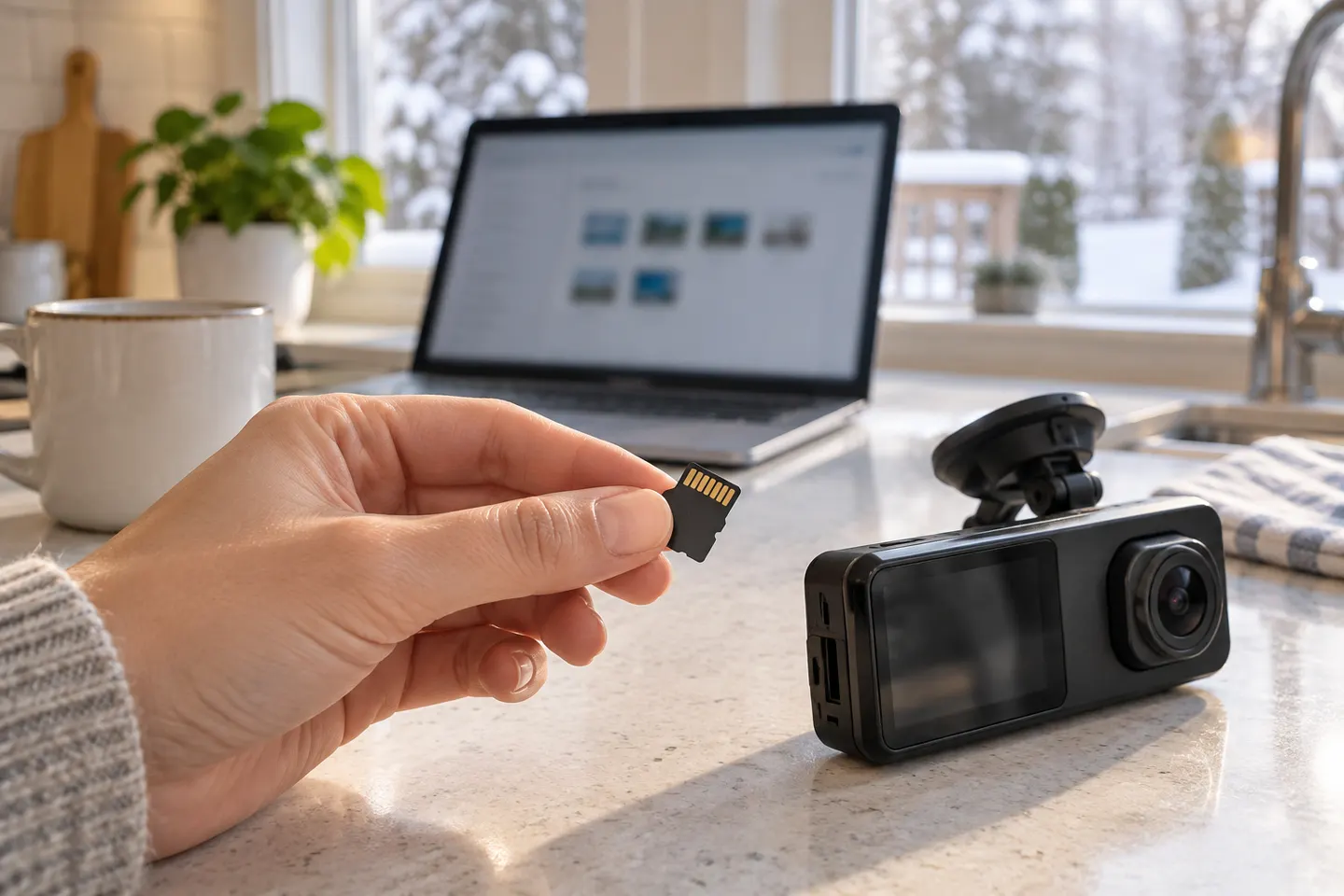
Formatting removes the files on the card. Copy any incident or personal footage to separate storage first, open the copied files and confirm they play before continuing.
Read the exact camera manual for supported capacity, speed class and file system. A card can fit physically yet remain unsupported. Continuous recording also favours a card designed for repeated writes.
Park safely and keep the camera on stable power. Stop recording if the interface requires it, then find the card-format or erase-and-format control in the camera or its official companion app.
Check once more that the correct card is selected, then approve the format and leave power connected until the camera reports completion. Interrupting the process can leave the card unreadable.
Allow a new clip to record, stop safely and play it back. Check the displayed date and time as well. If card errors return, consult the manual before repeating formats or replacing the card.
Tesla uses supported USB storage rather than the microSD workflow common to standalone cameras. Follow the current vehicle owner's manual: supported vehicles can format the USB drive from the touchscreen under the safety controls, and manual computer setup has specific partition and folder requirements.
Common questions
On supported Tesla vehicles, insert a suitable USB drive and use the touchscreen's Format USB Drive control described in the owner's manual. If preparing it on a computer, follow Tesla's current file-system and folder instructions exactly.
Use the camera's own format function when its manufacturer recommends it. A computer may be needed for initial preparation or troubleshooting, but the required file system is model-specific.
Yes. Formatting erases protected and ordinary files, so copy anything important elsewhere first.
The card may be unsupported, worn, counterfeit or faulty, or the camera may need a firmware or hardware check. Consult the official compatibility guidance before buying a replacement.
Follow the camera manufacturer's maintenance guidance rather than a universal schedule. Repeated errors are a reason to investigate the card and device, not simply format more often.
Keep exploring
The VIOFO A229 Pro 2CH is our broadest all-round choice for front-and-rear detail. Garmin Mini 3 suits a discreet setup, while Thinkware U3000 targets parking surveillance.
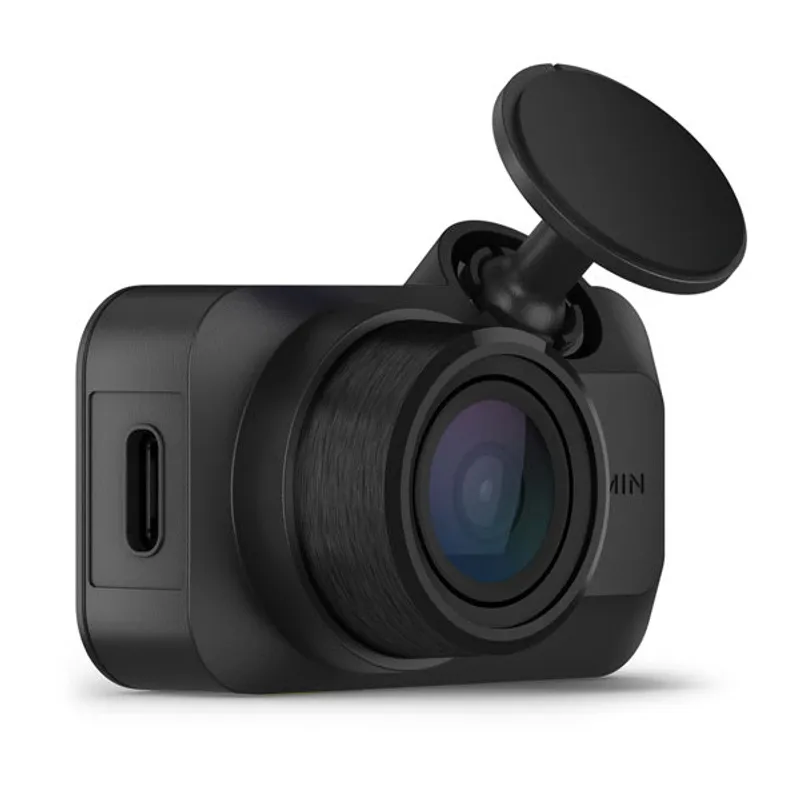
Mini 3 is the smallest choice; X110 adds GPS and a screen, X210 raises resolution, and X310 is the 4K touchscreen option.
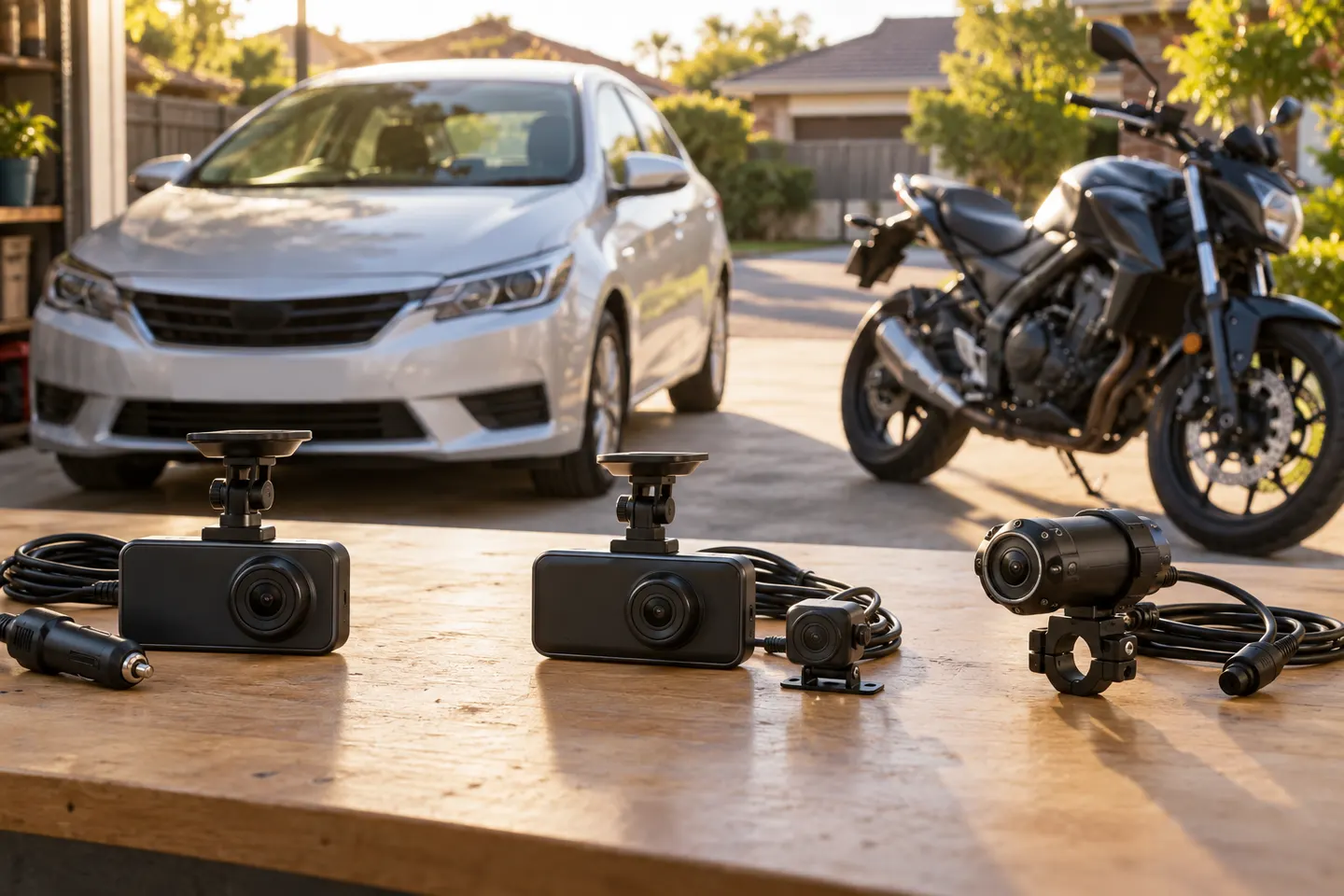
Start with the view you need: front-only for simple evidence, front-and-rear for broader coverage, or parking mode for protection while stopped.
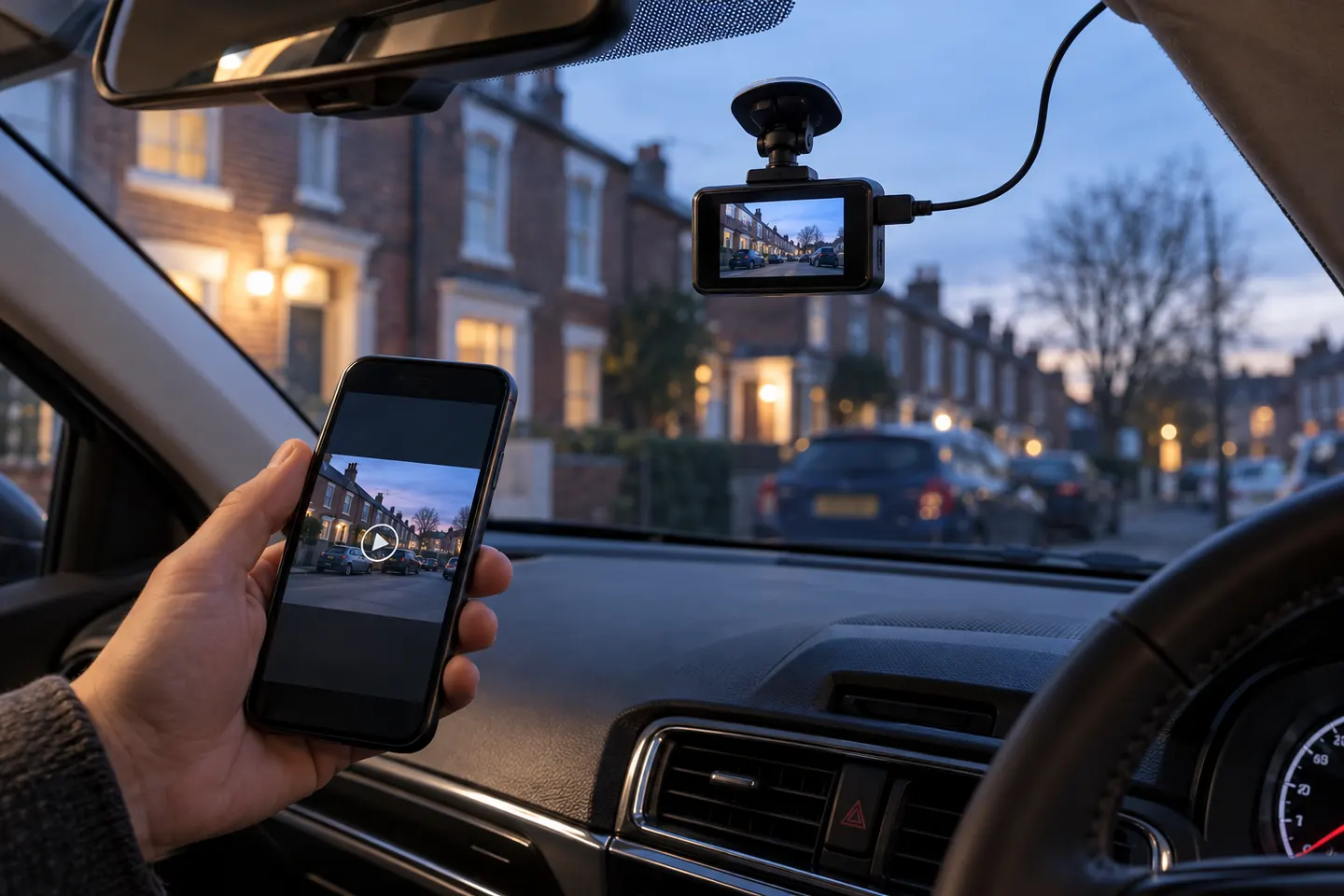
A wireless dash cam normally uses Wi-Fi or LTE to move footage or connect remotely. It still needs power, and a rear camera often still needs a cable.