Save important footage before formatting
Formatting deletes recordings. Copy locked events and any clip you may need to a phone or computer, then confirm the copy opens before continuing.

 Best picksBest Dash Cam in Australia: Five Models Compared
 Best picksBest Wi-Fi Extenders in Australia for Different Homes
 Best picksThe Best Meat Thermometer for Every Kind of Cook
 Best picksBest Headlamp Torches for Different Uses in 2026
 Best picksBest Portable Air Coolers to Consider in Australia (2026)
 Best picksBest Winter Gloves for Everyday Wear and Outdoor Use
 Best picksBest Cordless String Trimmers for Australian Gardens (2026)
 Best picksBest air purifier for bedroom in Australia: five models compared
Gearjury may earn a commission when you buy through a retailer link. Editorial conclusions are based on cited evidence.
Guide
Back up any clips you need, power the camera down, then use its built-in format command where available. Formatting erases the card and prepares its file system for recording.
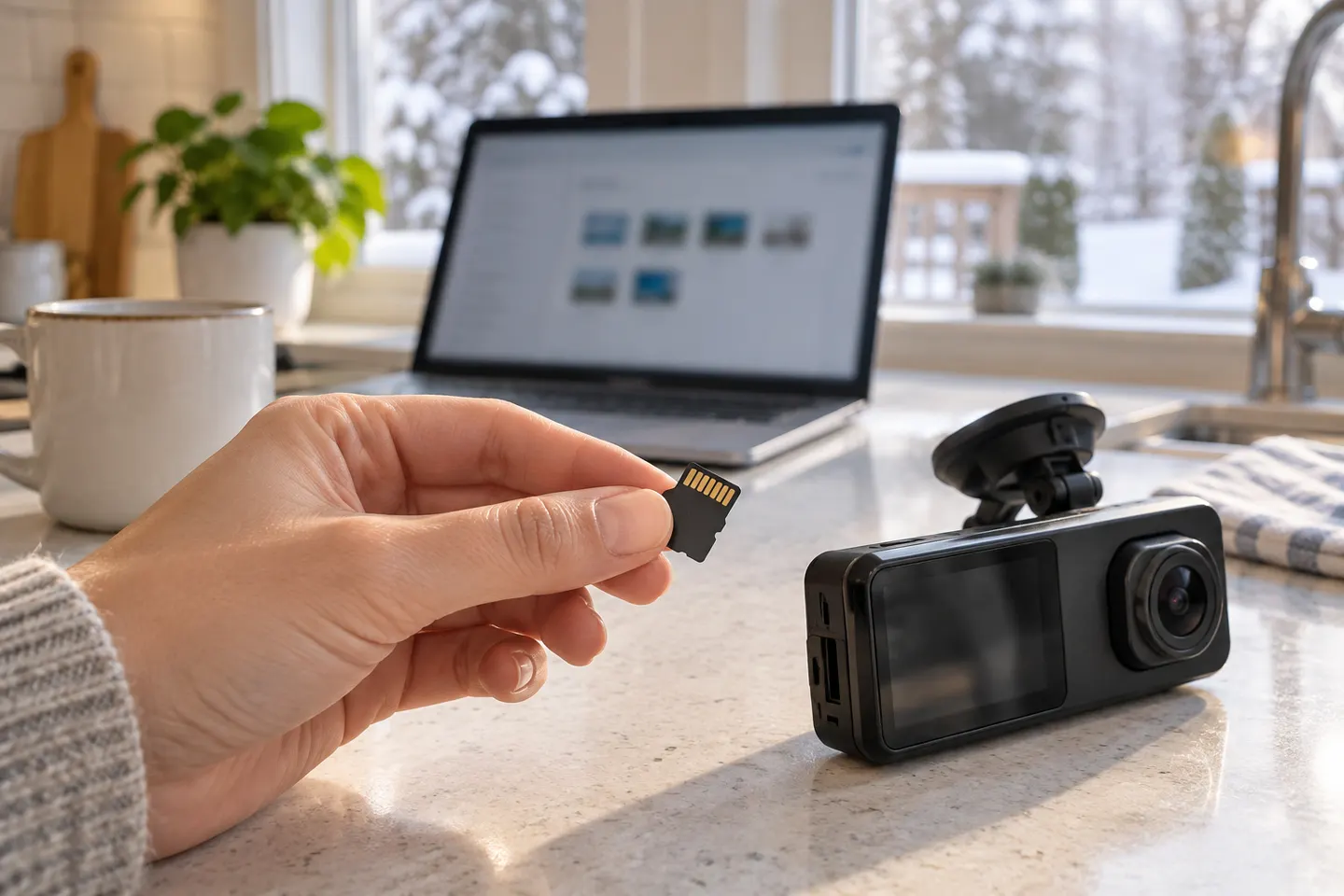
Formatting deletes recordings. Copy locked events and any clip you may need to a phone or computer, then confirm the copy opens before continuing.
Stop recording and switch off the camera or disconnect power according to its manual. Wait for status lights to go out, press the spring-loaded card gently and remove it without touching the contacts.
Use the capacity, speed class and endurance type supported by the exact camera. A card that fits physically may still be unsupported or unable to sustain continuous video writing.
Reinsert the card in the correct orientation, power the camera and select Format in the device menu or official app. This is normally preferable because the camera creates the file system and folders it expects.
If the manufacturer requires a computer, choose the specified file system and allocation settings. Do not guess between FAT32 and exFAT; support varies by model and capacity.
Allow the camera to start recording, make a short clip and play it back. Investigate repeated card errors, missing footage or unexpected restarts rather than relying on an unreliable card.
Common questions
Back up required footage, then use the camera's own Format function or official app if available. Follow the manual for the exact model.
Stop recording, power the camera down, wait for its lights to extinguish and press the card gently to release it. Do not pull it while files are being written.
Yes. Formatting erases recordings on the card, including protected clips unless they have already been copied elsewhere.
The card may be unsupported, worn, corrupted or incorrectly formatted. Check the manufacturer's approved specifications and replace a card that continues to produce errors.
Keep exploring
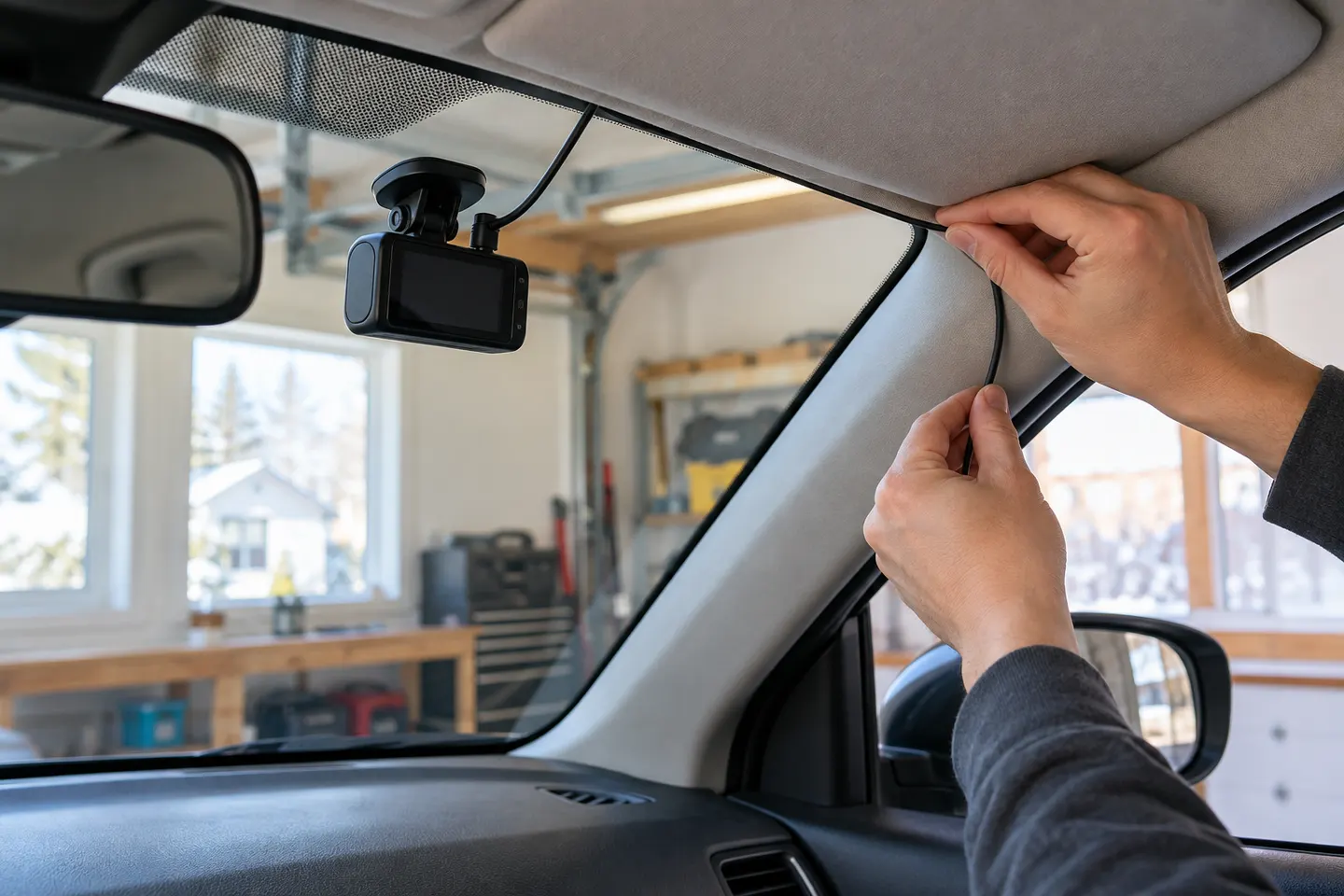
A plug-in installation suits basic driving recording; professional hardwiring is the safer route for neat cabling and parking mode. Keep every camera and cable clear of vision and airbags.
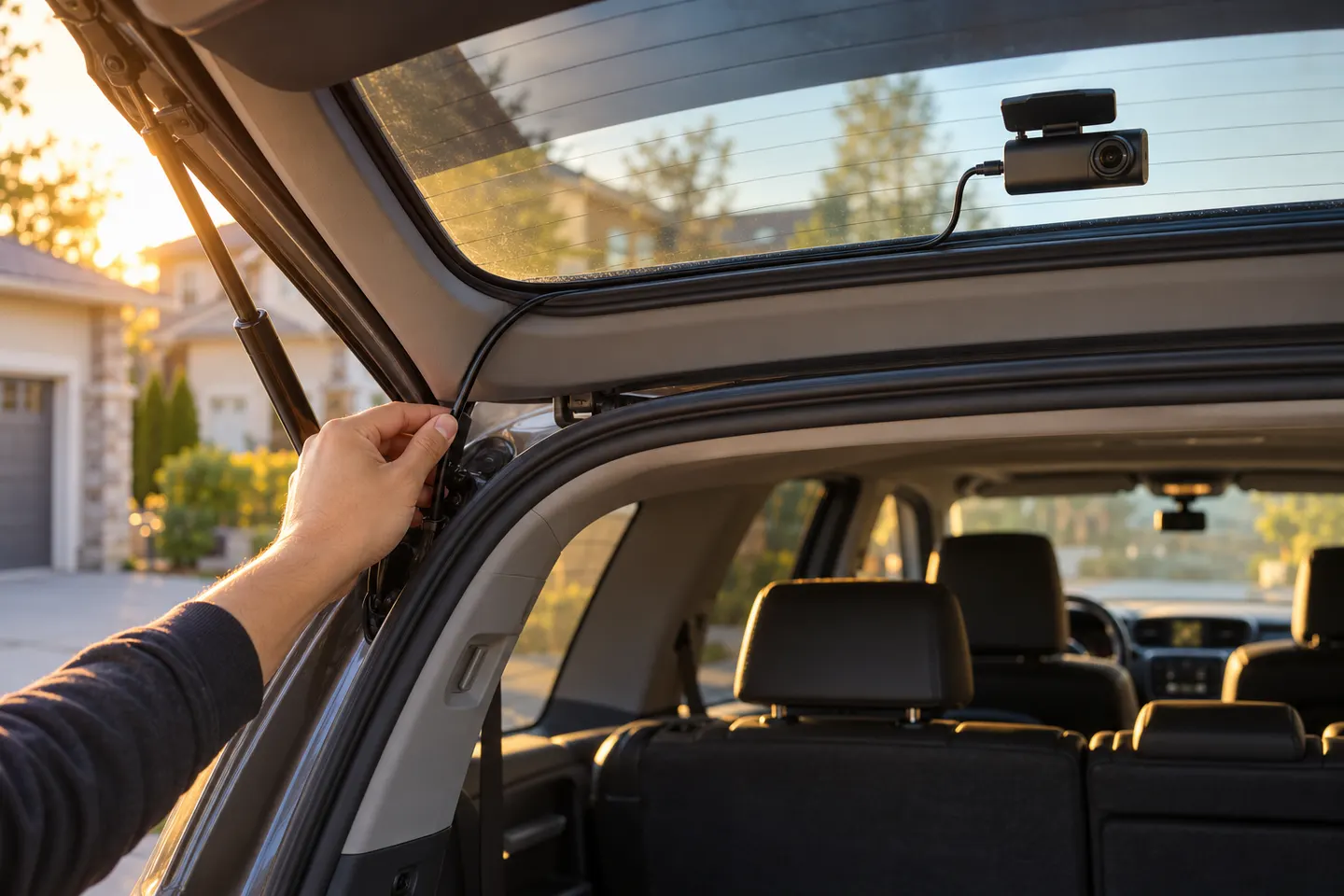
A two-channel system is the clearest choice when you want evidence from both directions. Prioritise rear-camera quality, cable length and an installation that keeps the driver's view clear.
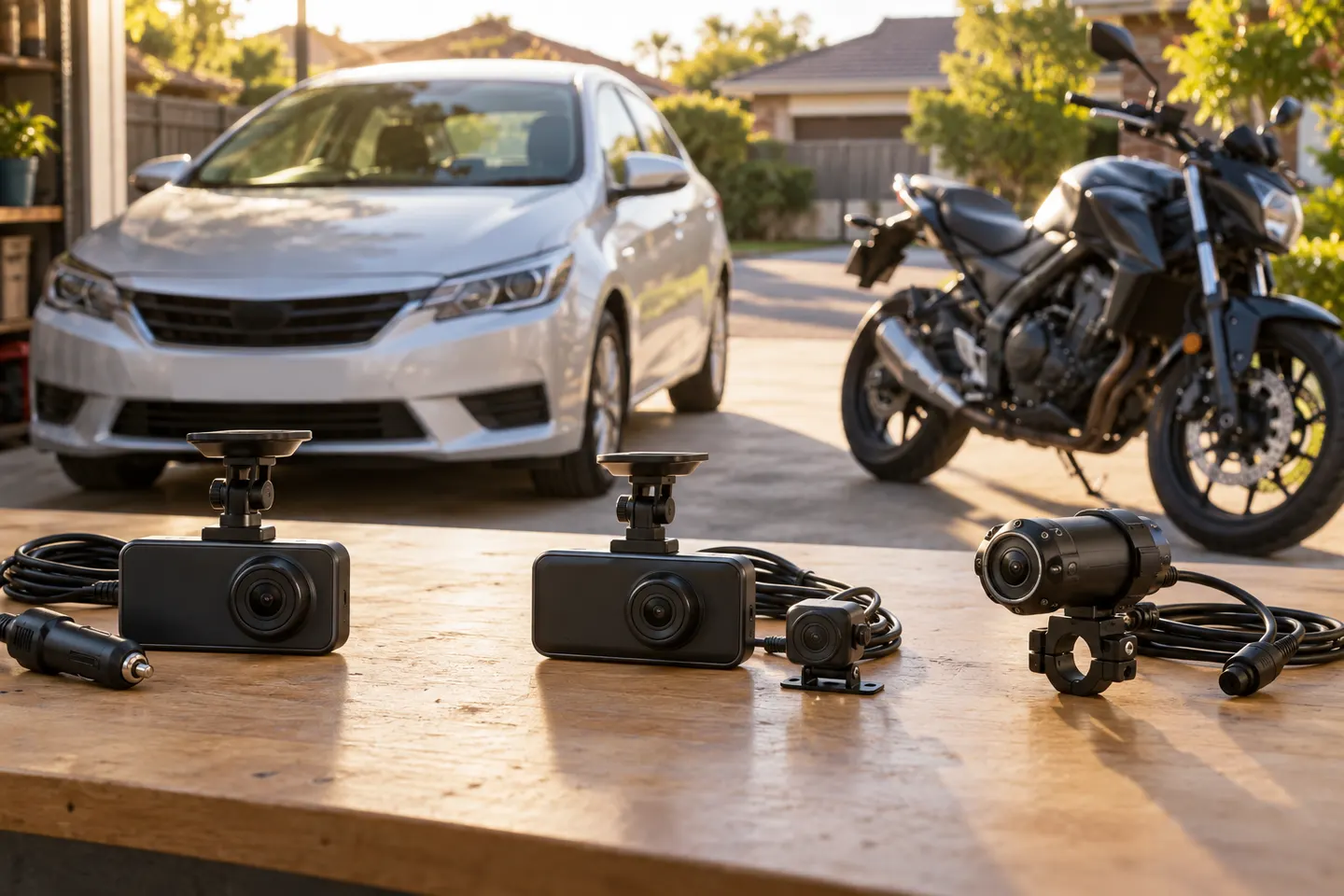
Start with the coverage you need: front-only for simplicity, front-rear for broader evidence, or a dedicated motorcycle system. Then decide how you will power it.