Pair the extender with the router first
Put the extender close to the router for initial setup. Pairing links the extender to the home network; it is a different step from connecting a laptop or phone to the extended signal.

 Best picksThe Best Dash Cam Cameras for Different Drivers
 Best picksBest WiFi Extenders in Canada for Different Home Networks
 Best picksBest Meat Thermometers in Canada for 2026
 Best picksBest Winter Gloves for Canadian Conditions (2026)
 Best picksBest Headlamps: Compare Reliable Options for Canada
 Best picksRadar Detector Best Picks for Canadian Drivers (2026)
 Best picksBest Portable Air Coolers to Consider in 2026
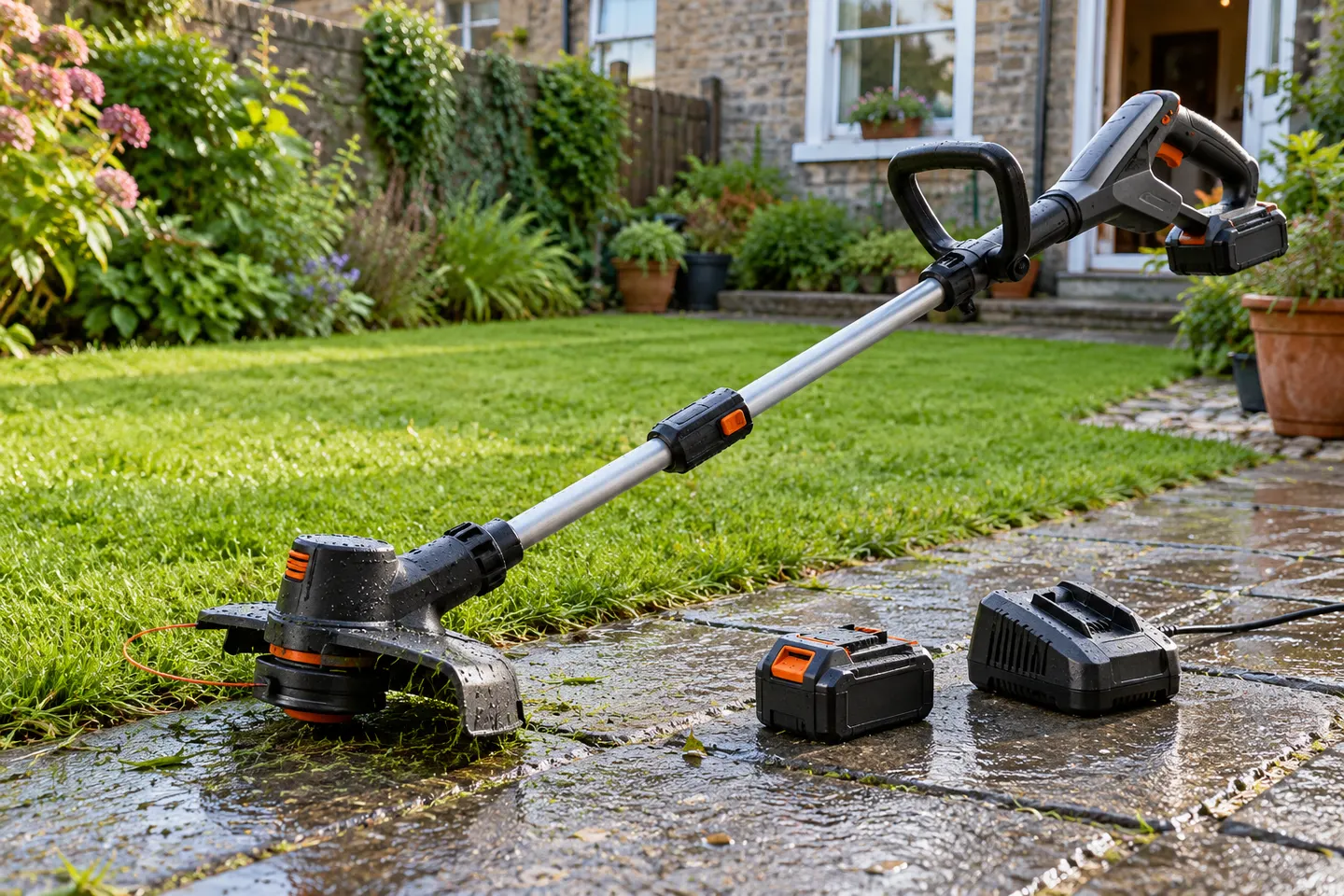 Best picksBest cordless grass trimmers with a battery and charger
 Best picksBest Air Purifier for Bedroom in the Canada: Quiet Models Compared
Gearjury may earn a commission from qualifying Amazon purchases. This does not affect our editorial choices.
Guide
Pair the extender to the router first, using WPS or its setup app. Connect phones, TVs, and other clients only after the extender confirms its upstream link.
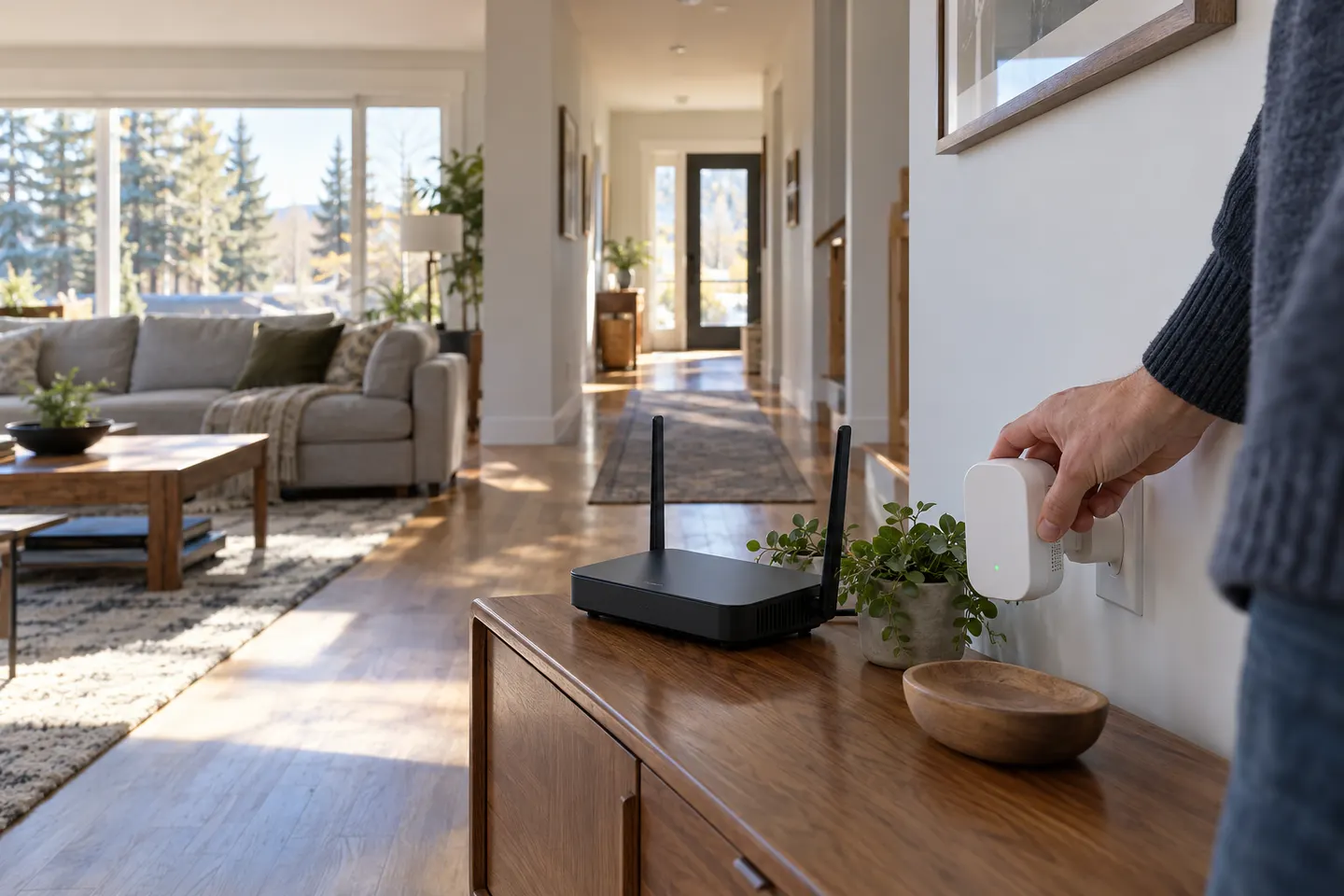
Put the extender close to the router for initial setup. Pairing links the extender to the home network; it is a different step from connecting a laptop or phone to the extended signal.
Press WPS on the router, then activate WPS on the extender within the time window in its guide. Wait for the status light to indicate a successful link. WPS procedures differ, and some routers expose the feature through software rather than a physical button.
If WPS is absent or pairing fails, open the manufacturer’s app or web setup page while connected to the extender’s setup network. Select the router’s Wi-Fi name, enter its password, and complete any confirmation steps on screen.
Once the extender reports a router connection, choose its network name on each client device and enter the required Wi-Fi password. Some systems keep one network name; others show a separate extender name. Use the instructions for your model.
Check that the router password is current, move the extender closer during setup, and confirm you chose the right band where the wizard asks. Restart both devices if needed. After a router name or password change, update the extender’s saved connection.
After pairing, relocate the extender toward the coverage gap while keeping it within the router’s useful signal. Check the extender indicator and test a client in the problem area; a weak router-to-extender link can limit the result even when pairing succeeded.
Common questions
Pair the extender with the router first so it can reach the internet. Then connect your phone or other devices to the extended Wi-Fi network.
Yes, many extenders support setup through a companion app or browser wizard. Use the steps and setup address in the manufacturer’s instructions.
It may still be starting, may not have completed setup, or may broadcast a different network name than expected. Check its status light and model guide, then refresh the device’s Wi-Fi list.
That depends on the model and configuration. Some systems support a shared name; others create a separate extended network, so follow the setup wizard’s naming options.
Keep exploring
The TP-Link RE705X is a strong feature-led starting point, with WiFi 6, AX3000 class and a Gigabit port. Consider NETGEAR EAX15 for mesh-style WiFi 6 or simpler plug-in models for a basic dead zone.

TP-Link’s Canadian range includes WiFi 7, WiFi 6 and older dual-band extenders. Match the model to your router, desired features and available placement.
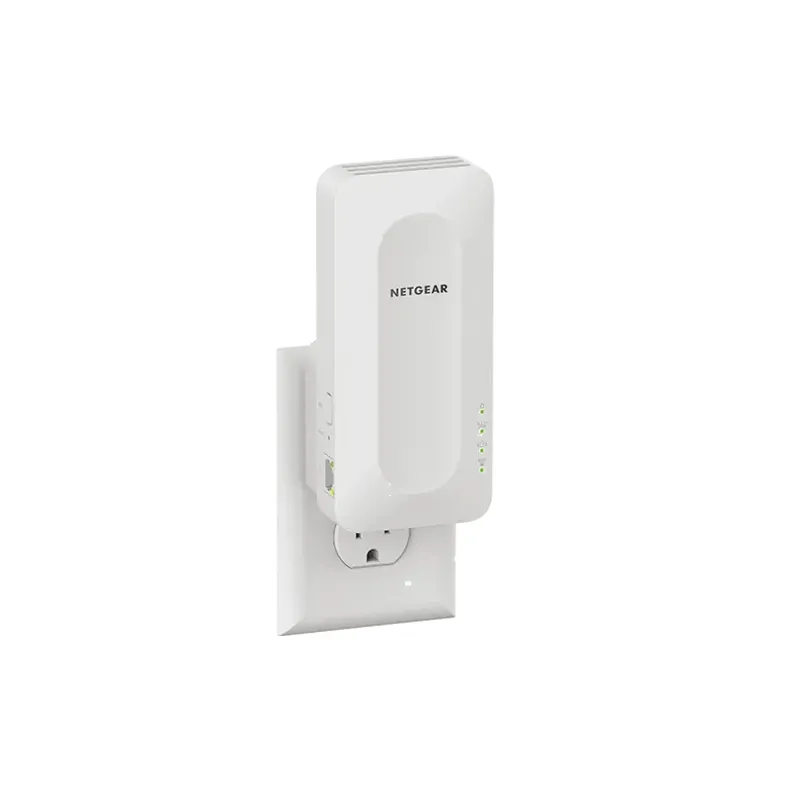
NETGEAR’s Canadian range includes WiFi 6 mesh extenders and older AC models. Check each model’s port, generation and setup method before choosing.

A WiFi extender can carry an existing router’s signal into a weak-coverage area. Start with compatibility and placement, then compare a standalone repeater with a provider mesh system.