Gearjury may earn a commission from qualifying Amazon purchases. This does not affect our editorial choices.
Guide
How to Set Up a D-Link Wi-Fi Extender at Home
Set up a compatible D-Link extender with WPS or its web wizard, then move it to a spot that still receives a solid router signal. Start by checking the exact model and hardware revision.
GGearjury editorial team · Updated October 18, 2026· 5 min
01
Before you plug in the extender
Find the exact model and hardware revision on its label, then use the matching D-Link quick-install guide. Start with the extender near the router and confirm the router is online; setup at the edge of coverage can fail before placement is optimised.
02
Use WPS for a supported D-Link model
For compatible models such as the D-Link DAP-1610, press WPS on the router and then on the extender within the interval specified in its guide. Wait for the connection indicator to settle. WPS requires a compatible router, and button timing and LED meanings vary by model.
03
Set up through the web interface
If WPS is unavailable or you want to choose network settings, connect a phone or computer to the extender’s temporary Wi-Fi and open the setup address listed in its manual. Select your home network, enter its current password carefully, and save the configuration.
04
D-Link AC750 and DAP model differences
Searches for D-Link AC750 Wi-Fi range extender setup can refer to different devices. The DAP-1530 is an AC750 Plus extender; the DAP-1325 is an N300 model, while DAP-1610 is AC1200. Follow the guide for the printed model number rather than assuming the same steps or band support.
05
Choose a location after setup
Move the extender to a point where it still receives a dependable signal from the router and can reach the area you want to cover. Use its signal indicator if fitted. Avoid placing it behind large appliances or inside cabinets, then test the connection from the room that had weak coverage.
06
If the extender will not connect
Check that you selected the correct router band and entered the current Wi-Fi password. Temporarily move the extender closer, restart it, and retry the model-specific setup. If its settings are stale, use the reset procedure in its manual and configure it again.
Common questions
Questions before you buy
How do I use a D-Link Wi-Fi extender after setup?
Connect your devices to the extended Wi-Fi network shown in the setup guide; depending on the model, it may use the router name with an added suffix or share the same network name. Place the extender where it has a usable link to the router.
Can I set up a D-Link extender without WPS?
Usually, yes. D-Link manuals describe web-based configuration for supported models; connect to the extender’s setup network and follow the on-screen wizard.
What does a blinking light mean on a D-Link extender?
It depends on the model and indicator. During setup, blinking can signal that a connection is being negotiated; consult the model’s LED table before treating it as an error.
Where should I place a D-Link range extender?
Start between the router and the weak-signal area, while keeping the extender within reliable router coverage. Use the model’s signal indicator and test from the target room.
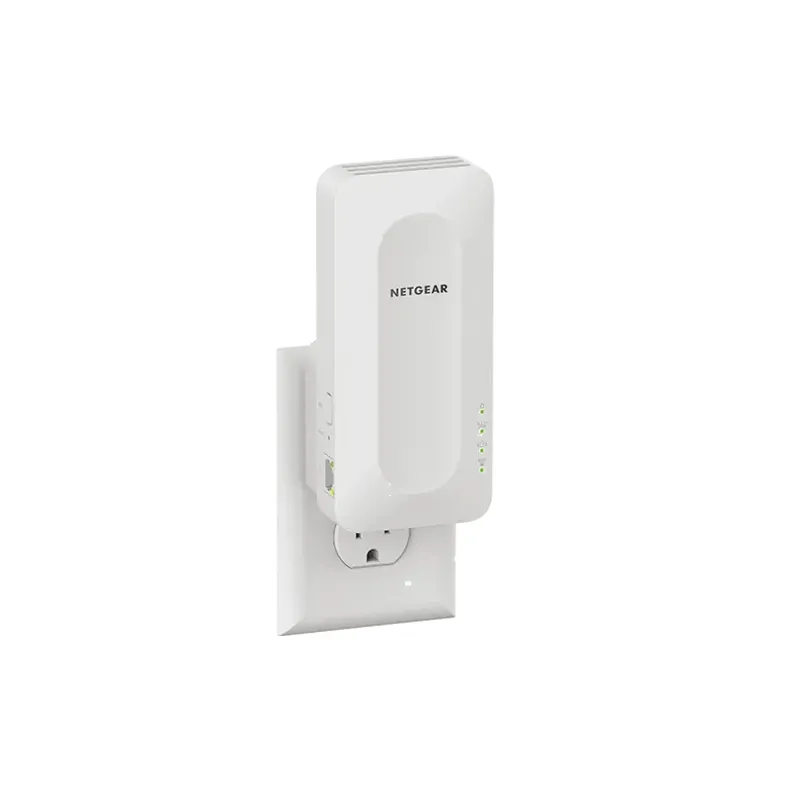
The TP-Link RE705X is a strong feature-led starting point, with WiFi 6, AX3000 class and a Gigabit port. Consider NETGEAR EAX15 for mesh-style WiFi 6 or simpler plug-in models for a basic dead zone.
TP-Link’s Canadian range includes WiFi 7, WiFi 6 and older dual-band extenders. Match the model to your router, desired features and available placement.
A WiFi extender can carry an existing router’s signal into a weak-coverage area. Start with compatibility and placement, then compare a standalone repeater with a provider mesh system.
Your privacy
We use cookies and similar technologies. Necessary ones keep the site working. With your permission we also use statistics cookies (Google Analytics and Microsoft Clarity) to understand which guides help readers. You can accept all, reject all or choose. You can change your choice at any time from "Cookie settings" at the bottom of every page. Cookie policy