Locate the complete model code
Find the code on the rear label or packaging and download its matching D-Link manual. A DIR-505 setup guide, for example, should not be assumed to describe another D-Link extender.

 Best picksBest Dash Cam in Australia: Five Models Compared
 Best picksBest Wi-Fi Extenders in Australia for Different Homes
 Best picksThe Best Meat Thermometer for Every Kind of Cook
 Best picksBest Headlamp Torches for Different Uses in 2026
 Best picksBest Portable Air Coolers to Consider in Australia (2026)
 Best picksBest Winter Gloves for Everyday Wear and Outdoor Use
 Best picksBest Cordless String Trimmers for Australian Gardens (2026)
 Best picksBest air purifier for bedroom in Australia: five models compared
Gearjury may earn a commission from qualifying retailer links.
Guide
Set the device to the correct mode, then use its documented setup wizard or WPS procedure. D-Link interfaces differ, so the model number is essential.
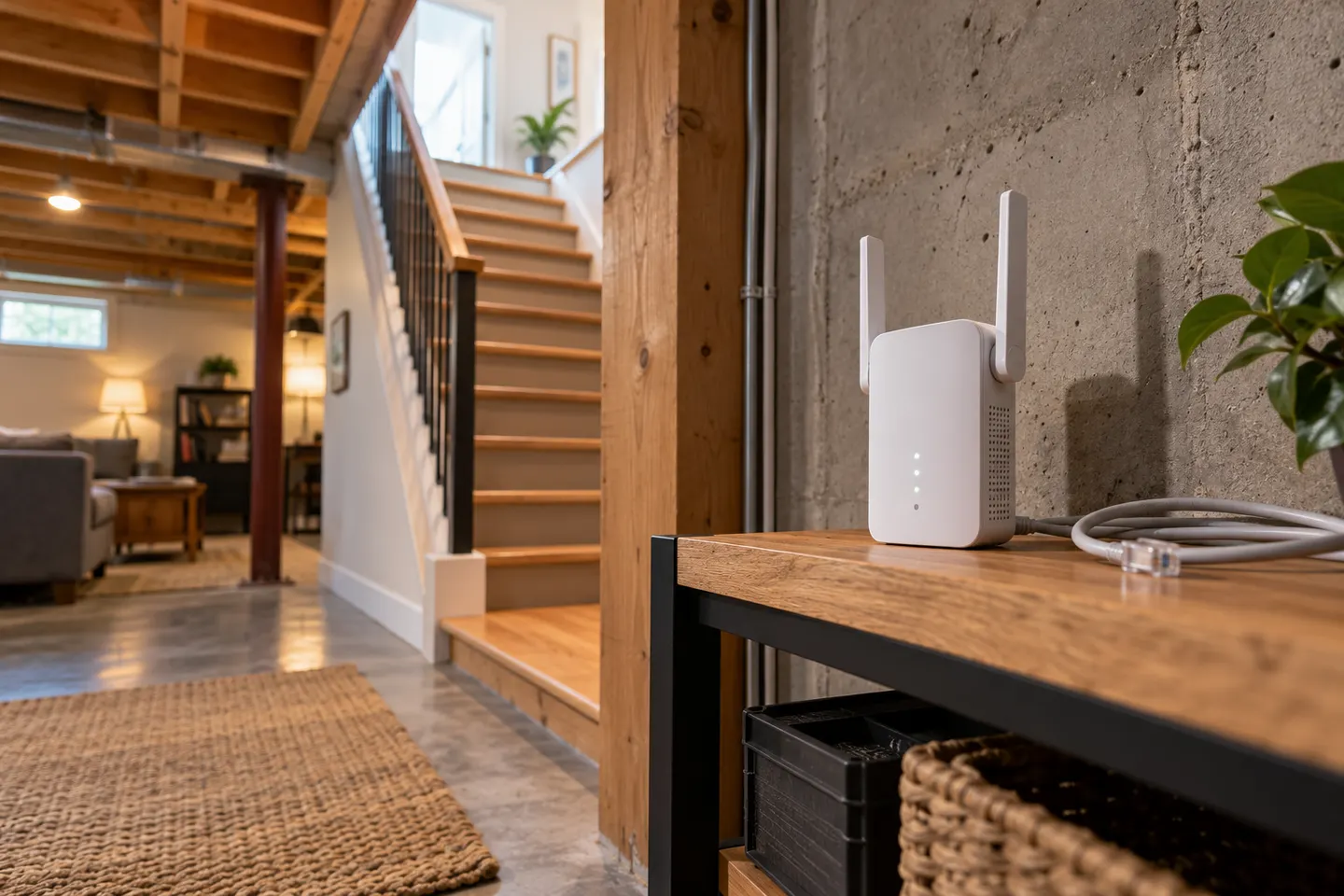
Find the code on the rear label or packaging and download its matching D-Link manual. A DIR-505 setup guide, for example, should not be assumed to describe another D-Link extender.
If your model has a physical selector for router, access point or repeater modes, set it to the mode you need before powering on. Follow the manual's sequence for changing modes.
Connect to the device using the method in its guide, then visit its stated web address. Some models offer a guided setup; older devices may use a different local interface or one-touch configuration.
Select your household WiFi name and enter its password. If your router uses separate band names, follow the extender's compatibility notes and choose the network that suits the intended placement.
Wait for the setup process to report completion. Join the extended network with a phone or laptop and check access before moving the device to its working location.
Confirm the mode switch, wireless password and setup network. If the wizard remains unavailable, use the model's documented reset process and begin again with the device near the router.
Common questions
Set the DIR-505 to its repeater mode and follow the device-specific quick installation guide or manual. The setup wizard guides selection of the upstream wireless network.
Use the local address printed in the product manual or setup card for your exact model. Do not rely on an address from a different D-Link device.
Repeater mode connects wirelessly to an existing router and rebroadcasts coverage. Access point mode generally uses a wired connection to provide WiFi; verify the definitions in your model's manual.
A wrong operating mode, weak router signal during setup, or incorrect WiFi password can prevent configuration. Recheck each item against the device-specific guide before resetting.
Keep exploring

A Wi-Fi extender can help reach a weak-signal room when positioned within range of your router. Compare plug-in repeaters, mesh-compatible models, outdoor units and powerline kits by how they connect.
The right Wi-Fi extender depends on the router signal at its location, your home layout and whether you need Ethernet, outdoor placement or powerline networking.

RE705X and RE715X are Wi-Fi 6 options; RE315 is an AC1200 alternative. Choose by router compatibility and the connection you need.
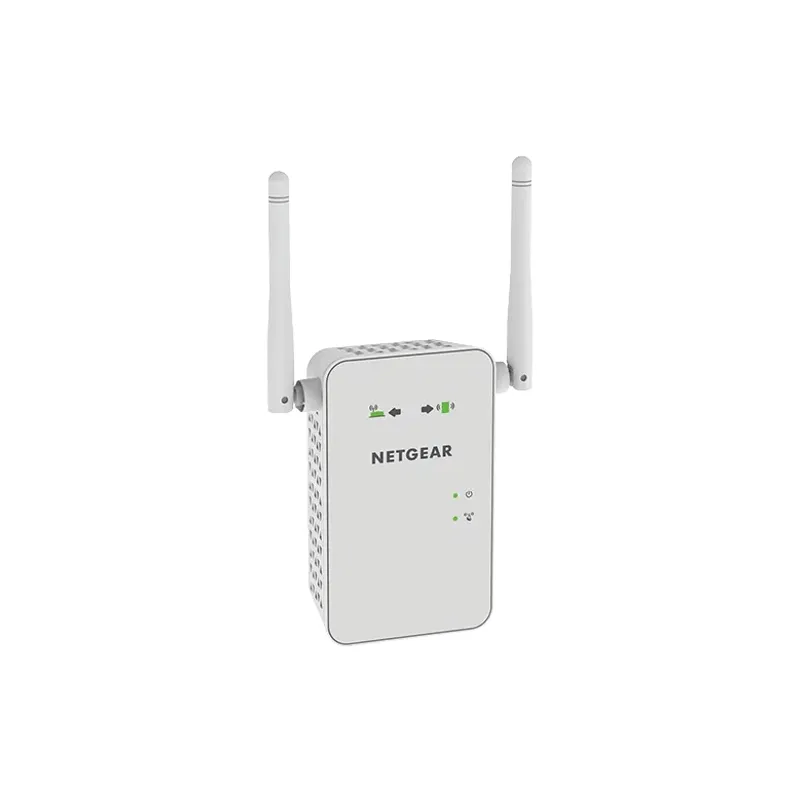
Start with the network standard and location of the dead spot. NETGEAR?s EX6120 is a dual-band AC model, while EAX15 adds WiFi 6; check exact router and firmware compatibility before buying.