








 Official manufacturer image
Our picks
Top picks
Official manufacturer image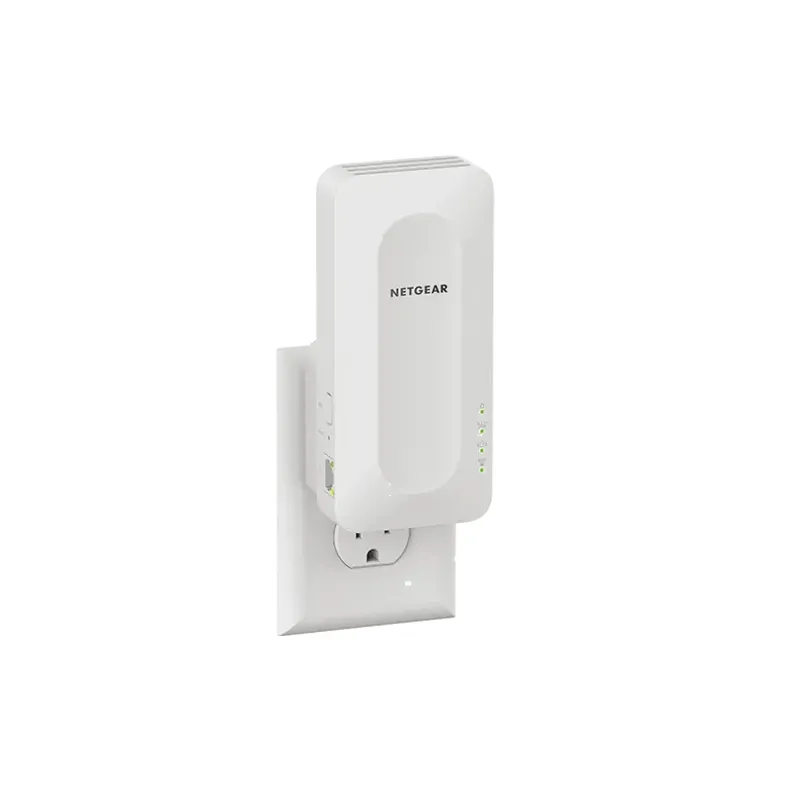 Official manufacturer image
NETGEAR EAX15
Check price on Amazon.ca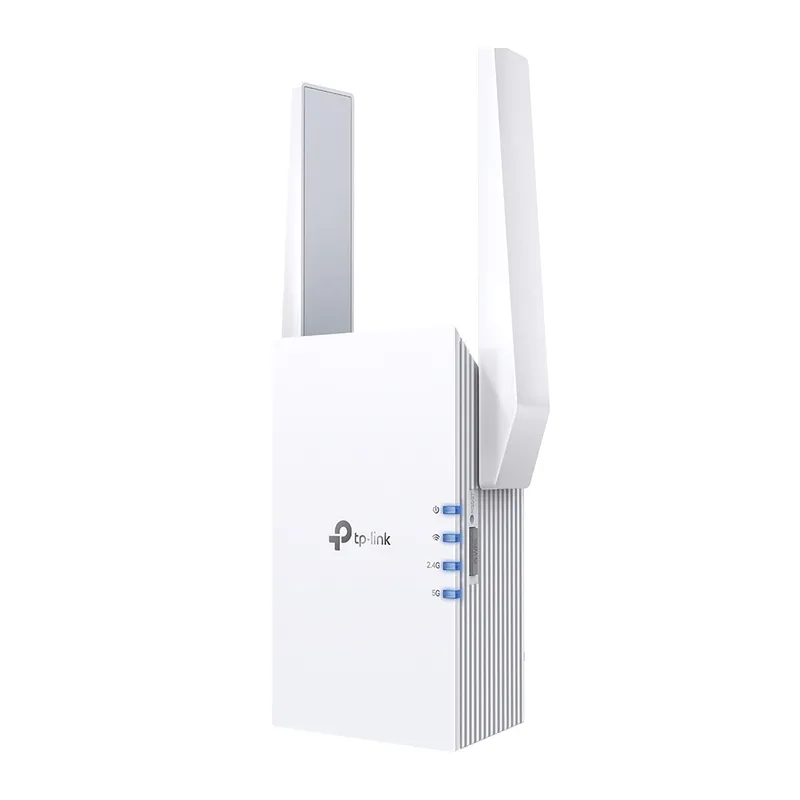 Official manufacturer image
TP-Link RE605X
Check price on Amazon.caCommon questions
Questions before you buy
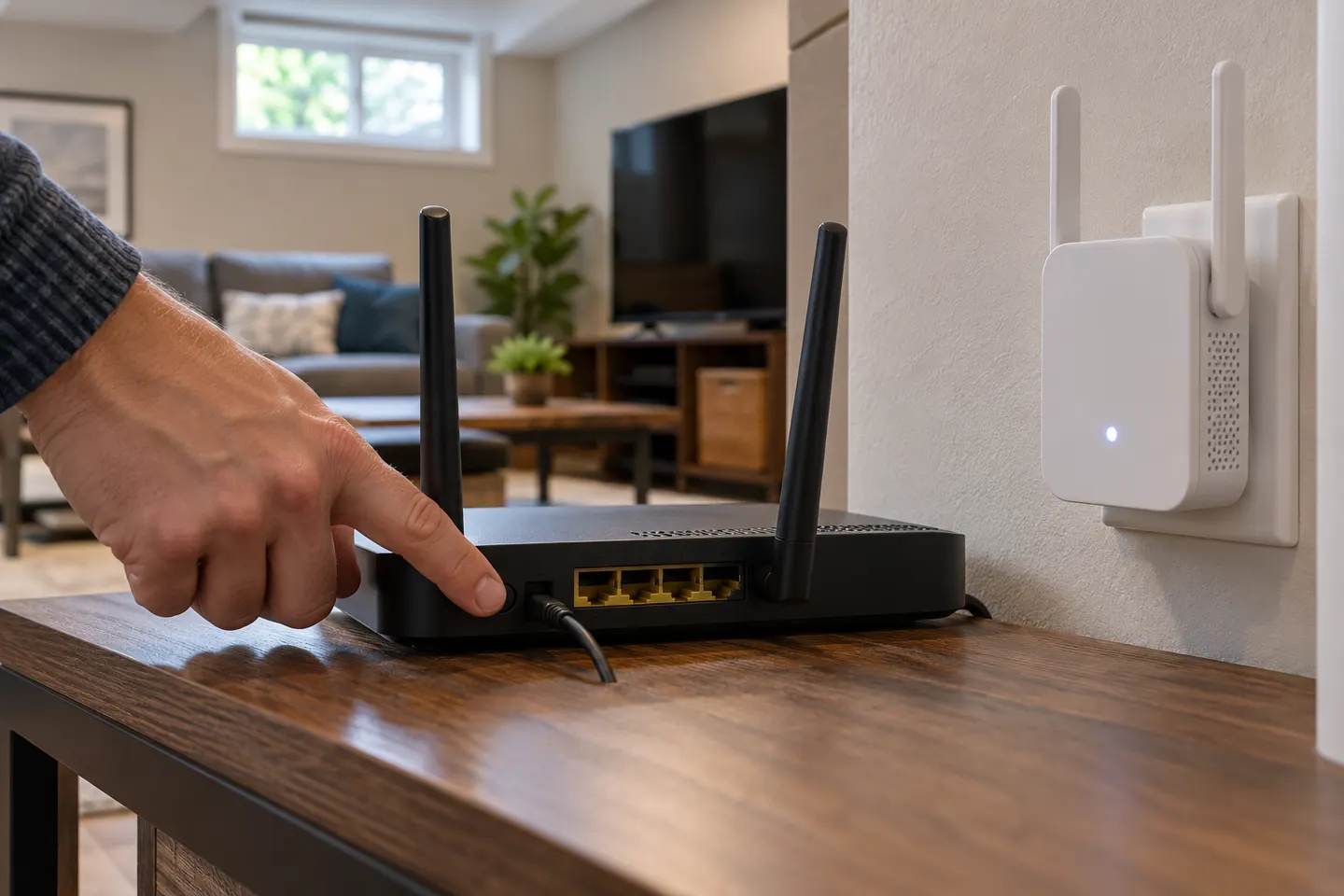
How do I connect a Wi-Fi extender using WPS?
Follow the exact sequence in the extender manual, which commonly involves starting WPS on the router and then on the extender within the stated interval. Confirm the status light indicates a successful link.
Does every router work with a WPS extender?
No. Both devices need compatible WPS support, and implementations can differ. TP-Link warns that compatibility issues may occur if the router does not fully support WPS.
Is WPS required to set up an extender?
No. Many models also provide app or browser configuration. Follow the method supported by your exact model.
What if WPS pairing fails?
Move the extender closer to the router, verify WPS is enabled and supported on both, then retry as the manuals direct. Use app or browser setup if available.