








 Official manufacturer image
Our picks
Top picks
Official manufacturer image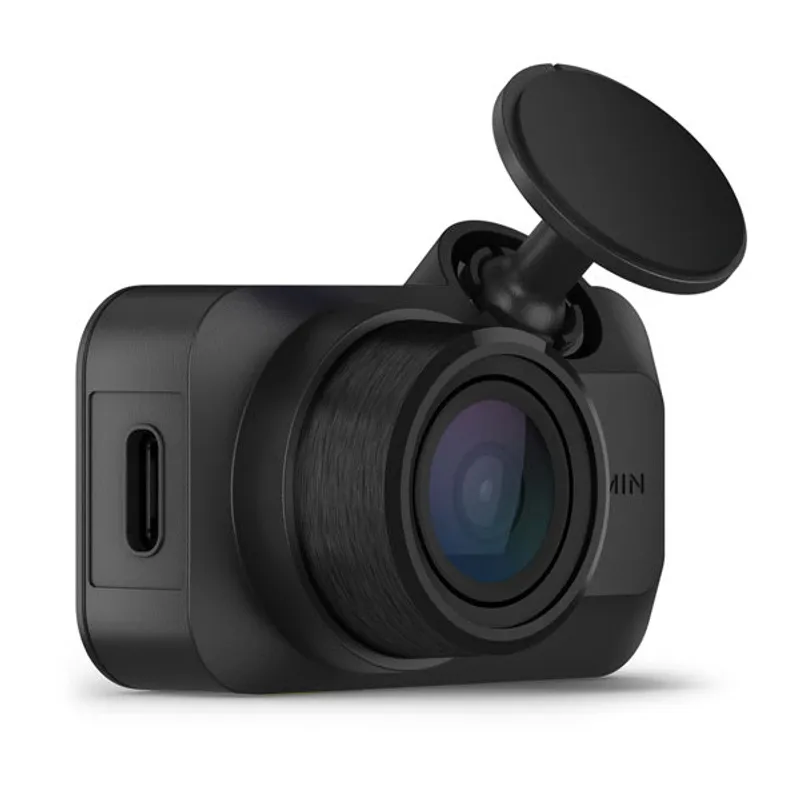 Official manufacturer image
Garmin Dash Cam Mini 3
Check price on Amazon.ca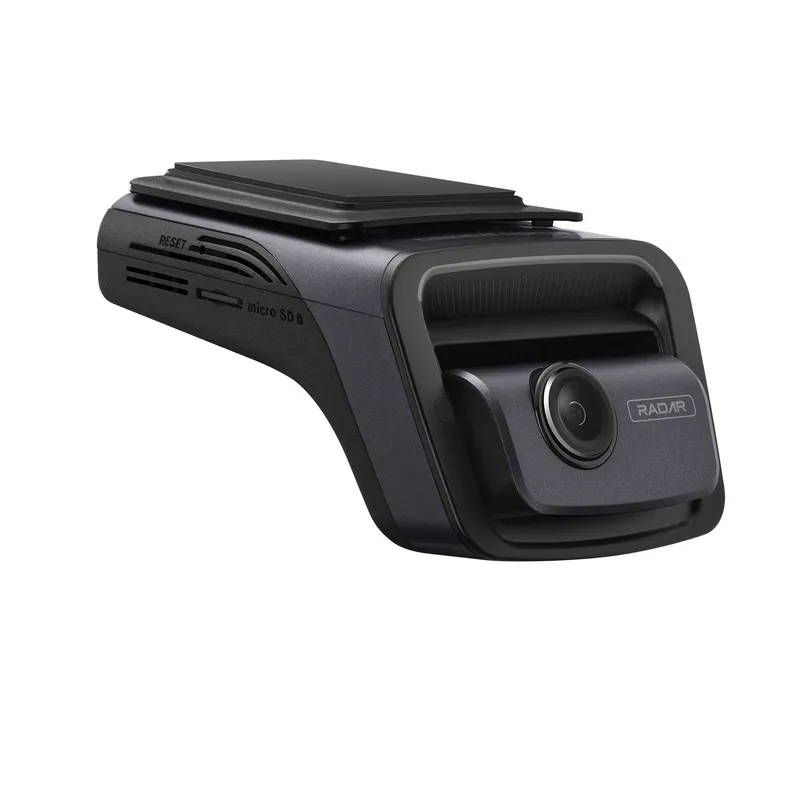 Official manufacturer image
Thinkware U3000
Check price on Amazon.caBy vehicle
More topics
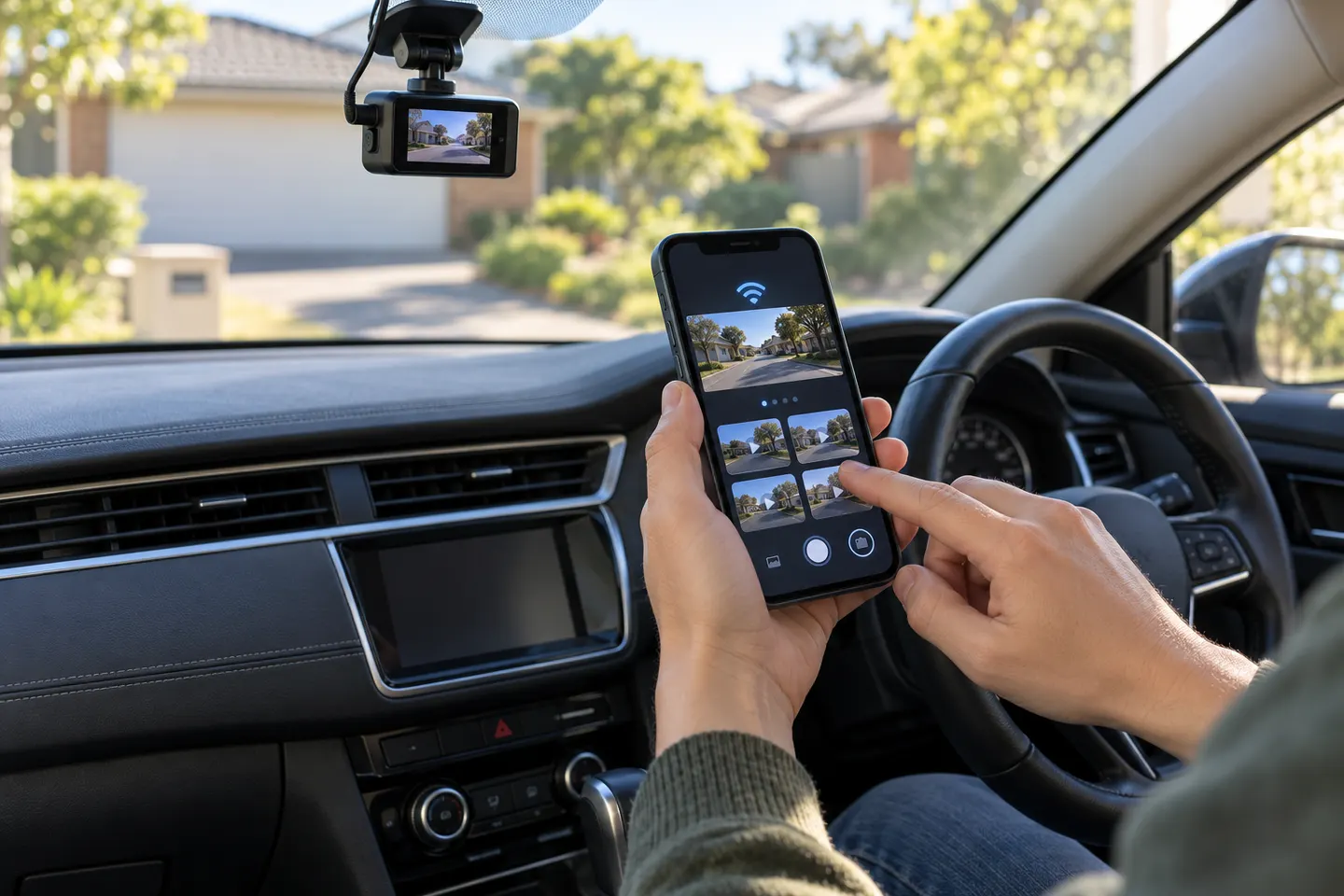 Dashcam Apps for iPhone and Connected Cameras
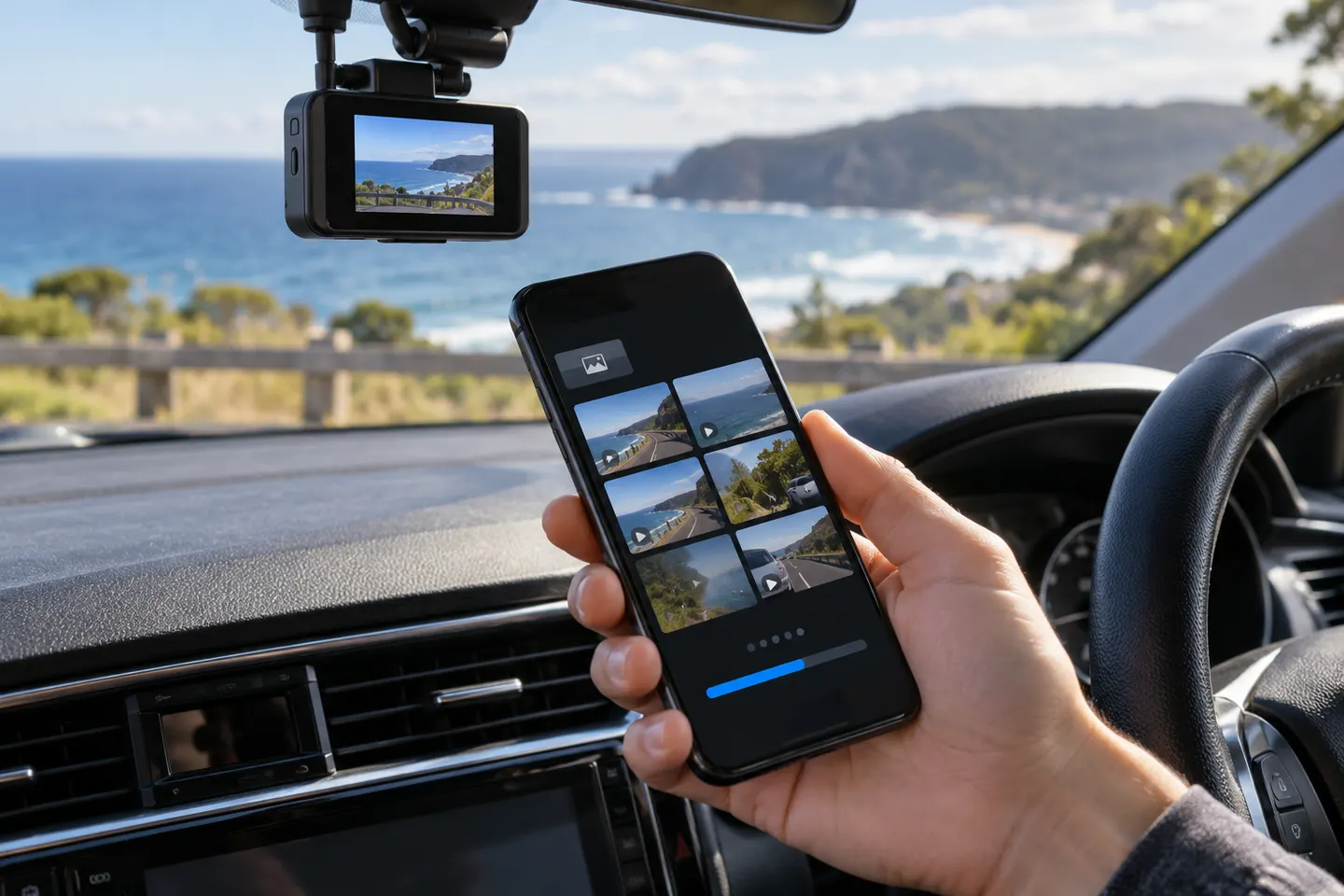 Dashcam Apps
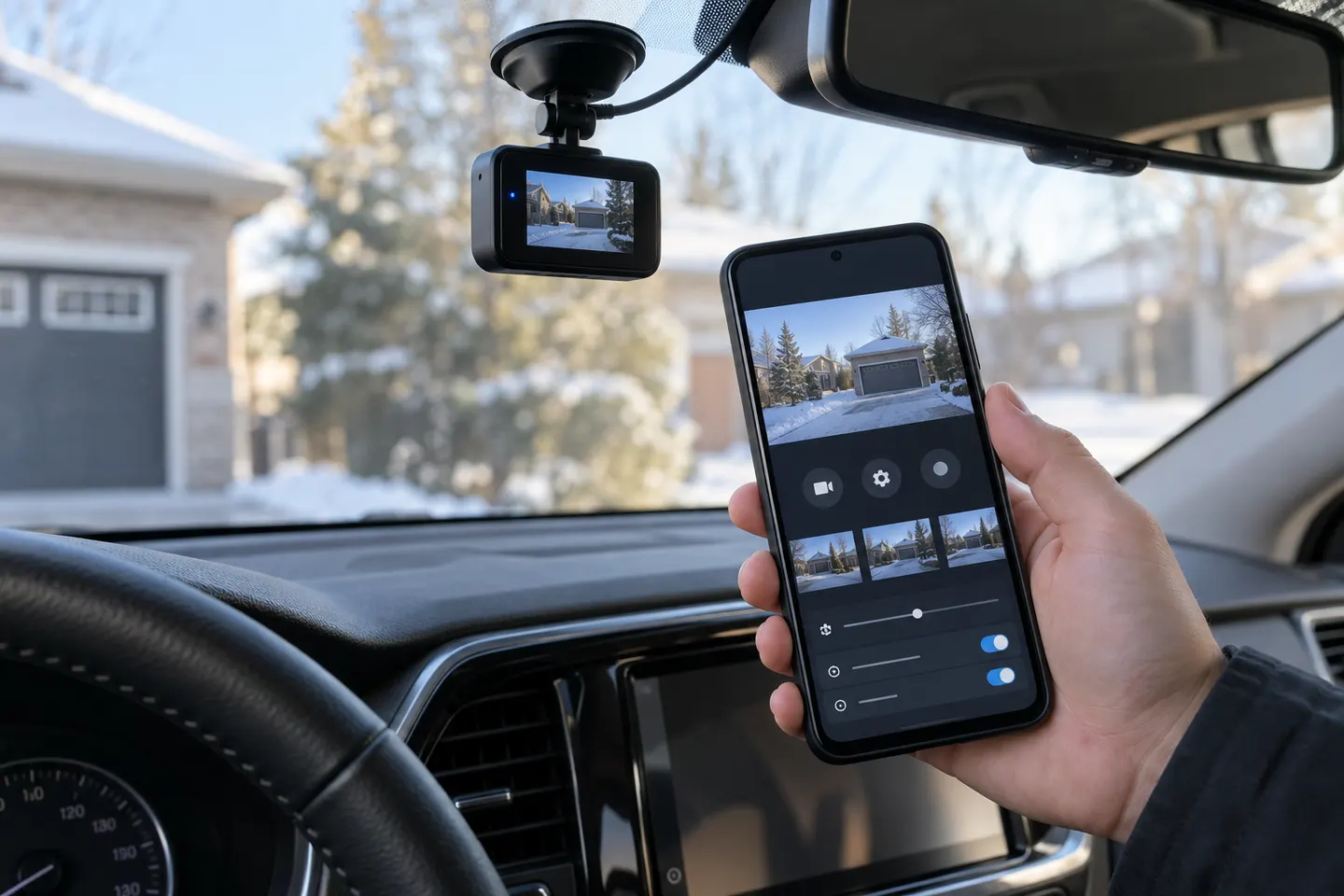 Android Dashcam Apps
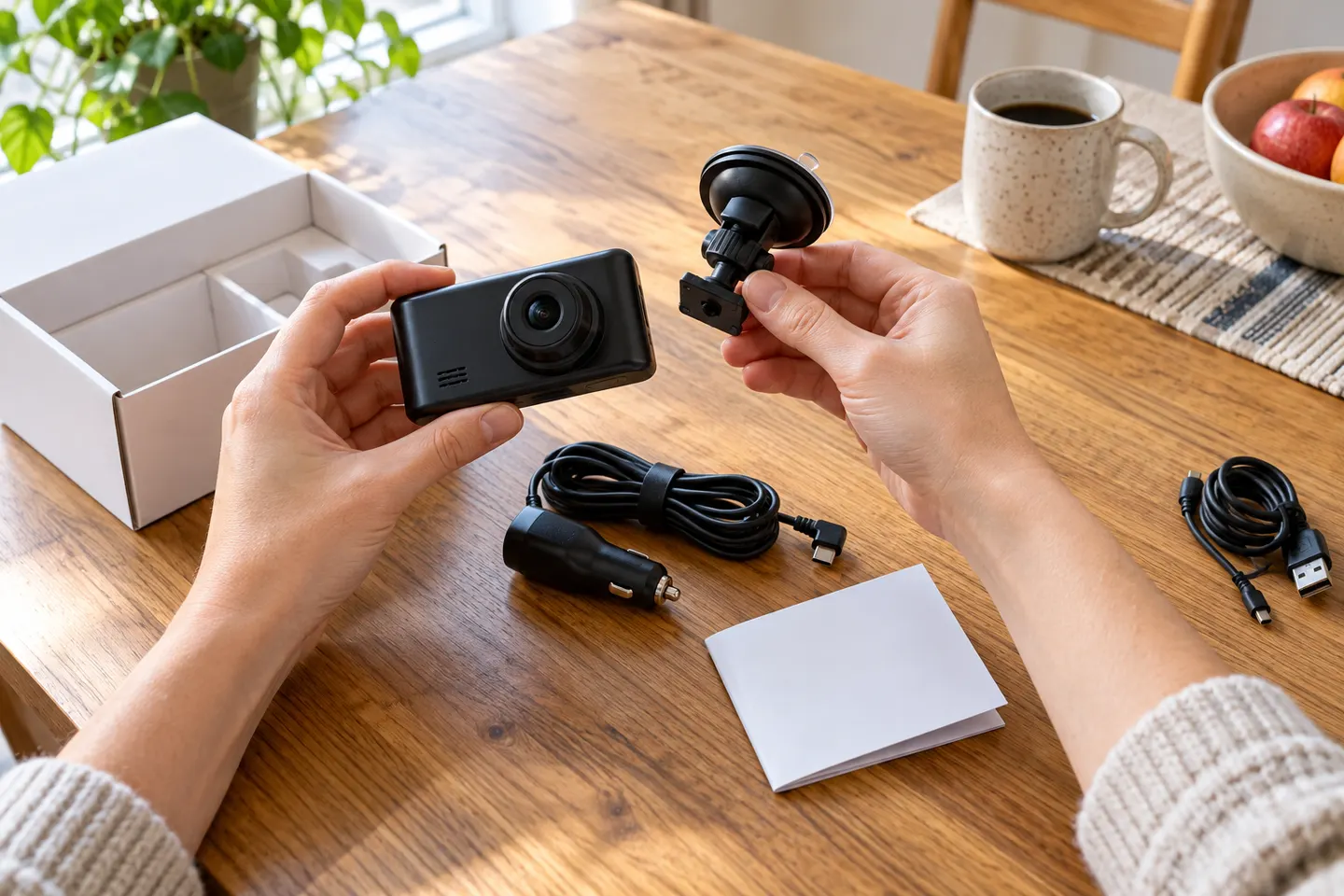 Geko Dash Cam Models
Common questions
Questions before you buy
Which app does my Geko Gear dash cam use?
Check the model's manual or GekoGear support page because app compatibility varies. Match the model number before downloading an app.
Why will my phone not connect to the GekoGear camera?
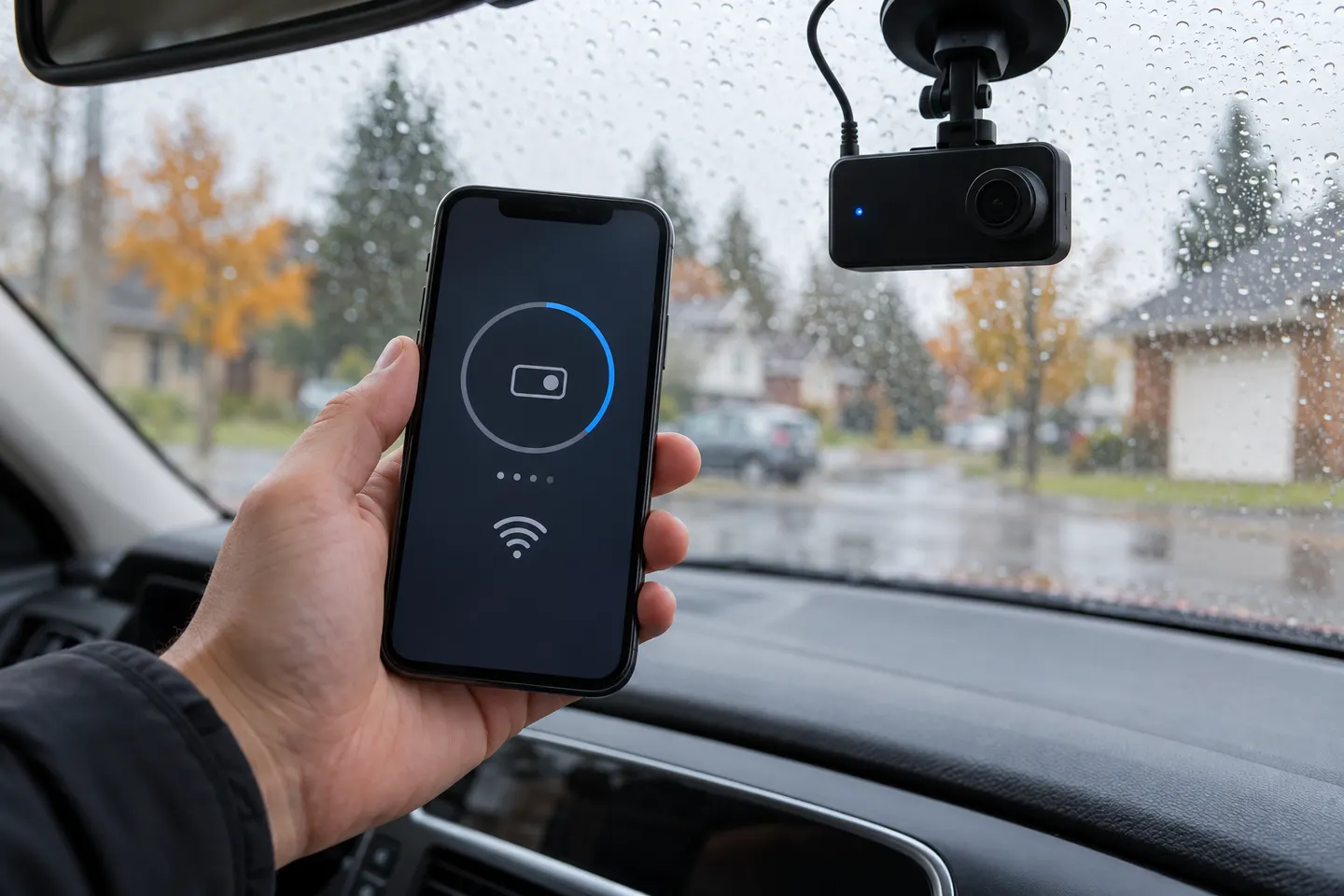
Confirm the camera is powered and Wi-Fi mode is active, then forget the saved camera network and reconnect. Temporarily disabling mobile-data switching can also stop the phone abandoning a network with no internet.
How do I download a GekoGear dash cam video?
Connect to the camera's Wi-Fi, open the compatible app and save the clip from its gallery. Park safely before reviewing or transferring footage.
Can I use the dash cam app while driving?
Do not operate a phone or change camera settings while driving. Complete setup and footage review while parked in a safe place.