Gearjury may earn a commission from qualifying retailer links.
Guide
How to Reset a WiFi Extender and Set It Up Again
Most extenders have a reset control or an option in their setup interface, but the exact steps vary by model. A factory reset removes saved settings, so check the device guide before starting.
GGearjury editorial team · Updated October 18, 2026· 4 min
01
Restart or factory reset?
A restart turns the extender off and back on while keeping its settings. A factory reset erases saved configuration and returns the unit to its initial state. Try a simple restart first if you are troubleshooting a temporary connection problem.
02
Find the reset method for your model
Check the label for the manufacturer and model, then open that product’s manual or support page. Some extenders use a recessed button; others offer a reset command in their web interface or app. Button timing and indicator patterns are not universal.
03
How to reset a WiFi extender
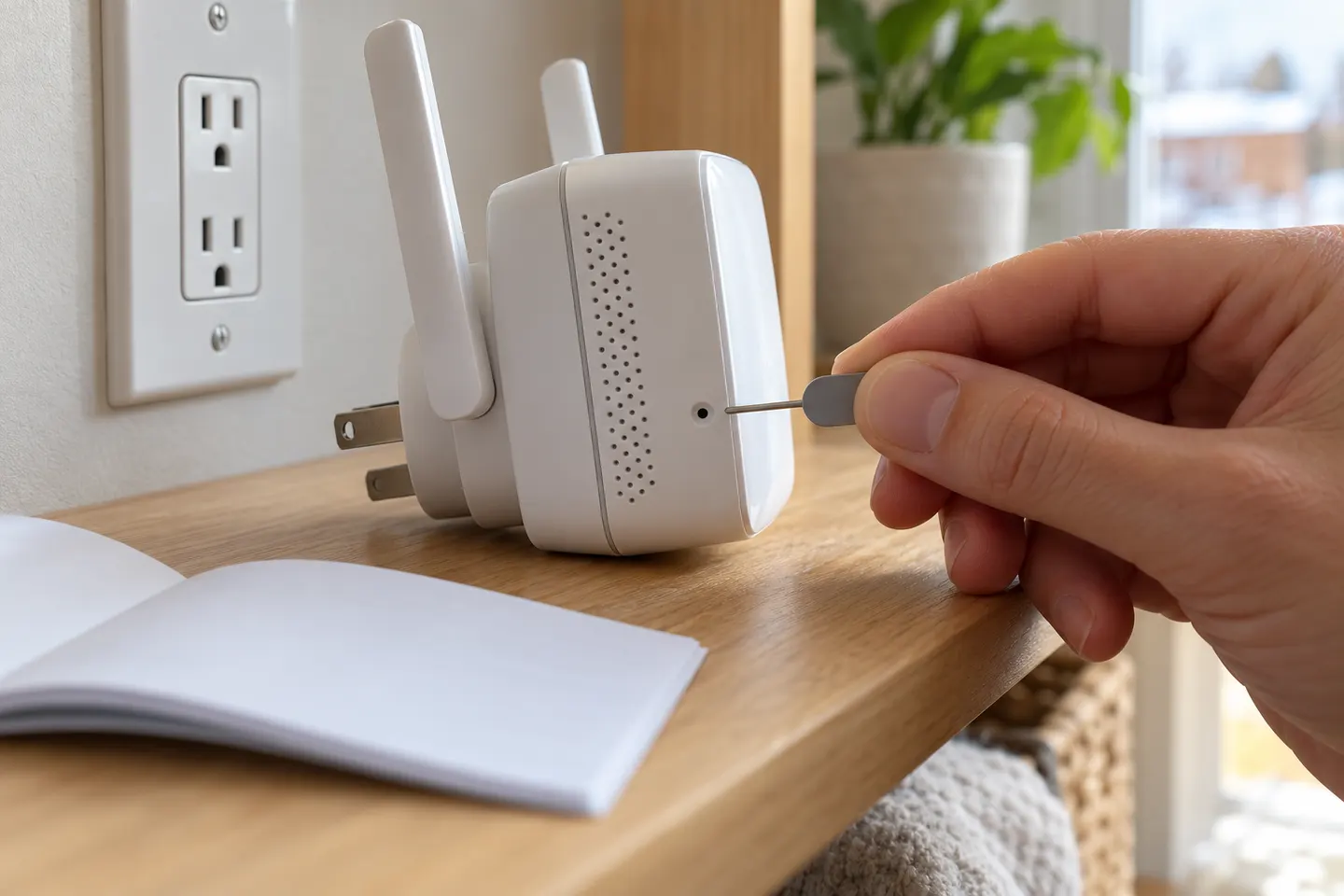
For models whose manual specifies a physical reset: leave the unit powered, press the recessed Reset control with a suitable small tool, and hold it for the time stated by the manufacturer. Release when the specified indicator changes, then allow the extender to restart without unplugging it.
04
How to reset a Cudy WiFi extender
Cudy documentation describes a reset option in the extender’s management interface, while the physical-button procedure can vary by model. Open the guide for your exact Cudy model and follow its reset instructions; note your network details first because factory defaults remove customized settings.
05
How to reset a TELUS WiFi booster
TELUS Boost units can be reset through the My Wi-Fi app for supported models. TELUS advises customers to identify their Boost generation and use its matching troubleshooting instructions. Avoid applying a generic third-party extender’s button sequence to TELUS hardware.
06
Reconnect after a factory reset
Once the unit has finished restarting, follow its setup guide to pair it with the home router or gateway, restore a network name if the model supports that option, and place it where it receives a strong source signal. Reconnect your devices and confirm the indicator or app shows a healthy link.
Common questions
Questions before you buy
How to reset Cudy WiFi extender?
Cudy models have a reset option in their management interface, and button steps vary by model. Identify your exact unit and use its Cudy user guide before holding any button; a factory reset restores defaults.
How to reset TELUS WiFi booster?
TELUS says supported Boost units can be factory reset through the My Wi-Fi app. Check the unit name and follow TELUS troubleshooting for that generation, since the reset method differs across devices.
Will resetting my WiFi extender disconnect my devices?
A factory reset removes its stored configuration, so the extender will stop extending the existing network until it is set up again. You may need to reconnect or reconfigure devices afterward.
How do I know if my extender reset worked?
Wait for the restart to finish and check the model’s manual for its normal ready indicator or default setup network. Then run through its installation steps again.
TP-Link’s Canadian range includes WiFi 7, WiFi 6 and older dual-band extenders. Match the model to your router, desired features and available placement.
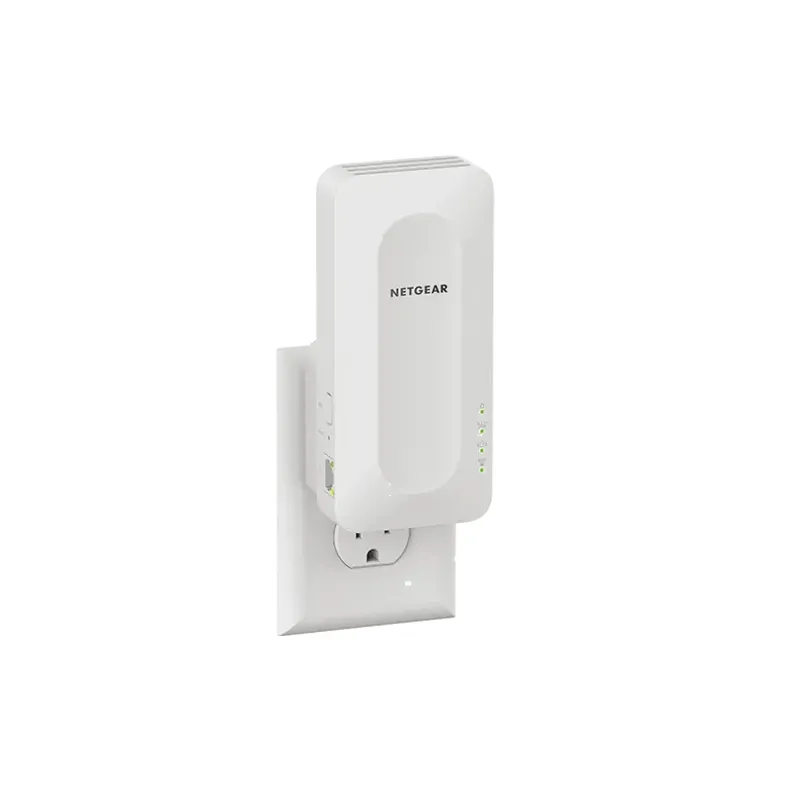
The TP-Link RE705X is a strong feature-led starting point, with WiFi 6, AX3000 class and a Gigabit port. Consider NETGEAR EAX15 for mesh-style WiFi 6 or simpler plug-in models for a basic dead zone.
A WiFi extender can carry an existing router’s signal into a weak-coverage area. Start with compatibility and placement, then compare a standalone repeater with a provider mesh system.
Your privacy
We use cookies and similar technologies. Necessary ones keep the site working. With your permission we also use statistics cookies (Google Analytics and Microsoft Clarity) to understand which guides help readers. You can accept all, reject all or choose. You can change your choice at any time from "Cookie settings" at the bottom of every page. Cookie policy