Gearjury may earn a commission from qualifying Amazon purchases. This does not affect our editorial choices.
Guide
How to Reset a TP-Link Wi-Fi Extender to Factory Settings
A factory reset clears the extender’s saved configuration, so use it when troubleshooting calls for a fresh start and be ready to set it up again.
GGearjury editorial team · Updated October 18, 2026· 4 min
01
Check whether a reset is needed
First restart the extender and confirm the main router still has internet access. A factory reset is useful for forgotten login details or persistent configuration trouble, but it removes the saved link to your home network.
02
Find the reset control
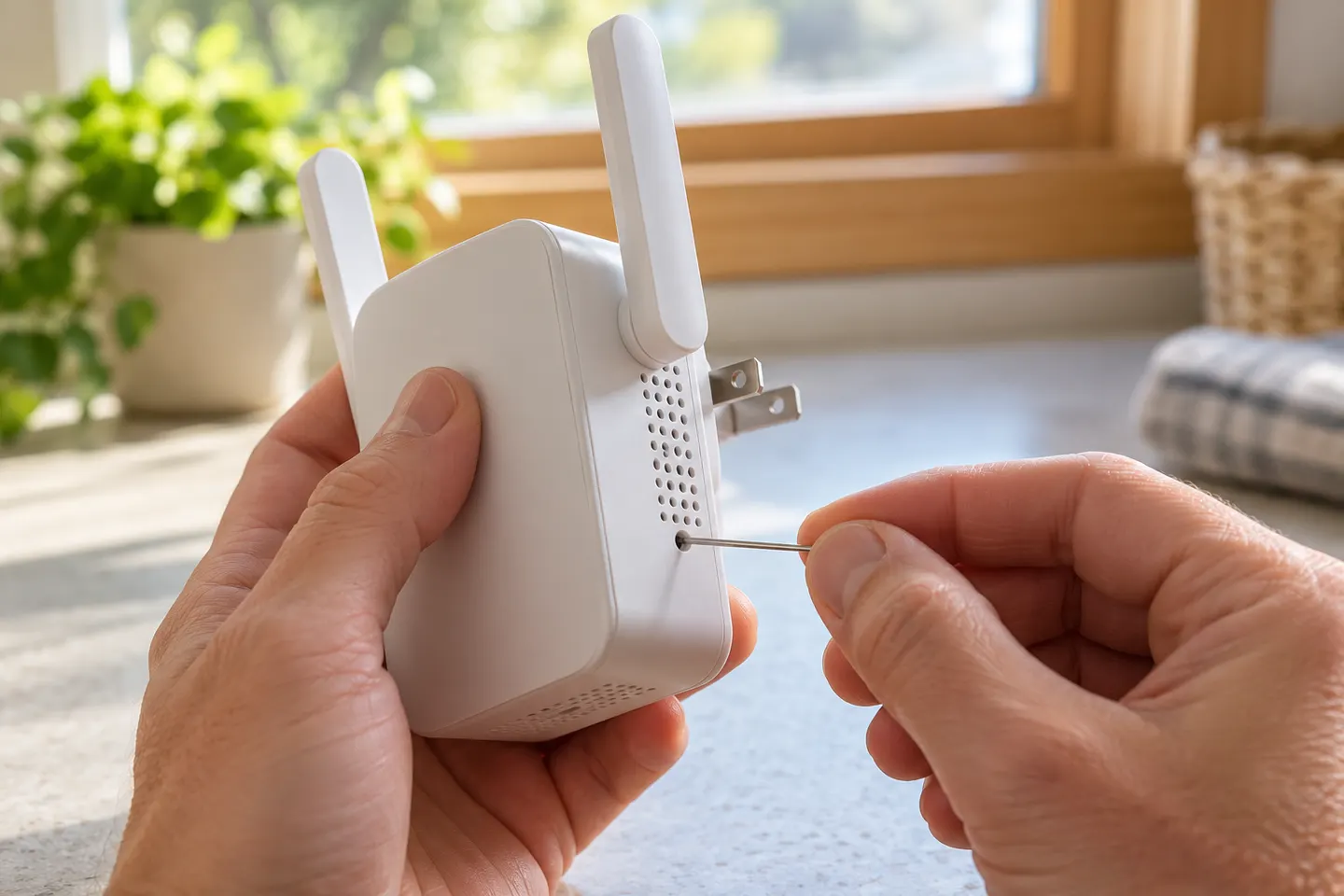
Locate the recessed Reset button or pinhole on the extender. Button placement and reset timing differ across TP-Link AC750 and AC1750 models, so check the guide for your hardware revision before pressing it.
03
Restore factory settings
With the range extender powered on, TP-Link’s support guidance says to press the Reset button briefly with a pin; the exact hold time can depend on model and firmware. Watch for the indicator response described in that model’s manual, then allow the unit to restart.
04
What a reset changes
A factory restore removes your saved router connection and other custom settings. It does not cancel your internet service or change the router’s own Wi-Fi password. Keep the router credentials available because you will need them during setup.
05
Set the extender up again
After restart, connect using the setup method for your model: WPS, the TP-Link Tether app, or the web interface. Re-enter the home Wi-Fi details and wait for the extender to confirm a router connection before moving it back to its intended location.
06
If the reset button does not respond
Make sure the extender has finished booting and that you are pressing the actual reset control rather than WPS. Check the model’s manual for its indicator sequence. If it remains inaccessible, use the official support instructions for that product revision.
Common questions
Questions before you buy
Will resetting a TP-Link extender delete its Wi-Fi settings?
Yes. A factory reset clears the saved configuration, including the connection to your router, so you must configure the extender again.
How long do I hold the TP-Link extender reset button?
The required press can vary by model and firmware. TP-Link’s current support article gives a brief press for many extenders; consult the guide for your exact revision and follow its LED cue.
Do I need to reset the router too?
No. Resetting the extender affects its own configuration. It does not factory-reset the router or alter the router’s Wi-Fi credentials.
Can I reset a TP-Link extender from the app?
Some models provide a factory-restore option in their web management settings; app options vary. If you cannot access management, use the physical reset procedure in the model’s manual.
TP-Link’s Canadian range includes WiFi 7, WiFi 6 and older dual-band extenders. Match the model to your router, desired features and available placement.
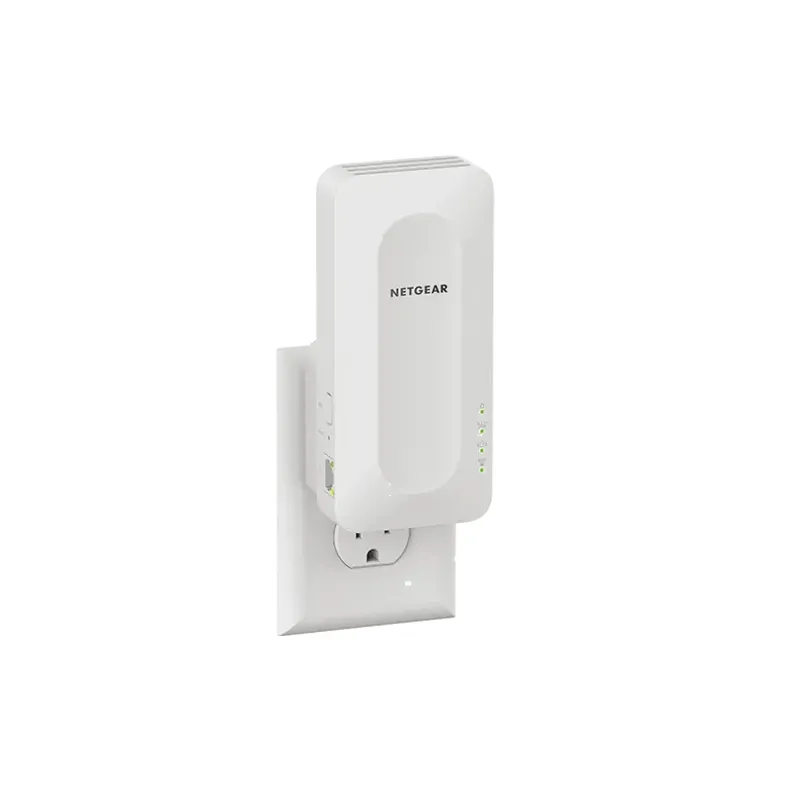
The TP-Link RE705X is a strong feature-led starting point, with WiFi 6, AX3000 class and a Gigabit port. Consider NETGEAR EAX15 for mesh-style WiFi 6 or simpler plug-in models for a basic dead zone.
A WiFi extender can carry an existing router’s signal into a weak-coverage area. Start with compatibility and placement, then compare a standalone repeater with a provider mesh system.
Your privacy
We use cookies and similar technologies. Necessary ones keep the site working. With your permission we also use statistics cookies (Google Analytics and Microsoft Clarity) to understand which guides help readers. You can accept all, reject all or choose. You can change your choice at any time from "Cookie settings" at the bottom of every page. Cookie policy