Decide between restart and reset
A restart means powering the extender off and on; it keeps configuration. Factory reset removes saved setup, so note the network details and plan to install it again.

 Best picksBest Dash Cam in Australia: Five Models Compared
 Best picksBest Wi-Fi Extenders in Australia for Different Homes
 Best picksThe Best Meat Thermometer for Every Kind of Cook
 Best picksBest Headlamp Torches for Different Uses in 2026
 Best picksBest Portable Air Coolers to Consider in Australia (2026)
 Best picksBest Winter Gloves for Everyday Wear and Outdoor Use
 Best picksBest Cordless String Trimmers for Australian Gardens (2026)
 Best picksBest air purifier for bedroom in Australia: five models compared
Gearjury may earn a commission from qualifying retailer links.
Guide
Use the powered reset button for a factory restore, then repeat setup. Exact button timing varies by model and hardware version.
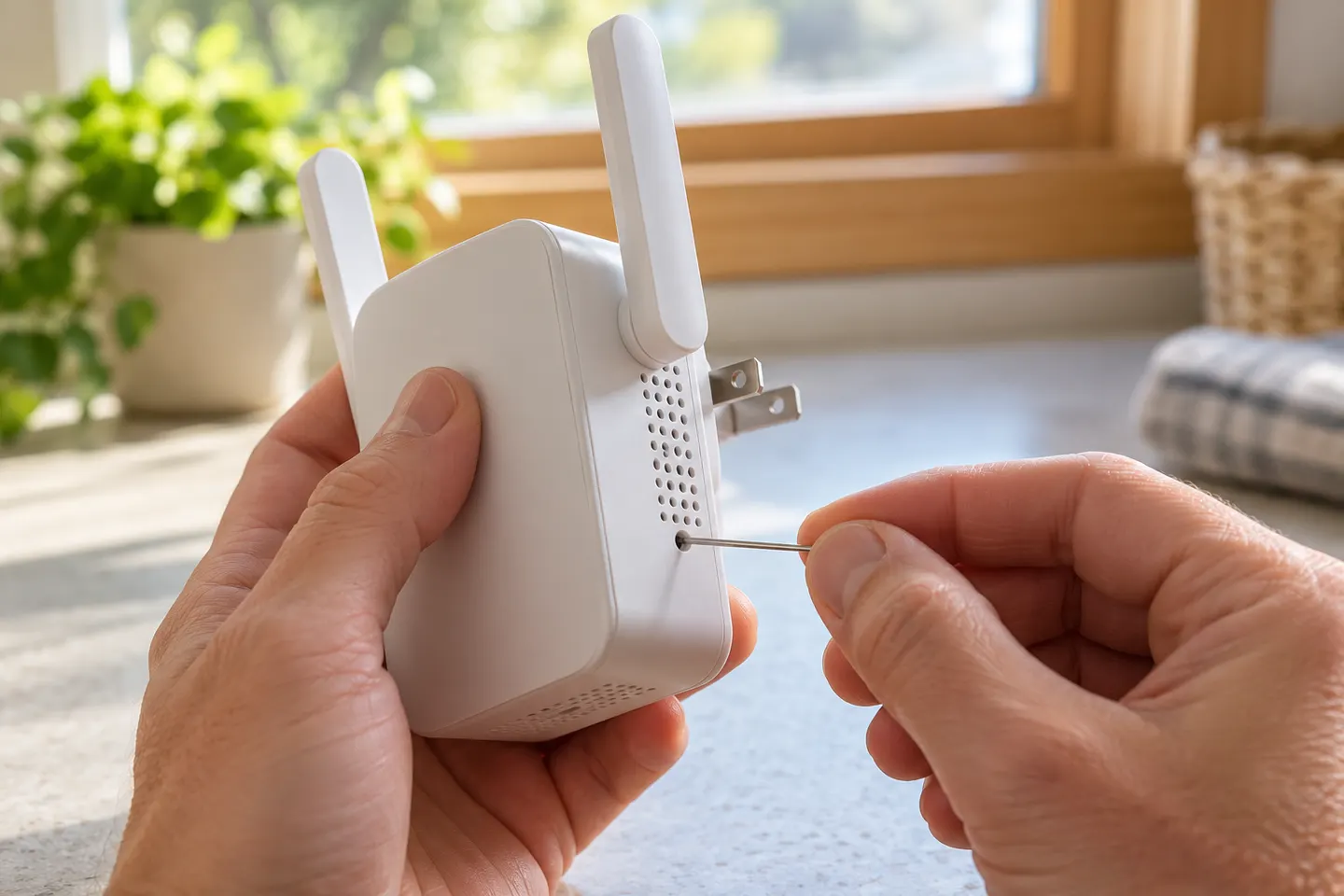
A restart means powering the extender off and on; it keeps configuration. Factory reset removes saved setup, so note the network details and plan to install it again.
With the extender powered, find its recessed Reset button. TP-Link notes that control positions and procedures depend on model, so check the product label and manual.
Use a pin to press Reset. TP-Link general guidance calls for holding the button for one to two seconds and waiting for the power light to blink; the model manual takes precedence.
Keep power connected while the extender restores defaults and reboots. Pair it with the router through WPS, Tether or web setup as supported by the model.
Confirm the extender reports a router link and test from the room it should serve. If setup fails, move it nearer the router and check the exact model support page.
Common questions
Identify the model and hardware version first. TP-Link guidance uses the recessed Reset button while powered, but exact timing depends on the model.
A factory reset restores defaults and removes custom configuration, including the saved router connection. You must set it up again.
Available restore options vary. Some models offer restore through web management; consult the support page for your exact model.
Reconnect it to the router using WPS, Tether or web setup as supported, then place it where the router signal remains strong.
Keep exploring

A Wi-Fi extender can help reach a weak-signal room when positioned within range of your router. Compare plug-in repeaters, mesh-compatible models, outdoor units and powerline kits by how they connect.

RE705X and RE715X are Wi-Fi 6 options; RE315 is an AC1200 alternative. Choose by router compatibility and the connection you need.
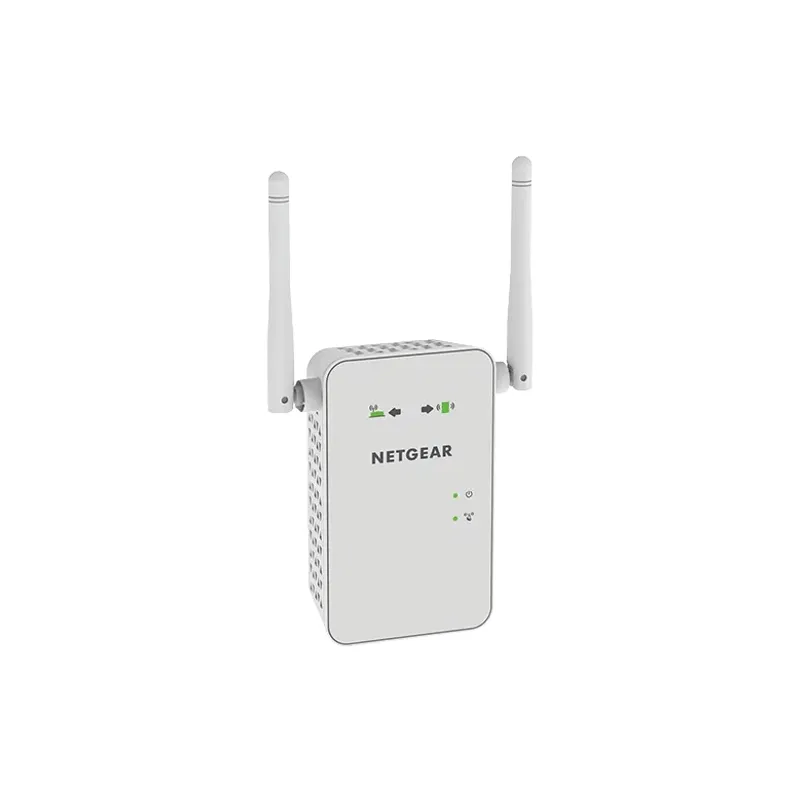
Start with the network standard and location of the dead spot. NETGEAR?s EX6120 is a dual-band AC model, while EAX15 adds WiFi 6; check exact router and firmware compatibility before buying.
The right Wi-Fi extender depends on the router signal at its location, your home layout and whether you need Ethernet, outdoor placement or powerline networking.