Gearjury may earn a commission when you buy through a retailer link. This guide follows cited manufacturer instructions.
Guide
How to Reset a TP-Link WiFi Extender to Factory Settings
A factory reset clears saved extender settings, so use it when troubleshooting calls for a fresh setup or access recovery. Button labels and reset timing vary by model; consult its manual first.
GGearjury editorial team · Updated 18 October 2026· 4 min
01
What a factory reset changes
A reset returns the extender to its factory state and removes its saved router connection and custom settings. You will need to configure it again afterwards. If you only need to reconnect a device or improve placement, try those steps before erasing the configuration.
02
Find instructions for the exact model
Check the label and model number, then open its manual or TP-Link support page. The control may be labelled Reset or WPS/Reset, and the required press differs across products. Keep the extender powered as its instructions specify.
03
Reset the TP-Link extender
With the device powered on, use the reset control as described in its model guide. Some TP-Link instructions say to hold Reset until the LEDs flash; do not assume every model uses the same duration. Release it as directed and allow the extender to reboot without unplugging it.
04
Set it up again
When the extender has restarted, connect to its default setup network or use the app or web interface named in its guide. Select your router's WiFi and enter the correct password, then complete any administrator setup prompts.
05
Place it after pairing
Move the extender to a point between router and coverage gap where it still receives a useful router signal. Check the model's signal indicator; if the link is weak, bring it closer to the router before testing devices in the target room.
06
If reset does not work
Check that you used the correct control and followed the model-specific power and timing instructions. Allow the reboot to finish, then retry only as the manual directs. If the button is damaged or the device remains unresponsive, contact TP-Link support for that model.
Common questions
Questions before you buy
How do I reset a TP-Link AC750 WiFi range extender?
The method depends on the exact AC750 model and hardware version. Find its model number, then follow the reset-button instructions in its TP-Link manual; the RE200 guide, for example, documents its own process.
How do I reset an N300 WiFi range extender?
N300 describes a WiFi class rather than one unique model, so reset controls and timing can differ. Use the model label to find the matching manufacturer's instructions before resetting.
Will resetting my TP-Link extender delete its WiFi settings?
Yes. A factory reset clears the saved configuration, so you will need to reconnect it to your router and configure it again.
Should I reset my TP-Link extender if I forget its login password?
A factory reset may restore access by clearing personalised settings, but it also removes the router connection. Check the model support instructions and try any supported password recovery route first.
How do I reset a TP-Link extender if it has no separate Reset button?
Some models combine functions on one button or provide reset through their management interface. Check the exact model's manual rather than holding an unidentified button.
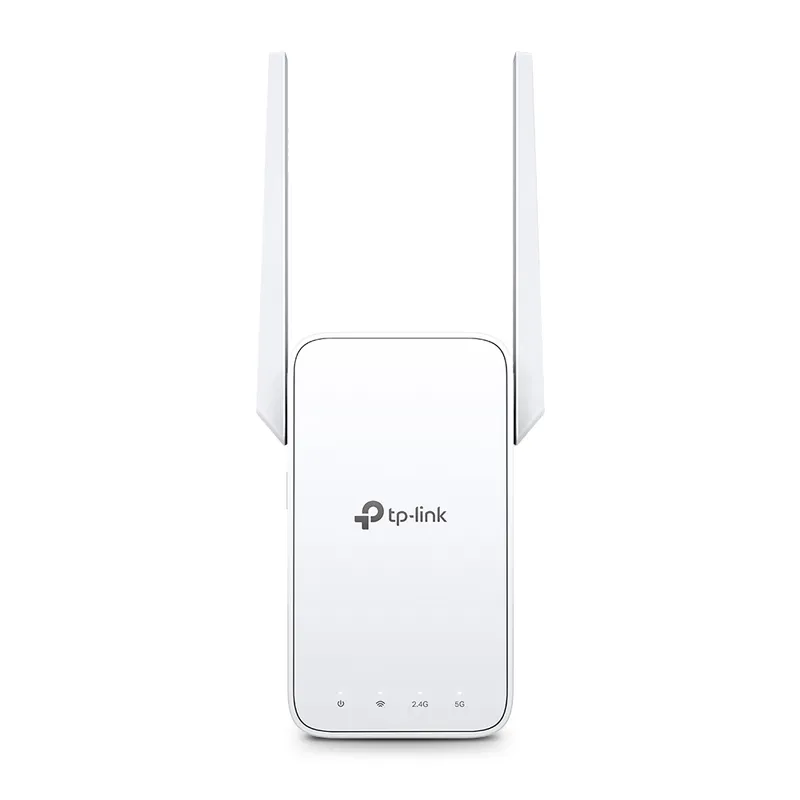
TP-Link RE315 is a practical starting point for a standard indoor dead zone. Consider a Wi-Fi 6 device for newer kit, outdoor-rated hardware for a garden, or powerline where a wireless hop struggles.
Sky has different booster products for different broadband generations. Sky Max customers may use a Max Pod; check your account and hub-specific help before seeking a third-party extender.
A WiFi extender can carry your router signal further, but placement and backhaul matter. Choose a plug-in repeater for a nearby dead zone, powerline WiFi for difficult layouts, or an outdoor-rated unit for a garden.
Your privacy
We use cookies and similar technologies. Necessary ones keep the site working. With your permission we also use statistics cookies (Google Analytics and Microsoft Clarity) to understand which guides help readers. You can accept all, reject all or choose. You can change your choice at any time from "Cookie settings" at the bottom of every page. Cookie policy