Gearjury may earn a commission from retailer links. This reset guide is based on manufacturer instructions.
Guide
How to Reset a WiFi Extender or Range Booster
Use the reset control only when you are ready to configure the extender again. A factory reset usually erases its saved network settings; the button sequence varies by model.
GGearjury editorial team · Updated 15 October 2026· 5 min
01
Before resetting a WiFi range extender
Find the exact brand, model and hardware revision on the label. Read its manual first: resetting can remove the router name, password and management settings, and the location of the control or required hold time differs between devices.
02
Try a restart before a factory reset
If the extender has stopped responding, unplug its power, wait briefly, then reconnect it. A restart does not normally clear configuration. Check the status light and test a device near the extender before deciding that a reset is needed.
03
How to reset a WiFi extender
With the unit powered on, use the reset button or pinhole exactly as its manual describes. TP-Link’s guidance for supported models, for example, says to press the reset pinhole until the LEDs flash; other models may use a different duration or menu. Wait for the reboot to finish.
04
Set up the WiFi booster again
After factory reset, use the model’s app, web page or WPS process to pair it with the router. Enter the router’s current WiFi password, not an old extender administration password. Keep the unit near the router for initial pairing if the manual recommends it.
05
Move it and check the connection
Once paired, place the extender where the router signal remains usable and where it can cover the target room. Check its signal indicator if available. If pairing fails, confirm the router password and security mode, update firmware where supported, and consult the model-specific troubleshooting page.
Common questions
Questions before you buy
How do I reset a WiFi extender to factory settings?
Follow the exact model manual. Many use a reset button or pinhole while powered on, held until a light pattern changes; that procedure clears saved configuration and means you must set the extender up again.
How do I reset a WiFi range extender without the app?
Use the physical reset control if the manufacturer’s instructions allow it. The location and hold time are model-specific, so check the label and manual rather than guessing.
How do I reset a WiFi booster if it will not connect?
First restart it and verify the router password and signal. If those checks fail, a factory reset may help, but it erases the saved pairing and requires setup from the beginning.
Will resetting my extender change my router password?
A reset applies to the extender and does not normally change the router’s WiFi password. You will need the router’s current password when reconnecting the extender.
A WiFi extender can carry your router signal further, but placement and backhaul matter. Choose a plug-in repeater for a nearby dead zone, powerline WiFi for difficult layouts, or an outdoor-rated unit for a garden.
Sky has different booster products for different broadband generations. Sky Max customers may use a Max Pod; check your account and hub-specific help before seeking a third-party extender.
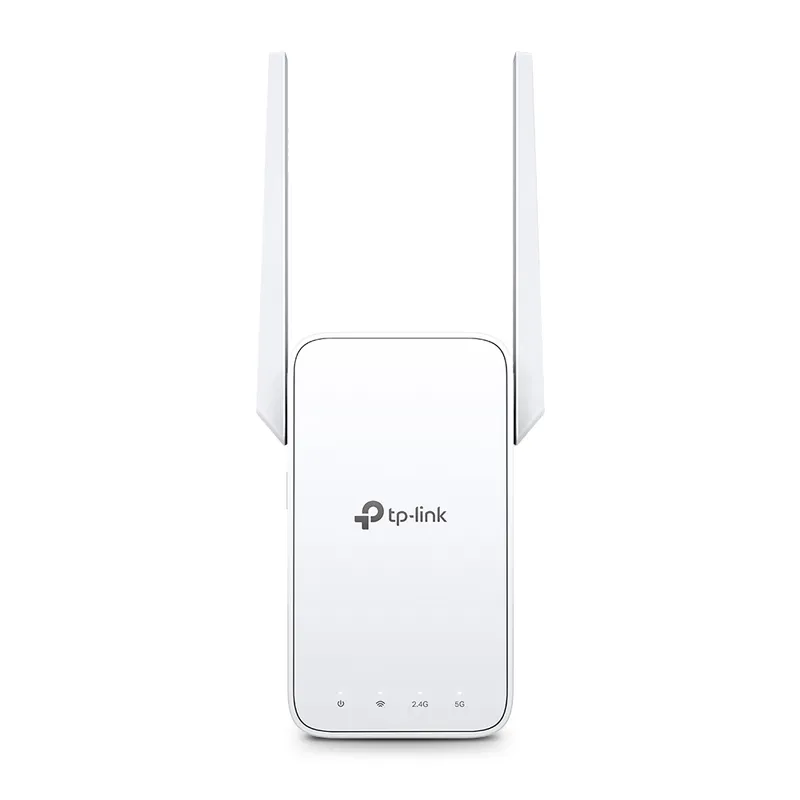
TP-Link RE315 is a practical starting point for a standard indoor dead zone. Consider a Wi-Fi 6 device for newer kit, outdoor-rated hardware for a garden, or powerline where a wireless hop struggles.
Your privacy
We use cookies and similar technologies. Necessary ones keep the site working. With your permission we also use statistics cookies (Google Analytics and Microsoft Clarity) to understand which guides help readers. You can accept all, reject all or choose. You can change your choice at any time from "Cookie settings" at the bottom of every page. Cookie policy