Check that Tesla Dashcam is ready
With a correctly formatted USB drive connected to a data-capable port, open Controls, then Safety and Dashcam. Availability and menu details can vary with vehicle, market and software version.

 Best picksGood Meat Thermometers for Every Kind of Cook
 Best picksBest WiFi Extenders: Which Range Extender Should You Buy?
 Best picksBest Dash Cams for Cars in 2026
 Best picksBest Radar Detectors for Cars: Models Compared
 Best picksGood Winter Gloves for Cold Weather: Five Useful Picks
 Best picksBest Headlamps: Six Lights Compared for Different Uses
 Best picksTop 10 Best Battery-Powered Weed Eaters for Different Yards
 Best picksBest Portable Air Coolers for Patios, Workshops and Small Spaces (2026)
 Best picksBest Air Purifier for Bedroom in the US: Quiet Models Compared
Gearjury may earn a commission when you buy through a retailer link. Editorial guidance is based on cited evidence.
Guide
Tap the Dashcam icon while driving to save the recent clip, or use a configured automatic option. Confirm the saved indicator before removing the USB drive.
With a correctly formatted USB drive connected to a data-capable port, open Controls, then Safety and Dashcam. Availability and menu details can vary with vehicle, market and software version.
While driving, tap the Dashcam icon in the app launcher. Tesla says Manual mode saves the recent footage; wait for the saved confirmation rather than assuming a tap succeeded.
Auto can save a clip when the vehicle detects a safety-critical event, while On Honk saves when the horn is pressed. Tesla warns that automatic detection may not capture every event, so save manually when it is safe to do so.
Park the vehicle, open the Dashcam Viewer and locate the recording by timestamp. Opening the viewer pauses recording, so finish any needed capture first.
Pause Dashcam before removing the drive. On a computer, open the TeslaCam folder and copy the relevant SavedClips or SentryClips folder while preserving the original filenames and timestamps.
Keep an untouched copy on separate storage. If the clip relates to a collision, avoid trimming or recompressing the only copy and share it only with people who need it.
Common questions
Tesla’s current manual says Manual mode saves the most recent ten minutes. Behavior can change by software or vehicle configuration, so check the manual shown for your car.
They are stored locally on the connected USB drive in the TeslaCam folder, organized into folders such as RecentClips, SavedClips and SentryClips.
Save it promptly from the Dashcam icon or the recent footage viewer where supported. Unsaved footage is continuously overwritten.
Possible causes include an unavailable or full drive, Dashcam being paused, use of a charge-only USB port, or the clip never being saved. Check the status icon and storage setup.
Keep exploring
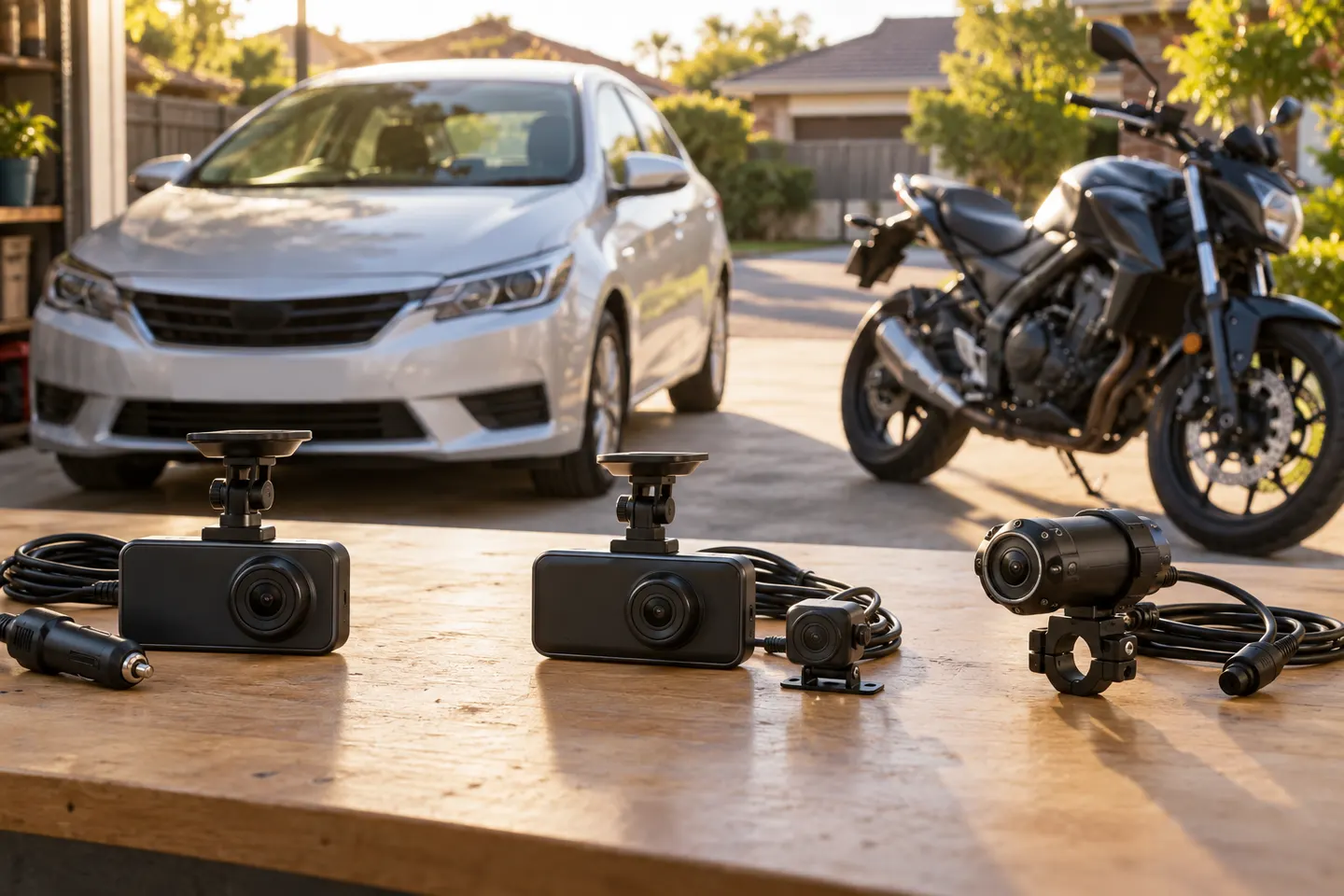
Start with the coverage you need: front-only, front and rear, cabin or a wider multi-camera view. Then compare recording detail, storage and power requirements.
VIOFO A229 Pro 2CH is our broad recommendation for detailed front and rear coverage. Garmin Mini 3 favors discretion, while Garmin X310 is the sharper single-camera choice.
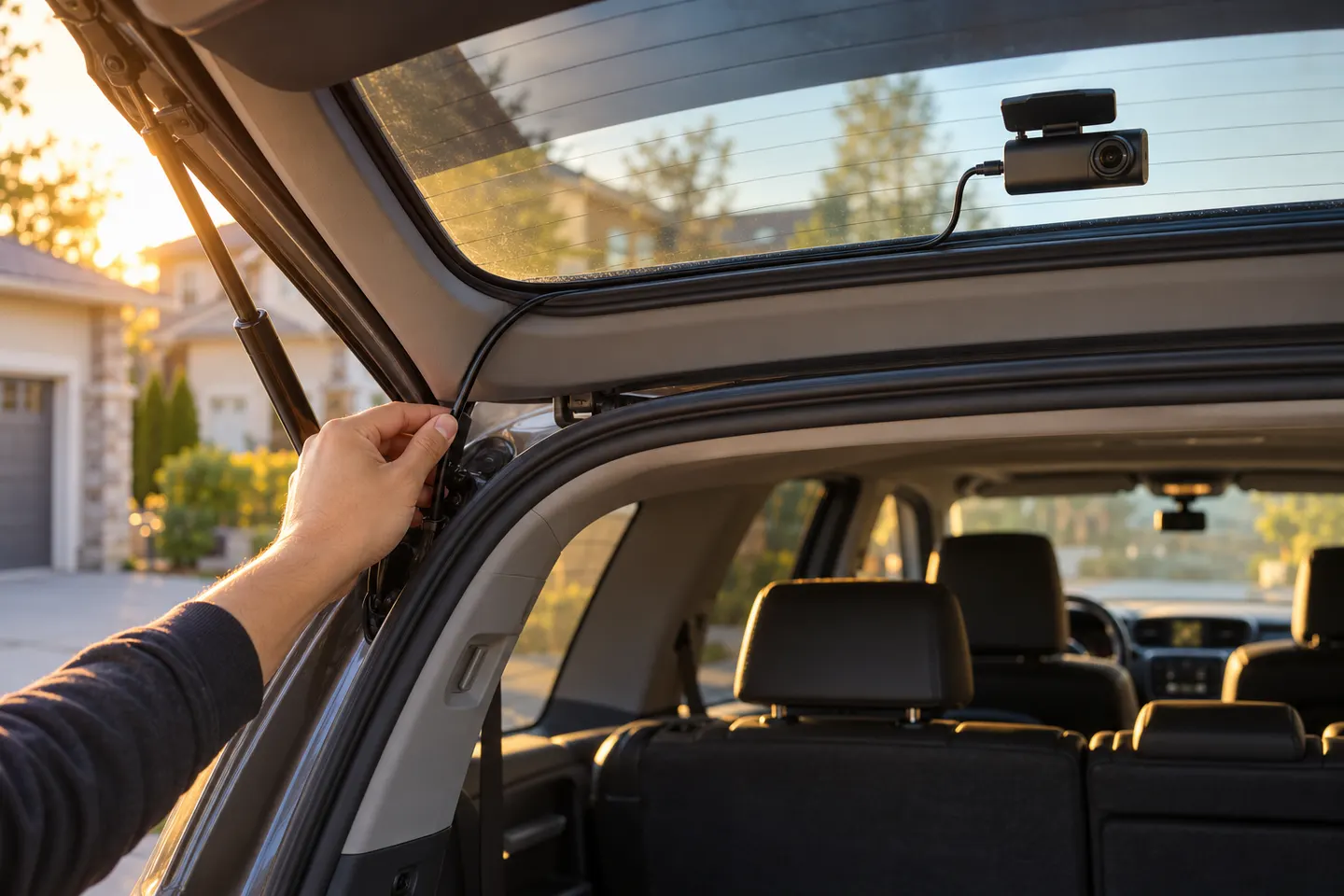
A front and rear dash cam records both directions and can provide context a single lens misses. Check the rear-camera cable route and simultaneous recording resolution before buying.
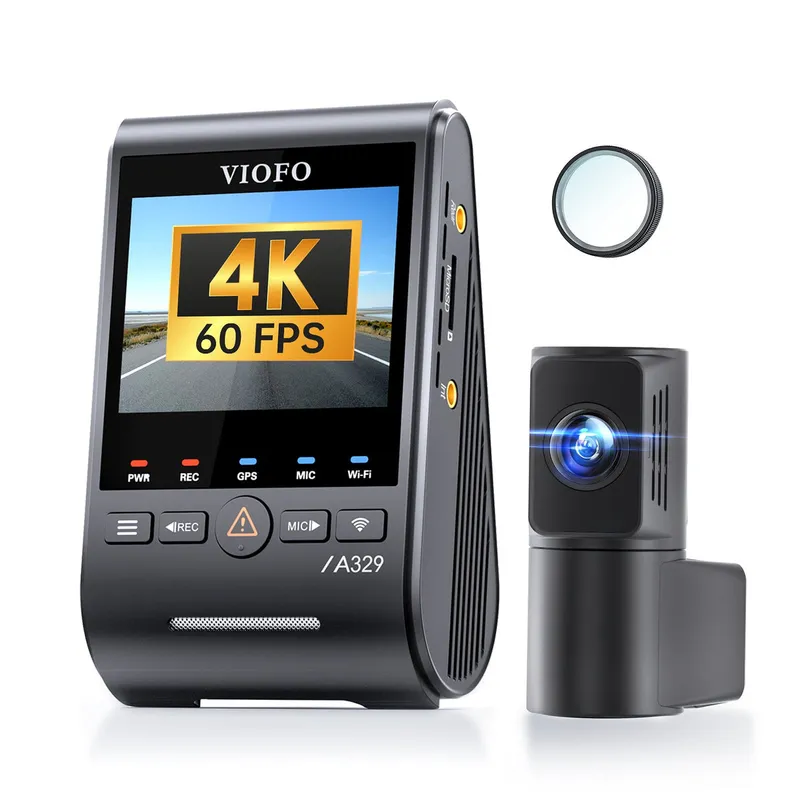
The A329S serves buyers seeking high-detail multichannel recording; A229 models cover more moderate dual-camera needs, while A119 Mini 2 is the compact front-only option.