Find the exact AC750 model
Read the brand, model code and hardware version on the device label. Download that model’s official guide; AC750 alone does not identify a setup procedure.

 Best picksGood Meat Thermometers for Every Kind of Cook
 Best picksBest WiFi Extenders: Which Range Extender Should You Buy?
 Best picksBest Dash Cams for Cars in 2026
 Best picksBest Radar Detectors for Cars: Models Compared
 Best picksGood Winter Gloves for Cold Weather: Five Useful Picks
 Best picksBest Headlamps: Six Lights Compared for Different Uses
 Best picksBest Portable Air Coolers for Patios, Workshops and Small Spaces (2026)
 Best picksTop 10 Best Battery-Powered Weed Eaters for Different Yards
 Best picksBest Air Purifier for Bedroom in the US: Quiet Models Compared
Gearjury may earn a commission from qualifying retailer links. Our editorial content is based on cited sources.
Guide
AC750 covers multiple products, so use these general steps alongside the manual for your exact model and hardware version.
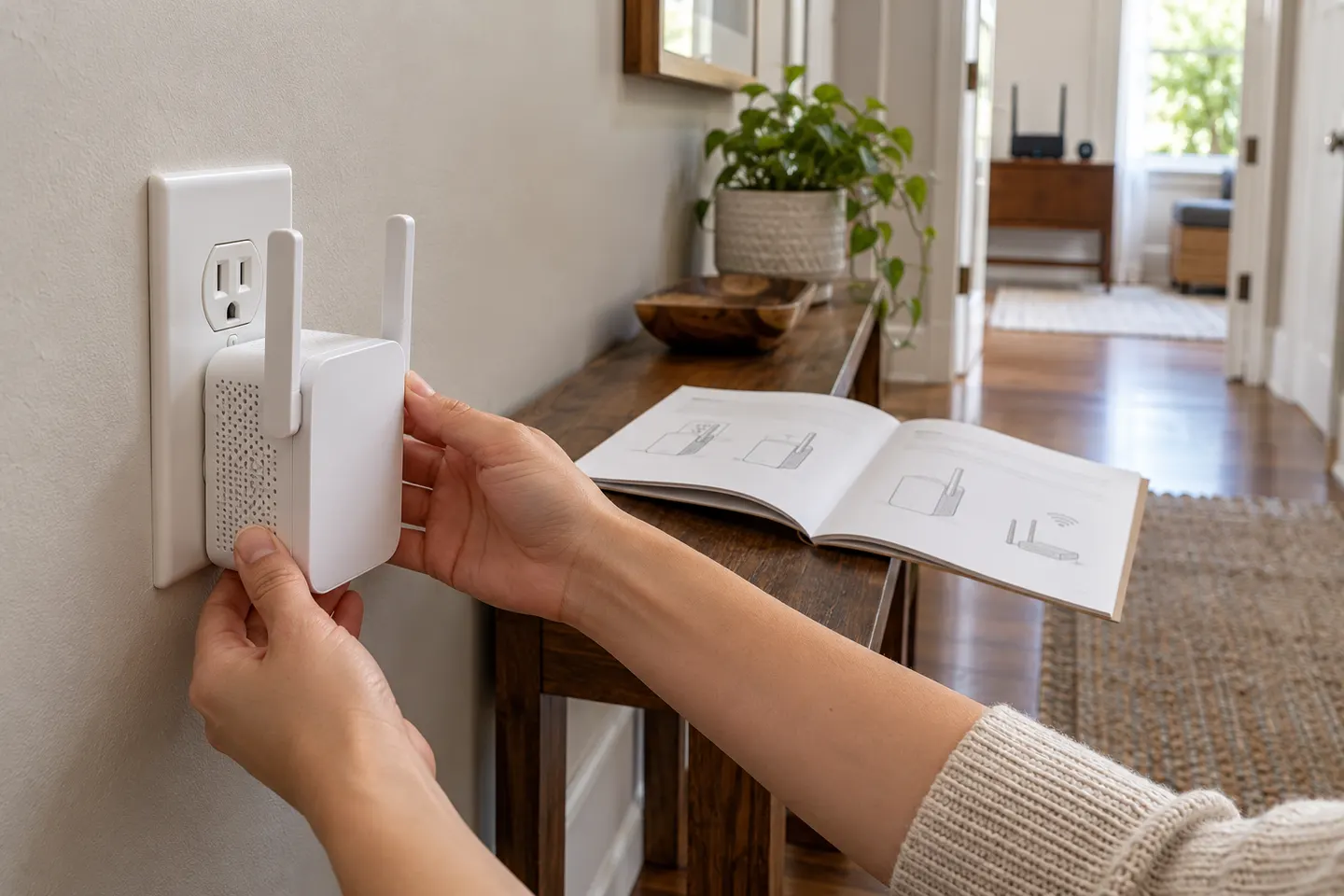
Read the brand, model code and hardware version on the device label. Download that model’s official guide; AC750 alone does not identify a setup procedure.
Use the manufacturer app, browser interface or WPS only if your model supports it. For WPS, TP-Link instructs users to start pairing on the router and then press the extender button within the stated window.
Select the correct home Wi-Fi name and enter its password carefully. If the model offers separate bands, configure the bands you intend to extend.
Wait for the status or signal light described in the manual, then connect a phone or computer to the extended network and check that it can reach the internet.
Relocate the extender to a point that still receives a good router signal. Use the product’s signal indicator and test the room; do not place it inside the dead zone.
If pairing fails, verify the host password, restart both devices and try closer to the router. Use the exact manual for factory reset steps because button timing varies by model.
Common questions
Only if both the router and the exact extender model support WPS. Follow the model manual and use the pairing window it specifies.
Light patterns are model-specific. Check the manual’s LED table rather than assuming one color or blink pattern applies to every AC750 extender.
Start around halfway between router and dead zone, then use the signal indicator and a real connection test to refine placement.
Check that the router itself is online, re-enter the host network password, move the extender closer and consult the model’s troubleshooting instructions.
Keep exploring

A WiFi extender can carry a router's signal into a nearby weak-signal area. Start by checking compatibility, placement and whether a wireless repeater or wired access point fits your home.
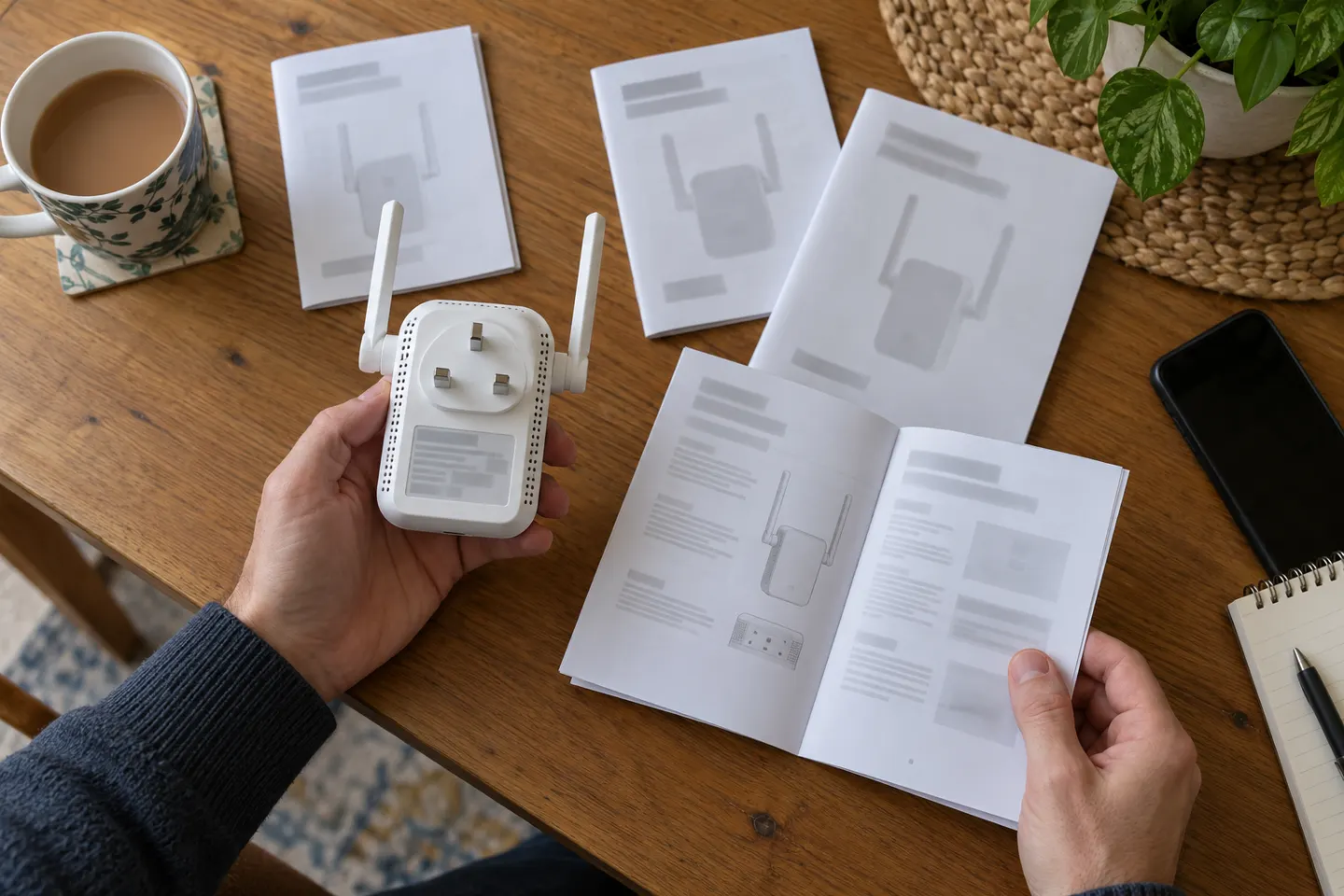
AC750 describes a speed class used by multiple products, not a unique model. Find the brand and model number on the label before downloading instructions.
For a versatile WiFi 6 choice, consider TP-Link RE705X, which pairs dual-band WiFi 6 with a Gigabit Ethernet port. NETGEAR EAX15 suits an existing NETGEAR mesh setup, while TP-Link RE550 and NETGEAR EX6120 offer different WiFi 5 feature sets.
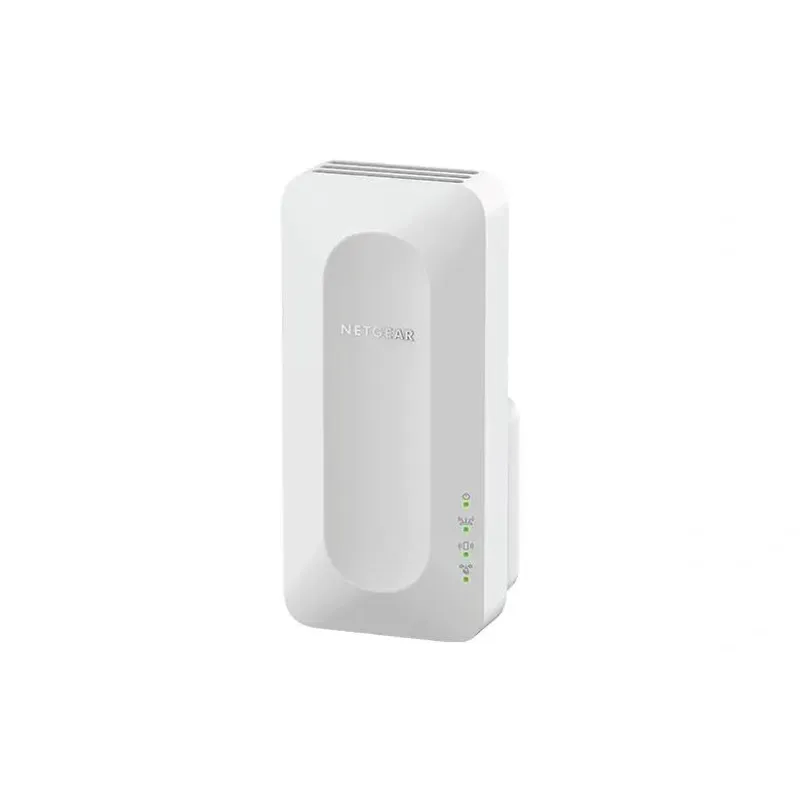
NETGEAR sells plug-in extenders across WiFi generations. Compare exact model features and check whether mesh behavior suits your router.