Identify the exact AC1200 model
NETGEAR uses AC1200 across more than one extender. This walkthrough follows the EX6110 quick-start guide; use the manual for your own model if its buttons, LEDs or web address differ.

 Best picksGood Meat Thermometers for Every Kind of Cook
 Best picksBest WiFi Extenders: Which Range Extender Should You Buy?
 Best picksBest Dash Cams for Cars in 2026
 Best picksBest Radar Detectors for Cars: Models Compared
 Best picksGood Winter Gloves for Cold Weather: Five Useful Picks
 Best picksBest Headlamps: Six Lights Compared for Different Uses
 Best picksTop 10 Best Battery-Powered Weed Eaters for Different Yards
 Best picksBest Portable Air Coolers for Patios, Workshops and Small Spaces (2026)
 Best picksBest Air Purifier for Bedroom in the US: Quiet Models Compared
Gearjury may earn a commission from qualifying retailer links. Setup guidance follows the cited model documentation.
Guide
For the NETGEAR EX6110, use WPS for a button-led install or join NETGEAR_EXT and follow the Installation Assistant. Finish by relocating the unit within reach of the router.
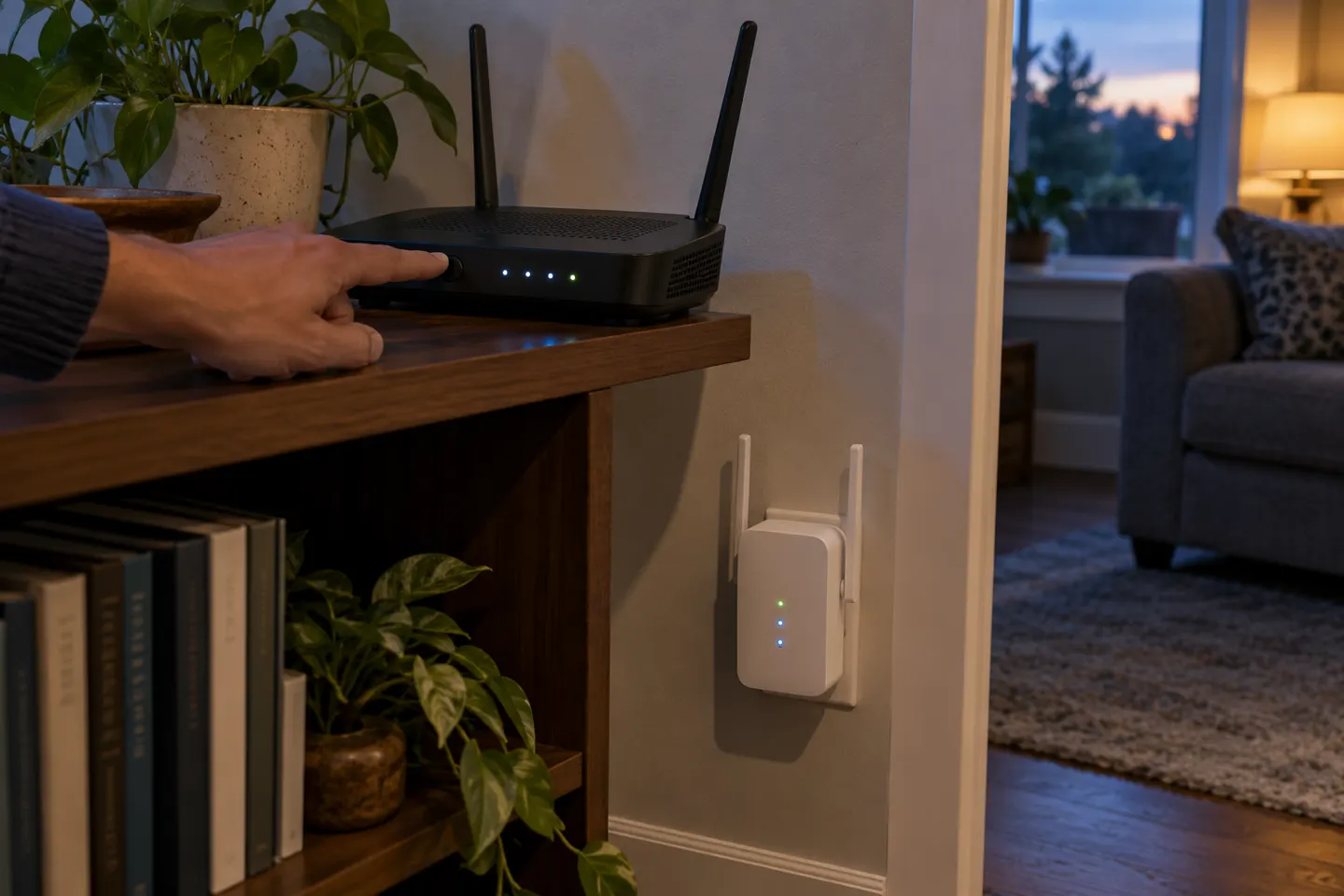
NETGEAR uses AC1200 across more than one extender. This walkthrough follows the EX6110 quick-start guide; use the manual for your own model if its buttons, LEDs or web address differ.
For WPS, plug in the extender, wait for its power indicator, press WPS, then press the router’s WPS button within the manual’s stated window. If the router lacks WPS or pairing fails, use the manual setup route instead.
Connect a phone or computer to the extender network named NETGEAR_EXT, open a browser and visit mywifiext.net. Follow the on-screen prompts to select the home network and enter its password.
After pairing, unplug the extender and move it roughly halfway toward the weak-signal area. The chosen outlet must still receive the existing Wi-Fi; if the Router LED does not show a usable link, move closer to the router.
Reconnect your device to the extended network and test from the room that previously had poor reception. NETGEAR’s EX6110 guide uses the Device LED as a placement cue; consult its color legend for your hardware revision.
When the extender and router use separate network names, NETGEAR documents mywifiext.net for access. If they share a name, use the extender’s IP address as described in the manual.
Common questions
For the EX6110 Installation Assistant, NETGEAR lists mywifiext.net. Another AC1200 model may use different instructions, so check its own quick-start guide.
Yes. Join the NETGEAR_EXT wireless network on a phone or computer, open mywifiext.net and follow the browser assistant.
Choose an outlet between the router and weak area where the extender can still maintain a good connection to the router. Too far away, it cannot relay a useful signal.
Distance, channel settings and router configuration can affect discovery. Move the extender near the router during pairing and consult NETGEAR’s troubleshooting steps for the exact model.
Keep exploring
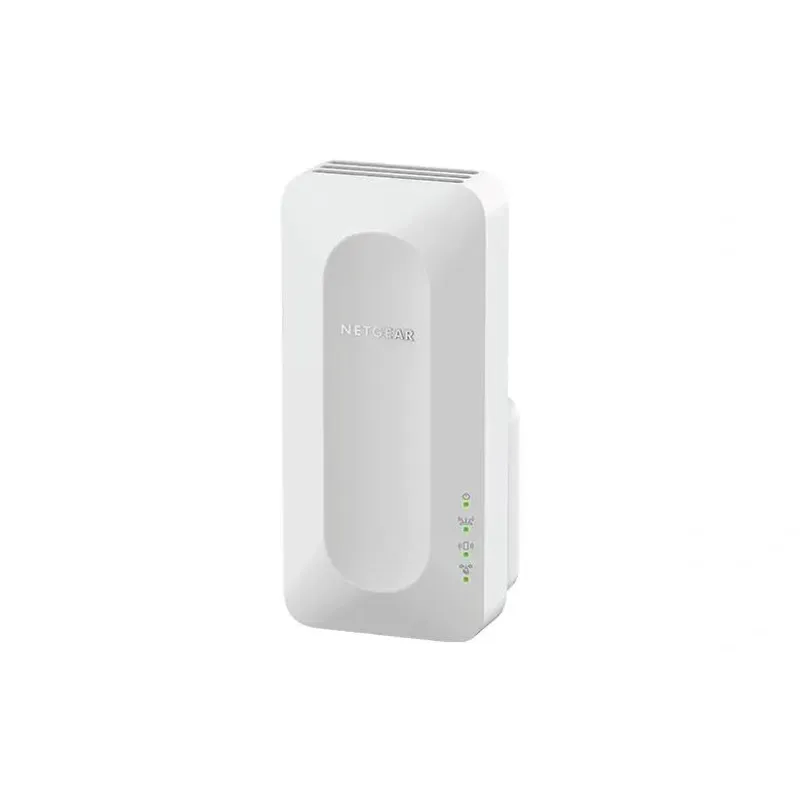
NETGEAR sells plug-in extenders across WiFi generations. Compare exact model features and check whether mesh behavior suits your router.
For a versatile WiFi 6 choice, consider TP-Link RE705X, which pairs dual-band WiFi 6 with a Gigabit Ethernet port. NETGEAR EAX15 suits an existing NETGEAR mesh setup, while TP-Link RE550 and NETGEAR EX6120 offer different WiFi 5 feature sets.

A WiFi extender can carry a router's signal into a nearby weak-signal area. Start by checking compatibility, placement and whether a wireless repeater or wired access point fits your home.

TP-Link offers WiFi 6 and WiFi 5 extenders with different port and mesh features. Check hardware version and router compatibility before choosing.