Gearjury may earn a commission from qualifying purchases made through retailer links.
Guide
How to Tell If Your WiFi Range Extender Is Working
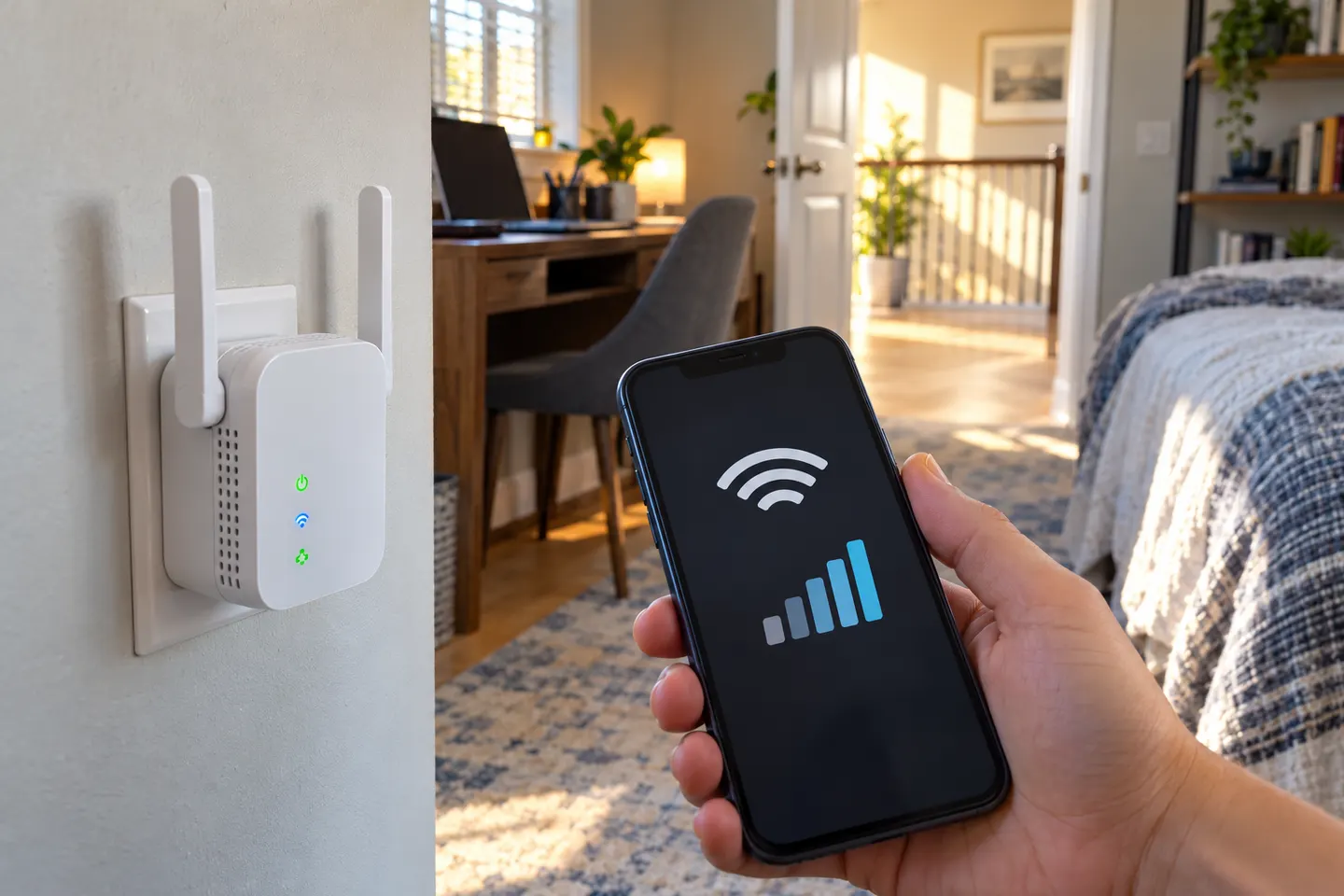
Check the extender's status indicators, confirm your device is connected to its network and compare access in the target room. A lit power LED alone does not prove the internet link is healthy.
GGearjury editorial team · Updated October 15, 2026· 5 min
01
Read the extender's status lights
Check the quick-start guide to learn what each indicator means on your exact model. A power light may only confirm that the unit is on; separate router-link or signal indicators can reveal whether it has joined the network.
02
Confirm your device joined the extended network
Open Wi-Fi settings and check the connected network name. Depending on the configuration, the extender may use a distinct name, an EXT suffix or the router's shared network name.
03
Test internet access near the extender
Use a phone or laptop close to the extender to load a few pages or run a connection check. If the device connects to Wi-Fi but has no internet access, test the router's connection separately before troubleshooting the extender.
04
Compare the target room with the router area
Check the same device in both locations under similar conditions. Improvement in the weak room suggests the extender is helping there; a speed difference alone can fluctuate with network traffic and radio conditions.
05
Check the backhaul signal and placement
If the extender reports a weak router link, move it closer to the router while keeping it between the router and the target area. Avoid placing it inside the dead zone or behind major obstructions.
06
Reconnect or reset only after basic checks
Verify the saved Wi-Fi name and password, restart the router and extender, and consult the manufacturer's troubleshooting page. A factory reset erases settings, so use it only when you can run setup again.
Common questions
Questions before you buy
How do I know if my WiFi extender is connected to the router?
Use the model's signal or router-link indicator and check its app or management page for connection status. Light meanings differ by product, so consult its manual.
Should my device connect to the extender's network name?
It depends on setup. Some extenders show a separate SSID or suffix; mesh-compatible setups may share the router's name. Confirm the active access point in the extender app if available.
Why does my extender show WiFi but have no internet?
The device may be connected to the extender while the extender has lost its router backhaul. Check internet access at the router, move the extender closer and verify the saved network credentials.
Do the extender lights need to be green?
Not on every model. Indicator colors and blinking patterns are model-specific; use the manufacturer's guide instead of assuming one color means a successful connection.
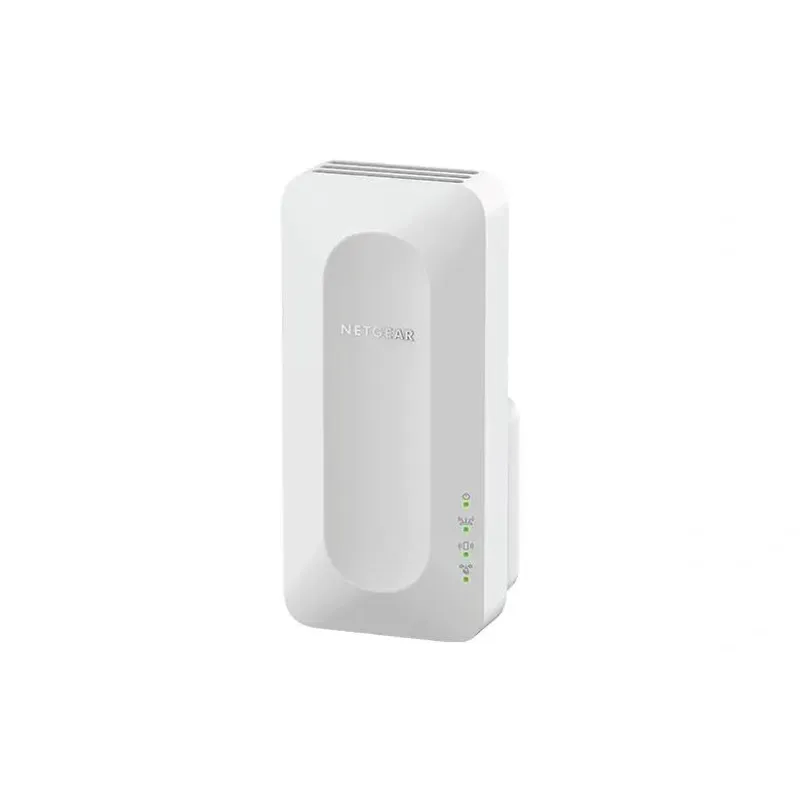
For a versatile WiFi 6 choice, consider TP-Link RE705X, which pairs dual-band WiFi 6 with a Gigabit Ethernet port. NETGEAR EAX15 suits an existing NETGEAR mesh setup, while TP-Link RE550 and NETGEAR EX6120 offer different WiFi 5 feature sets.
A WiFi extender can carry a router's signal into a nearby weak-signal area. Start by checking compatibility, placement and whether a wireless repeater or wired access point fits your home.
Your privacy
We use cookies and similar technologies. Necessary ones keep the site working. With your permission we also use statistics cookies (Google Analytics and Microsoft Clarity) to understand which guides help readers. You can accept all, reject all or choose. You can change your choice at any time from "Cookie settings" at the bottom of every page. Cookie policy