Identify the NETGEAR model
Read the model number and hardware revision on the label. Setup menus differ across product generations, so select the matching guide on the product support page.

 Best picksThe Best Dash Cam Cameras for Different Drivers
 Best picksBest WiFi Extenders in Canada for Different Home Networks
 Best picksBest Meat Thermometers in Canada for 2026
 Best picksBest Winter Gloves for Canadian Conditions (2026)
 Best picksBest Headlamps: Compare Reliable Options for Canada
 Best picksRadar Detector Best Picks for Canadian Drivers (2026)
 Best picksBest Portable Air Coolers to Consider in 2026
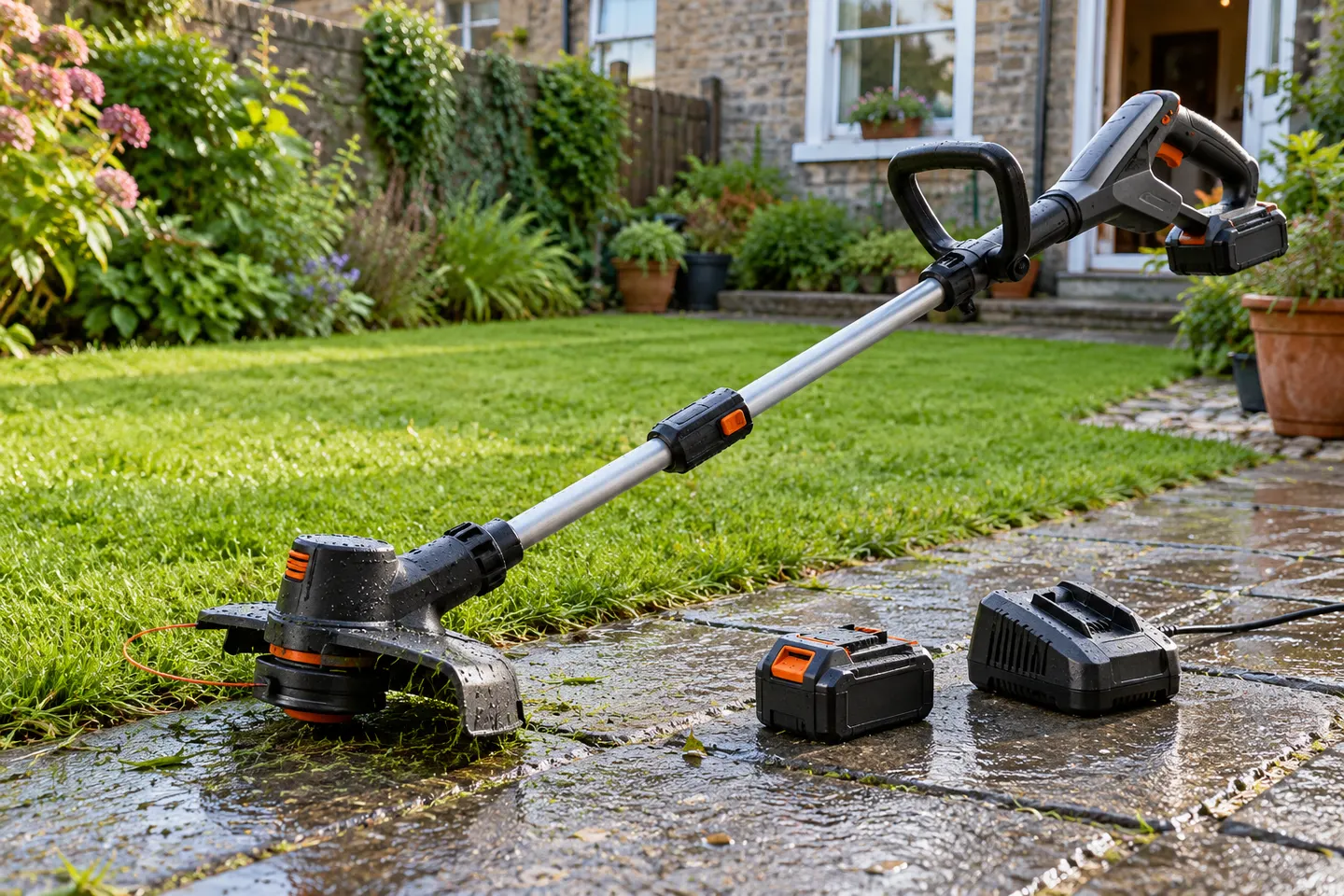 Best picksBest cordless grass trimmers with a battery and charger
 Best picksBest Air Purifier for Bedroom in the Canada: Quiet Models Compared
Gearjury may earn a commission from qualifying retailer links. Editorial information is based on cited sources.
Guide
Join the extender to your existing router using the setup method supported by the model, then move it to a location with a dependable router signal.
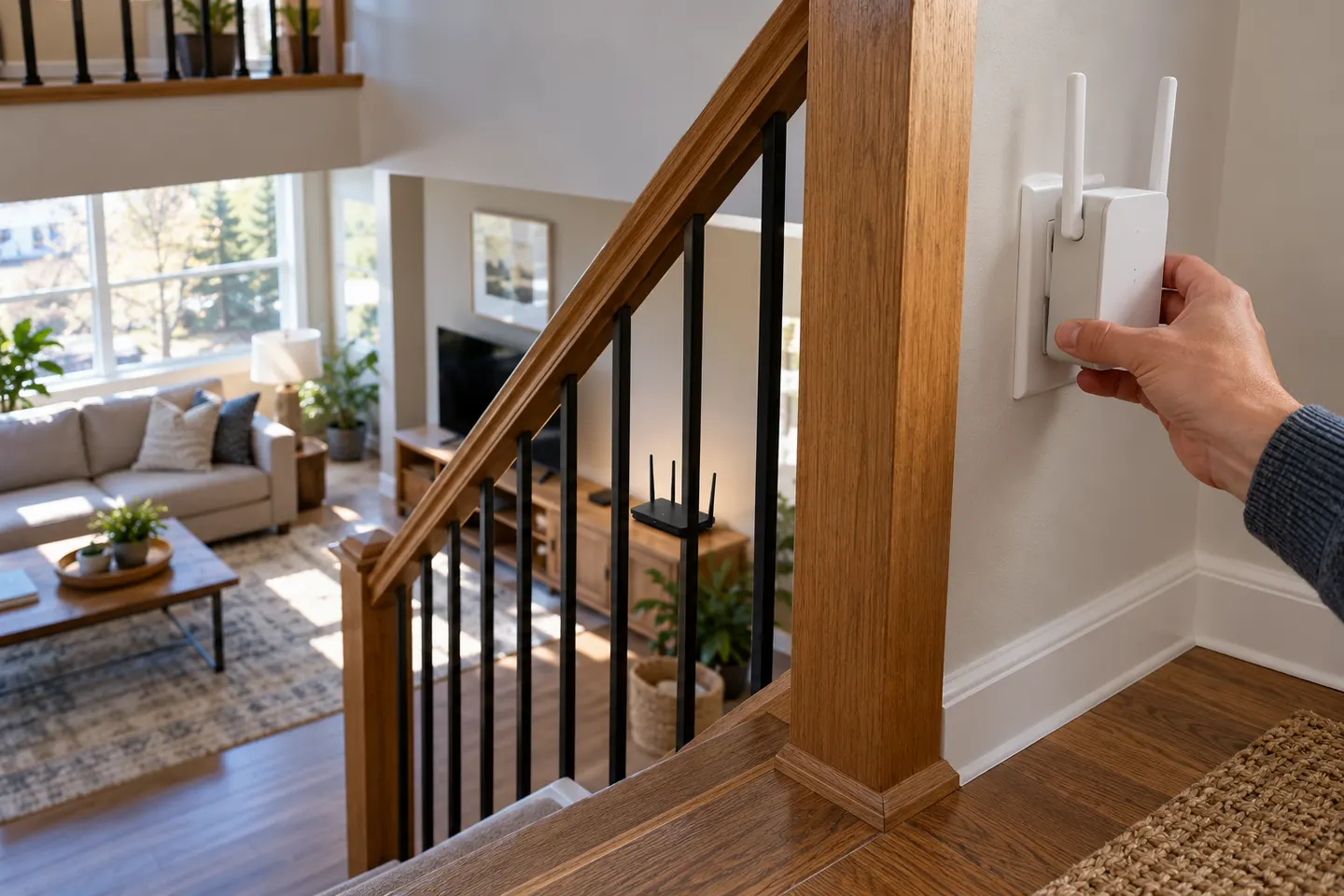
Read the model number and hardware revision on the label. Setup menus differ across product generations, so select the matching guide on the product support page.
Compatible models may support the Nighthawk app, a browser setup flow or WPS. Follow the method shown in your model guide and confirm the extender reports a connection to the router.
Start near the router, complete pairing, then move the unit toward the weak area while preserving a good uplink. Use the extender indicators or app to check placement.
Devices can join the extended network using the credentials configured during setup. If your model has Ethernet, follow the manual to connect a nearby wired device.
Check router internet access, saved WiFi credentials and signal strength. Restart both devices, then repeat the model-specific setup if the uplink remains offline.
Some NETGEAR extenders advertise mesh functions such as Smart Roaming or a shared network name. Compatibility and configuration vary, so confirm router pairing requirements.
Common questions
Set it up with the model-supported Nighthawk app, browser or WPS process, then place it where it has a solid router connection. Connect devices to the network configured during setup.
Use the official Nighthawk app if your model supports it, or follow the manual browser setup instructions. Confirm the app listing and setup guide match your model.
Many extenders can extend other compatible WiFi routers, but mesh features may need a supported pairing. Check the extender documentation for router requirements.
The extender may receive a weak router signal, share airtime with client devices or face interference. Move it closer to the router and test again; it cannot exceed the upstream connection available.
Keep exploring

A WiFi extender can carry an existing router’s signal into a weak-coverage area. Start with compatibility and placement, then compare a standalone repeater with a provider mesh system.
The TP-Link RE705X is a strong feature-led starting point, with WiFi 6, AX3000 class and a Gigabit port. Consider NETGEAR EAX15 for mesh-style WiFi 6 or simpler plug-in models for a basic dead zone.
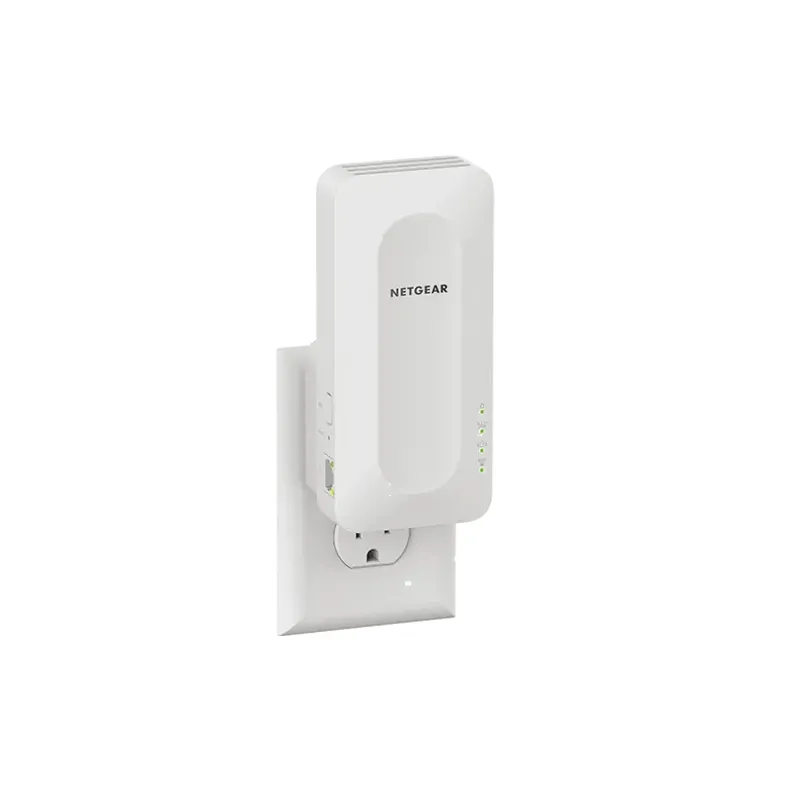
NETGEAR’s Canadian range includes WiFi 6 mesh extenders and older AC models. Check each model’s port, generation and setup method before choosing.

TP-Link’s Canadian range includes WiFi 7, WiFi 6 and older dual-band extenders. Match the model to your router, desired features and available placement.