Prepare the NETGEAR extender
Place the extender in the same room as the router for setup and power it on. Use the Nighthawk app or web browser method described for your model. Have the router Wi-Fi password ready.

 Best picksBest WiFi Extenders in the UK: Compare Five Practical Options
 Best picksThe Best Dashcams in the UK for 2026
 Best picksBest Portable Air Coolers: Five Models to Compare for 2026
 Best picksBest Meat Thermometers in the UK for 2026
 Best picksBest Headlamp Torches in the UK: Five Choices for 2026
 Best picksBest Winter Gloves in the UK: Five Activity-Based Choices for 2026
 Best picksBest Radar Detectors in the UK: Models Compared for 2026
 Best picksBest Value Cordless Strimmers in the UK (2026)
 Best picksBest Air Purifiers in the UK for Different Rooms and Needs
Gearjury may earn a commission from retailer links.
Guide
Pair your NETGEAR extender near the router, then move it towards the weak-signal area while keeping a solid link back to the network. Buttons and indicators vary by model.
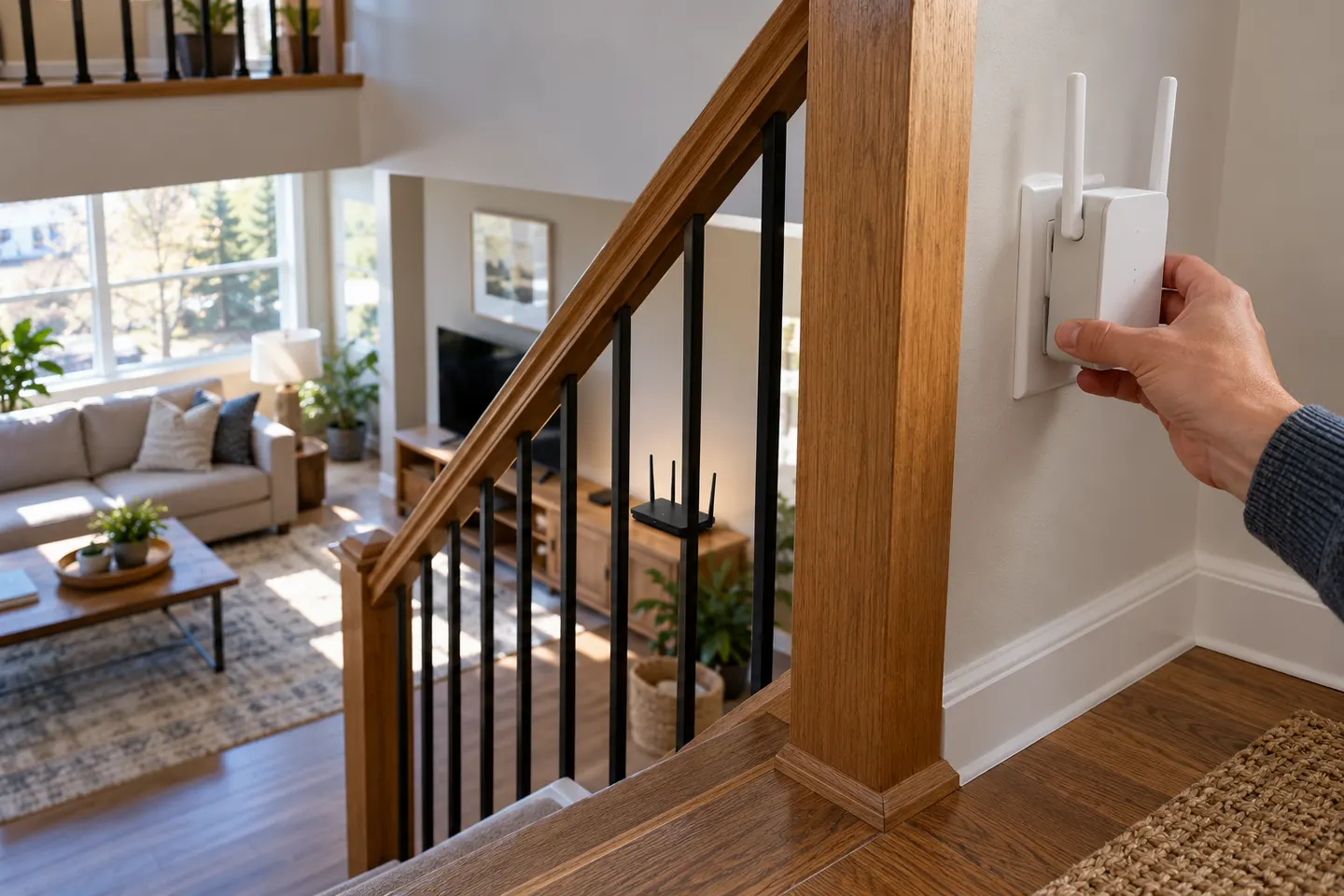
Place the extender in the same room as the router for setup and power it on. Use the Nighthawk app or web browser method described for your model. Have the router Wi-Fi password ready.
Press the extender WPS button, then follow the model manual to start WPS on the router within the stated time window. Wait for the connection indicators to settle. NETGEAR notes WPS supports WPA/WPA2; for legacy WEP, use browser or app configuration.
Choose the extender setup flow, select your existing Wi-Fi network and enter its password. Confirm the extended network settings when prompted. If the setup page cannot find the router, check the distance and confirm the correct band and password.
After pairing, place the extender between the router and the weak-signal area while retaining a good link back to the router. Use indicator or app guidance and test the room. Do not place it at the edge of the existing signal.
Restart the router and extender, check the password and retry nearer the router. Confirm the security mode is supported and update firmware using NETGEAR instructions for the exact model. A factory reset clears settings, so use it only when ready to configure again.
Common questions
Yes. NETGEAR provides app and browser setup routes for many models. Use the instructions for your exact extender; WPS availability and supported router security modes vary.
Move it towards weak coverage while keeping a usable connection to the router. App or signal-light guidance can help, and testing in the target room confirms whether the position helps.
Check that WPS is enabled and the router security mode is supported; NETGEAR says WPS supports WPA/WPA2 and recommends app or browser setup for WEP routers. Retry near the router and verify model-specific steps.
It depends on model and setup mode. Some NETGEAR extenders use the router network name with mesh features, while other configurations create an extended network name; follow the model instructions.
Keep exploring

A WiFi extender can carry your router signal further, but placement and backhaul matter. Choose a plug-in repeater for a nearby dead zone, powerline WiFi for difficult layouts, or an outdoor-rated unit for a garden.
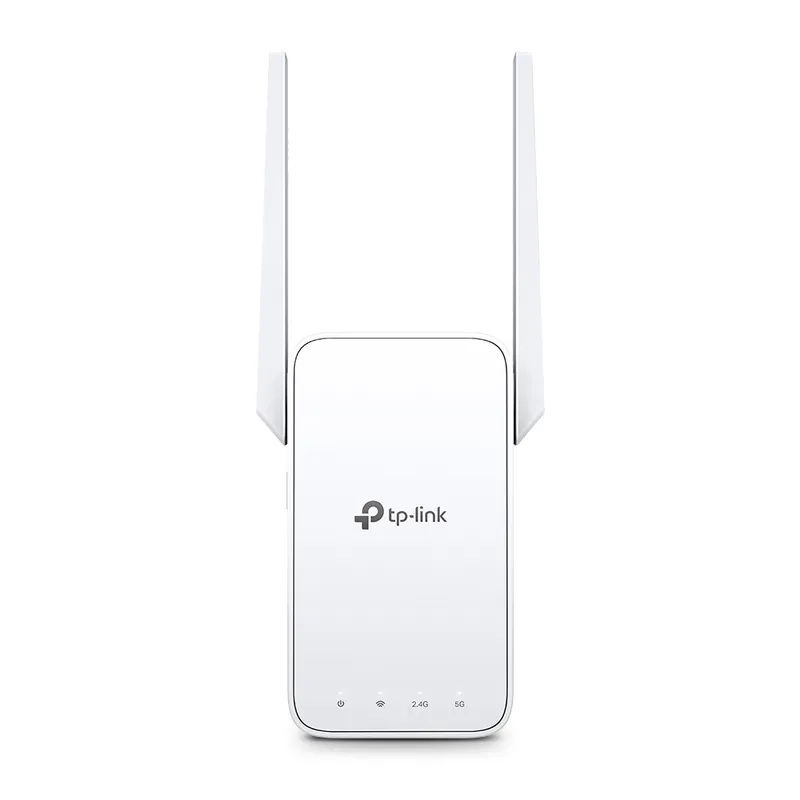
TP-Link sells plug-in repeaters and powerline kits. Check EasyMesh support, Ethernet needs and the exact UK hardware revision before buying.
TP-Link RE315 is a practical starting point for a standard indoor dead zone. Consider a Wi-Fi 6 device for newer kit, outdoor-rated hardware for a garden, or powerline where a wireless hop struggles.

Sky has different booster products for different broadband generations. Sky Max customers may use a Max Pod; check your account and hub-specific help before seeking a third-party extender.