








 Official manufacturer image

Our picks
Top picks
Official manufacturer image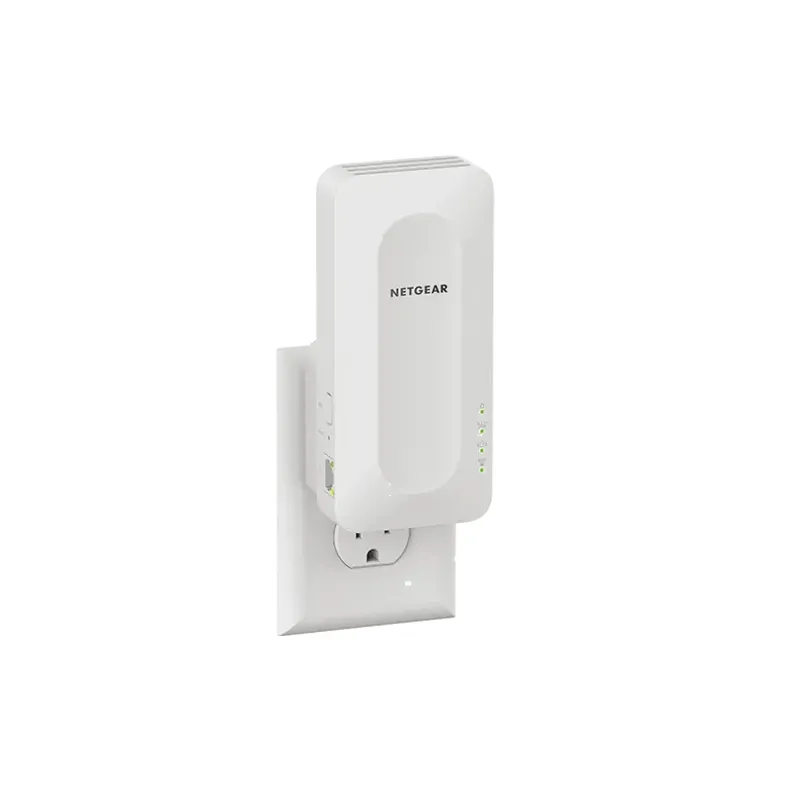 Official manufacturer image
NETGEAR EAX15
Check price on Amazon.ca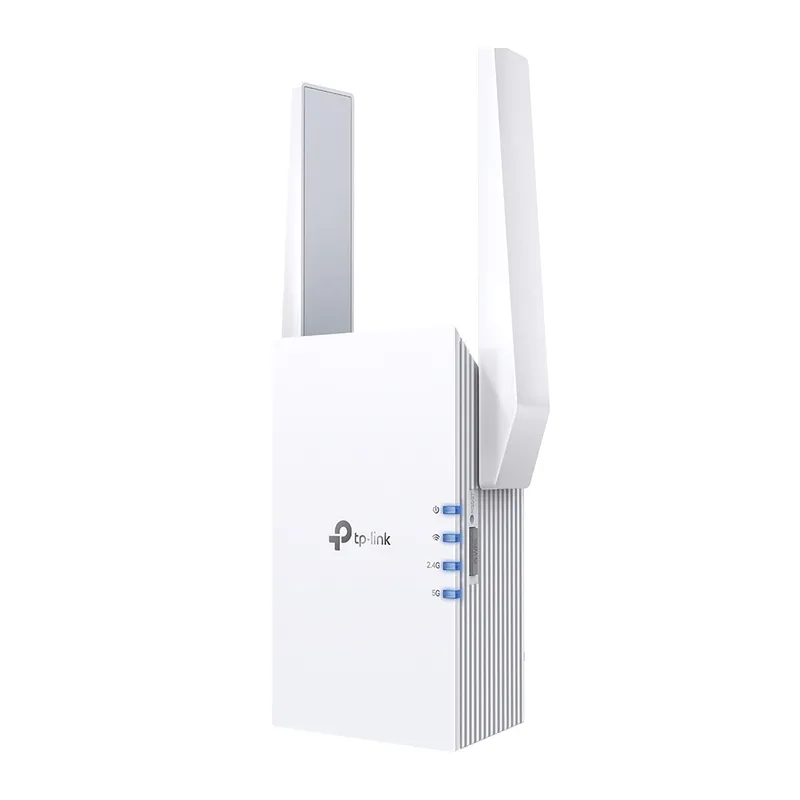 Official manufacturer image
TP-Link RE605X
Check price on Amazon.caSetup and help
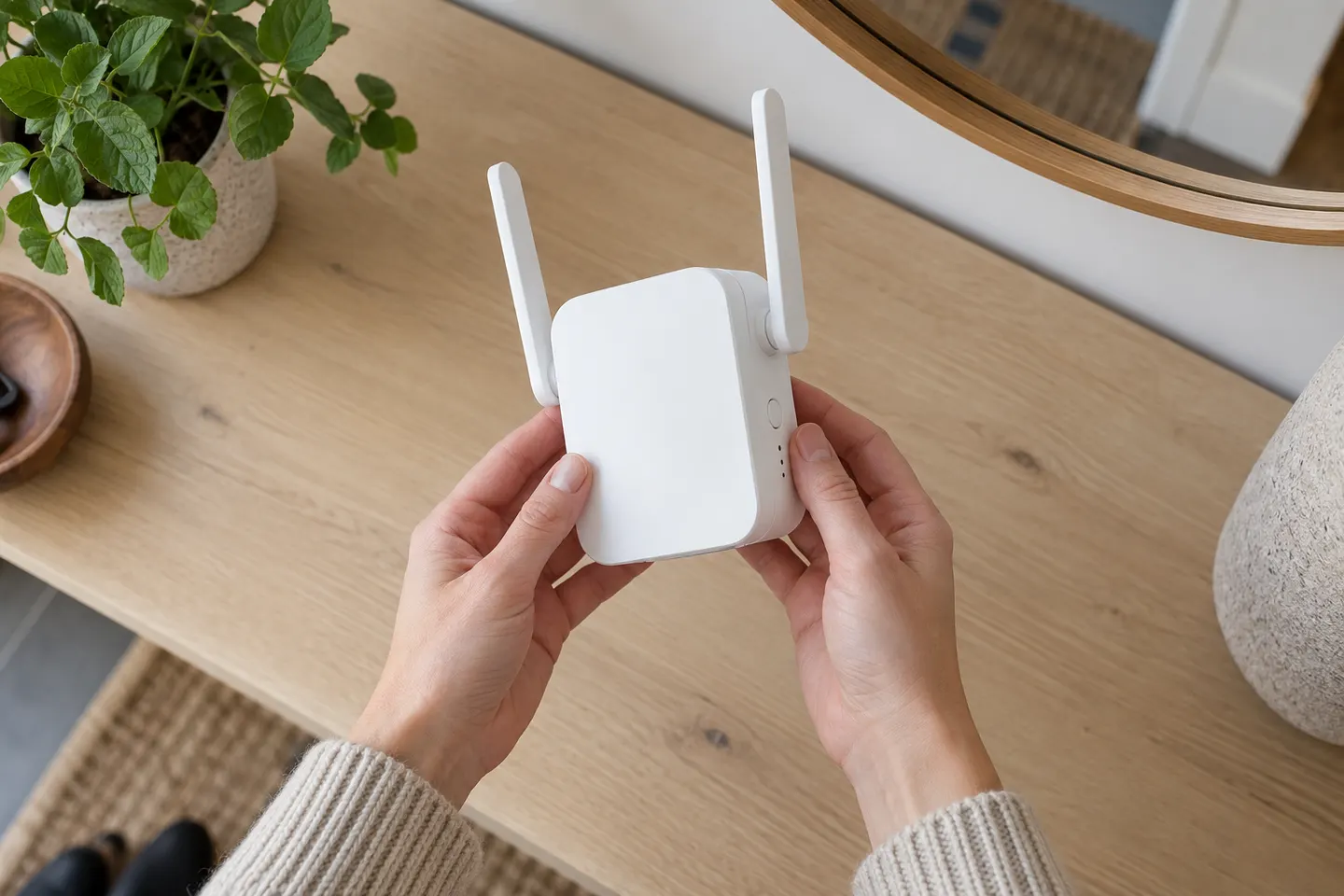 D link setup
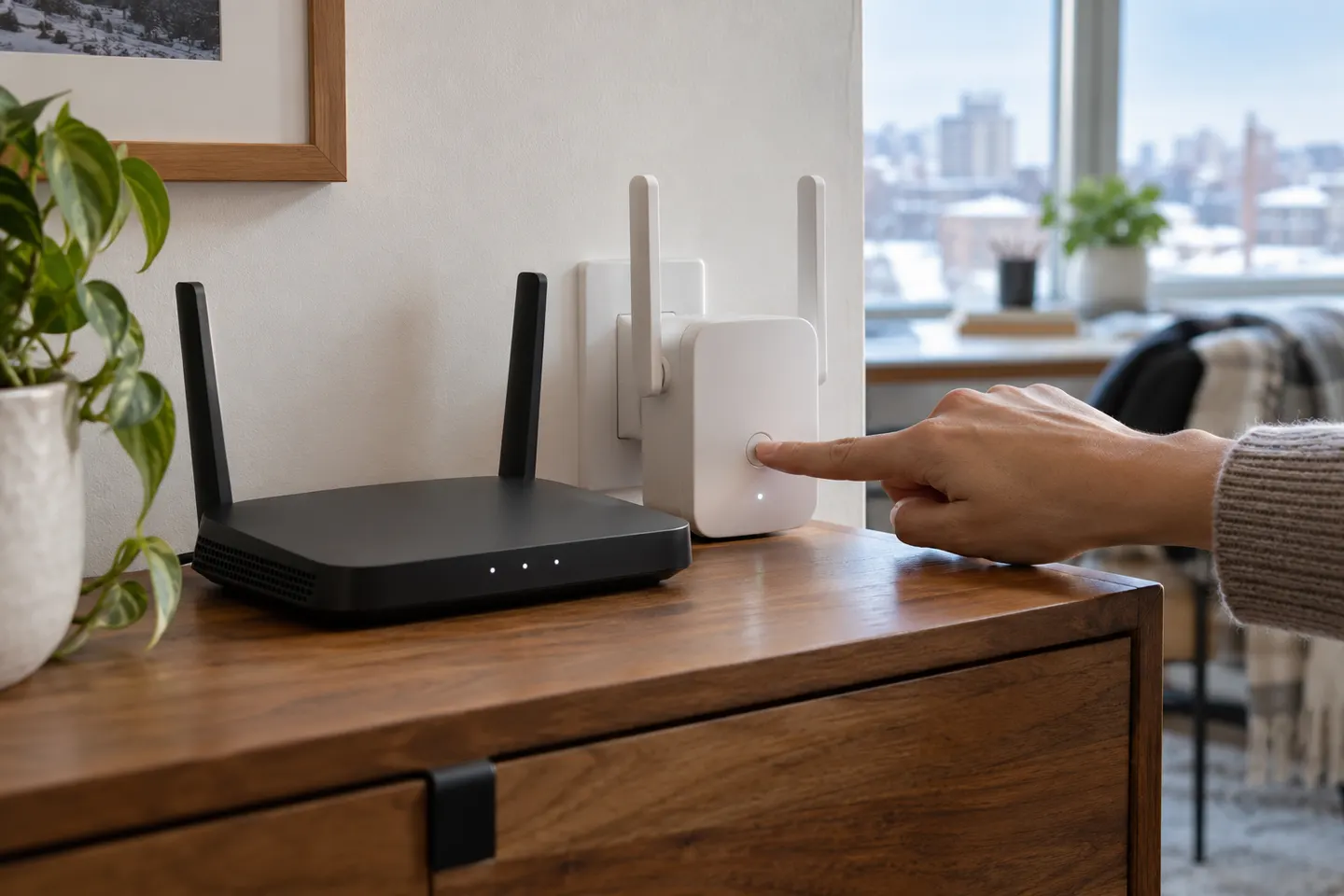 Setup
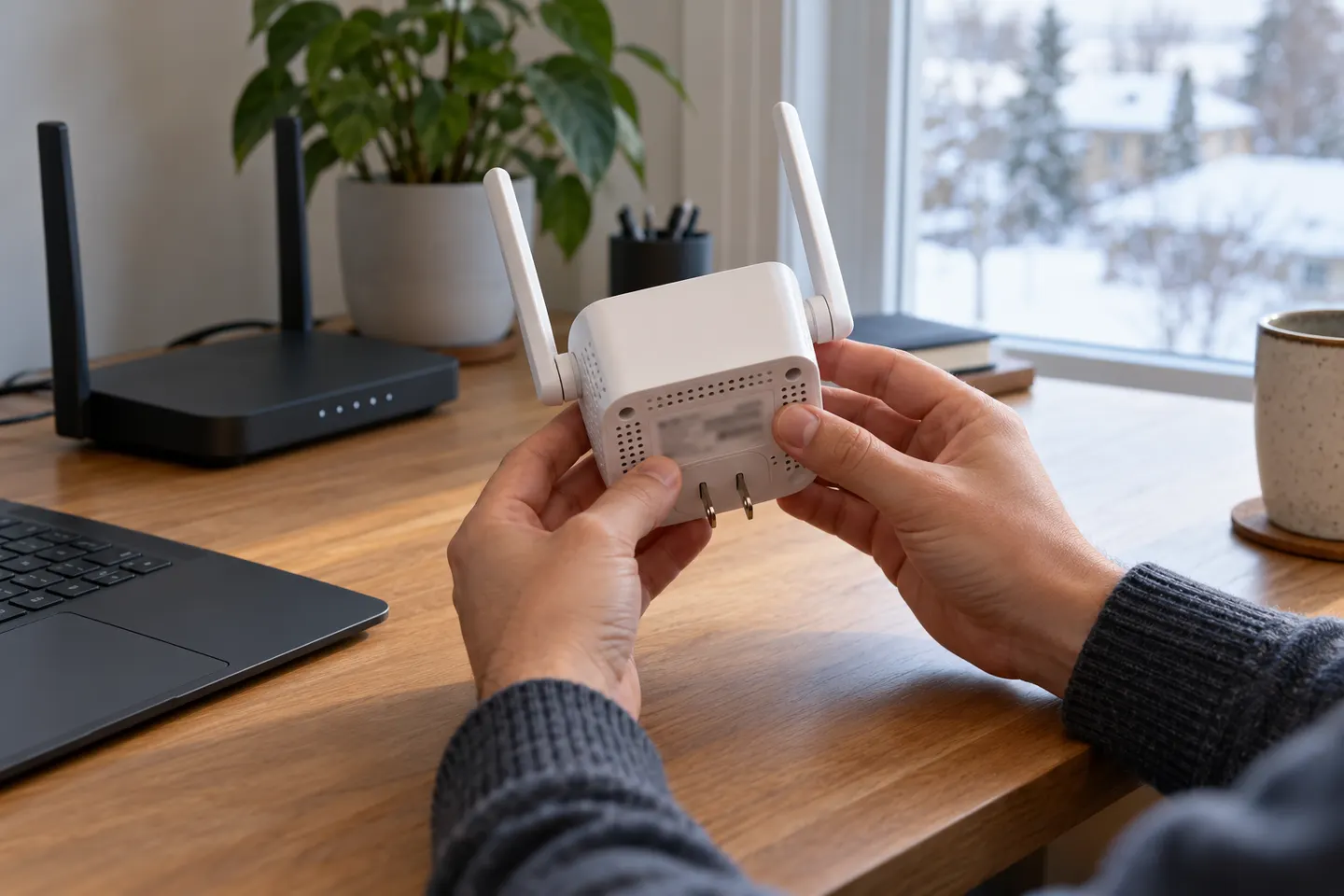 Ac1200 setup
How-to guides
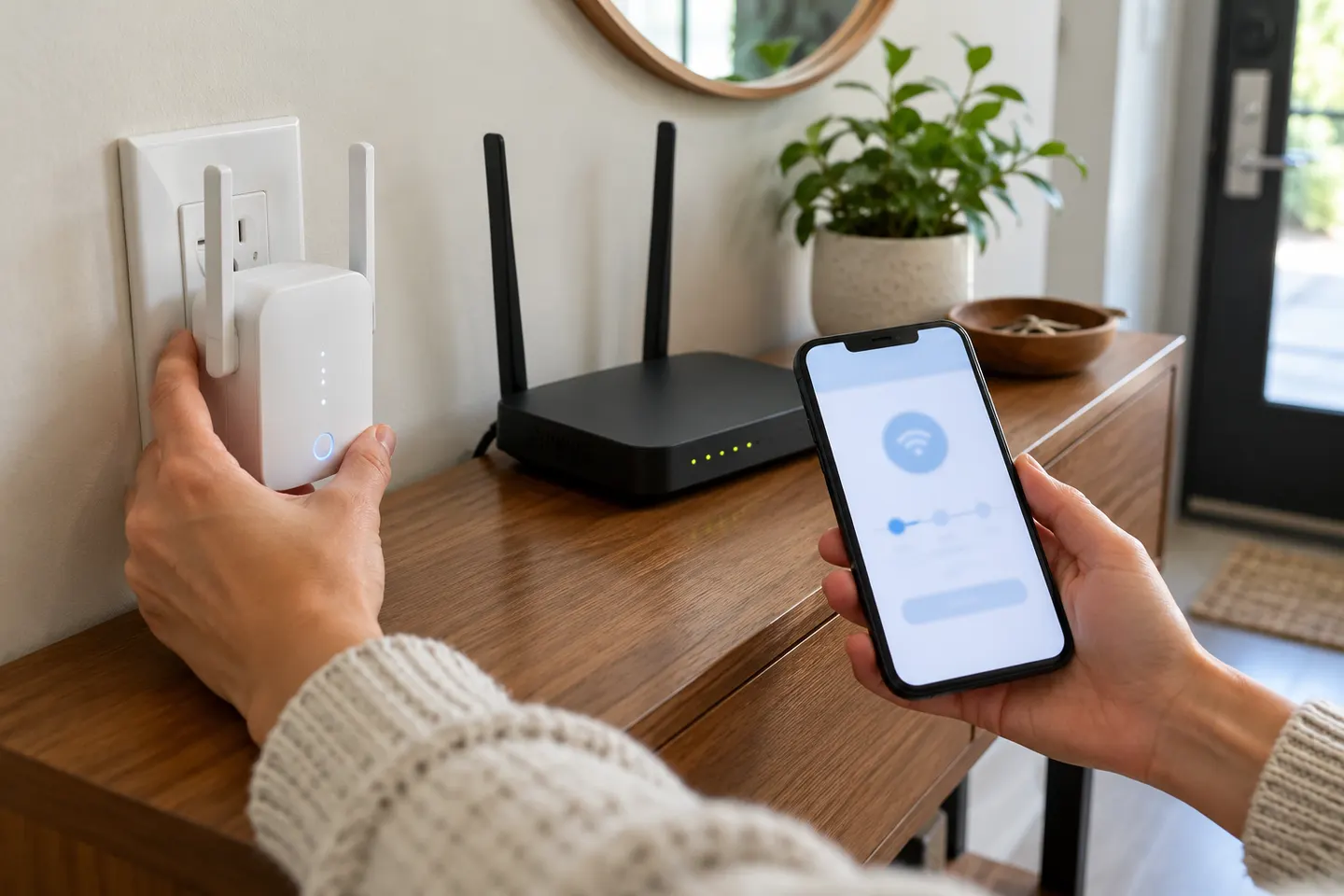 How to Set Up a TP-Link WiFi Extender Step by Step
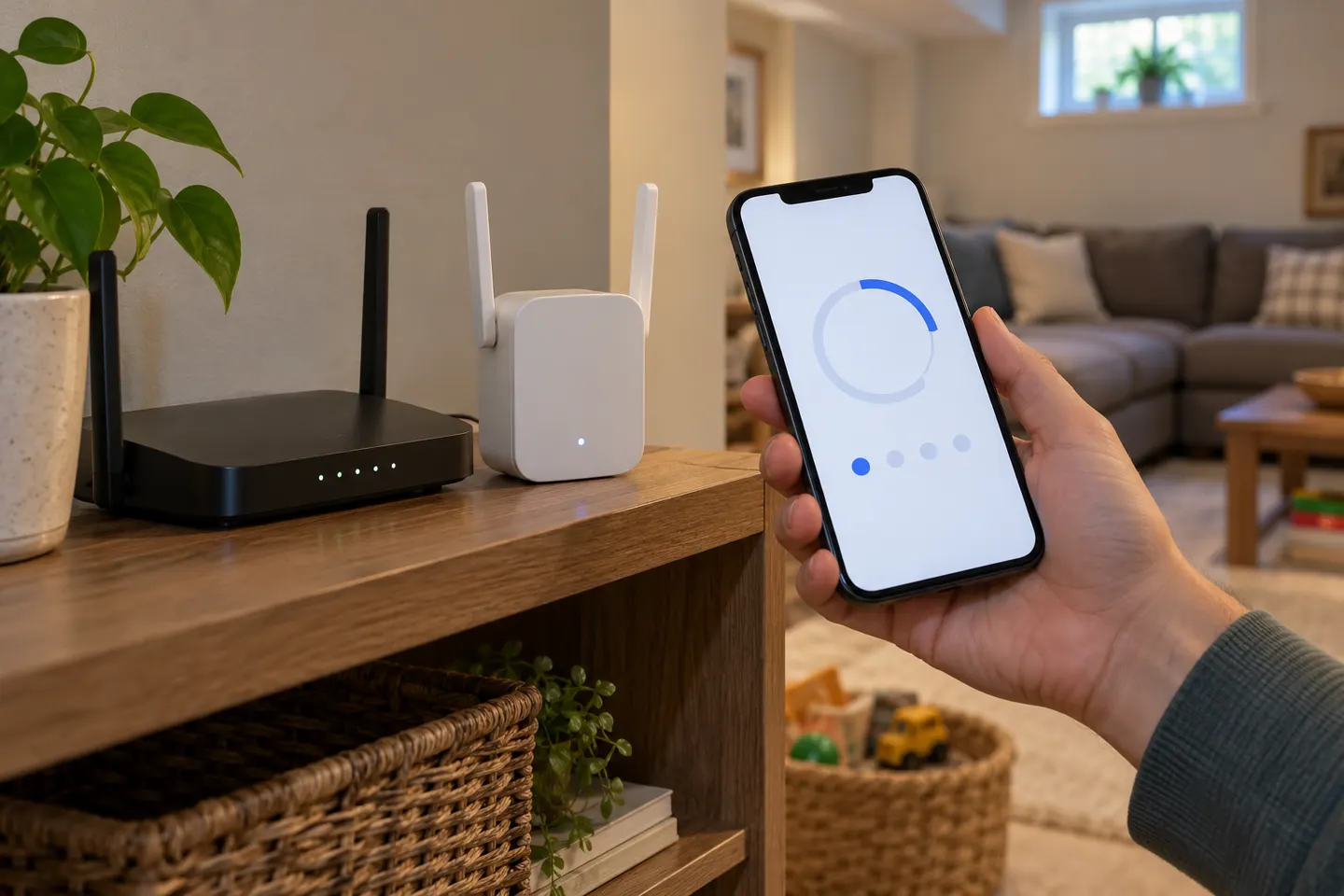 How to Set Up a NETGEAR WiFi Extender
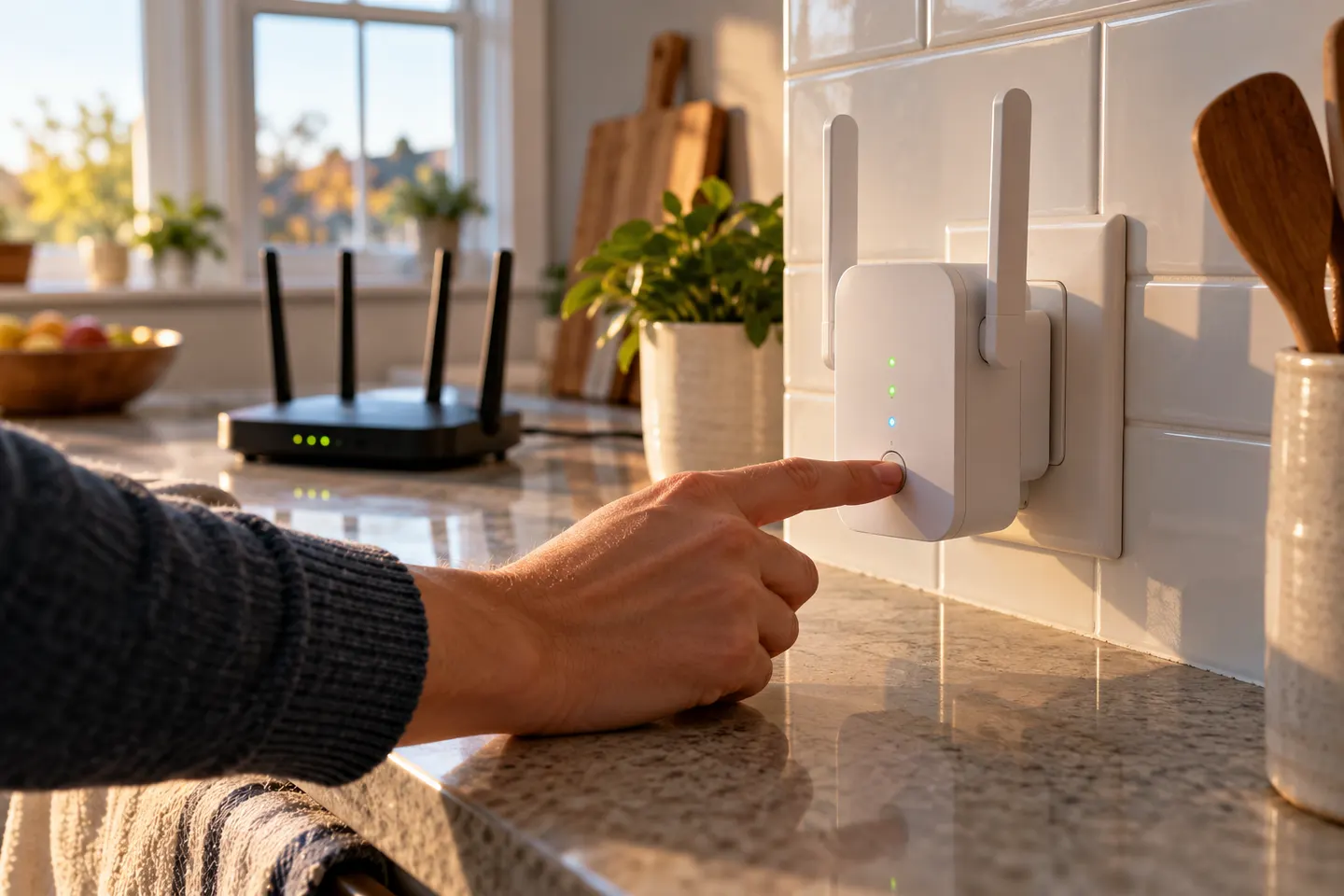 How to Set Up a WiFi Extender for Your Home
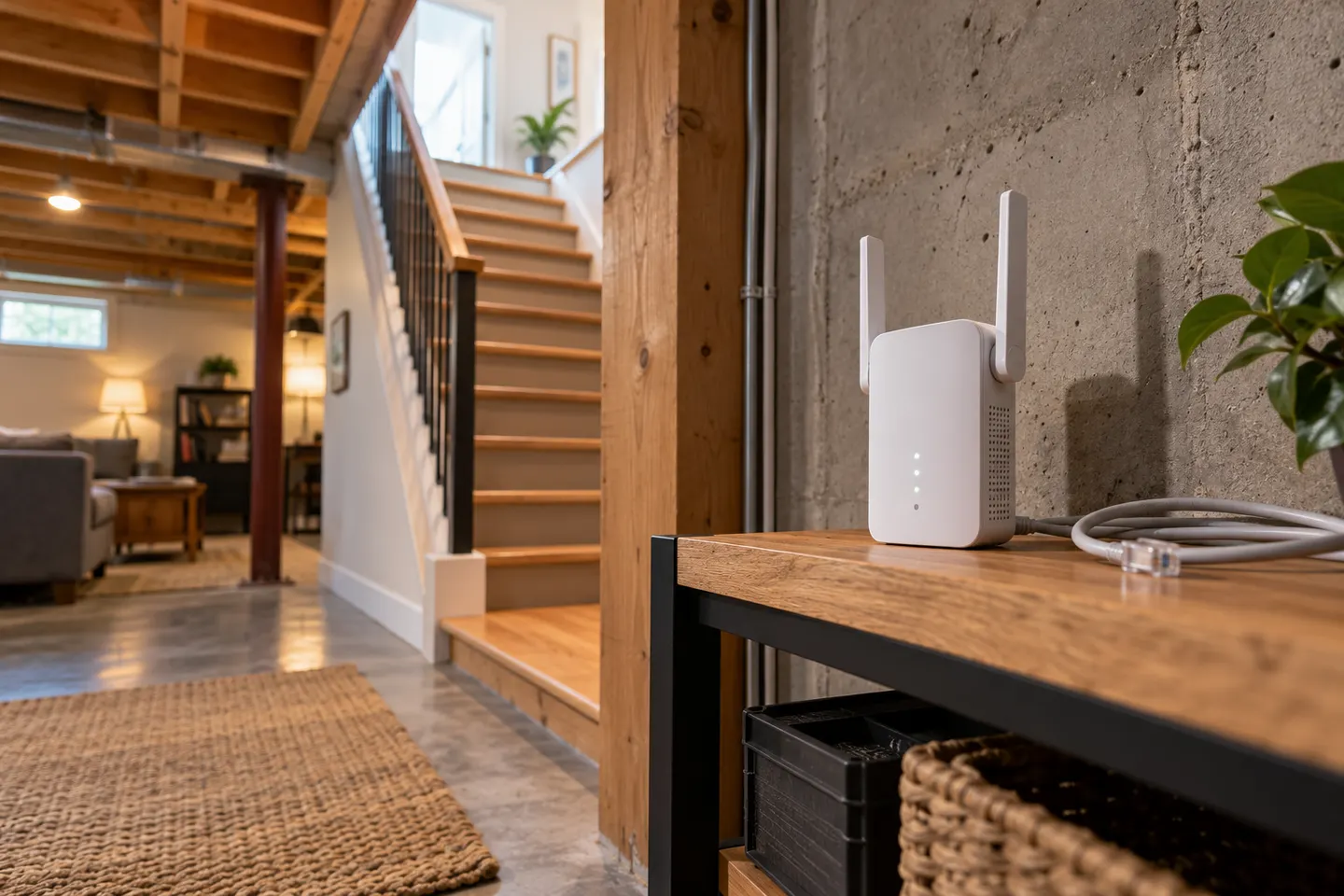 How to Set Up a D-Link Wi-Fi Extender at Home
More topics
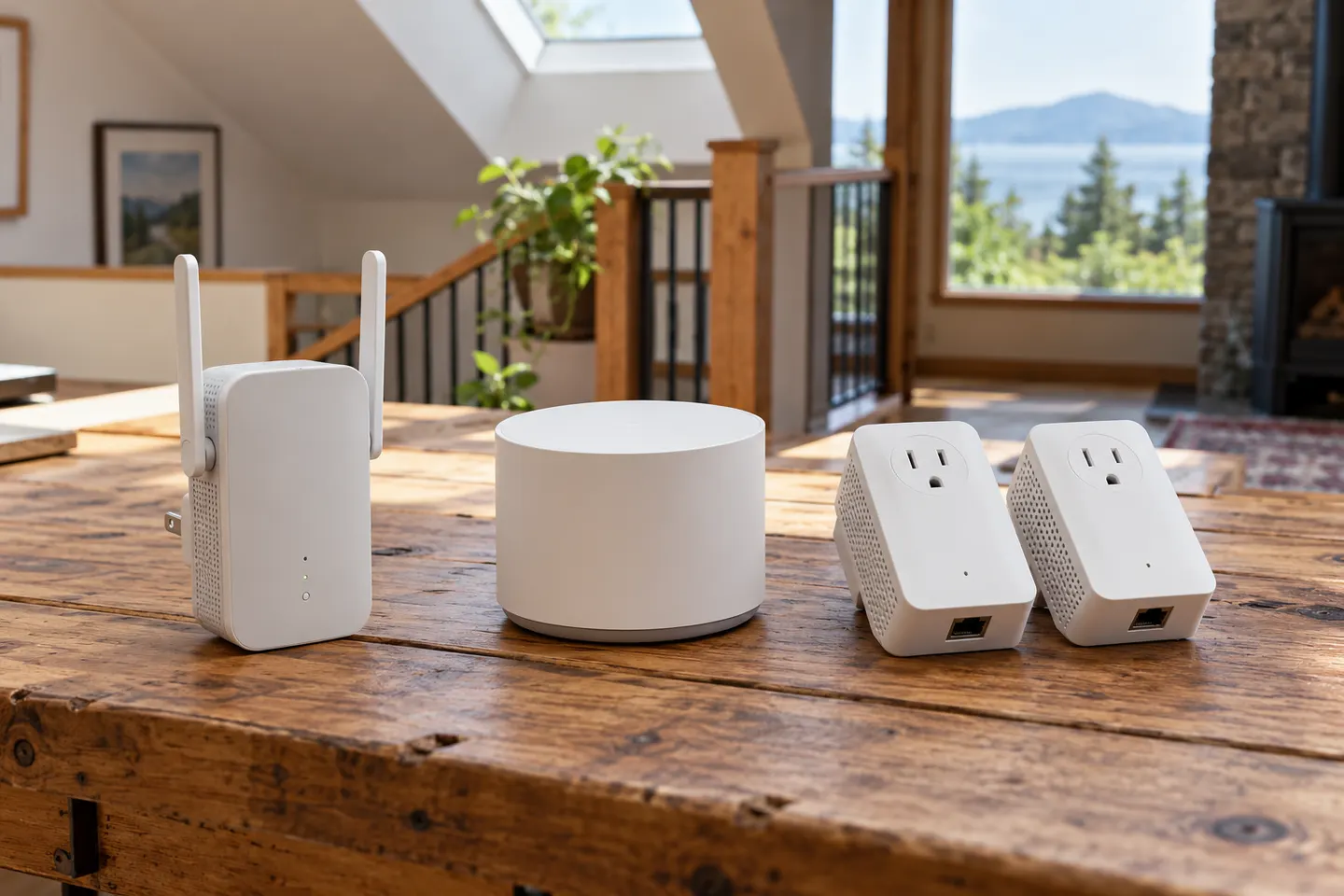 Cogeco Wi-Fi Extenders
Common questions
Questions before you buy
How do I set up a Cogeco WiFi extender?
Confirm the modem is online, open the Cogeco Wi-Fi app, sign in and follow its installation prompts. Connect the first unit to Ethernet if the app instructs you to.
Which app do I need for Cogeco WiFi pods?
Use the Cogeco Wi-Fi app and sign in with your My Account credentials.
Why does a new Cogeco extender show a poor signal?
Cogeco notes that a new pod may initially show poor signal while the mesh optimizes. Keep it powered and follow the app status guidance.
Can I use the same WiFi name after setup?
Cogeco recommends using the existing network name and password when prompted so devices can reconnect more smoothly.