








 Official manufacturer image
Our picks
Top picks
Official manufacturer image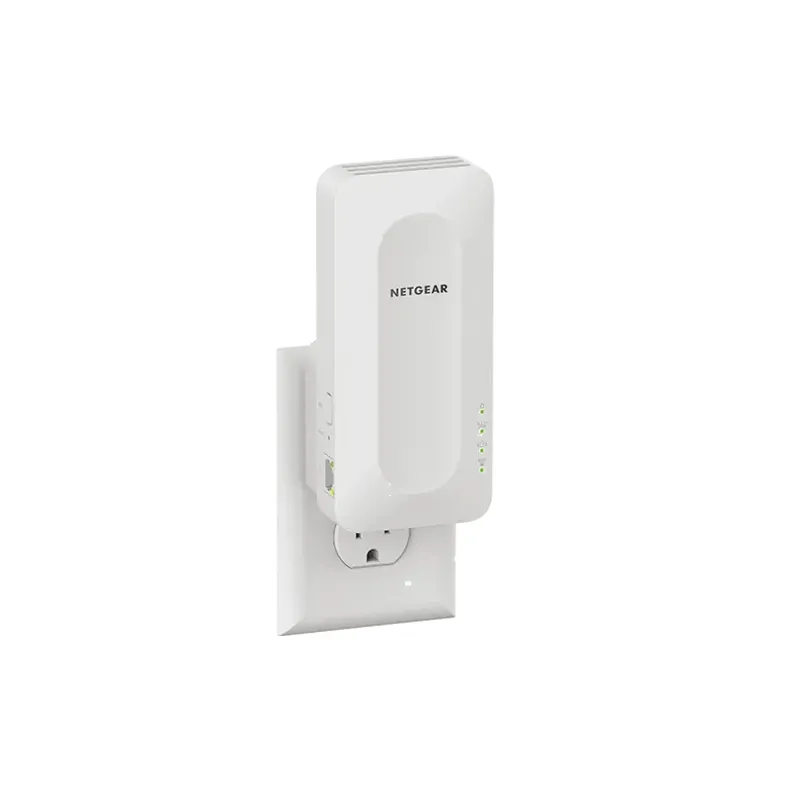 Official manufacturer image
NETGEAR EAX15
Check price on Amazon.ca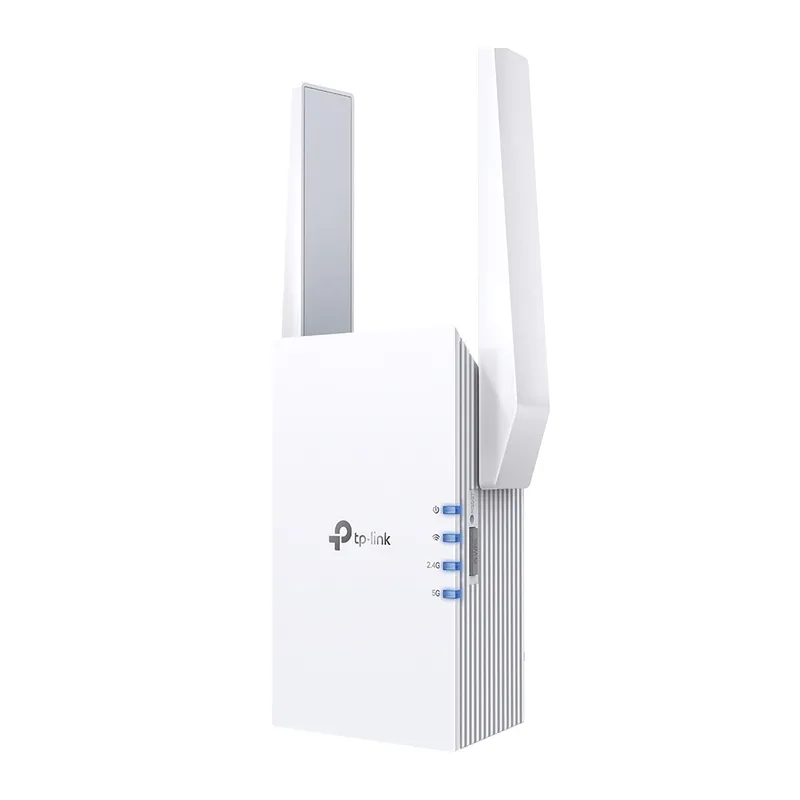 Official manufacturer image
TP-Link RE605X
Check price on Amazon.caSetup and help
 D link set up
 Joowin set up
 Brostrend set up
How-to guides
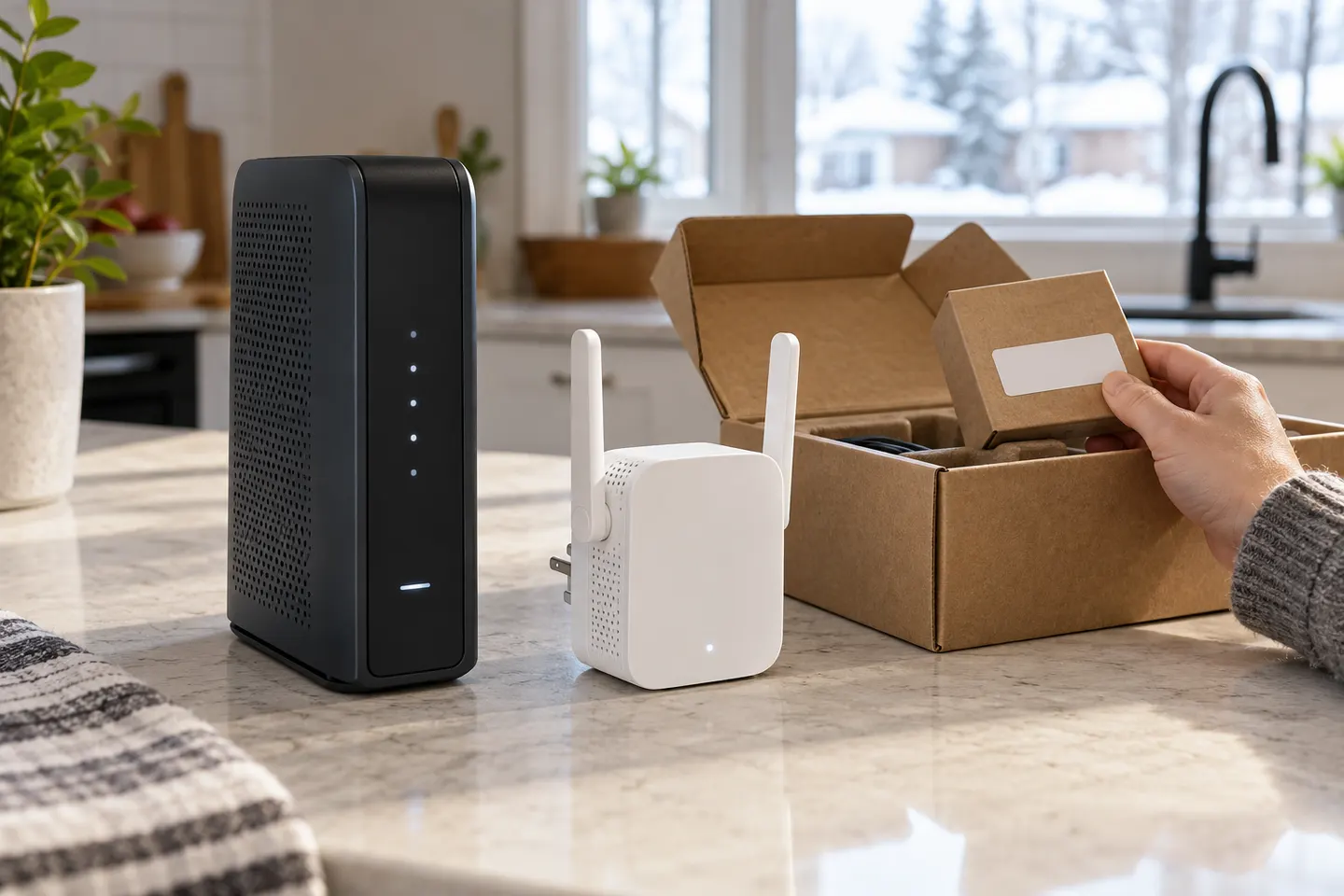 How to Set Up a TP-Link WiFi Extender
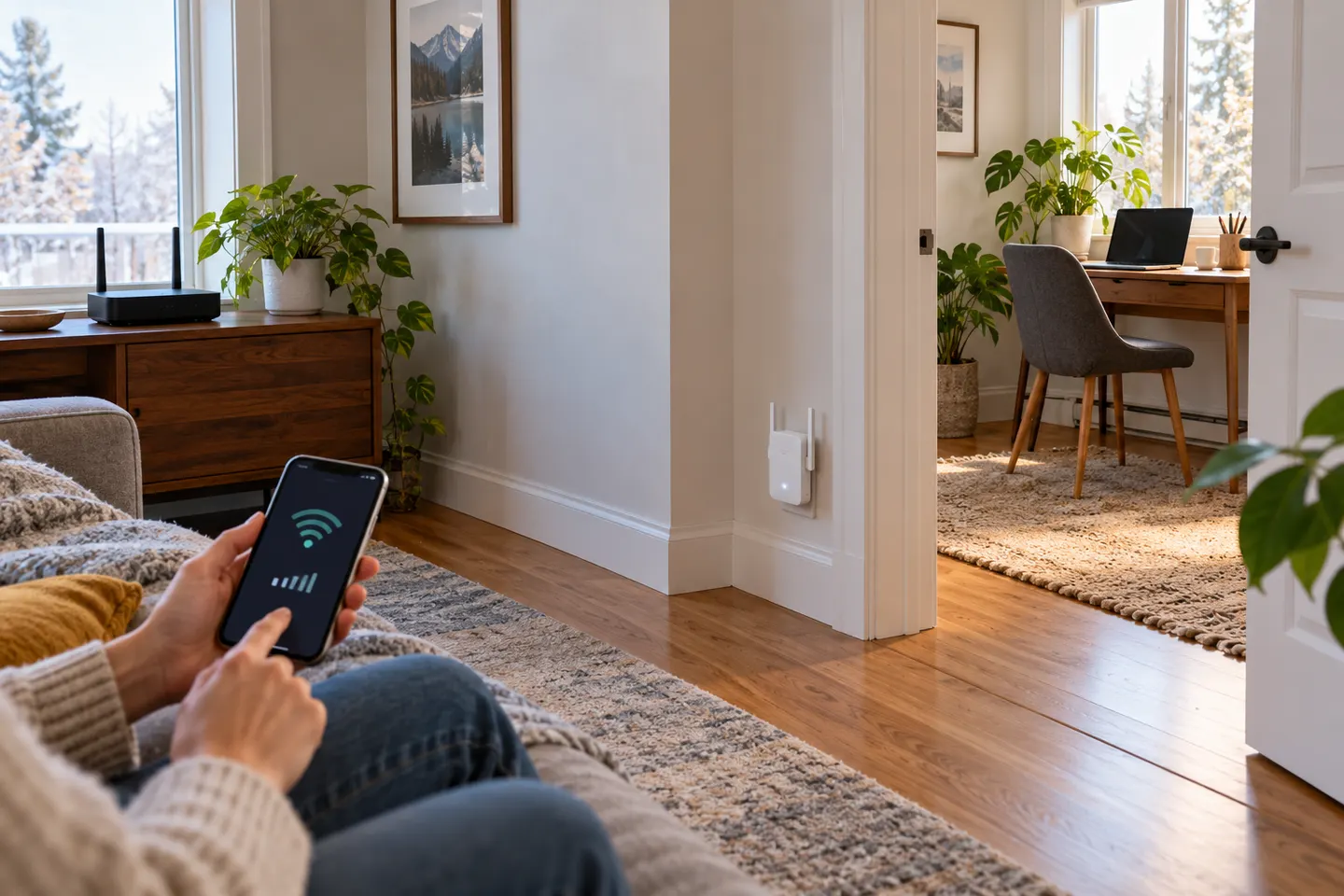 How to Set Up a NETGEAR WiFi Extender at Home
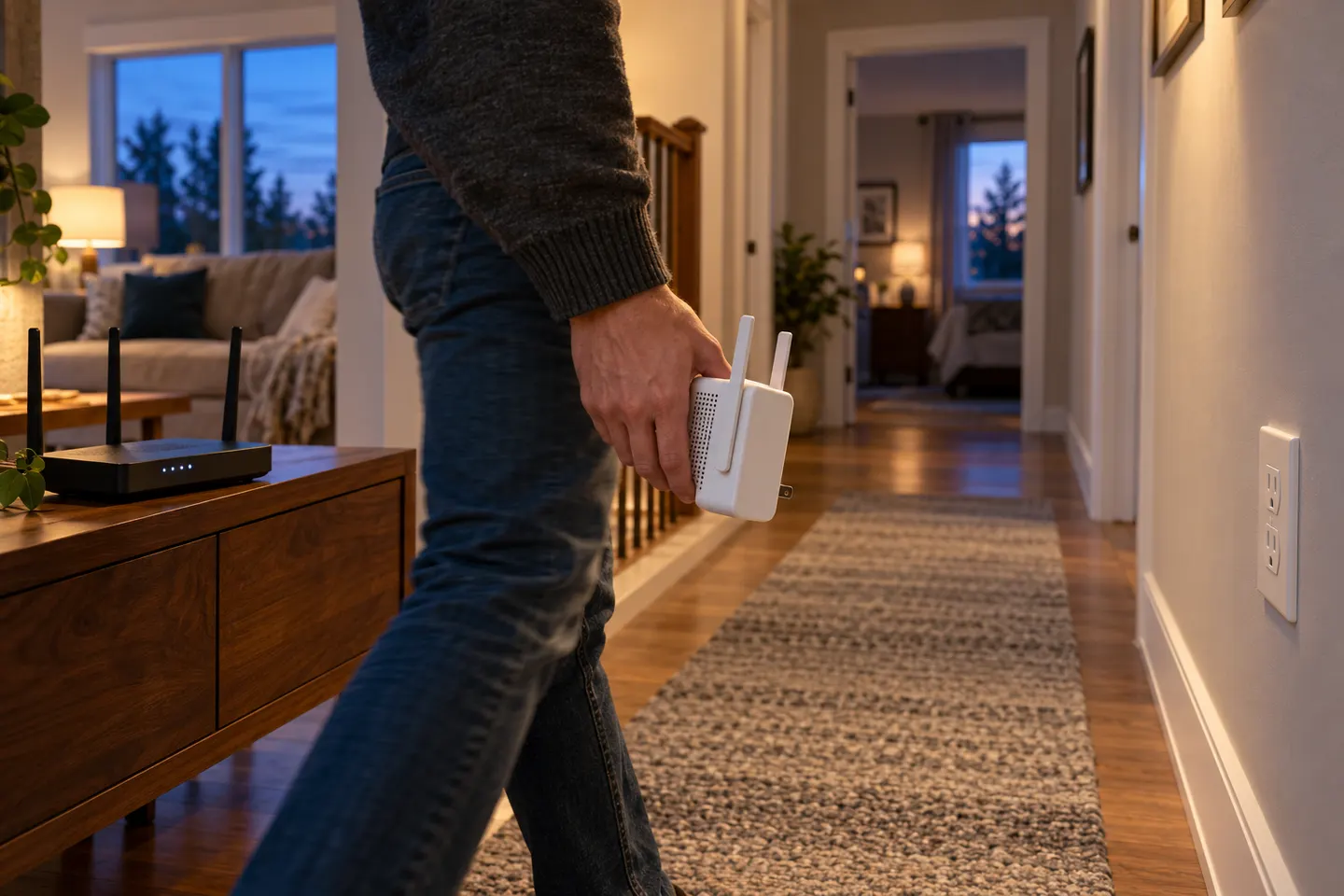 How to Set Up a WiFi Extender for Better Home…
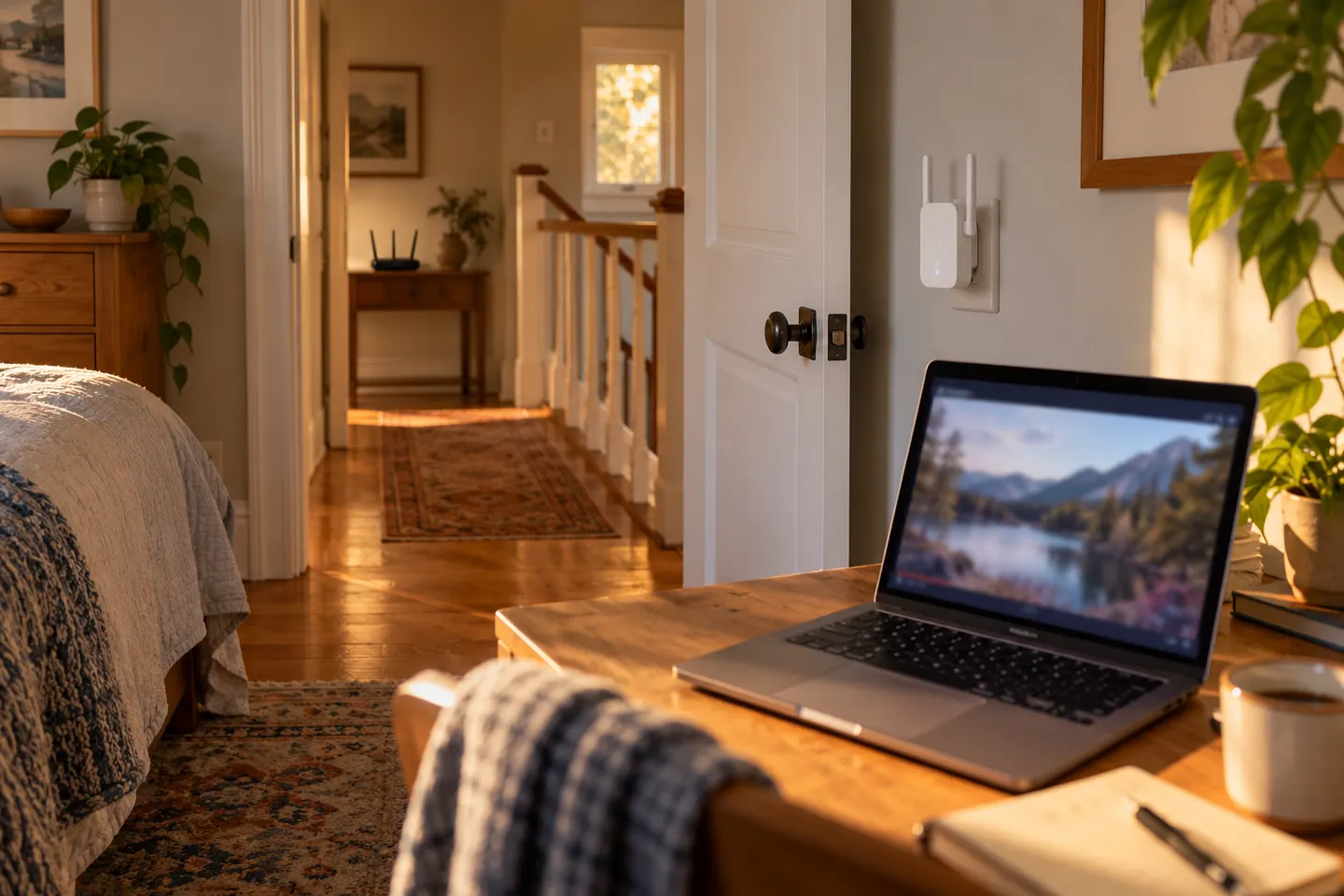 How to Set Up a TELUS WiFi Booster in Your Home
Common questions
Questions before you buy
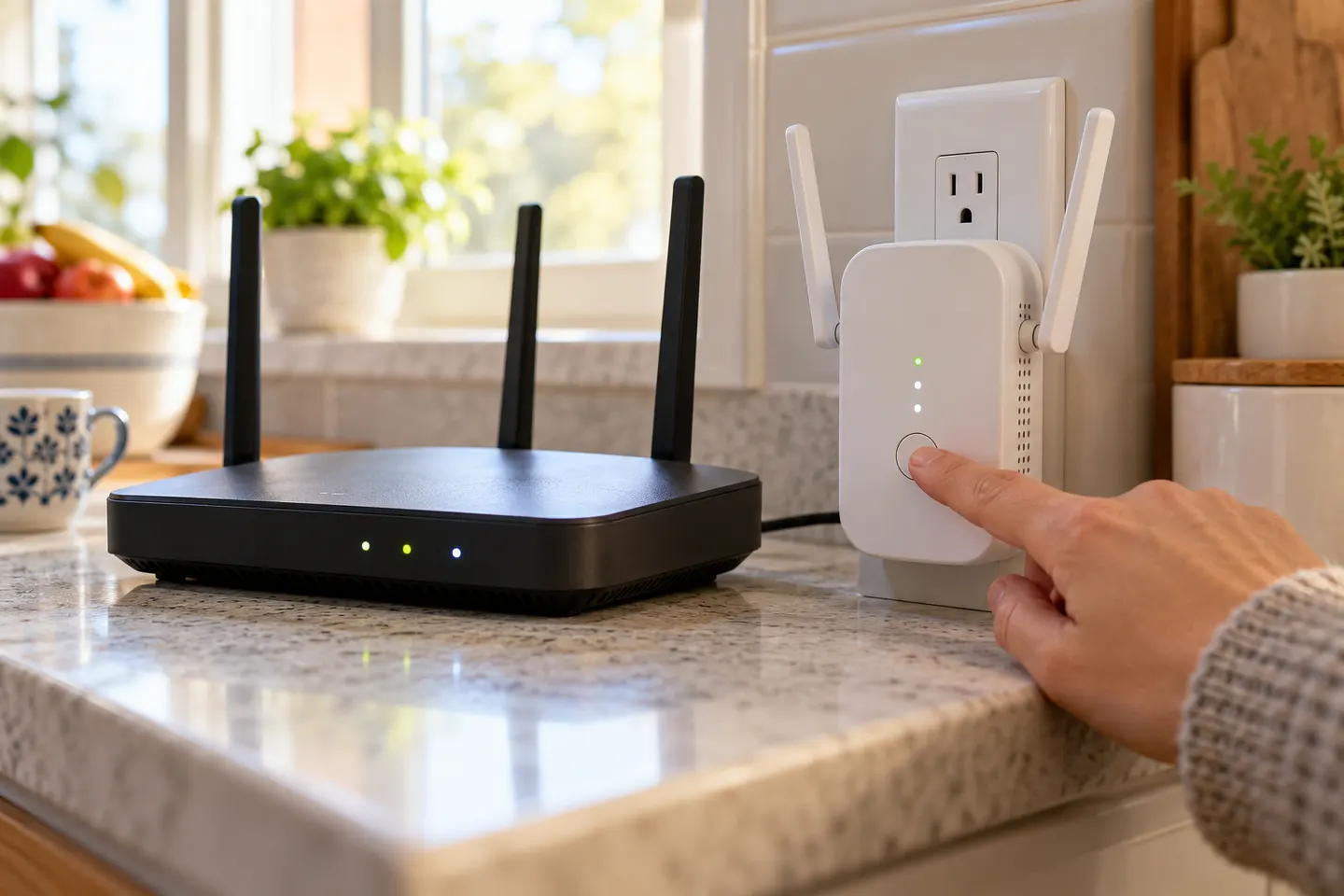
How do I set up a WiFi extender with WPS?
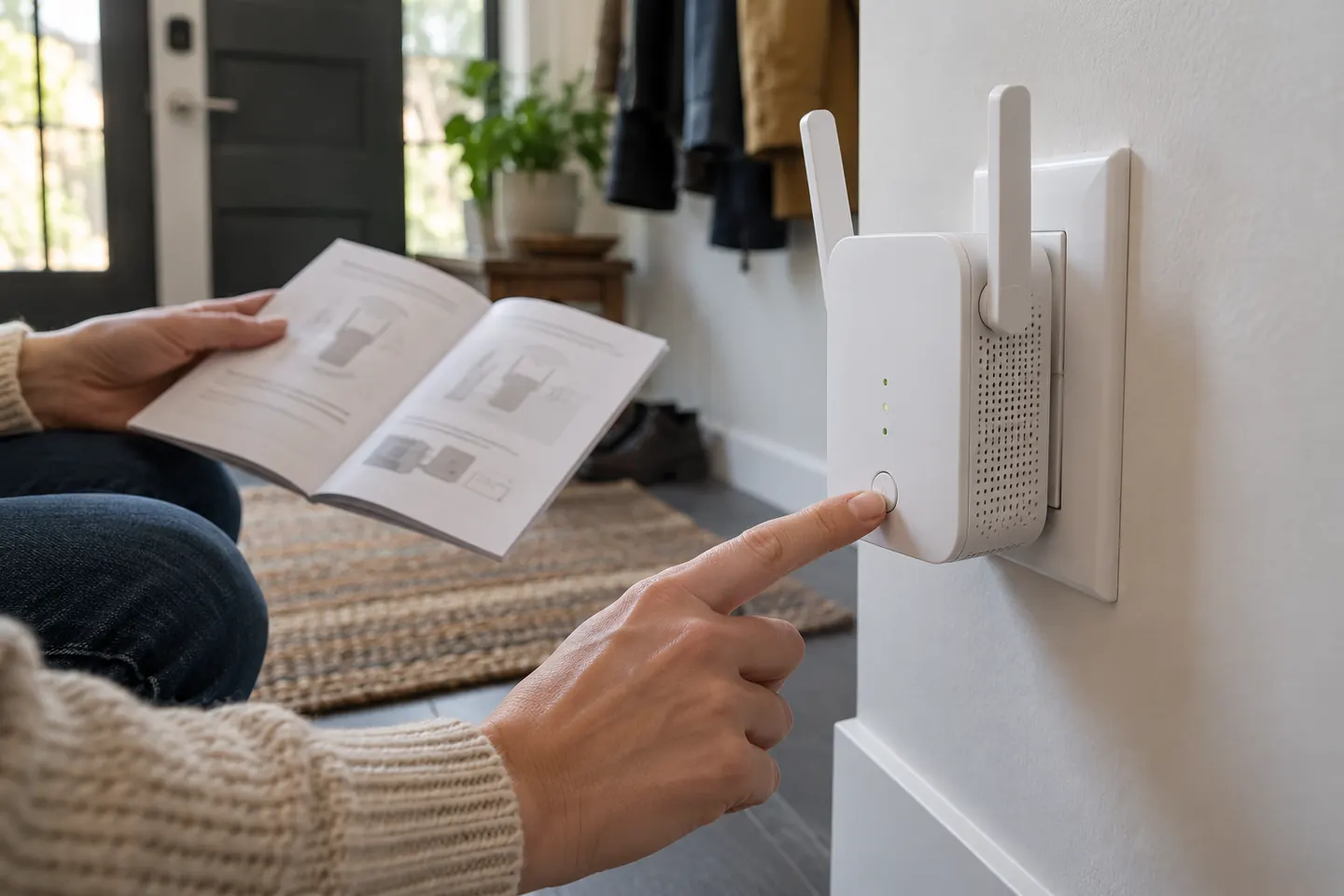
If both devices support WPS, start pairing as directed in the extender manual and press the router WPS control within the stated interval. Indicator lights vary by model, so use the matching guide to confirm success.
Can I set up an extender without WPS?
Yes. Many models offer a browser page or manufacturer app. Join the extender temporary network or follow the app flow, then select the home WiFi network and enter its password.
Where should I plug in the extender?
For initial configuration, place it near the router. Later, move it to a midway location where the router signal is still dependable.
Why is my extender not connecting to the router?
Check the WiFi password, supported band and distance from the router. Restart both devices and repeat the model-specific setup flow if pairing information may be stale.