Gearjury may earn a commission when you buy through a retailer link. Our advice follows cited manufacturer guidance.
Guide
How to Configure a NETGEAR WiFi Extender with Your Router
NETGEAR supports WPS on compatible routers and a browser setup flow for other cases. Configure near the router first, then move the extender and check its connection indicators.
GGearjury editorial team · Updated 18 October 2026· 4 min
01
Prepare the NETGEAR extender
Check the model's quick-start guide, connect the extender near the router and wait for its power indicator to settle. If it has an Access Point/Extender switch, select Extender for wireless repeating. Note your router's WiFi name and password.
02
Configure with WPS
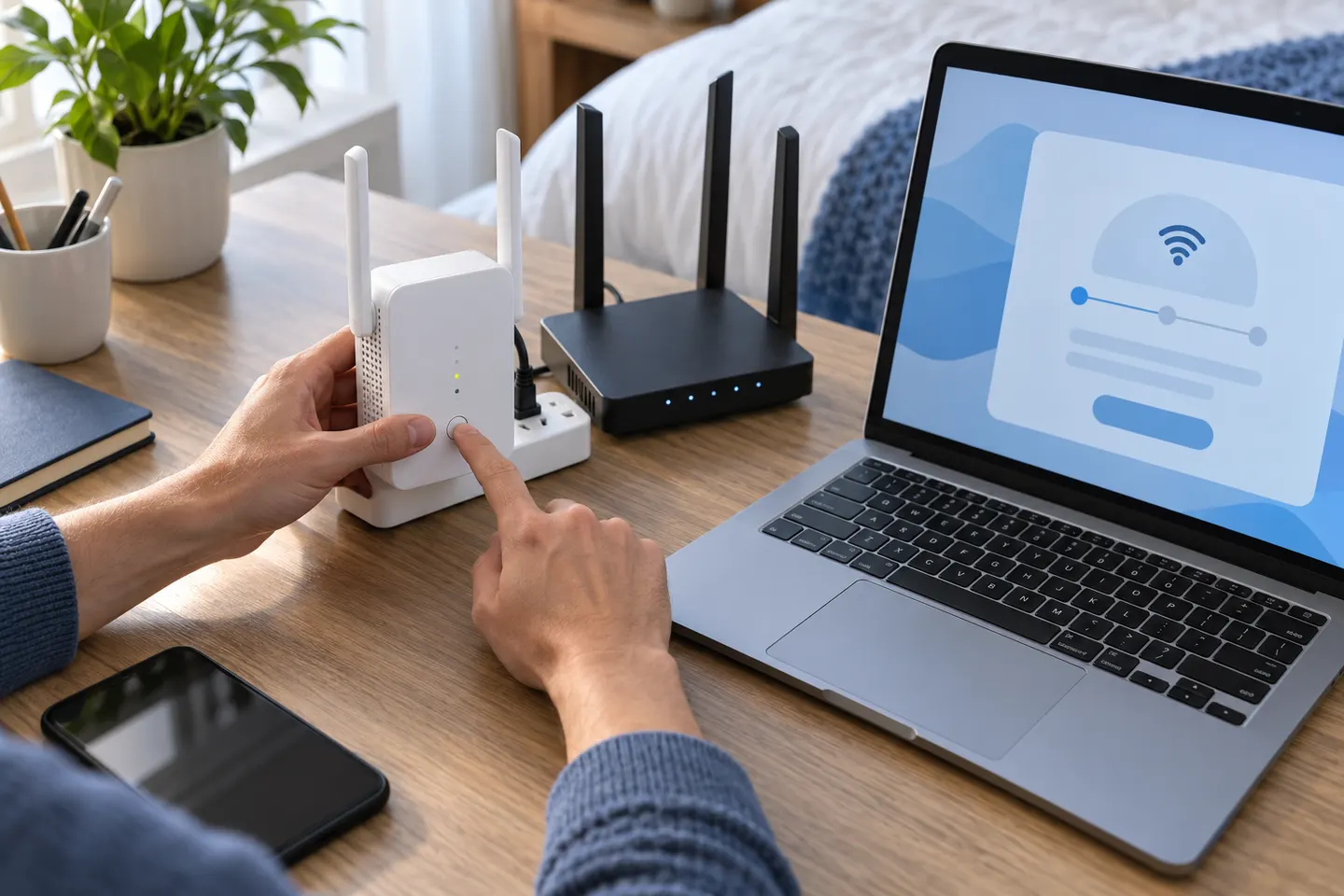
If the router has a working WPS button and the model supports it, press WPS on the extender and then on the router as directed by NETGEAR. Wait for the connection indicators to confirm the link. Not every router supports WPS; use browser or app setup when the option is absent or pairing fails.
03
Configure through a browser
Connect a phone or computer to the extender's temporary WiFi network. NETGEAR's documented browser flow uses mywifiext.com; follow the setup, choose your router network and enter its WiFi password. Create administrator credentials when prompted and keep them distinct from the WiFi password.
04
Move it and check the link
Once configured, place it between the router and the area needing coverage, while staying within router range. Check the router-link indicator or NETGEAR app. If it reports a weak link, move the extender closer to the router.
05
Connect a device to the extended network
Use the network name configured during setup. The default temporary SSID may be NETGEAR_EXT, but the final name can vary with model and settings. Confirm that a device can reach the internet in the target area.
06
When configuration does not complete
Recheck the selected router network and password, keep the extender close during setup, and try the other supported method. If you cannot recover administrator access, NETGEAR says a factory reset clears personalised settings; consult the model instructions before resetting, then configure it again.
Common questions
Questions before you buy
Can I configure a NETGEAR extender without WPS?
Yes, NETGEAR documents a browser setup method. Connect to the extender's temporary network and follow its setup page; available methods can depend on model.
What address do I use to set up a NETGEAR WiFi extender?
NETGEAR's browser instructions use mywifiext.com. Follow the exact address and app guidance in your model's manual if the page does not open.
Why is NETGEAR_EXT not appearing?
The extender may not have finished starting, may already be configured, or may need model-specific troubleshooting. Check its LEDs and manual; NETGEAR recommends a factory reset only when appropriate.
Where should a NETGEAR extender go after setup?
Place it between the router and the weak-coverage area where it still receives a good router signal. If the router-link indicator shows a poor connection, move it nearer the router.
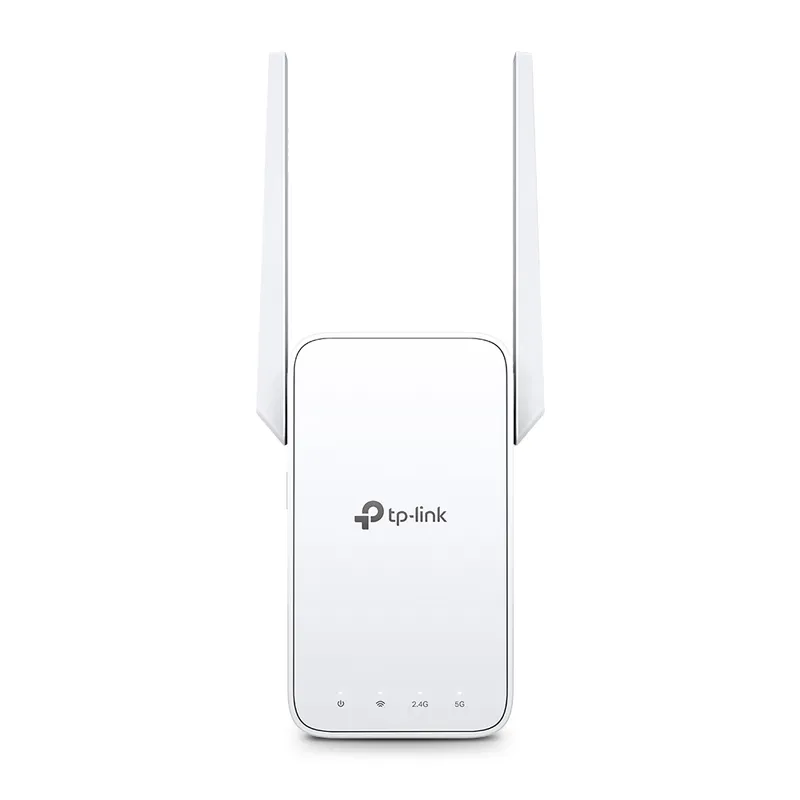
TP-Link RE315 is a practical starting point for a standard indoor dead zone. Consider a Wi-Fi 6 device for newer kit, outdoor-rated hardware for a garden, or powerline where a wireless hop struggles.
Sky has different booster products for different broadband generations. Sky Max customers may use a Max Pod; check your account and hub-specific help before seeking a third-party extender.
A WiFi extender can carry your router signal further, but placement and backhaul matter. Choose a plug-in repeater for a nearby dead zone, powerline WiFi for difficult layouts, or an outdoor-rated unit for a garden.
Your privacy
We use cookies and similar technologies. Necessary ones keep the site working. With your permission we also use statistics cookies (Google Analytics and Microsoft Clarity) to understand which guides help readers. You can accept all, reject all or choose. You can change your choice at any time from "Cookie settings" at the bottom of every page. Cookie policy