Gearjury may earn a commission from qualifying retailer links. This does not affect our editorial guidance.
Guide
How to Set Up a NETGEAR WiFi Extender: Step-by-Step
NETGEAR recommends pairing a range extender near the router first, then relocating it once the connection is established. Use WPS when available or the installation assistant when it is not.
GGearjury editorial team · Updated 18 October 2026· 5 min
01
Prepare the NETGEAR range extender
Check the model's installation guide and set any Extender or Access Point switch to Extender. If it has already been configured for another network, reset it using the model instructions. Plug it into a socket in the same room as the router for initial pairing.
02
How to hook up a NETGEAR WiFi range extender with WPS
When both devices support WPS, press the extender's WPS button and then the router's WPS button within the time stated by NETGEAR. Wait for the connection indicator to become steady. Exact LED colours vary by model, so use its guide to confirm the link.
03
Set up without a router WPS button
Join the extender's setup network from a phone or computer, open the NETGEAR installation page shown in the guide and follow the setup assistant. Select your router's Wi-Fi network, enter its password and save the configuration. NETGEAR uses mywifiext.net for some models and setup flows.
04
How to set up a NETGEAR AC1200 WiFi range extender
“AC1200” covers multiple models, so first check the model number on the label; EX6150 is one NETGEAR AC1200 extender. Follow the instructions for that exact version. NETGEAR documents WPS and browser setup for EX6150, with placement near the router during the initial connection.
05
Move the extender to improve coverage
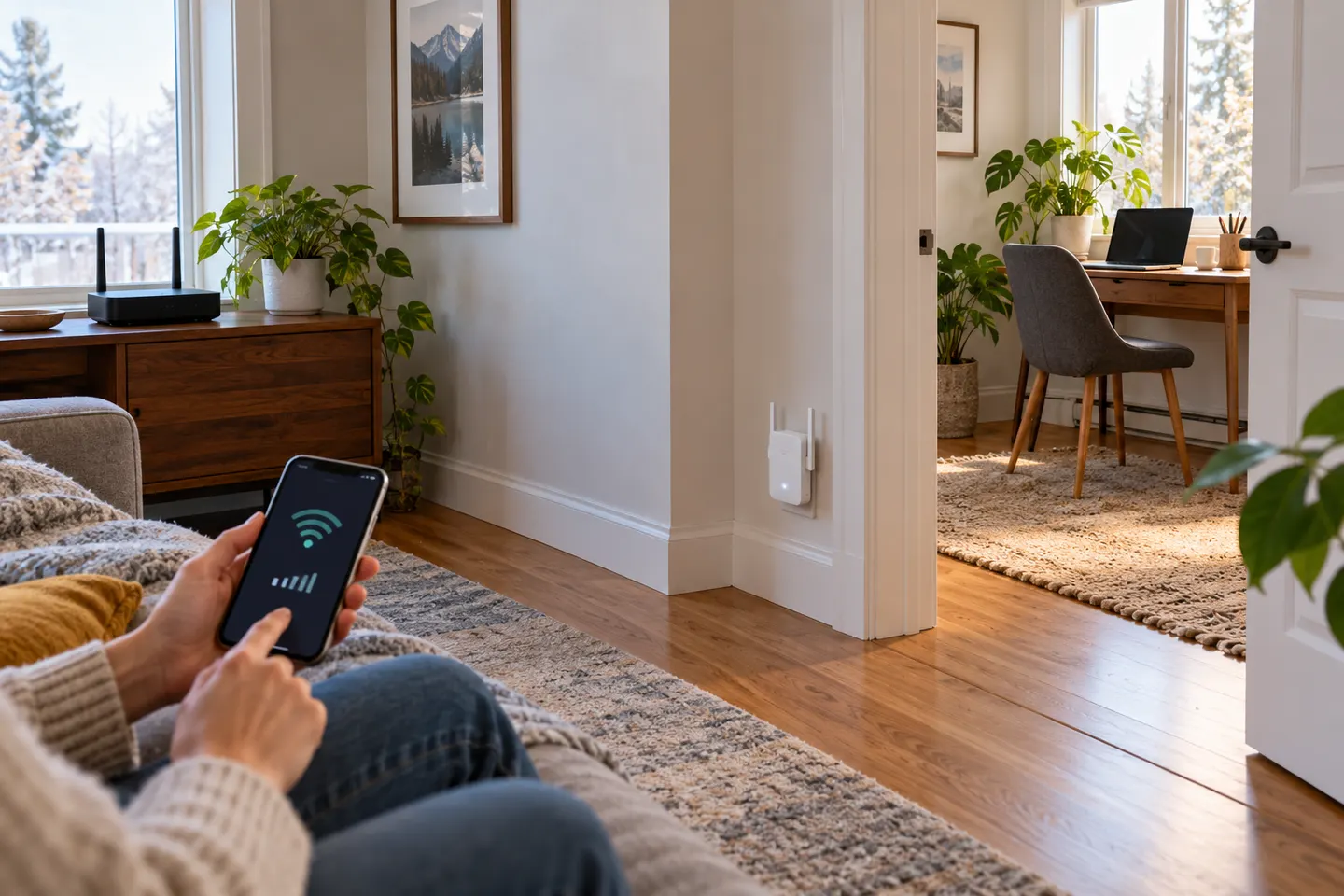
After pairing, unplug the unit and choose a socket between the router and the area with poor Wi-Fi, not inside the dead zone itself. Wait for the router-link indicator to settle, then test from the room you want to improve. Move it closer to the router if the link is weak.
06
Resolve common NETGEAR extender setup problems
If pairing fails, check that WPS is enabled and retry near the router. Otherwise use browser setup, confirm the Wi-Fi password and ensure your device is connected to the extender's setup network. Restarting both units can help; consult NETGEAR support for model-specific reset and LED guidance.
Common questions
Questions before you buy
How do I hook up a NETGEAR WiFi range extender?
For a WPS setup, plug it near the router, press WPS on the extender and then on the router, and wait for the connection indicator. If WPS is unavailable, use the NETGEAR installation assistant.
How do I set up a NETGEAR AC1200 WiFi range extender?
Find the exact model number because AC1200 is a speed class, not a unique model. Follow its manual; NETGEAR's EX6150 documentation covers WPS and browser installation.
Where should I place a NETGEAR extender after setup?
Move it to a point roughly between the router and the weak-signal area, where it can still receive a good router connection. Check the model's router-link indicator after moving it.
Can I set up a NETGEAR extender without WPS?
Yes. NETGEAR documents setup through a browser installation assistant for models whose router lacks WPS or where WPS cannot be used.
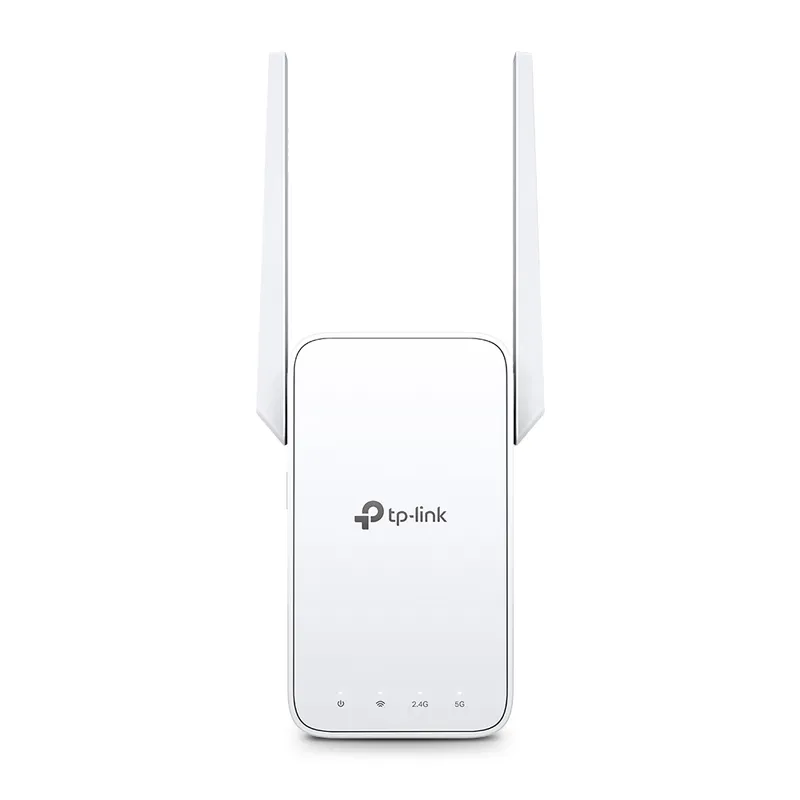
TP-Link RE315 is a practical starting point for a standard indoor dead zone. Consider a Wi-Fi 6 device for newer kit, outdoor-rated hardware for a garden, or powerline where a wireless hop struggles.
A WiFi extender can carry your router signal further, but placement and backhaul matter. Choose a plug-in repeater for a nearby dead zone, powerline WiFi for difficult layouts, or an outdoor-rated unit for a garden.
Sky has different booster products for different broadband generations. Sky Max customers may use a Max Pod; check your account and hub-specific help before seeking a third-party extender.
Your privacy
We use cookies and similar technologies. Necessary ones keep the site working. With your permission we also use statistics cookies (Google Analytics and Microsoft Clarity) to understand which guides help readers. You can accept all, reject all or choose. You can change your choice at any time from "Cookie settings" at the bottom of every page. Cookie policy