




 Official manufacturer image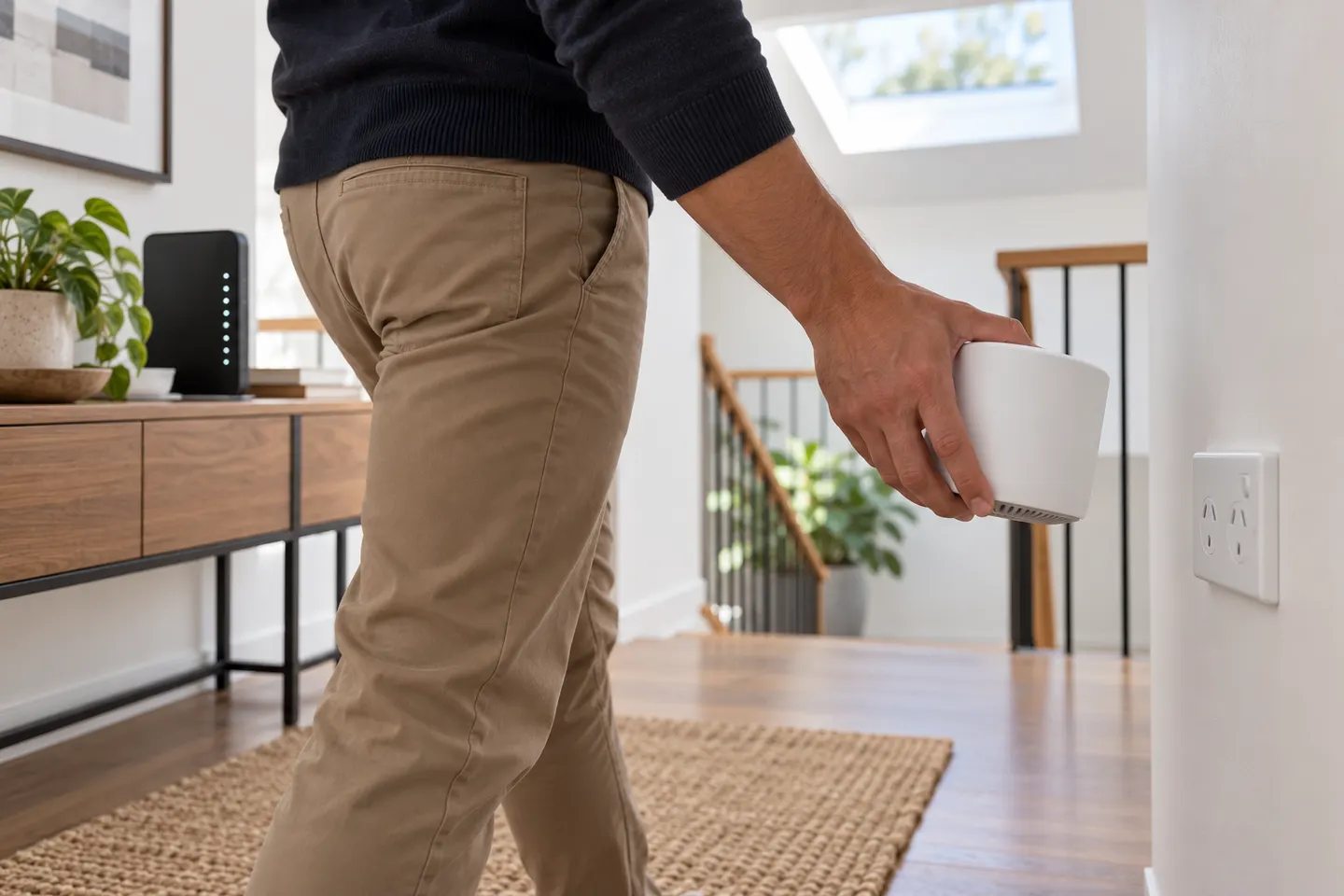
Our picks
Top picks
Official manufacturer image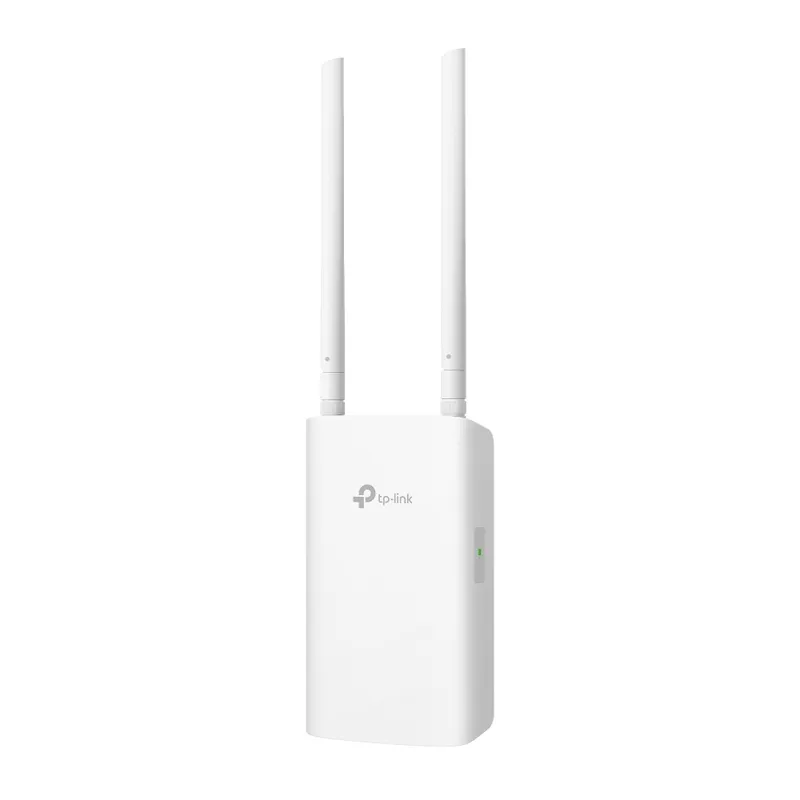 Official manufacturer image
TP-Link RE705X-Outdoor
Check price on Amazon AU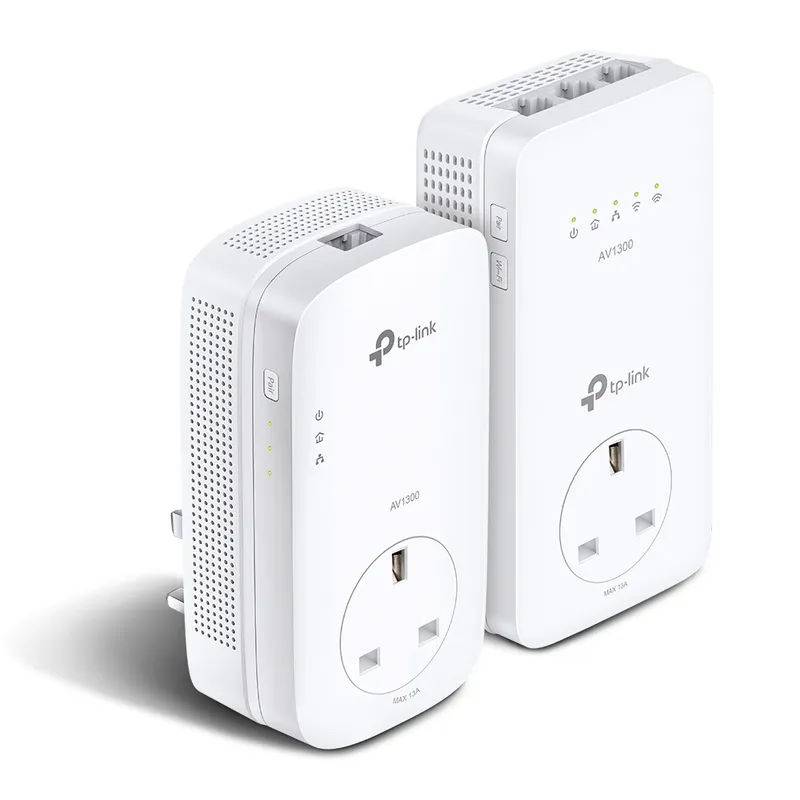 Official manufacturer image
TP-Link TL-WPA8631P KIT
Check price on Amazon AUSetup and help
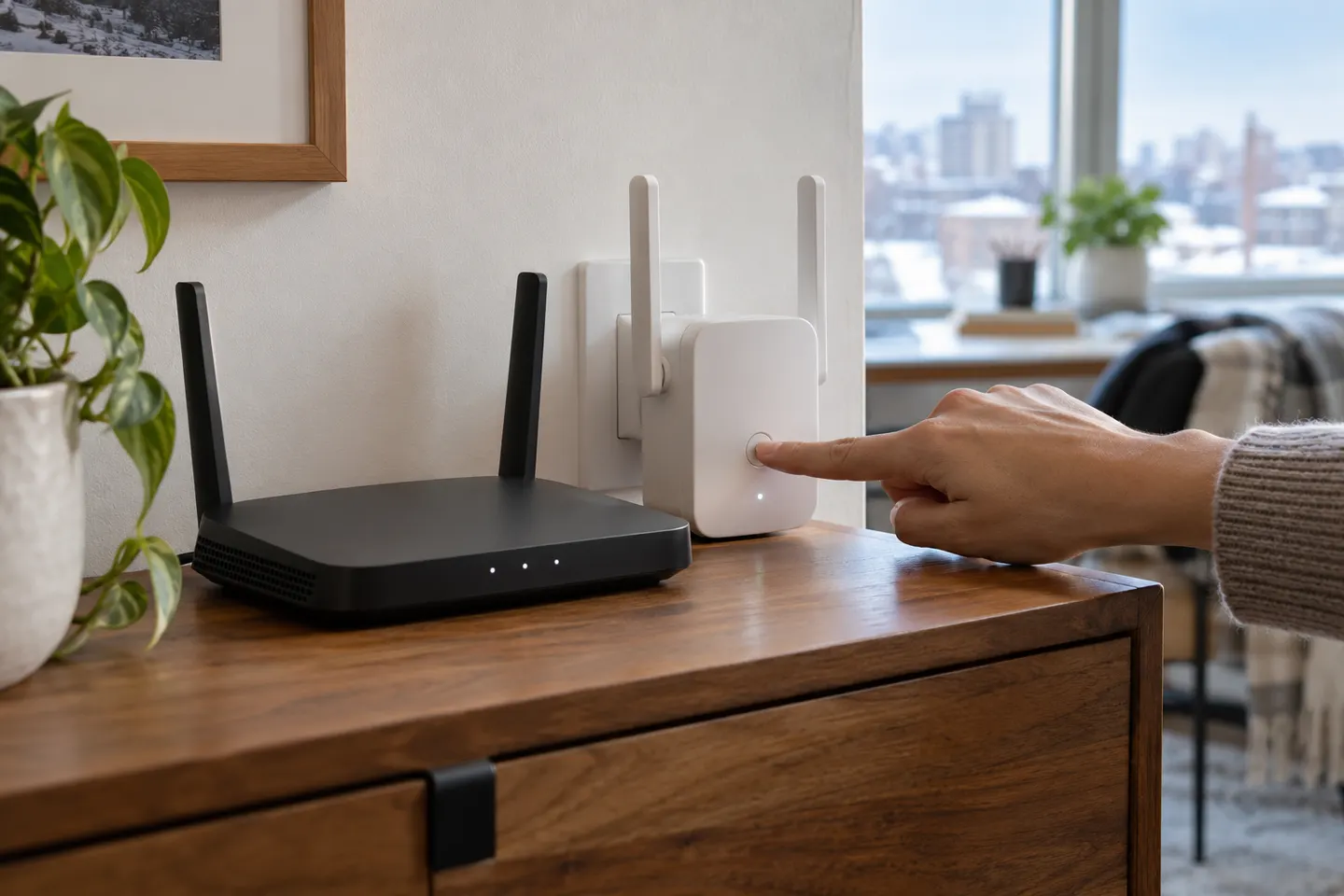 Setup
SetupHow-to guides
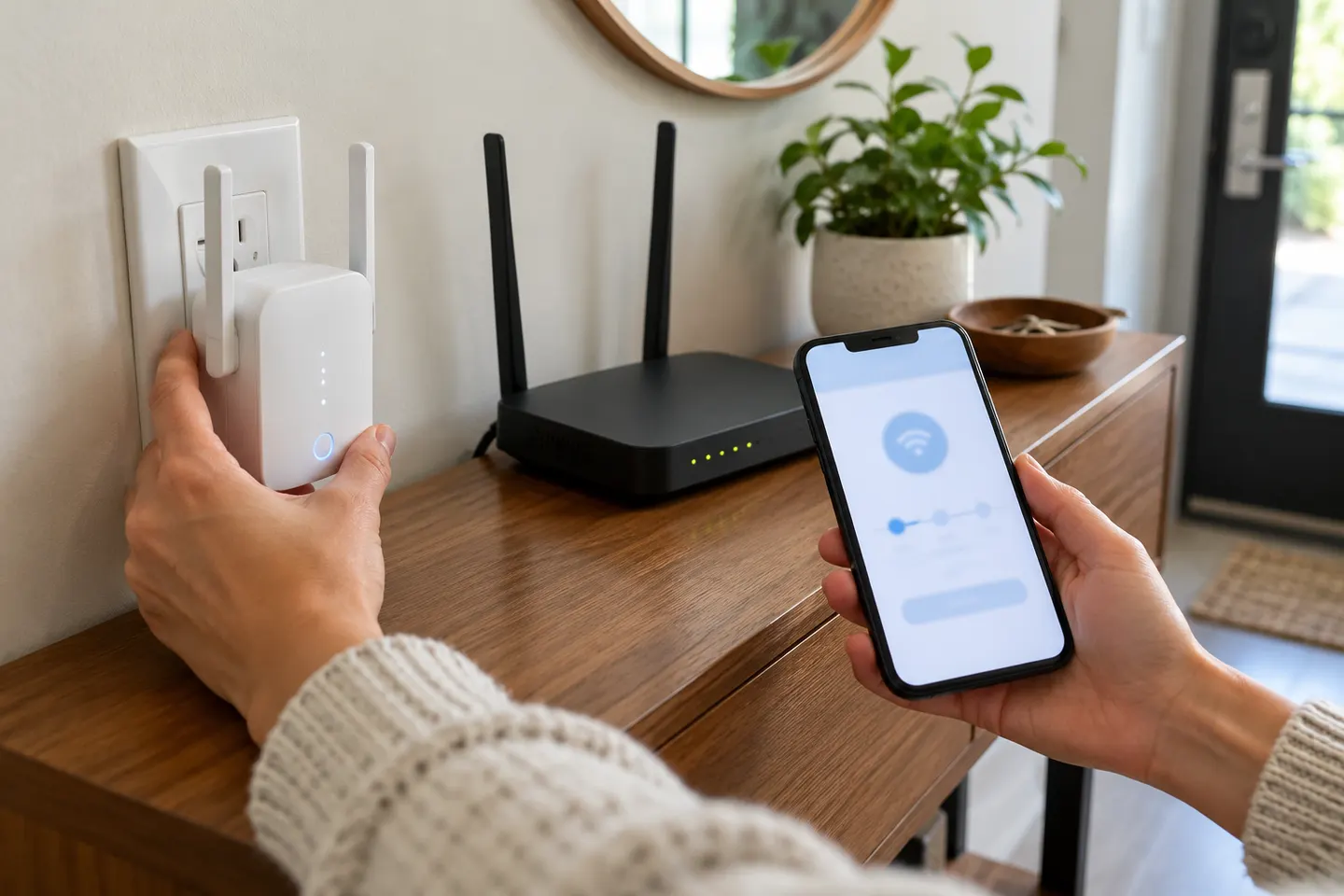 How to Set Up a TP-Link WiFi Extender with Your…
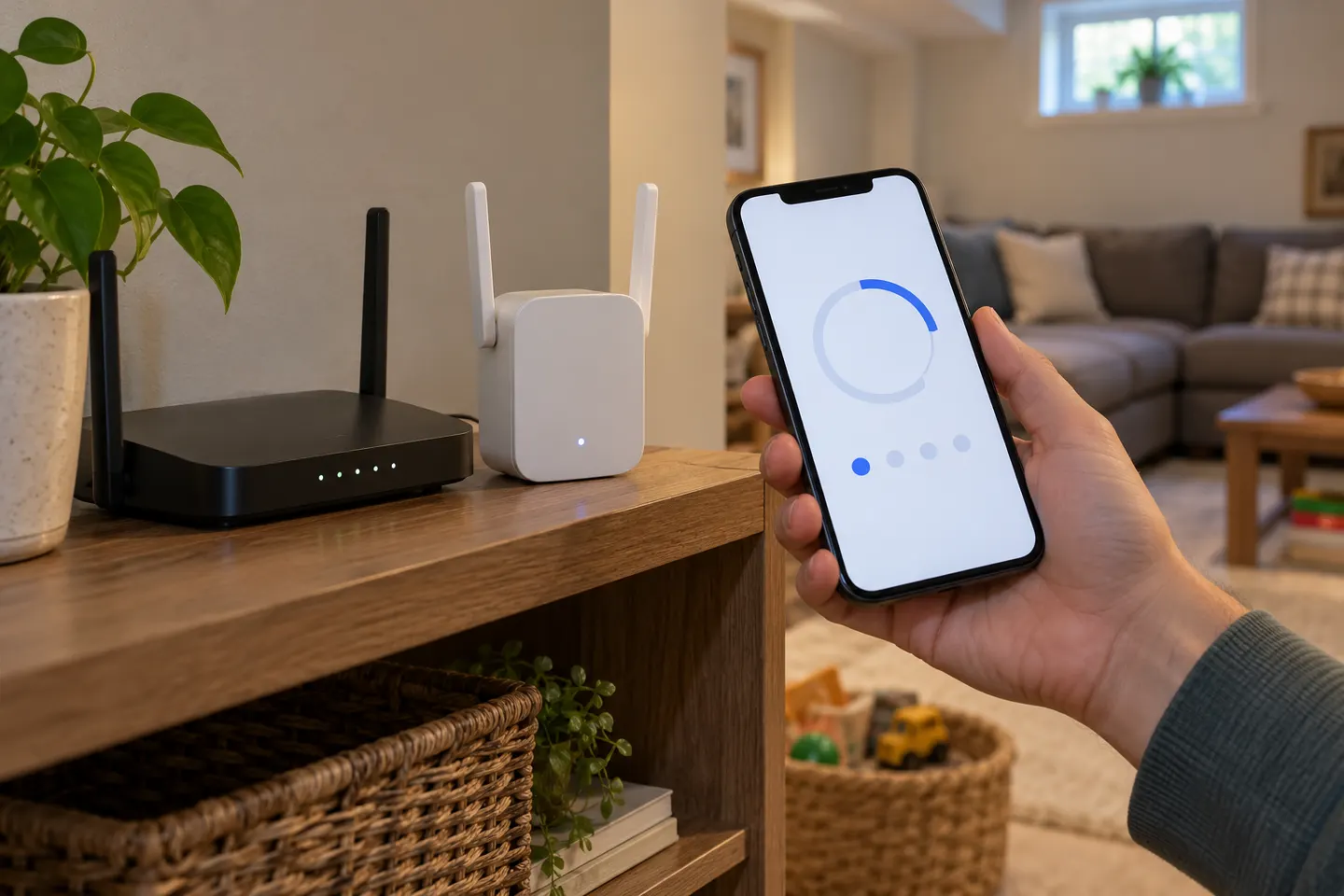 How to Set Up a NETGEAR WiFi Extender at Home
More topics
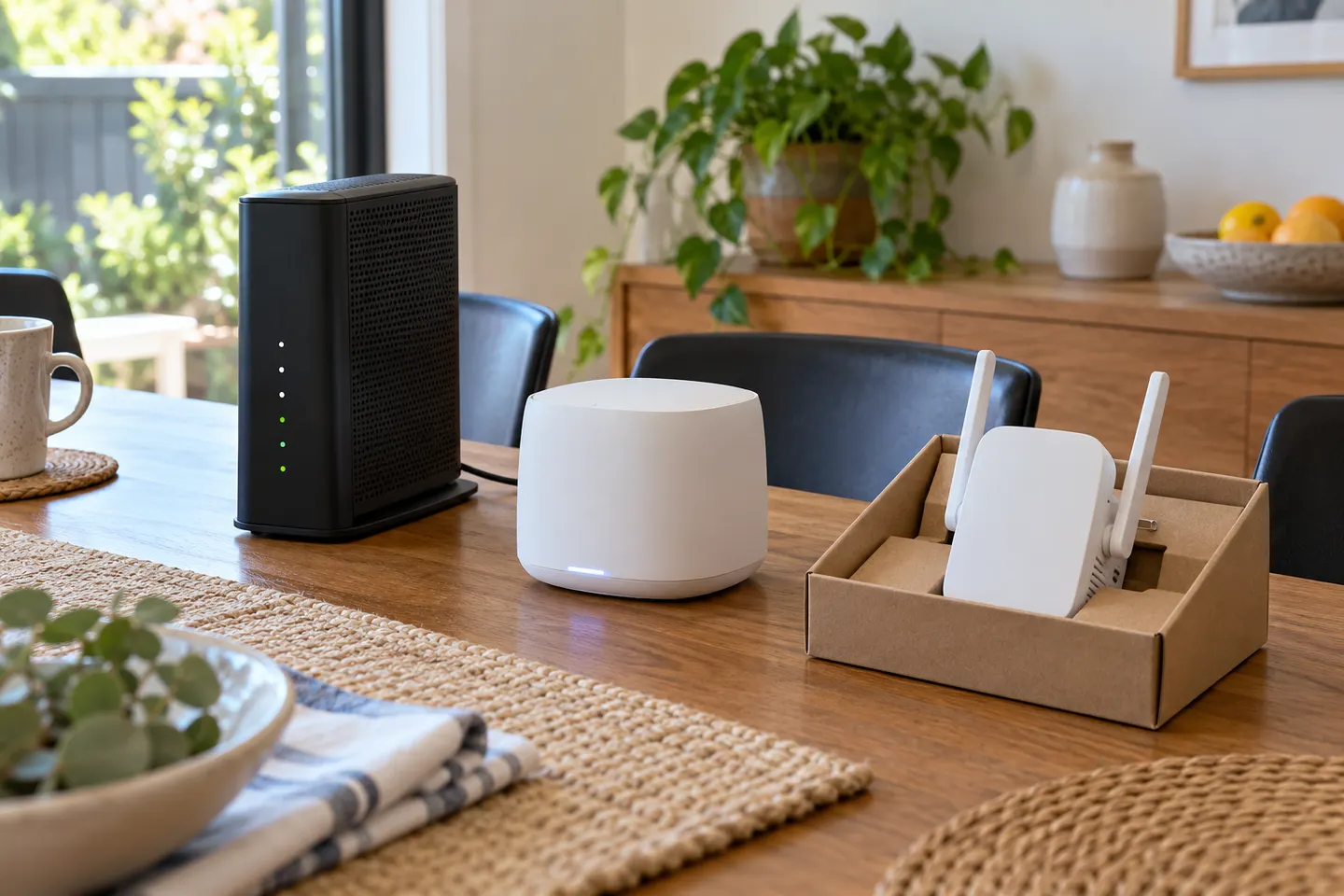 Telstra Wi-Fi Booster and Extender Options Explained
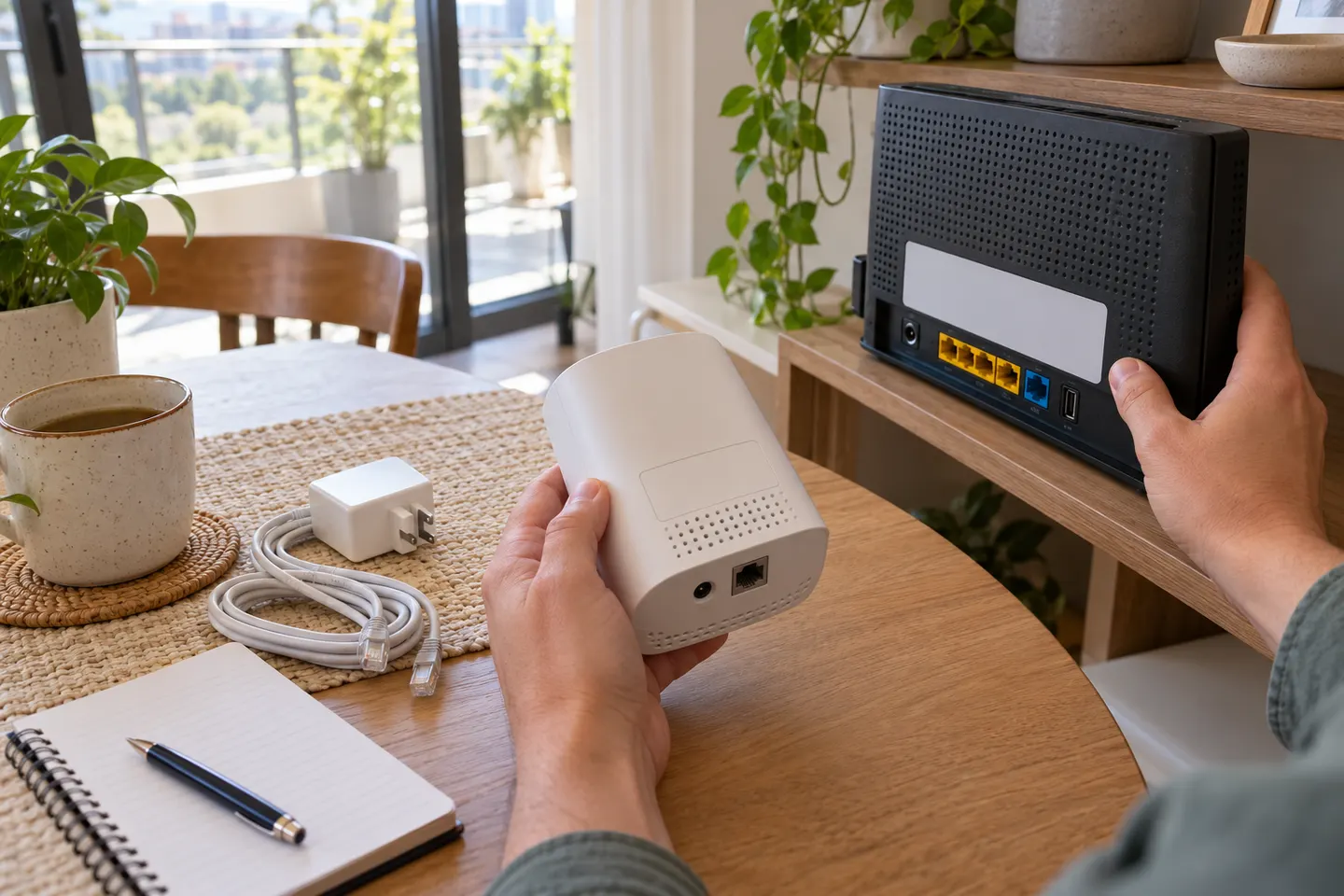 Telstra Smart WiFi Booster Gen 3
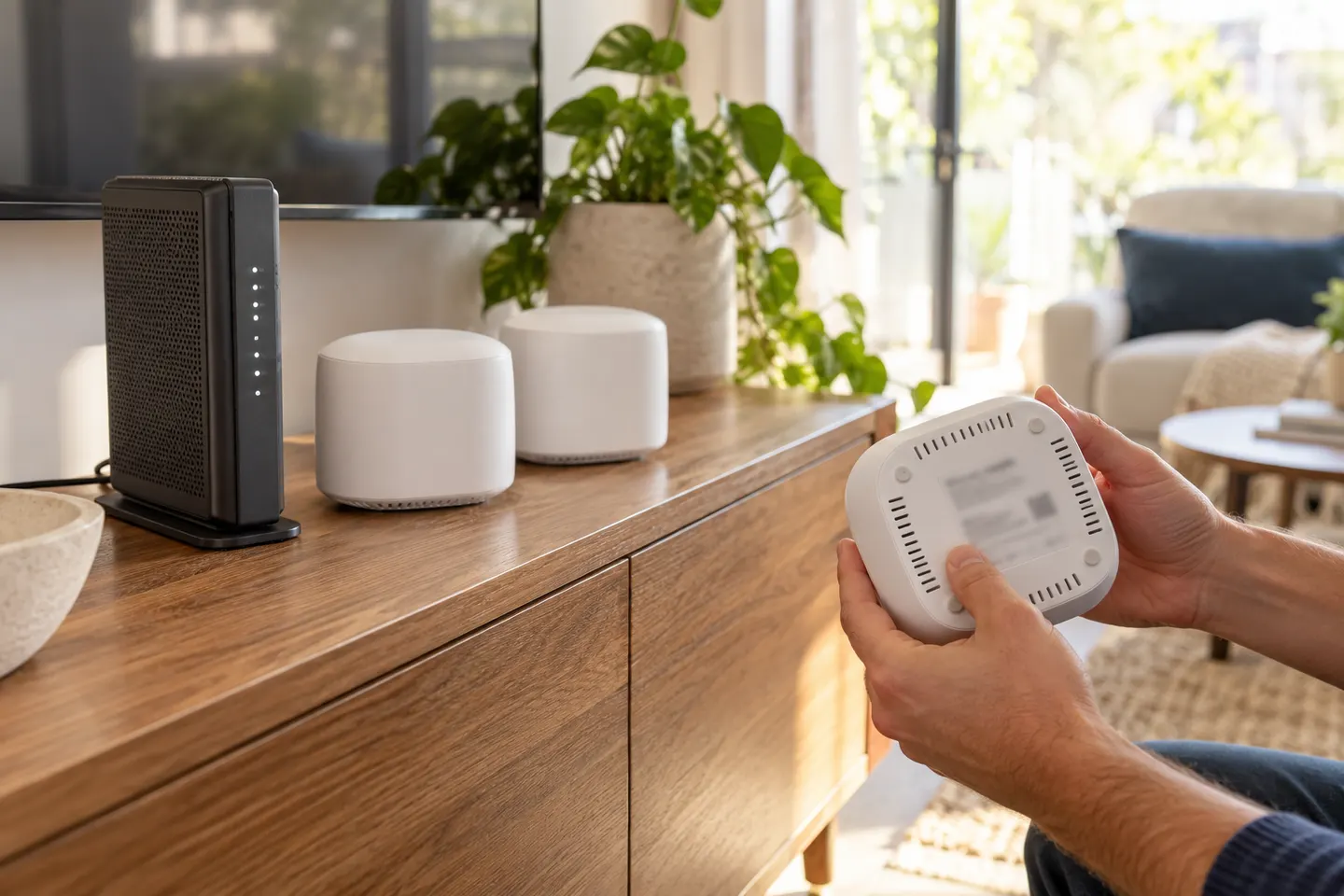 Telstra Smart WiFi Booster 3Telstra Smart Wi-Fi Booster Gen 2
Show all (5)
Common questions
Questions before you buy
How do I set up a Telstra WiFi booster?
Identify the booster generation and compatible modem, then follow the matching Telstra setup guide. The Gen 3 guide is linked from Telstra's Smart Wi-Fi Booster help page; older models may have a separate process.
How do I set up Telstra WiFi Booster Gen 1?
Use the instructions for the exact Gen 1 model and modem in Telstra support. The current Gen 3 process may not match the older booster, so check its label and manual before resetting or pairing.
How do I set up Telstra WiFi Booster 2?
Check Telstra's setup help for the Gen 2 booster and the modem it will join. Model-specific pairing and indicator behaviour can differ from Gen 3.
Where should I place a Telstra Smart Wi-Fi Booster?
Follow Telstra's placement instructions and keep the booster where it has a good connection back to the modem while serving the weak-signal room. Avoid placing it in the dead zone itself.