








 Official manufacturer image
Our picks
Top picks
Official manufacturer image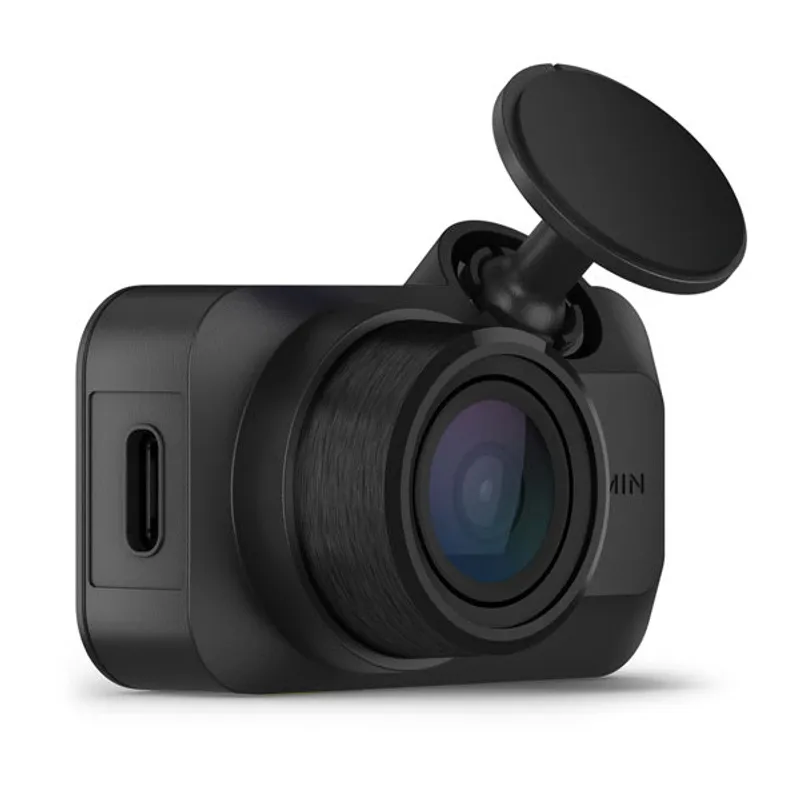 Official manufacturer image
Garmin Dash Cam Mini 3
Check price on Amazon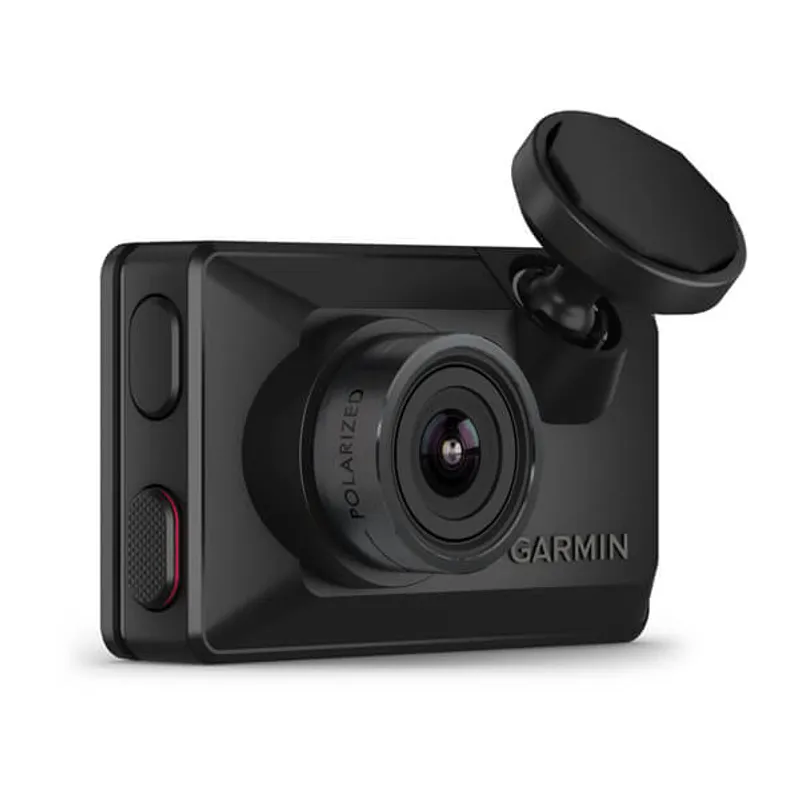 Official manufacturer image
Garmin Dash Cam X310
Check price on AmazonBy vehicle
Installation and accessories
More topics
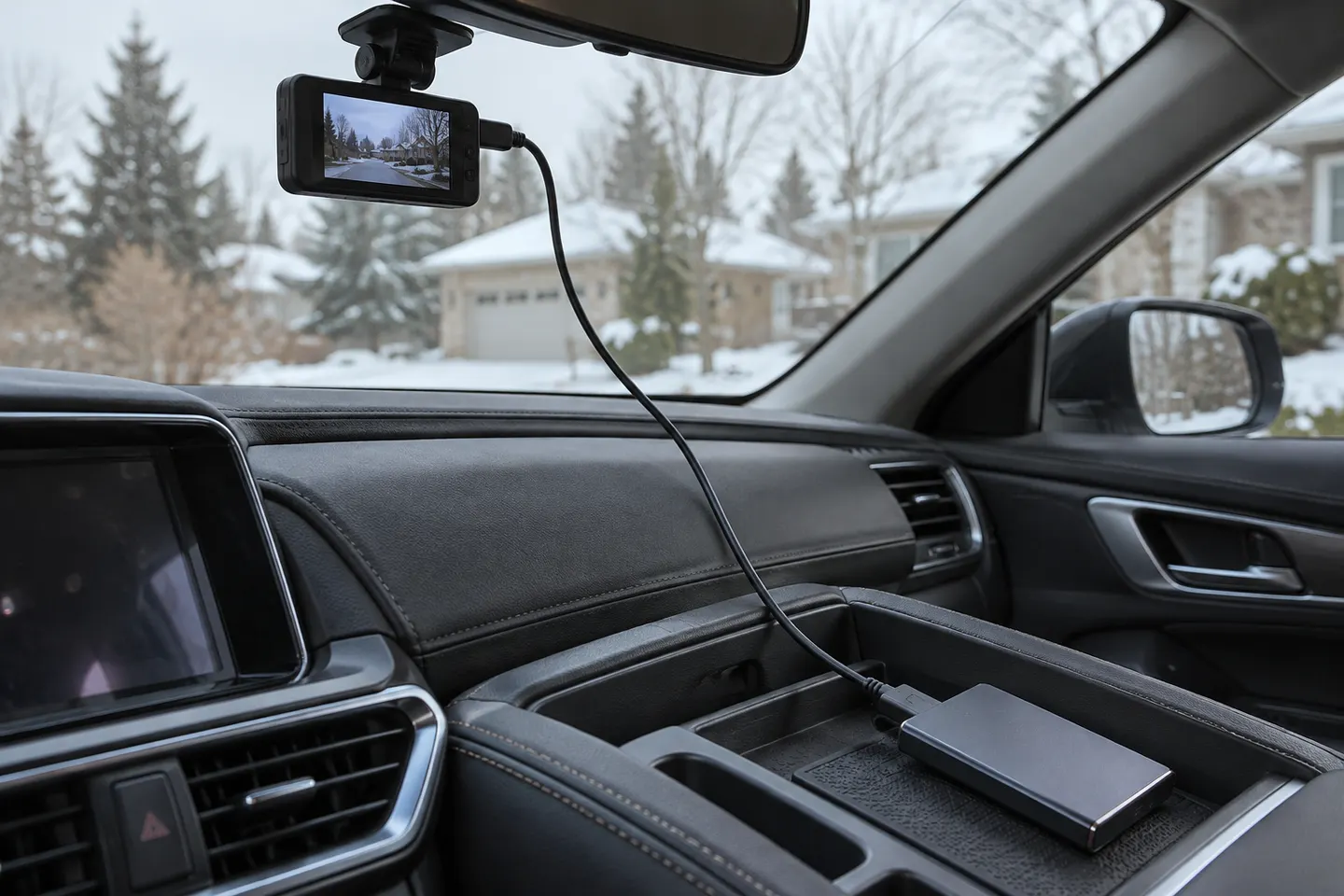 Hard Drive Dash Cam Storage
Common questions
Questions before you buy
Why does my Tesla say Dashcam unavailable, check USB drive?
The car may not detect a writable, correctly prepared drive. Check the data-capable port, connection, file-system format, required folder, available capacity, and drive condition.
Which USB port should Tesla Dashcam use?
Use the recording port specified in the manual for your vehicle. Tesla says some vehicles built after roughly November 1, 2021 have center-console ports that charge only and use the glovebox USB port for data.
What folder does Tesla Dashcam need?
For a manually prepared drive, Tesla's instructions call for a base-level folder named TeslaCam. Other features may require their own named folders.
Will formatting the USB drive delete my Tesla clips?
Yes. Copy any footage you need before formatting, then let the vehicle format the drive or follow Tesla's manual process.
What if the error returns after formatting?
Test the connection and approved port, restart according to the manual, and try a compatible high-endurance drive. Repeated write errors can indicate worn or failing storage.