Gearjury may earn a commission from qualifying retailer links.
Guide
How Do You Connect a WiFi Booster to Your Router?
Connect a booster to the existing router network using its app, web setup or WPS, then move it only after pairing succeeds. Keep the extender within reliable range of the router.
GGearjury editorial team · Updated 18 October 2026· 5 min
01
Prepare the router and extender
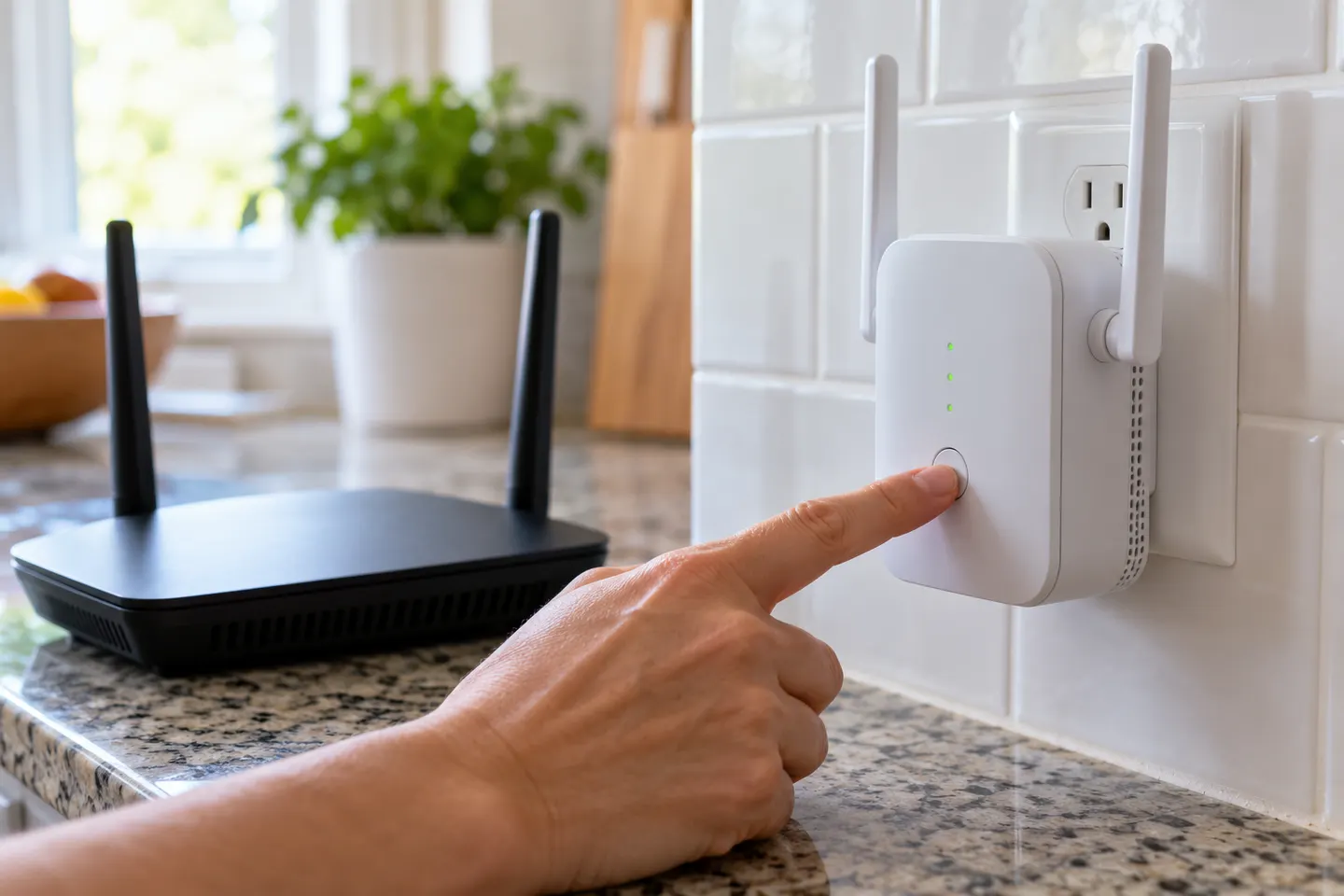
Place the extender beside the router for initial setup and plug it into a wall outlet. Have the WiFi network name and password ready. If the device is managed by an internet provider, check that it is compatible with the modem first.
02
Choose app, browser or WPS setup
Follow the manufacturer's instructions for your exact model. Many extenders offer an app or web interface; some also support WPS. With WPS, press the router's WPS button and then the extender's pairing button within the window specified in the manual.
03
Confirm the booster has joined the network
Wait for the connection indicator or setup screen to confirm pairing. If it fails, verify the password, supported band and router security mode. A factory reset should be a later troubleshooting step, because it erases saved configuration.
04
Move the unit toward the weak-signal room
Unplug the paired device and move it to a location between the router and the coverage gap where the router signal remains usable. Keep it elevated and away from thick walls, large metal objects and appliances that may interfere.
05
Test coverage and avoid unnecessary hops
Check a device in the problem room and watch the extender's signal indicator. If the link is weak, move the unit closer to the router. When using more than one extender, connect each directly to the host router where possible; avoid chaining wireless repeaters unless the manufacturer supports that topology.
Common questions
Questions before you buy
How do you connect a WiFi booster without WPS?
Use the manufacturer's app or web setup page to select your existing WiFi network and enter its password. The menus vary by model, so follow the matching setup guide rather than using another device's instructions.
Can you have more than one WiFi booster?
Yes, some systems support multiple extenders. TP-Link recommends that its extenders connect directly to the host router where possible and cautions against a wireless extender-to-extender link for performance; check the manufacturer's topology guidance.
Can you have more than 1 WiFi booster?
Yes, if the router and extender system support it. For a TP-Link setup, the manufacturer recommends one or two extenders and says each should connect directly to the host router rather than relying on a chain.
Where should I plug in a WiFi booster?
Start near the router for pairing, then relocate it roughly between the router and the weak area. Choose a position where the booster still receives a strong signal from the router.
A Wi-Fi extender can help reach a weak-signal room when positioned within range of your router. Compare plug-in repeaters, mesh-compatible models, outdoor units and powerline kits by how they connect.
The right Wi-Fi extender depends on the router signal at its location, your home layout and whether you need Ethernet, outdoor placement or powerline networking.
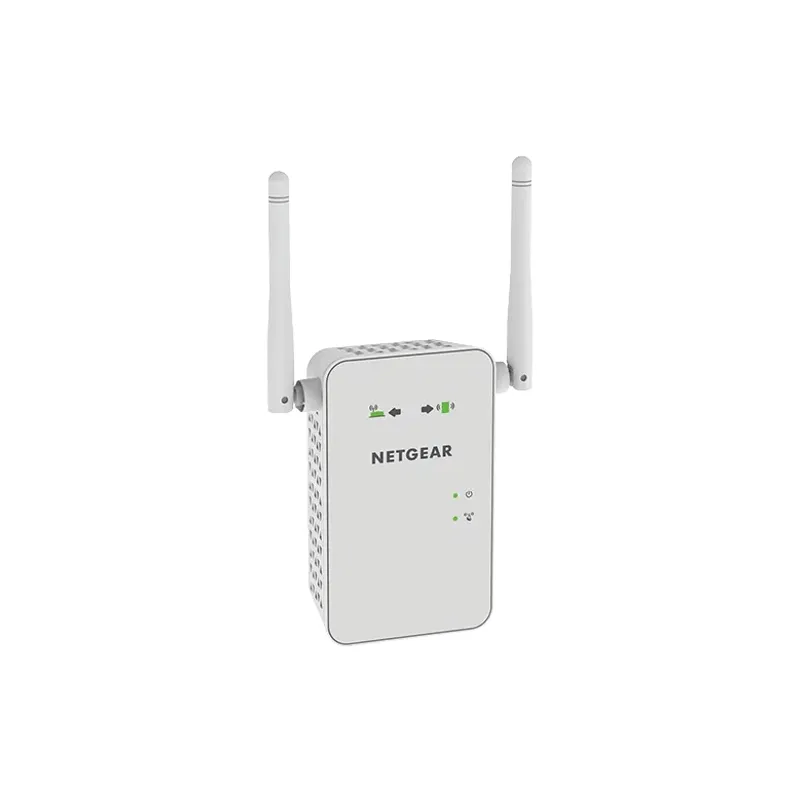
Start with the network standard and location of the dead spot. NETGEAR?s EX6120 is a dual-band AC model, while EAX15 adds WiFi 6; check exact router and firmware compatibility before buying.
Your privacy
We use cookies and similar technologies. Necessary ones keep the site working. With your permission we also use statistics cookies (Google Analytics and Microsoft Clarity) to understand which guides help readers. You can accept all, reject all or choose. You can change your choice at any time from "Cookie settings" at the bottom of every page. Cookie policy