







 Official manufacturer image
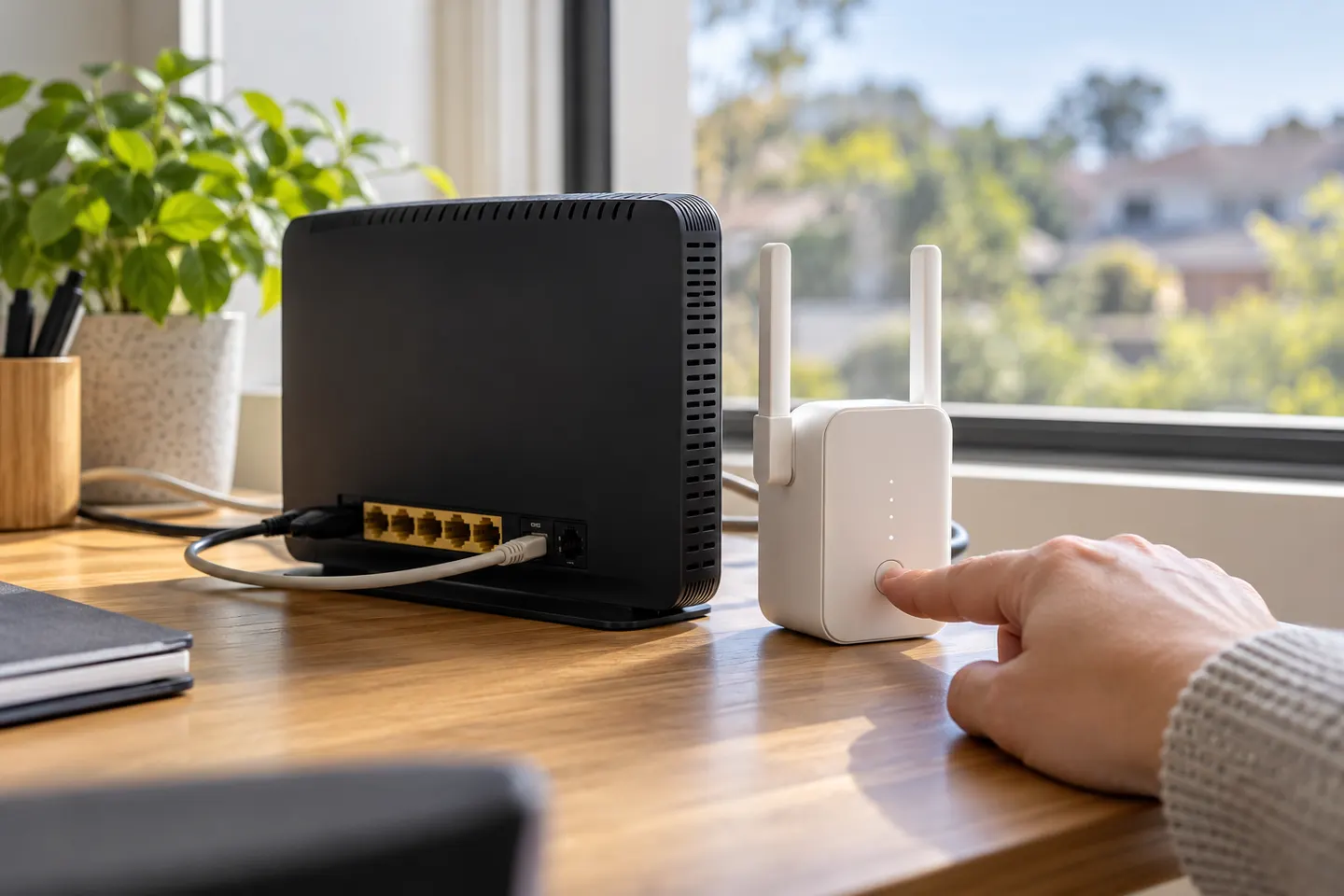
Our picks
Top picks
Official manufacturer image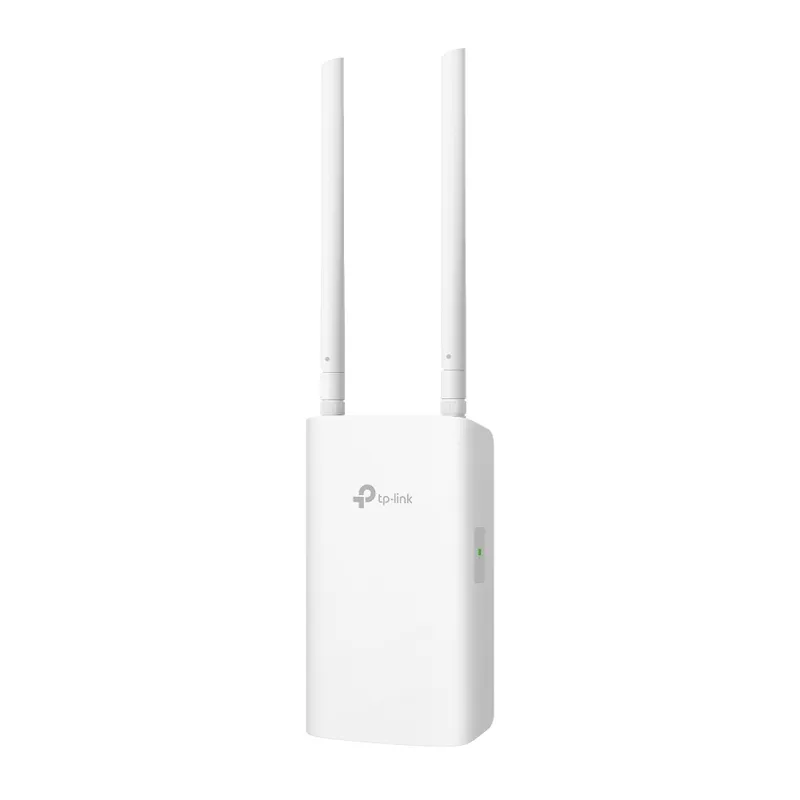 Official manufacturer image
TP-Link RE705X-Outdoor
Check price on Amazon AU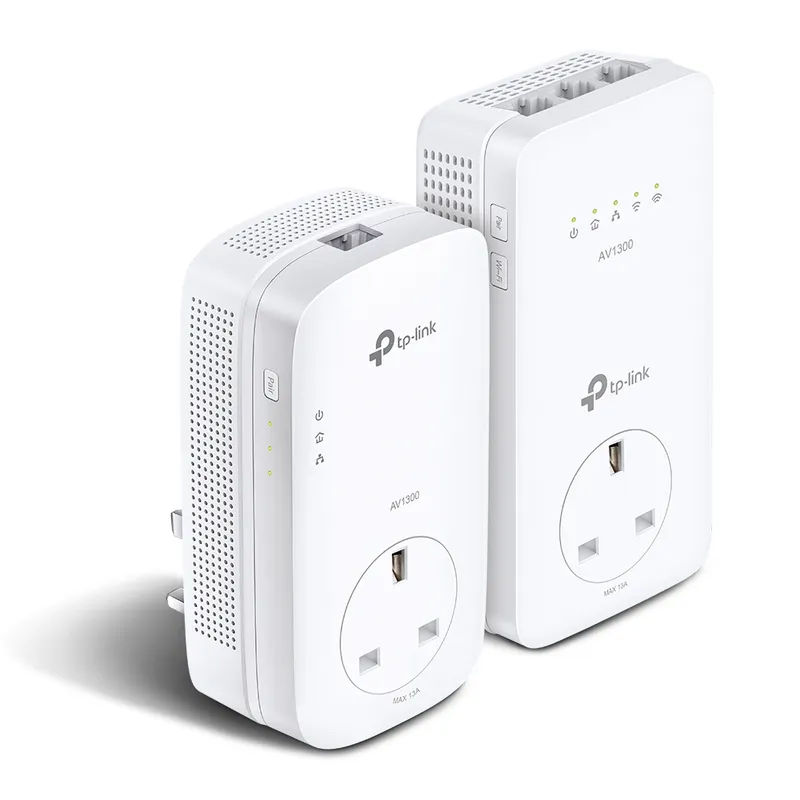 Official manufacturer image
TP-Link TL-WPA8631P KIT
Check price on Amazon AUSetup and help
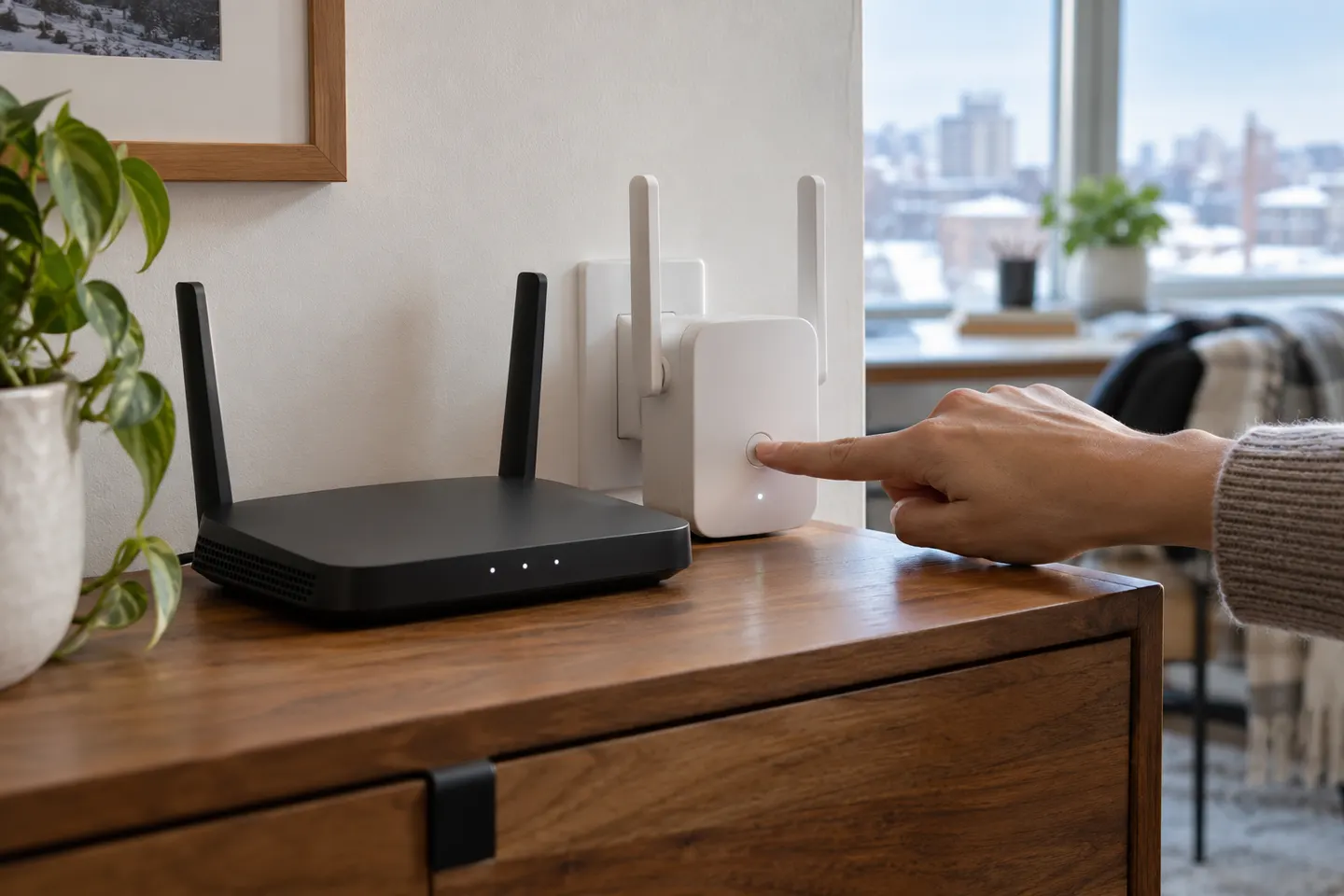 Setup
How-to guides
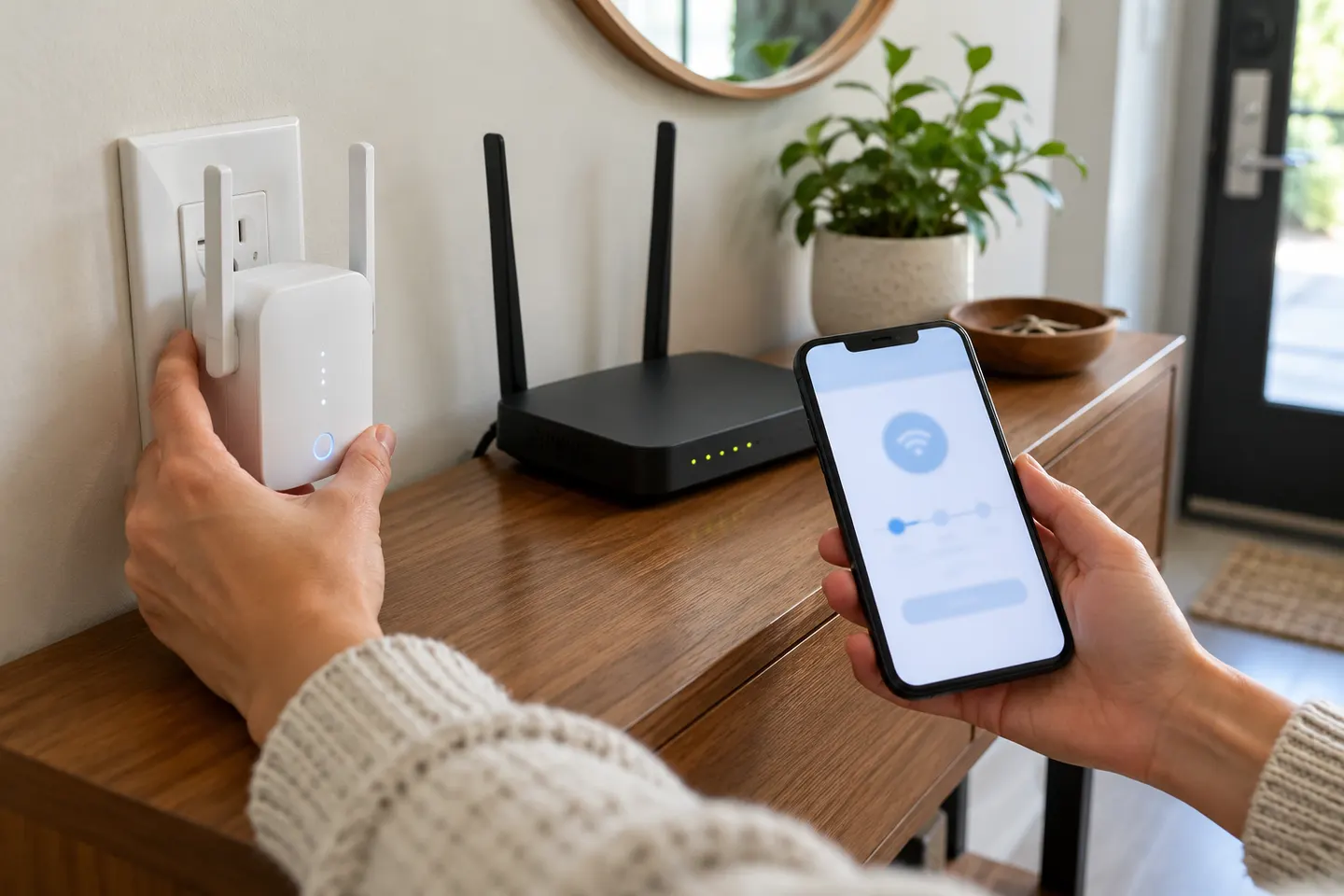 How to Set Up a TP-Link WiFi Extender with Your…
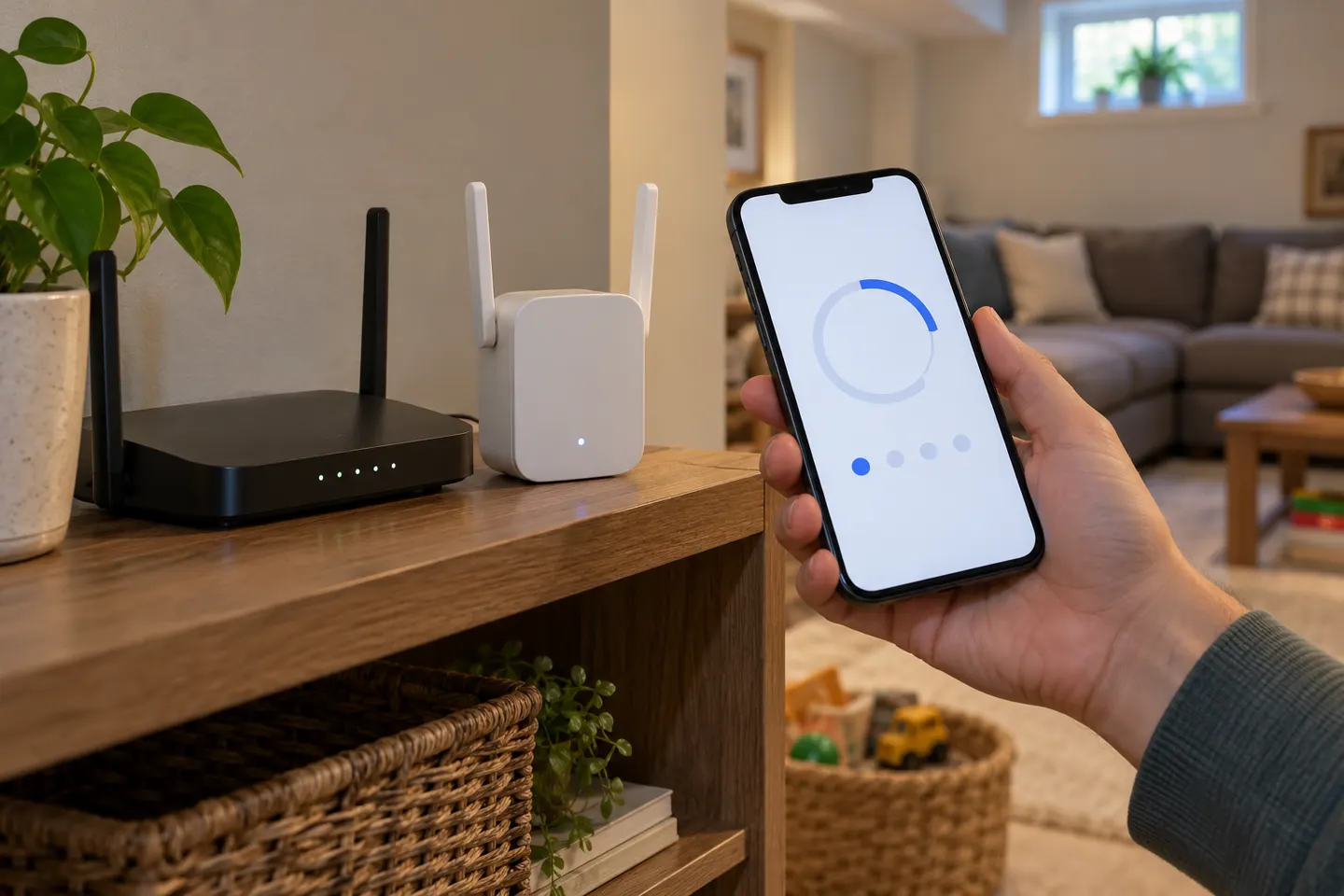 How to Set Up a NETGEAR WiFi Extender at Home
More topics
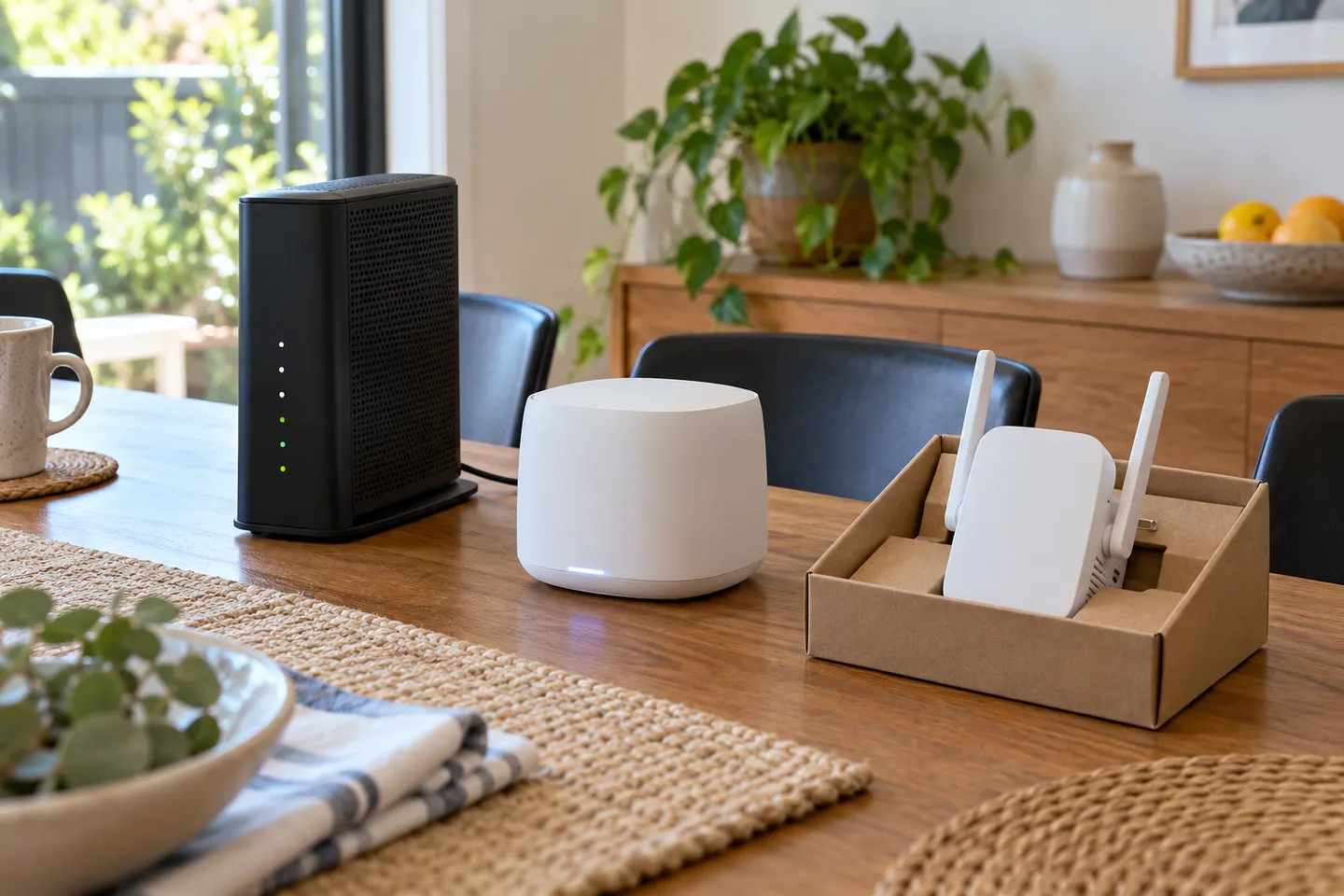 Telstra Wi-Fi Booster and Extender Options Explained
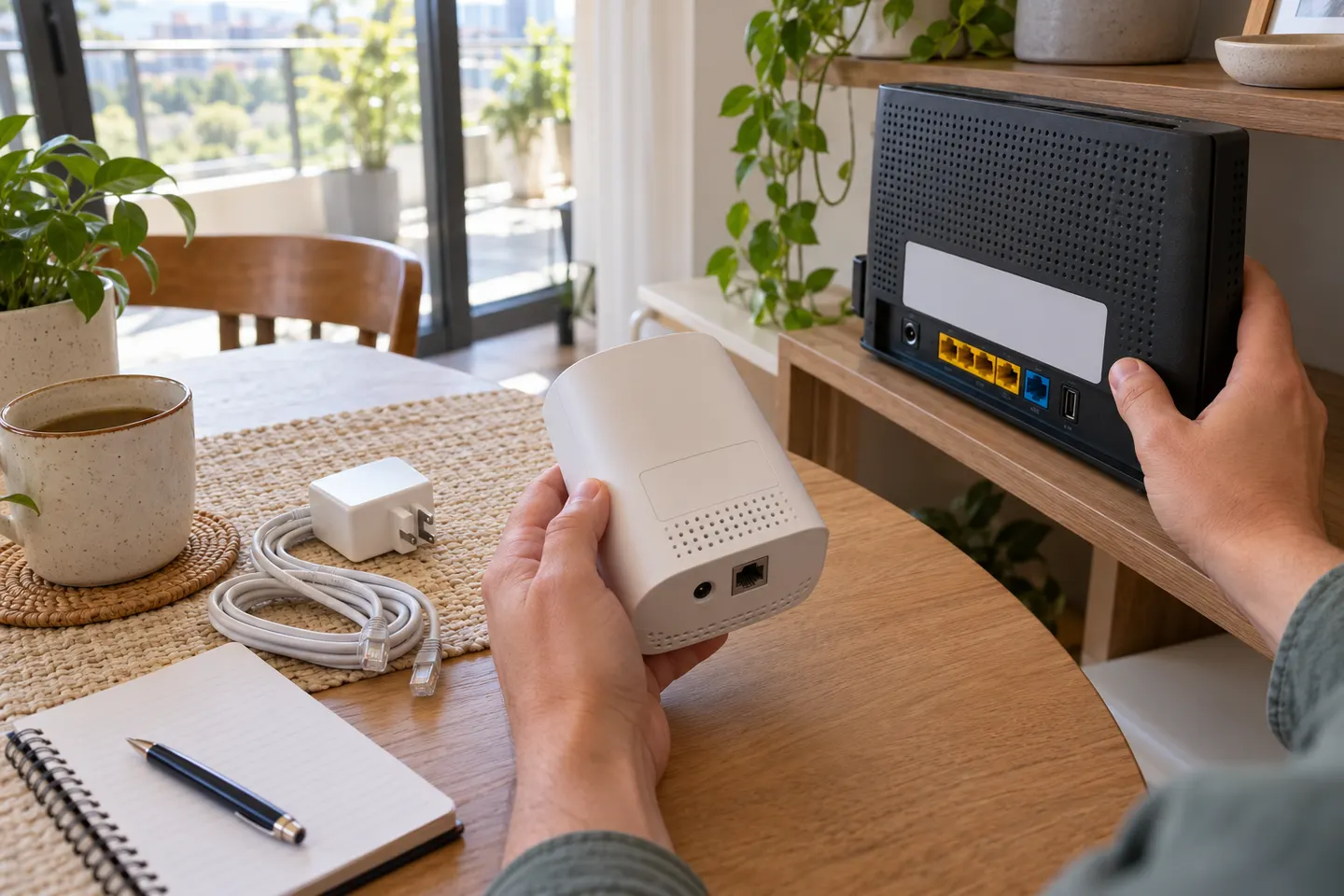 Telstra Smart WiFi Booster Gen 3
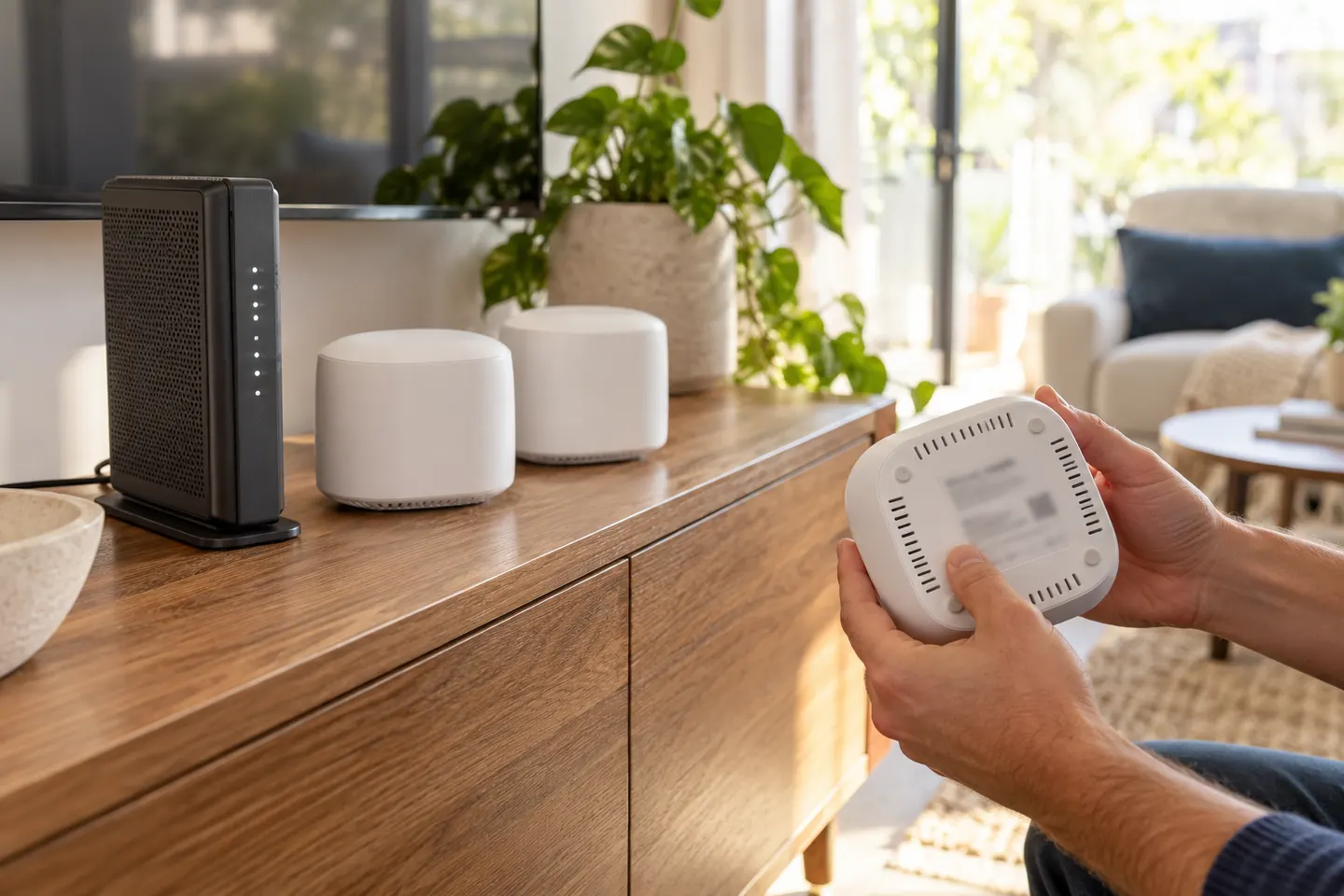 Telstra Smart WiFi Booster 3Telstra Smart Wi-Fi Booster Gen 2
Show all (5)
Common questions
Questions before you buy
Does Booster 3 work with every router?
Telstra documents it for compatible Telstra Smart Modems. Verify your modem model in current Telstra guidance.
Where should I place it after setup?
Start near the modem, then move towards the weak area without losing a reliable connection.
Does it create a separate WiFi name?
Telstra describes the mesh setup as using a unified network name.
What if pairing does not finish?
Check compatibility, keep devices close and restart them. Use model-specific Telstra instructions before resetting, which removes saved setup.